

About the Account Menu
The Account Menu Button is at the bottom of the left sidebar in the Iru web app. It shows your name and email. Select it to open a menu of tenant-wide settings and account options that are not tied to a single product area (Endpoint, Identity, or Compliance).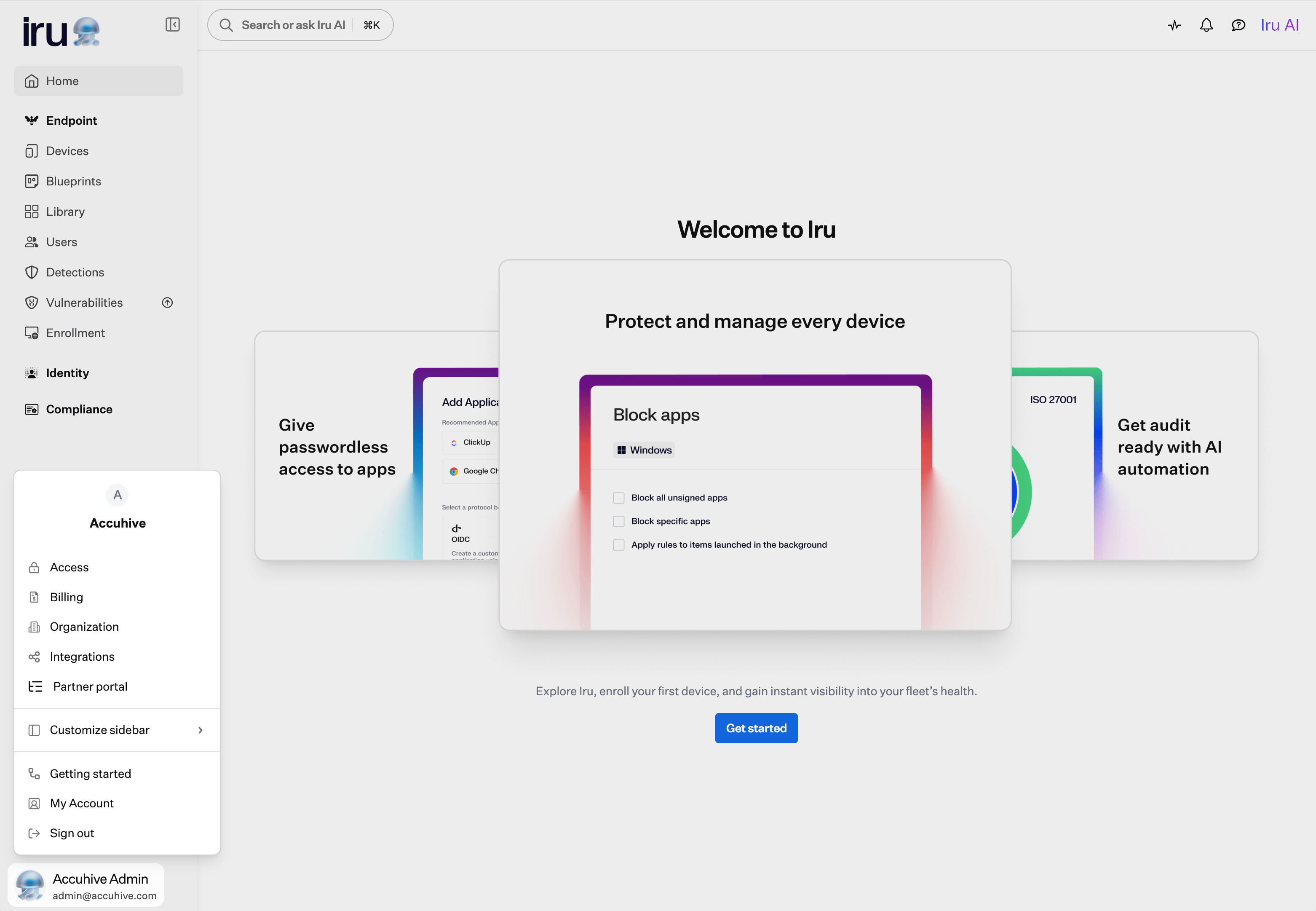
How to Open the Account Menu
In the sidebar, select the Account Menu Button at the bottom of the left navigation.Menu Options
Depending on your permissions, you may not see Access, Billing, Organization, Integrations, or Partner portal in the account menu. Partner portal appears only for Account Owners and Administrators on an MSP parent tenant. See Team Member Role Permissions for which roles can open each option.
While you are in the Partner portal, the account menu includes Home. Select Home to return to your MSP parent tenant.
Related Navigation
Some features moved out of the account menu in the Iru interface. You can find them here instead:- Activity: Pulse icon in the top right navigation bar. See Activity Page and Unified Activity.
- Alerts: Bell icon in the top right navigation bar. See Global Alerts.
- Enrollment: Bottom of the Endpoint section in the left sidebar. See Getting Started.