

About the Organization Page
The Organization page holds the settings that apply across your whole tenant. It has two parts:- Organization Profile: The section at the top of the page. It holds your organization-wide details, such as your company name, logo, and business details. Select Edit to change them.
- Tabs: Settings for the other parts of Iru:
- Endpoint: The platforms you manage, your device count, and the device domains your devices must reach.
- Iru AI: Whether Iru AI is available in your tenant.
- Resources: Feature requests and Auto App requests.
Your company name and logo also appear to your people in Iru Identity, on the sign-in screen and on their app dashboard.
Open the Organization Page
1
Open Organization
In the sidebar, select the Account Menu Button, then select Organization.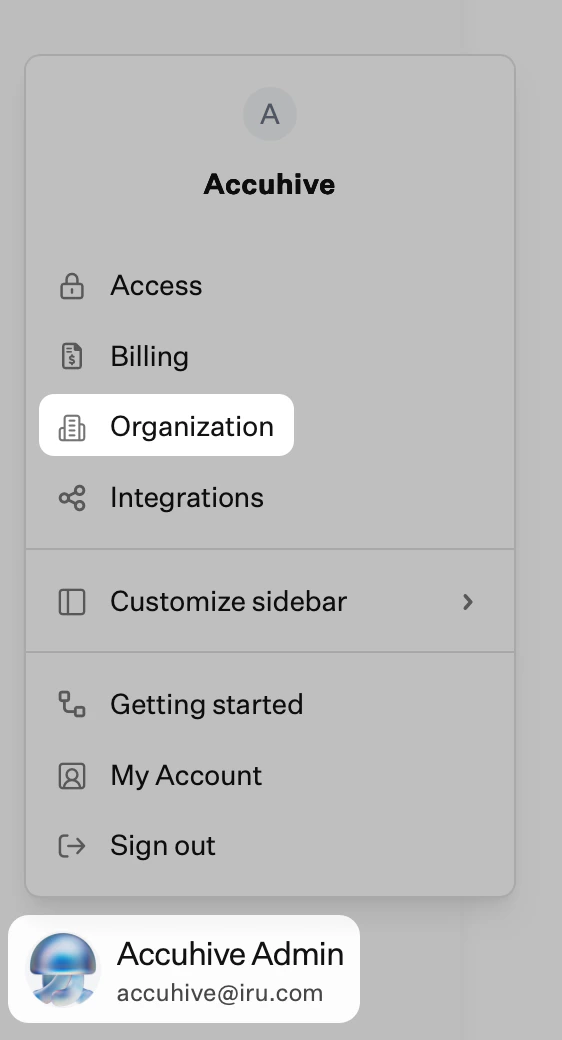
Edit the Organization Profile
The Organization Profile describes your company and sets the name and logo for your tenant.1
Select Edit
In the Organization Profile section at the top of the Organization page, select Edit.
2
Update your details
Change any of the following fields:
- Add company logo: Upload your logo.
- Company name: The name of your organization.
- Business description: A short description of what your company does.
- Industry and Business type: Choose the options that describe your company.
- Company size and Company language: Choose your organization’s size and primary language.
- Has IT department: Select Yes or No.
- Security team size: Select the size of your security team.
3
Save changes
Select Save changes at the bottom right of the page.
Where Your People See the Name and Logo
Your company name and logo are your tenant’s brand in Iru Identity. They tell your people they are signing in to the right place, which also helps them spot look-alike phishing pages.- Sign-in screen: Your logo and company name appear while users authenticate. See The sign-in experience.
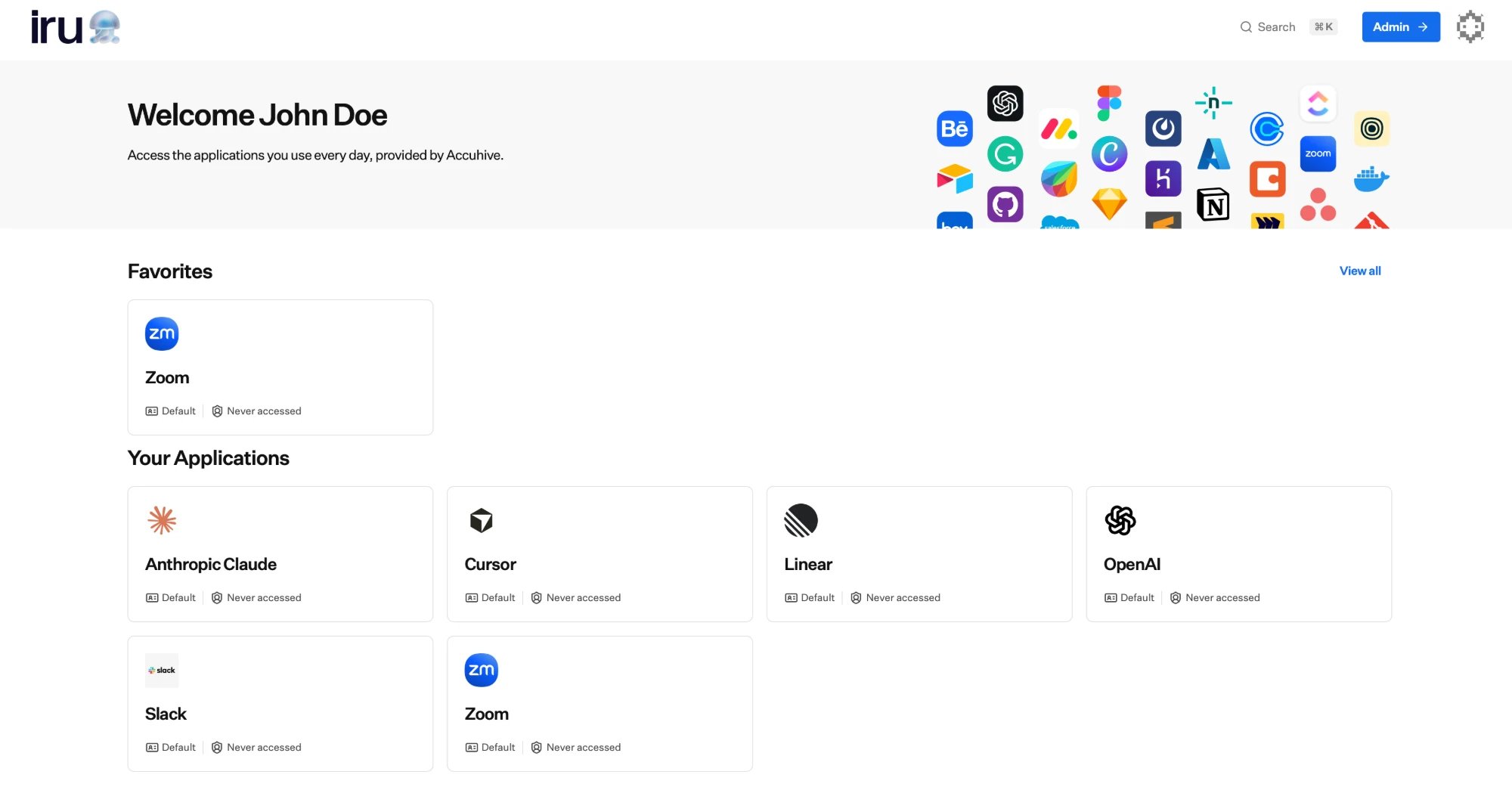
- App dashboard: Iru welcomes each user and notes that their applications are provided by your organization, using your company name. See End-user experience.
Endpoint Tab
The Endpoint tab shows the platforms your tenant manages, your device count, and your device domains. Devices must be able to reach both device domains. Use the copy button next to each domain when you configure firewalls or proxies. See Using Iru on Enterprise Networks.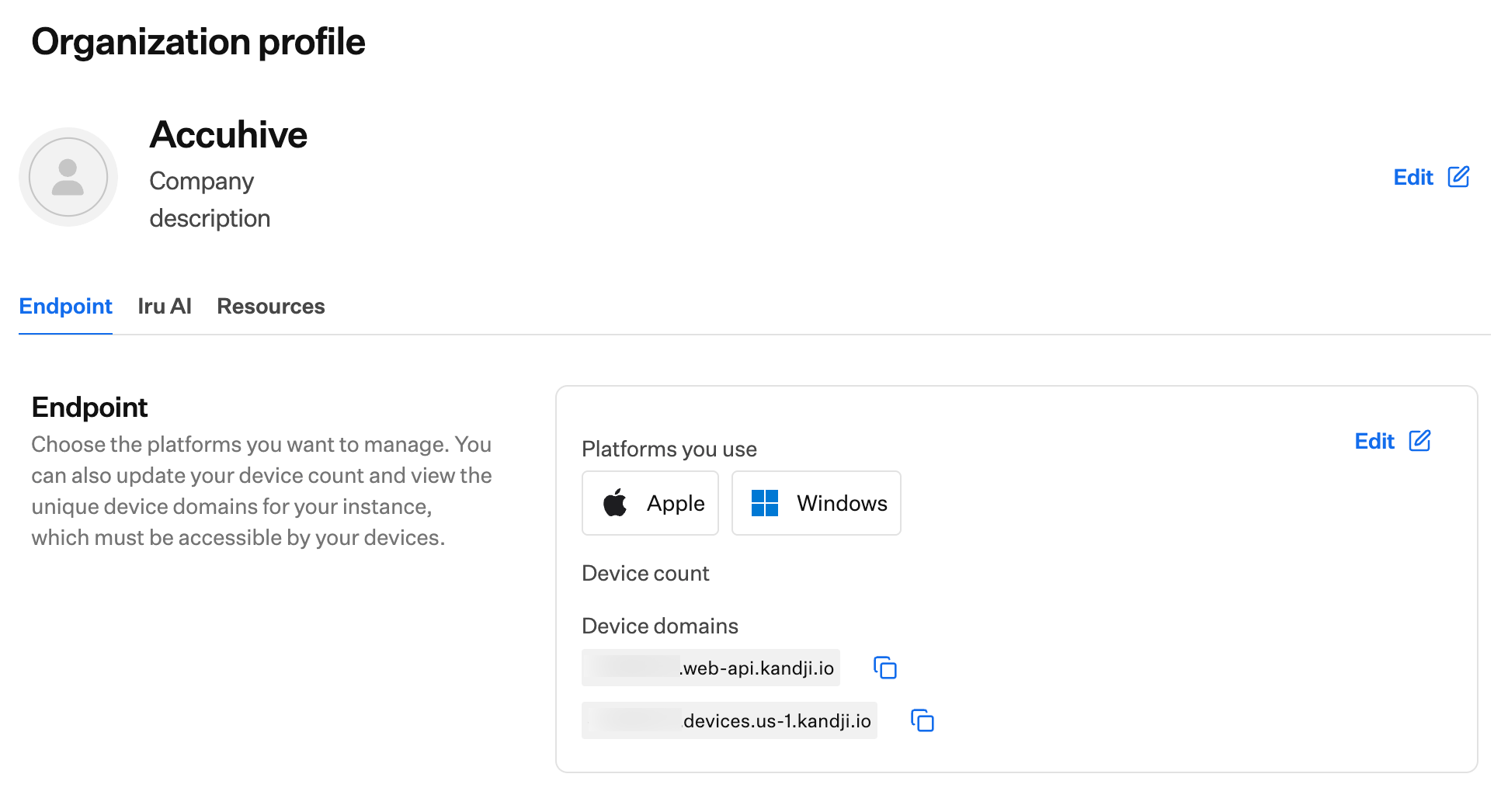
Change Platforms and Device Count
Only the Account Owner can change which platforms your tenant uses. Other team members see a notice naming the Account Owner, and Edit is unavailable. See Team Member Role Permissions.
1
Open the Endpoint tab
On the Organization page, select the Endpoint tab.
2
Select Edit
In the Endpoint section, select Edit.
3
Choose platforms and device count
Under Platforms you use, select Windows or Android to turn a platform on or off. Under Device count, select the range that matches your fleet.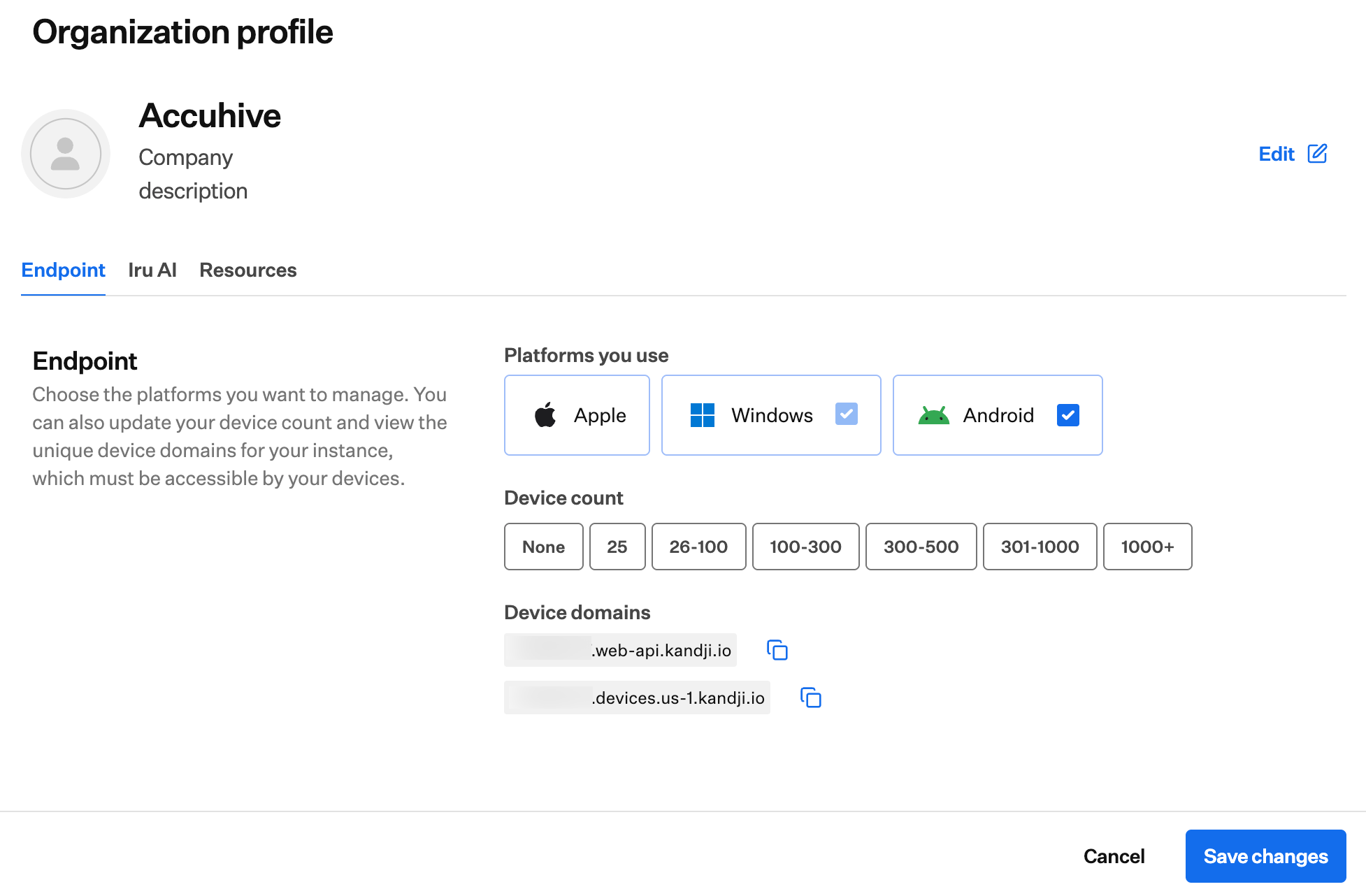
4
Save changes
Select Save changes at the bottom right of the page.
When a Platform Can’t Be Turned Off
Iru keeps a platform on while it is still in use. Hover over a platform that can’t be changed to see why.- Windows: Can’t be turned off while Windows devices are enrolled. Remove your Windows devices first.
- Android: Can’t be turned off while Android devices are enrolled and the Android Enterprise integration is connected. Remove your Android devices and disconnect Android Enterprise first.
Iru AI Tab
Only the Account Owner can turn Iru AI on or off for the whole tenant. On the Iru AI tab, use the Iru AI toggle under Iru AI enablement. For what changes when Iru AI is off, see Managing Iru AI Access.Resources Tab
The Resources tab is where you send ideas to the Iru team. Share a feature request or request a new Auto App.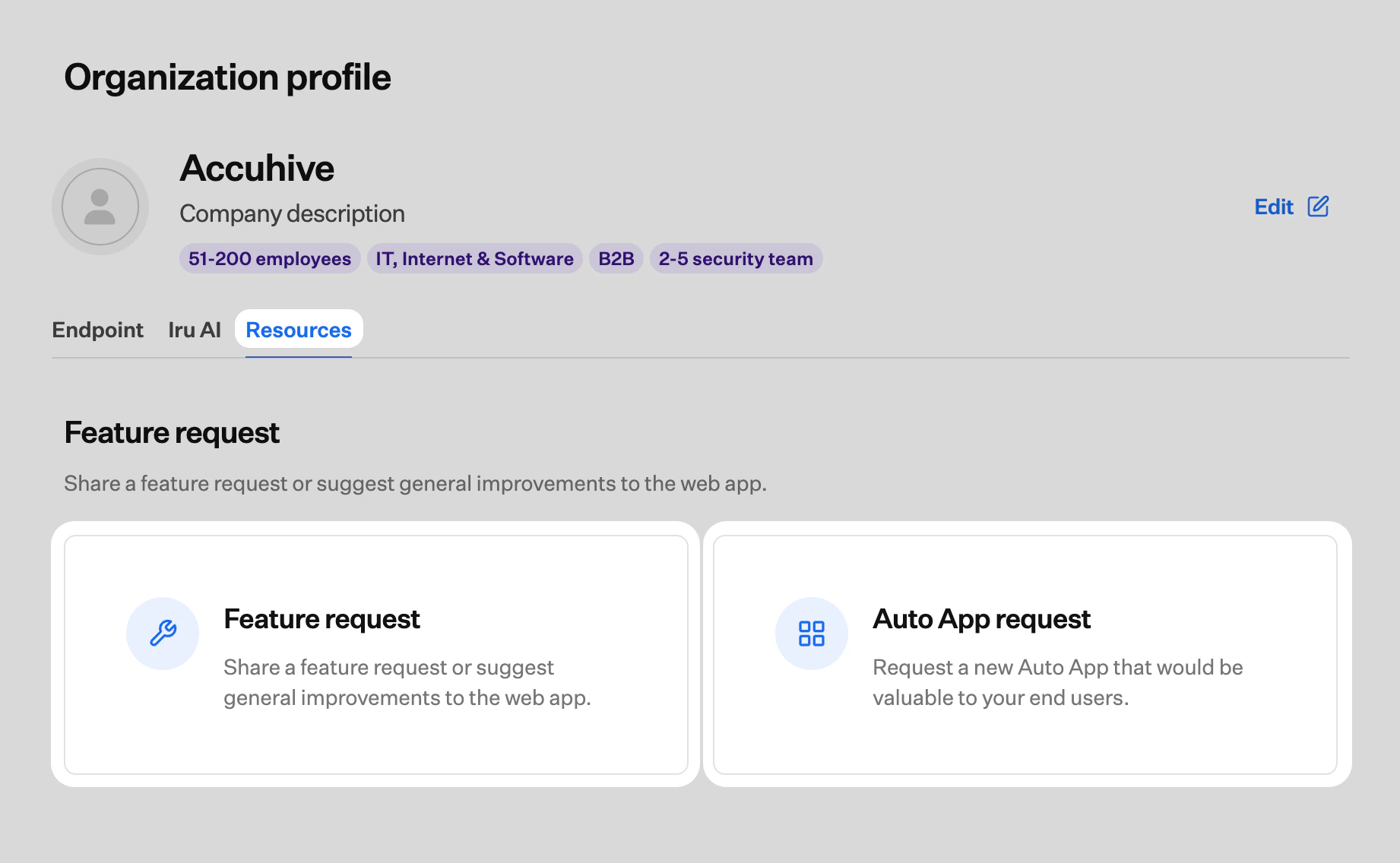
Related Articles
Account Menu
Reach Organization and other tenant-wide settings.
The sign-in experience
See how your name and logo appear as your users authenticate.
End-user experience
See the app dashboard where your people launch their apps.
Self Service Settings
Customize the logo, header, and subheader in Self Service.
Team Member Role Permissions
Check which roles can change Organization settings.