

About Prism
Prism stores the device data Iru AI uses to answer questions and surface recommendations. Collection and organization happen in Prism. Iru AI then makes that data available in conversation and through proactive insights.Prism Data Categories
Prism organizes device data into these categories:Devices
General information about your enrolled devices.
Activation Lock
Device and user Activation Lock status, bypass code escrow, and related settings for iOS, iPadOS, visionOS, and macOS devices.
Application Firewall
Built-in macOS application firewall status, including block all incoming, stealth mode, logging, allow signed applications, and firewall unloading. Firewall exceptions are not included here; they will ship later in their own category.
Apps
Application inventory for iOS, iPadOS, tvOS, visionOS, and macOS devices, including source, signature, Team ID, and install or download state. On Mac, the Iru Agent also records each app’s last-opened date and timestamp.
Cellular
Cellular details for iOS and iPadOS devices, including dual-SIM Slot 1 and Slot 2 data such as carrier, roaming, personal hotspot, IMEI, ICCID, and EID.
Certificates
Installed certificates on macOS, iOS, iPadOS, and tvOS devices, reported with common name and whether each is an identity certificate.
Desktop & Screensaver
Screensaver path and interval, clock display, and hot corners per user account on macOS devices.
FileVault
FileVault status on macOS devices, including recovery key type, escrow status, regeneration needed, and next scheduled rotation.
Gatekeeper & XProtect
Gatekeeper status and mode on macOS, plus Gatekeeper, Opaque, XProtect, and MRT versions. Gatekeeper exceptions will arrive later as a separate category.
Installed Profiles
All installed profiles on Apple devices, including profiles not installed by Iru Endpoint, with managed, removable, signed, encrypted, and removal passcode attributes.
Kernel Extensions
Installed kernel extensions and their status on macOS devices.
Launch Agents & Daemons
Launch agents and daemons on macOS devices, including load and disabled state, domain, program arguments, and the local user for user agents.
Local Users
Local users on macOS devices, including Administrator or Standard type, Secure Token, FileVault User, Volume Owner, Mobile Account, and Home Folder Secured.
Startup Settings
Core macOS security settings such as System Integrity Protection (SIP), Authenticated Root Volume, Bootstrap Token, and Secure Boot.
System Extensions
Installed system extensions on macOS devices, including state, MDM Managed, Team ID, and version details.
Transparency Database
Transparency, Consent, and Control (TCC) entries on macOS devices, including service, application, Allowed or Denied status, and status reason (User Set, System Set, or MDM Policy).
Using Prism
Open Devices, then select the Prism tab.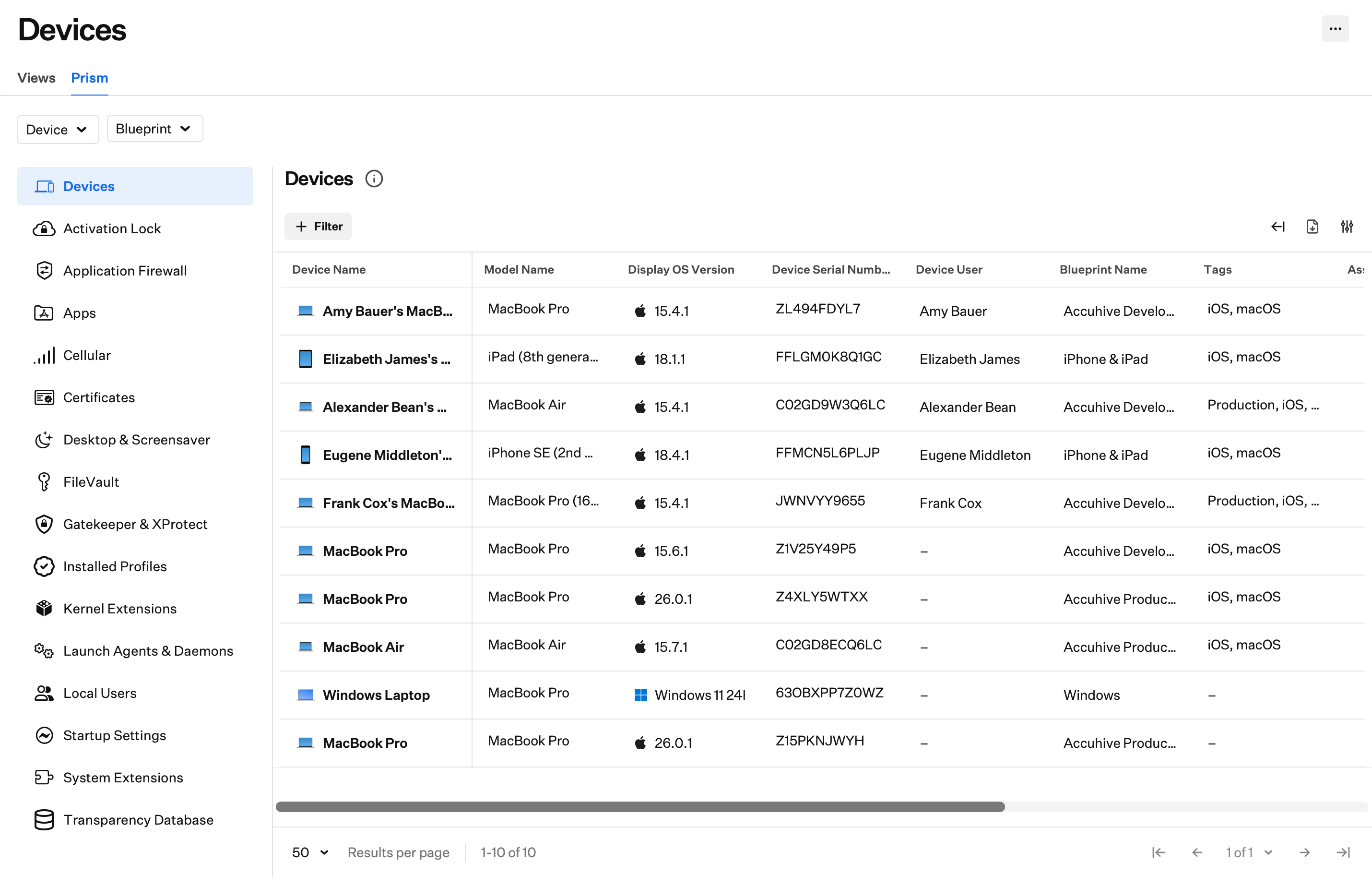
Global Filters
Use the Device and Blueprint filters to narrow Prism results across all categories. Categories that do not apply to the filtered platform may be grayed out. For example, FileVault grays out when you filter to iOS devices.Device
Filter by platform. Options include:- Apple, with nested choices for Mac, iPhone, iPad, Apple TV, and Vision
- Windows
- Android
Blueprint
Filter by Blueprint. Search Blueprints, choose Select all, or select individual Blueprints. Use Clear to remove Blueprint selections.Expand and Collapse Table View
Select Expand table view to hide the Prism category sidebar and give the table more room. Select Collapse table view to show the sidebar again.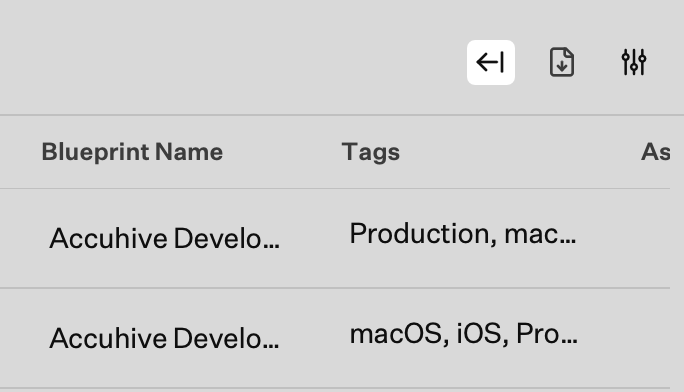
Manage Tags
From the Devices page (including Prism), open the ellipsis menu and select Manage tags to search for, add, edit, or delete tags for your tenant. For full steps, see Tags for Devices.View Settings
Use View settings to choose which attributes appear in the table for the current category.1
Select View settings
Select View settings.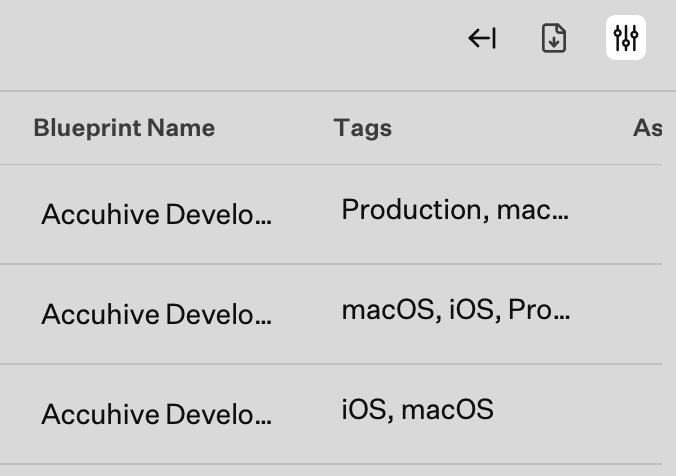
2
Search for a field
Search for a specific attribute if you have one in mind.
3
Hide all
Select Hide all to turn off all optional columns.
4
Uncheck columns
Uncheck individual columns to hide them from the table.
5
Reorder columns
Select and drag the drag-and-drop icon to reorder columns.
6
Show all
Select Show all to turn on all columns.
7
Check hidden items
Check items in the hidden list to show them in the table again.
8
Close View settings
Select X to close View settings.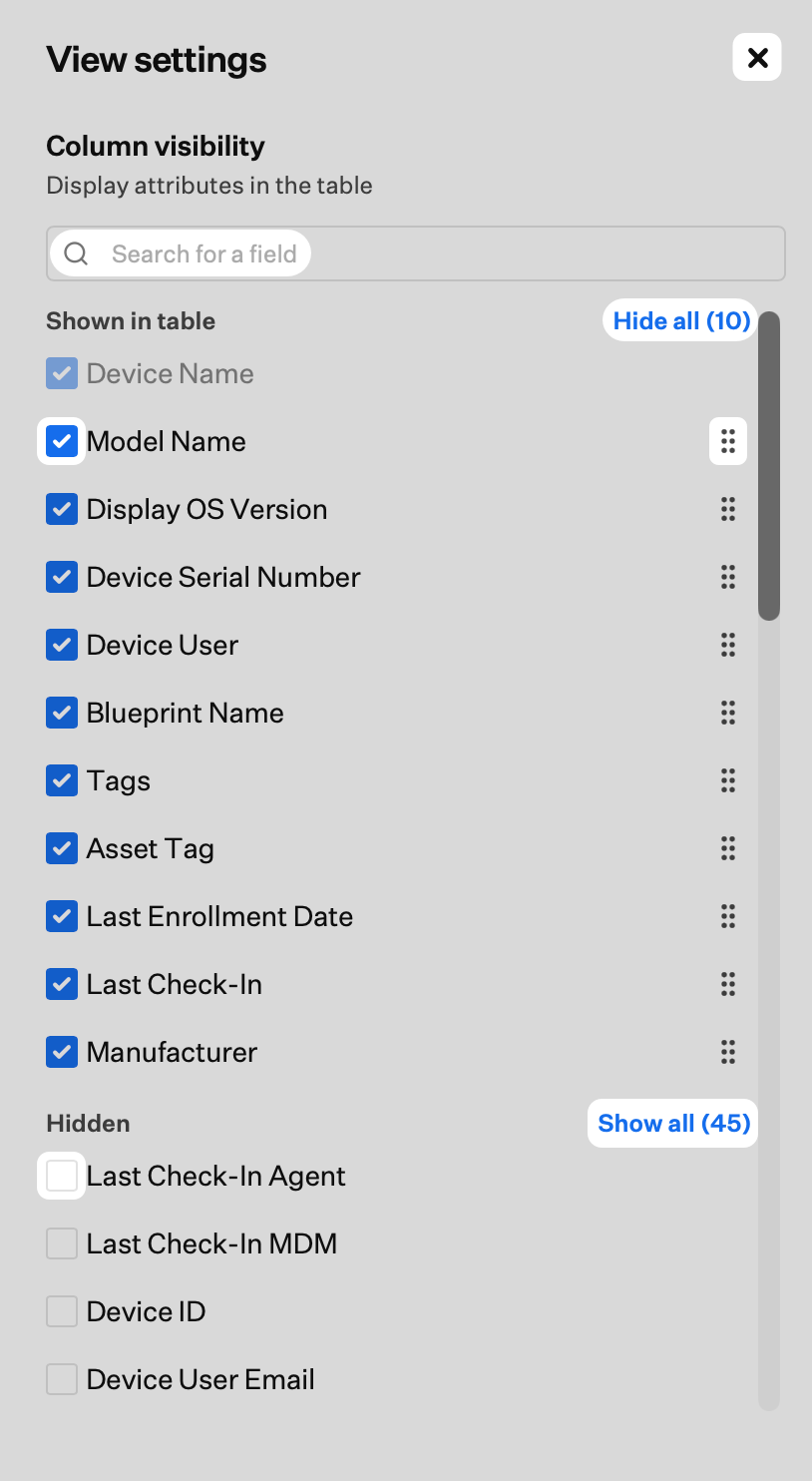
CSV Export
Export the contents of the category you are viewing.1
Select Export CSV
Select Export CSV.
2
Choose what to include
Select Current View or All Attributes:
- Current View: Includes only the data currently visible in the table, plus any applied filters.
- All Attributes: Includes all data for this category, even columns that are not visible in the table.
3
Start export
Select Start export.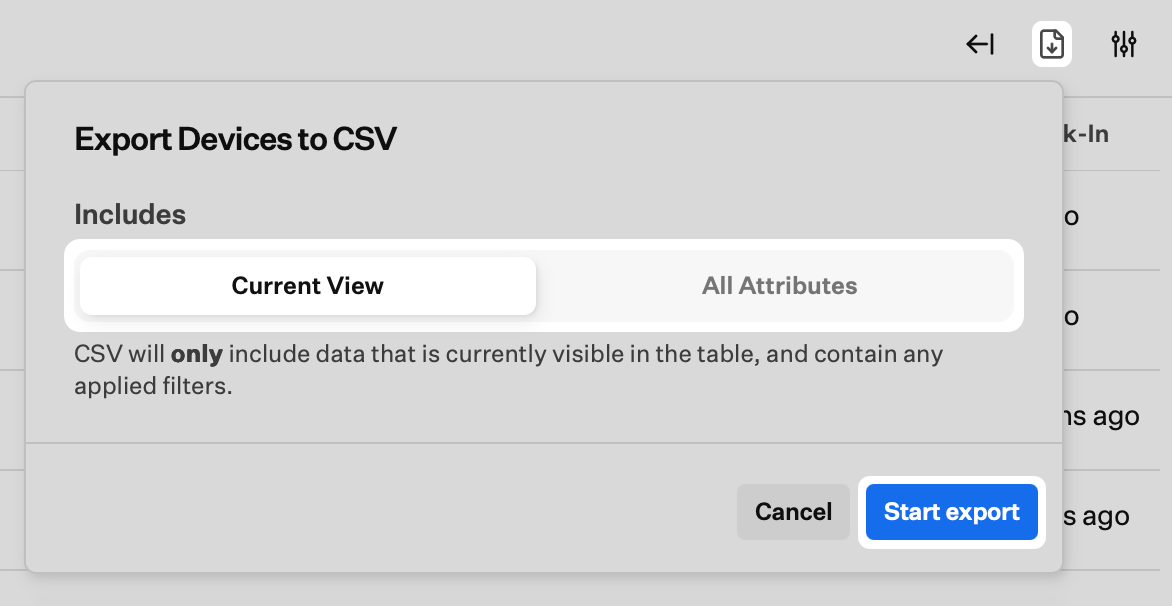
Add Filters
Use + Filter to narrow the table by any attribute in the category. For example, in FileVault you can show devices where the recovery key is not escrowed.1
Select + Filter
Select + Filter.
2
Search
Search for the attribute you want to filter on.
3
Select filter
Select the filter from the list.
4
Select status
Choose the status or value for the filter.
5
Select Apply
Select Apply.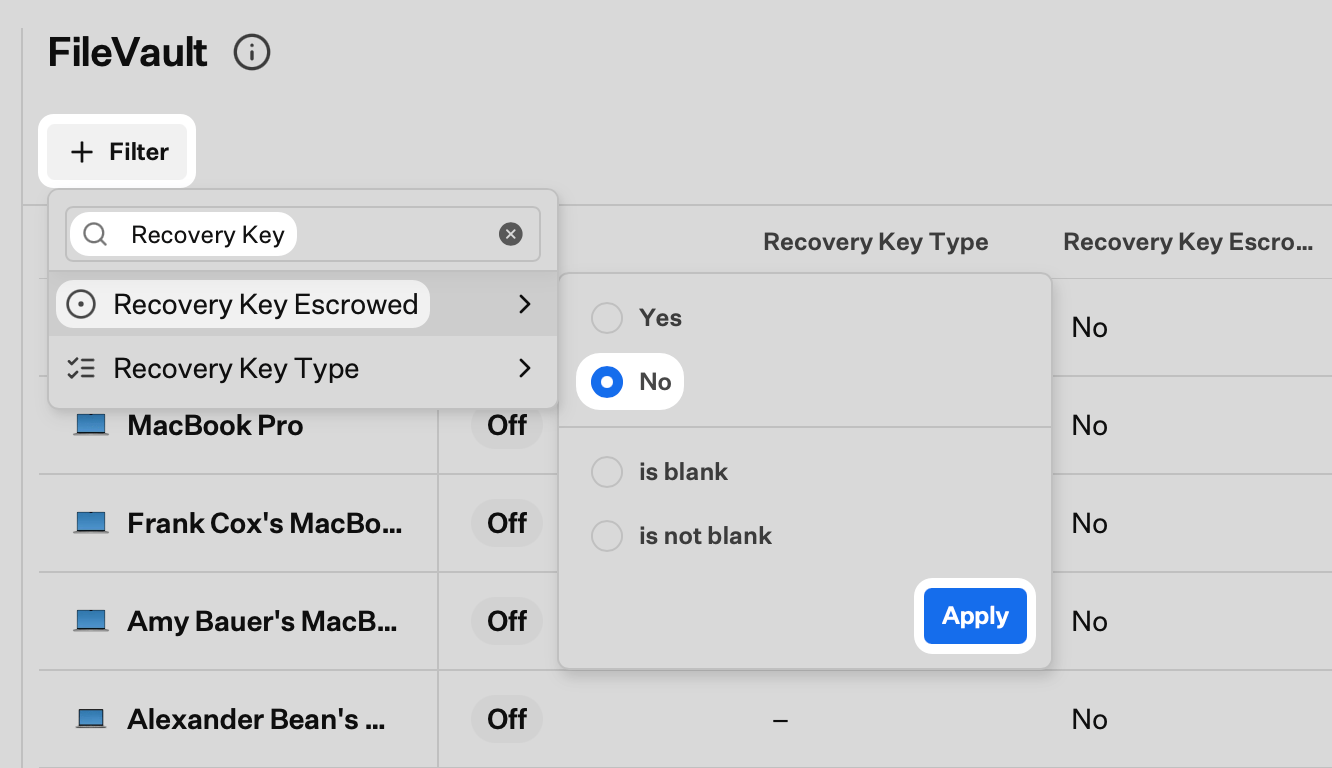
Remove a Filter
Select the X on an applied filter to remove it.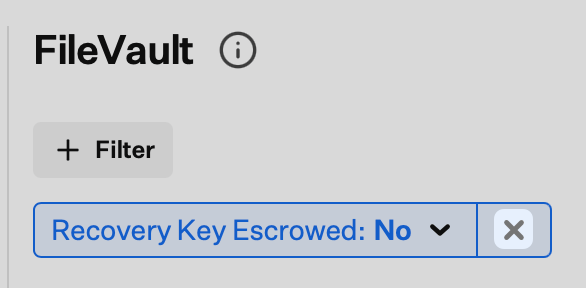
Attribute Values
Prism attributes appear in one of these states:- Value: A returned value such as a boolean (true/false, yes/no, on/off), string, or number
- Empty: The attribute applies, but no value is present. For example, a launch daemon with no program arguments
- Null: The attribute does not apply to the device platform. For example, application signature on iOS, because Apple does not expose application signing information over the MDM protocol
Cross-Category Shared Attributes
These attributes appear in every Prism category:Collection Frequency
This table shows how often Prism collects each type of data, and which method it uses.Platform-Specific Data Collection
- Apple
- Windows
- Android
Hardware information
Hardware information
- Device model and specifications
- Serial number and UDID
- Storage capacity and usage
- Battery health and status
Software information
Software information
- Operating system version and build
- Installed applications and versions
- Mac app last-opened date/timestamp (daily from the agent; macOS updates as apps are used)
- System extensions and kernel extensions
- Launch agents and daemons
Security information
Security information
- FileVault encryption status
- Gatekeeper and XProtect status
- Activation Lock status
- Installed security profiles
User information
User information
- Local user accounts, including Secure Token, FileVault User, Volume Owner, Mobile Account, Home Folder Secured, and logged-in state
- Desktop and screensaver settings per user account, including screensaver path/interval and hot corners
Data Collection Methods
Agent-based collection
Agent-based collection
The Iru Agent gathers data by:
- System APIs: Reading system information and status directly
- File system monitoring: Tracking changes to system files and configurations
- Process monitoring: Watching running processes and services
- Event logging: Collecting system events and security logs
MDM-based collection
MDM-based collection
MDM protocols gather data by:
- Device queries: Requesting specific device information
- Status reports: Receiving automatic status updates
- Command responses: Collecting data returned from MDM commands
- Profile information: Reading data from installed configuration profiles
Privacy and Security
Data protection
Data protection
Iru protects Prism data with:
- Encryption: Data is encrypted in transit and at rest
- Access controls: Access controls limit who can view device data
- Audit logging: Data access is logged and auditable
- Data retention: Retention policies you can configure
Compliance
Compliance
Prism data collection aligns with:
- GDPR: European data protection regulations
- CCPA: California consumer privacy laws
- SOC 2: Security and availability standards
- ISO 27001: Information security management
API Access
Prism was built API-first. Anything you can do in the web app is also available through the Iru API. With the Prism API, you can:- Query any category with any subset of filters
- Request a CSV export of any category and retrieve the result set asynchronously
Best Practices
Review regularly
Check Prism often enough to catch security issues and compliance gaps before they linger.
Inform policy decisions
Use fleet data in Prism when you change device management policies.
Watch security signals
Treat FileVault, Gatekeeper, TCC, and related categories as early signals for hardening work.
Track compliance
Use Prism to confirm devices still meet your compliance requirements.
Troubleshooting
Data not updating
Data not updating
Possible causes:
- Device offline or not checking in
- Agent not running
- Network connectivity issues
- Confirm the device is online
- Verify the agent is running
- Test network connectivity
Missing data categories
Missing data categories
Possible causes:
- Platform limitations
- Agent version mismatch
- Permission issues
- Confirm the category is available for the device platform
- Update the agent to the latest version
- Verify required permissions
Inaccurate data
Inaccurate data
Possible causes:
- Timing of the last collection cycle
- System state changing during collection
- Agent sync problems
- Wait for the next collection cycle
- Force a device check-in
- Restart the agent if needed