

About Passkeys and Social Login
Passkeys and social login provide straightforward ways to configure access to your Iru tenant. Users can create their own passkeys or use their existing Google Account or Microsoft work or school account to access your tenant. While they’re easy to configure, they do have inherent limitations compared to configuring a Single Sign-On authentication method. If you’re looking to Require Authentication for enrollment, passkeys and social login can only be used for manual enrollments.How Passkeys and Social Login Work
Passkeys use standards-based technology that eliminates shared secrets, making them resistant to phishing attacks. When a user registers a passkey, it’s stored in their credential manager and can be synced across their devices. During sign-in, the credential manager authenticates the user without requiring a password. Social login allows users to authenticate using their existing Google Accounts or Microsoft work or school accounts. For Microsoft Social, authentication matches users based on their User Principal Name (UPN) in Microsoft Entra ID, not just their email address. Google Social and Microsoft Social can be limited to specific domains for additional security.Passkeys
Designed to replace traditional passwords, passkeys offer a more secure and user-friendly way to sign in to websites and applications. See Apple’s About the security of passkeys and Use passkeys to sign in to websites and apps on iPhone pages for more information.Send Authentication Registration Request
Admins and Account Owners can send authentication registration requests to users so they can register a passkey.Navigate to the Account Menu Button
Access Authentication Settings
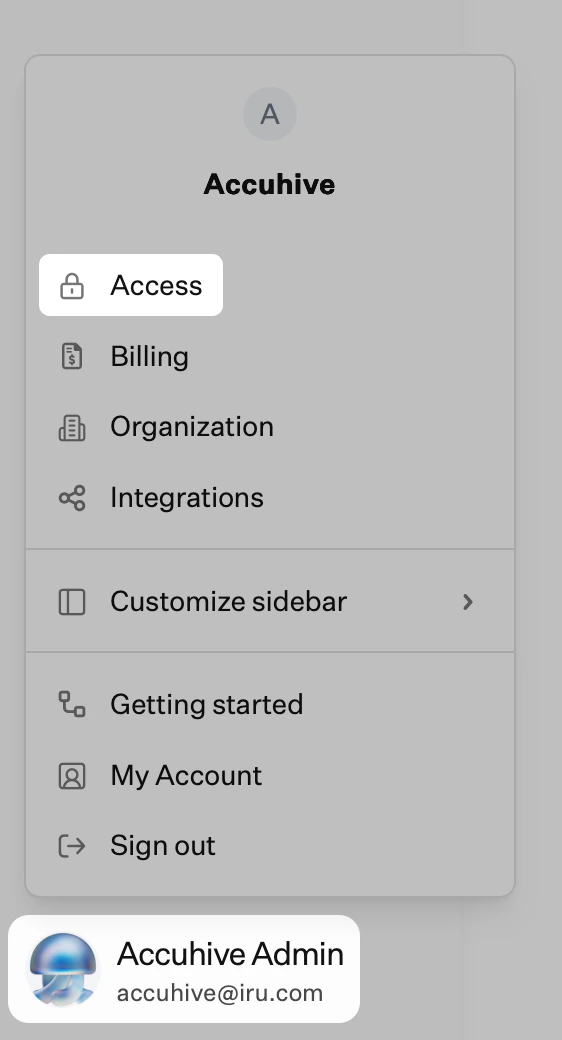
Select User
Select Manage Authenticators
Send Authentication Registration
Accept Authentication Registration Email
Select Register Passkey
Complete Passkey Registration
Choose Passkey at Login
Select Passkey from Credential Manager
Register a New Passkey
You can register additional passkeys for your account without an administrator sending a registration request. You may register multiple passkeys per user account.Open My Account
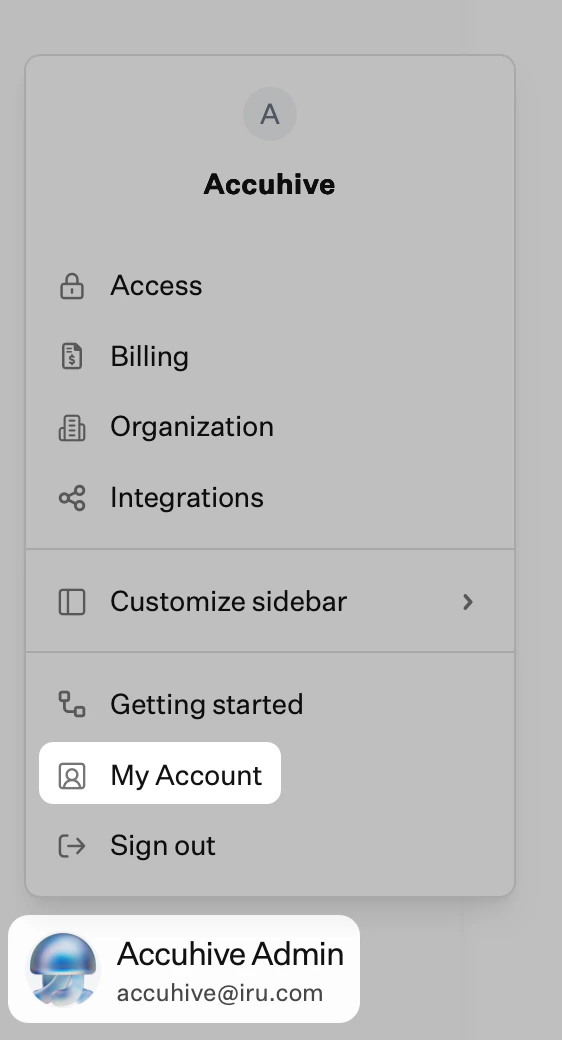
Navigate to Authenticators
Add Authenticator
Select Passkey
Save in Credential Manager
Complete Passkey Sign-In
Complete Registration
Credential Managers
It’s important to save your passkeys in a way that allows you to access them across multiple devices. Most popular credential managers, such as 1Password and Apple’s Passwords app, support saving and synchronizing passkeys. When registering passkeys, if the expected credential managers do not prompt to save the passkey, check the settings of the related app or browser extension to ensure that prompts to save passkeys are enabled. If you have multiple credential manager browser extensions enabled, you may need to disable the other extensions to avoid conflicts.Manage Your Passkeys
You can suspend or delete your registered passkeys.Open My Account
Navigate to Authenticators
Expand Authenticator
Suspend Authenticator
Delete Authenticator
Confirm Authenticator Deletion
Unsuspend Authenticator
Manage Passkeys for Team Members
You can suspend, delete, and reset all of the registered passkeys for team members.Navigate to the Account Menu Button
Access Authentication Settings
Select User
Select Manage Authenticators
Reset All
Expand an Authenticator
Suspend Authenticator
Delete Authenticator
Confirm Authenticator Deletion
Unsuspend Authenticator