

Tenant domain
After you upgrade, the web app is at{{subdomain}}.iru.com. The Enrollment Portal is at {{subdomain}}.iru.com/enroll. Your previous Kandji domain ({{subdomain}}.kandji.io) redirects to the Iru domain.
Top navigation
The top navigation bar includes Search or ask Iru AI, with keyboard shortcut support (⌘K). Iru Support Chat is available from the chat bubble icon in the upper right, next to Iru AI. The Support Knowledge Base is at docs.iru.com.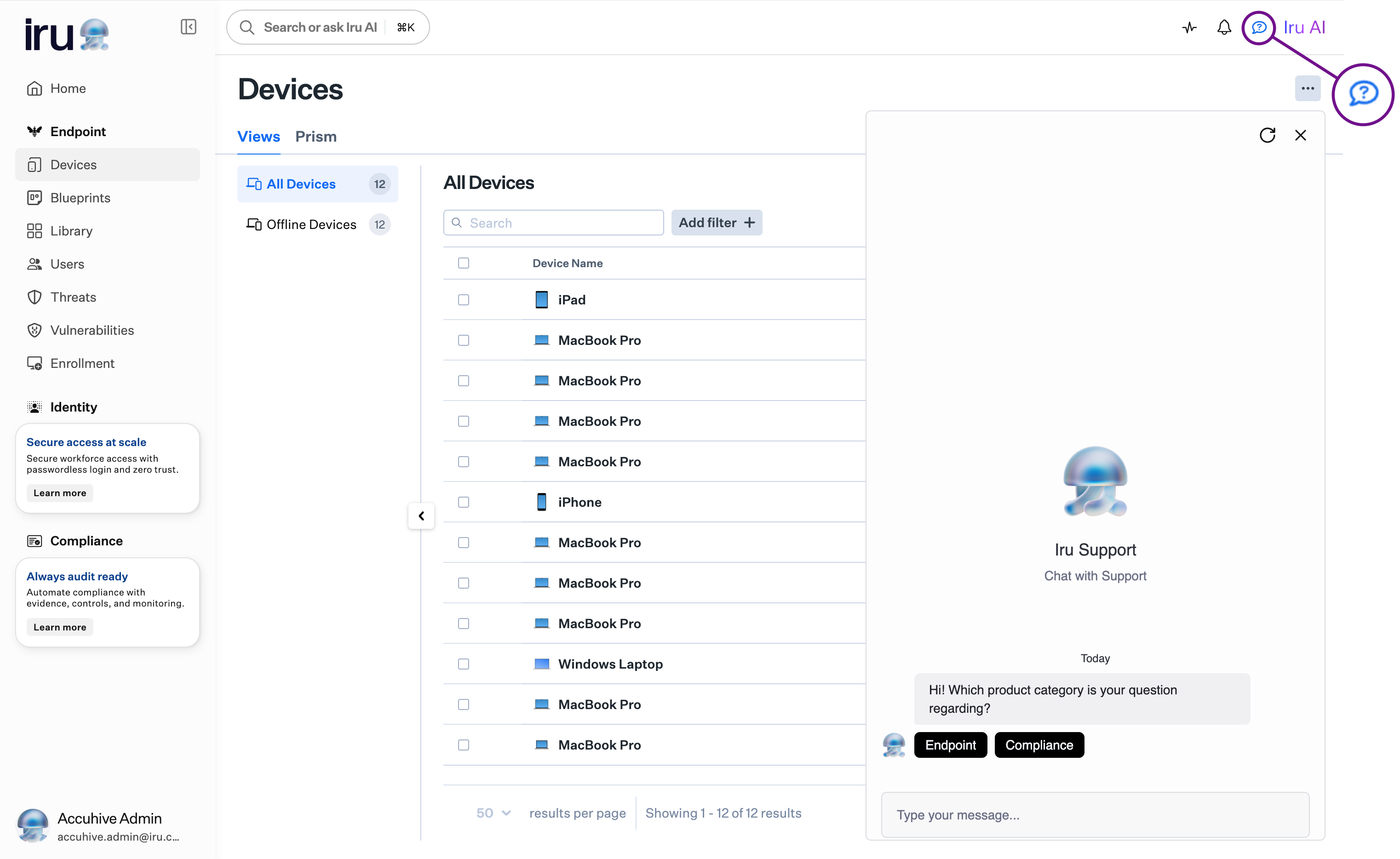
Sidebar
The left sidebar includes Endpoint, Identity, and Compliance sections.Customize sidebar
Hide or show Endpoint, Identity, and Compliance sections with Customize sidebar in the Account Menu.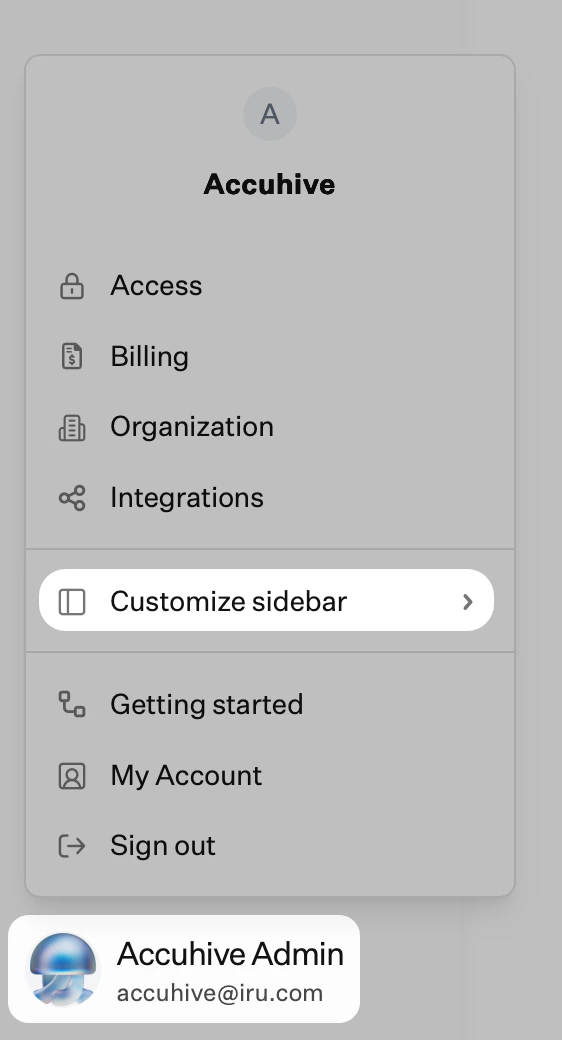
Account Menu
Tenant-wide settings such as Access, Organization, and Integrations are in the Account Menu. Select the Account Menu Button at the bottom of the left navigation to open it. For every menu option, see Account Menu.Access
In Access, you manage authentication, connection settings, passkeys, session controls, and team members. The API tokens tab is also available here. After you upgrade from Kandji, the Access page shows your new configuration. You manage connection settings (social login, native SSO, and SAML) and passkey registration. The upgrade card disappears once the upgrade to Iru is complete.Getting Started
Getting Started is an onboarding guide by product area. Open it from the Account Menu, then use the Endpoint, Identity, and Compliance tabs to see recommended tasks, listed as to do or done.Relocated features
These features moved in the Iru interface:- Activity: Pulse icon in the top right navigation bar. See Activity Page. Unified Activity is also available in Preview for a cross-product timeline.
- Alerts: Bell icon in the top right navigation bar. See Global Alerts.
- Enrollment: Bottom of the Endpoint menu in the left navigation. See Getting Started for enrollment setup.
- Organization: Account Menu Button → Organization
- Integrations and Apple platform settings: Account Menu Button → Integrations. See SCIM Directory Integration for the Integrations page and Apple Integrations Overview for Apple platform settings.
- Self Service settings: Self Service Settings tab on the Library page. See Self Service Settings.
Related articles
- Upgrade to Iru: upgrade from Kandji, including authentication and domain changes.
- Iru Brand Update: logo, app names, and branding on managed devices.
- Account Menu: tenant-wide settings at the bottom of the sidebar.
- Unified Activity: cross-product activity timeline.