

About Activity
Activity is the timeline of actions across Iru. See what happened, who performed the action, when it occurred, and which product recorded the event. Open it from the Activity button (pulse icon) in the top right of the Iru web app.How It Works
Activity from Endpoint, Detections, Vulnerabilities, Compliance, Identity, and Tenant appears in one feed, sorted with the most recent events first. Scroll down to load more events. Each row includes Activity, User, Timestamp, and Category columns. When a product supplies a formatted description, that text appears in the Activity column. Resize a column by moving the pointer over the line between its column headings. When the resize pointer appears and the line turns blue, drag the line to the width you want.Open Activity
1
Open Activity
Select the Activity icon (pulse icon) in the top right navigation bar.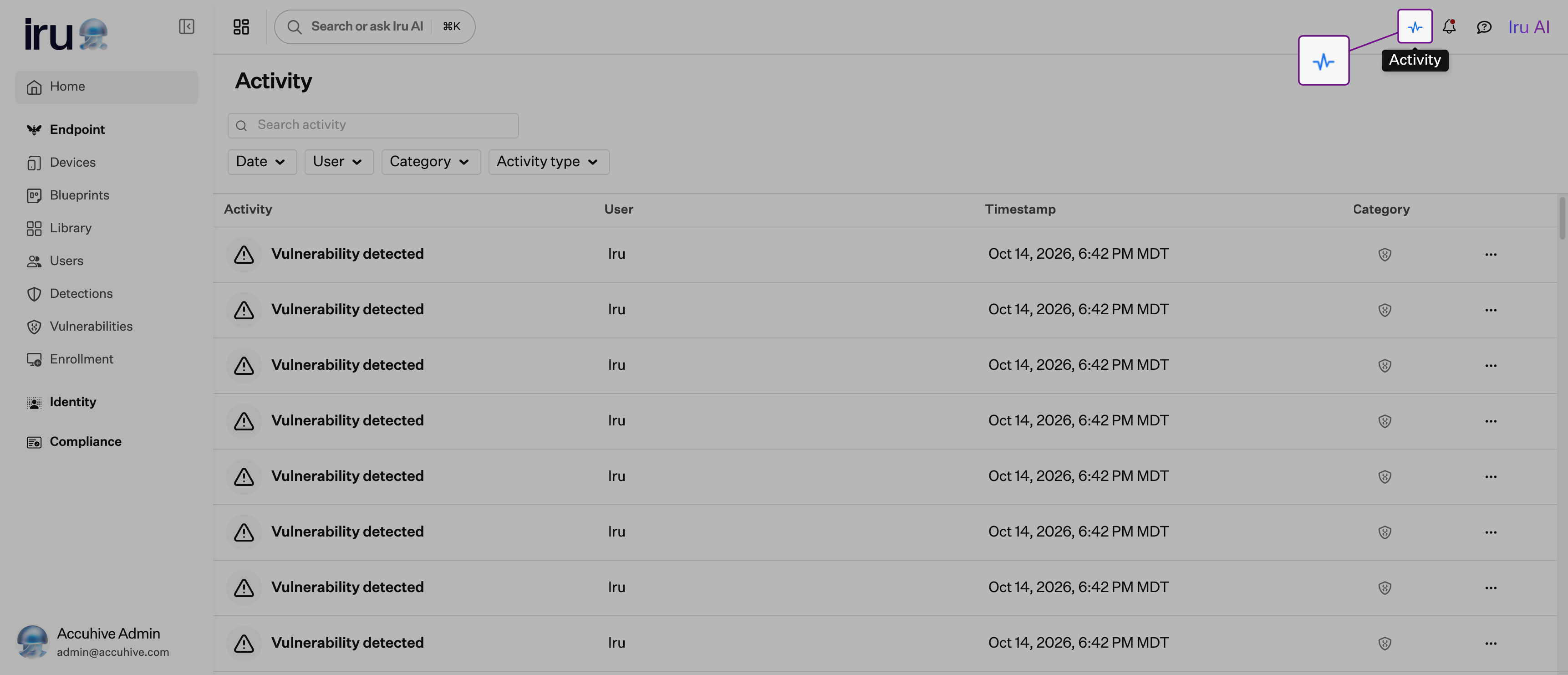
2
Search or filter the timeline
Use the search field and filters at the top of the page to narrow the feed. Filter by Date, User, Category, or Activity type, and combine them with search as needed. See Search and Filter Activity for details on each filter.
Review Activity Details
Select any row to expand it and read its fields. The details view opens by default. When the activity type provides them, you see formatted fields such as changes, related objects, and other context for that event.1
Expand the row and review details
Select an activity row to expand it. Review the details view, including changed fields, related objects, and other context for that activity type.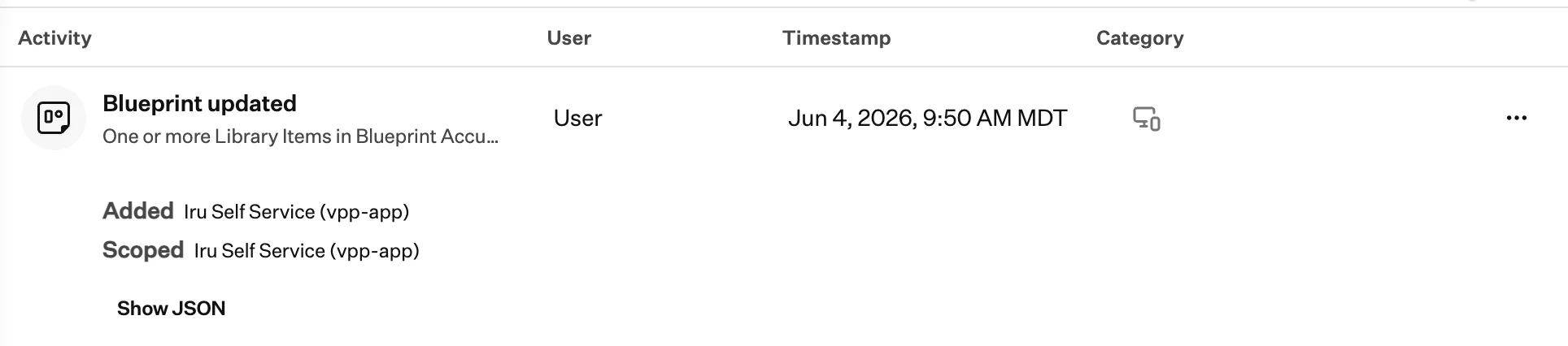
2
Show JSON when needed
Select Show JSON to open the raw event record for that activity.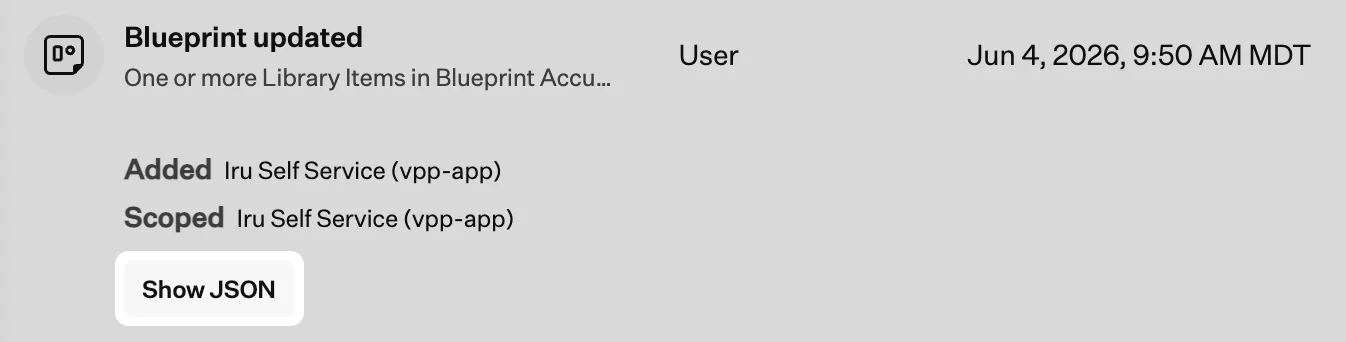
3
Review the JSON payload
The expanded row shows every field logged for that event. Select Show details to return to the standard details view.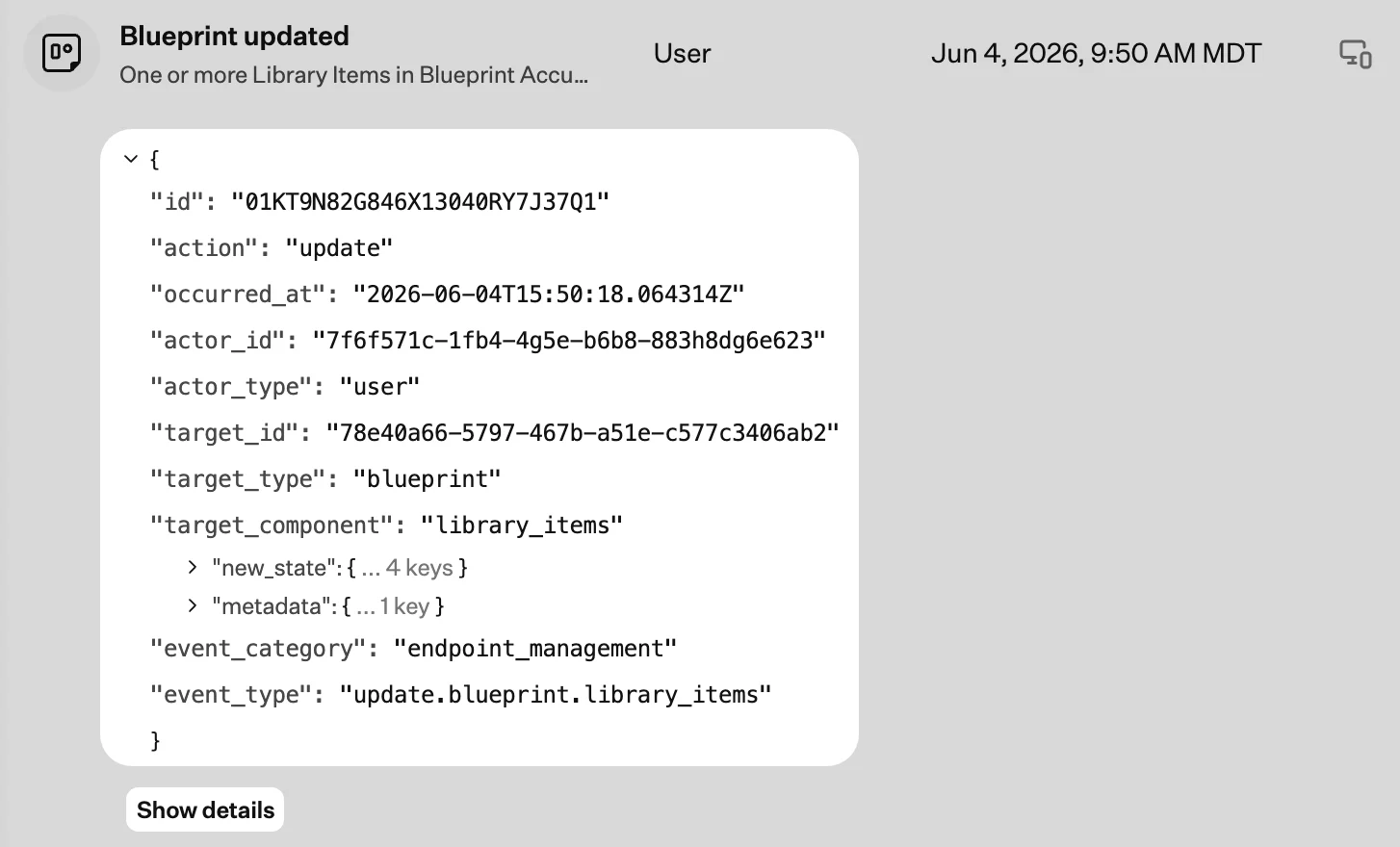
4
Navigate to a related page
Select the ellipsis menu (…) to open an object related to the activity. The available options depend on the activity type and can include Go to vulnerability, Go to Blueprint, Go to Library Item, and Go to device.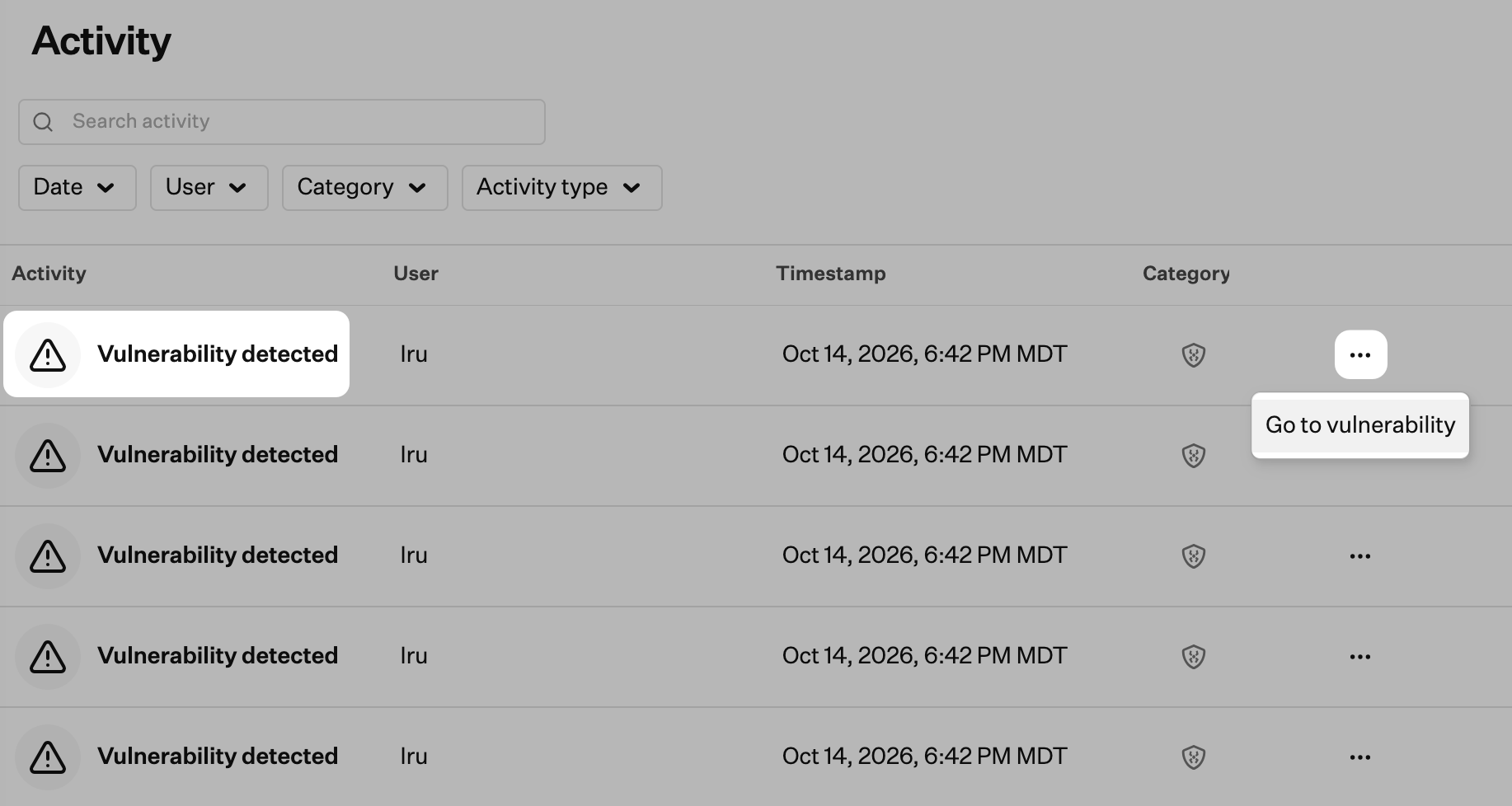
Search and Filter Activity
Use the search field and filters at the top of the Activity page to narrow the timeline. Search and filters work together.Search
Search
Search activity descriptions and underlying event details.
Date
Date
Filter activity by time range:
- Last 24 hours
- Last 48 hours
- Last 7 days
- Last 30 days
- Custom date range
User
User
Search for and select one or more administrators from Account Menu > Access > Admin and authentication > Administrators, then select Apply. This filter does not list users synced through a User Directory Integration.
Category
Category
Filter by product area:
- System: Tenant
- Product: Endpoint, Detections, Vulnerabilities, Compliance, Identity
Activity type
Activity type
Filter by specific event types, such as blueprint updates, device changes, detections, compliance actions, and Android policy and command results. Android events include a policy applied or a policy update that failed, and a command that completed or failed. Select multiple types to narrow the feed further.
Considerations
- Entity-scoped activity: Device records, Blueprints, and Library Items include Activity tabs scoped to that object. Those events also appear in Activity when they match your search and filters.
- Endpoint activity: Activity includes Endpoint events.
Related Articles
Amazon S3 Activity Log Integration
Configure cross-account S3 export for the tenant activity shown on this page.