

About the Home Page
Select Home in the left sidebar. The page opens with a summary of the tenant, then tiles for the platforms you have enrolled and the products you have enabled and configured.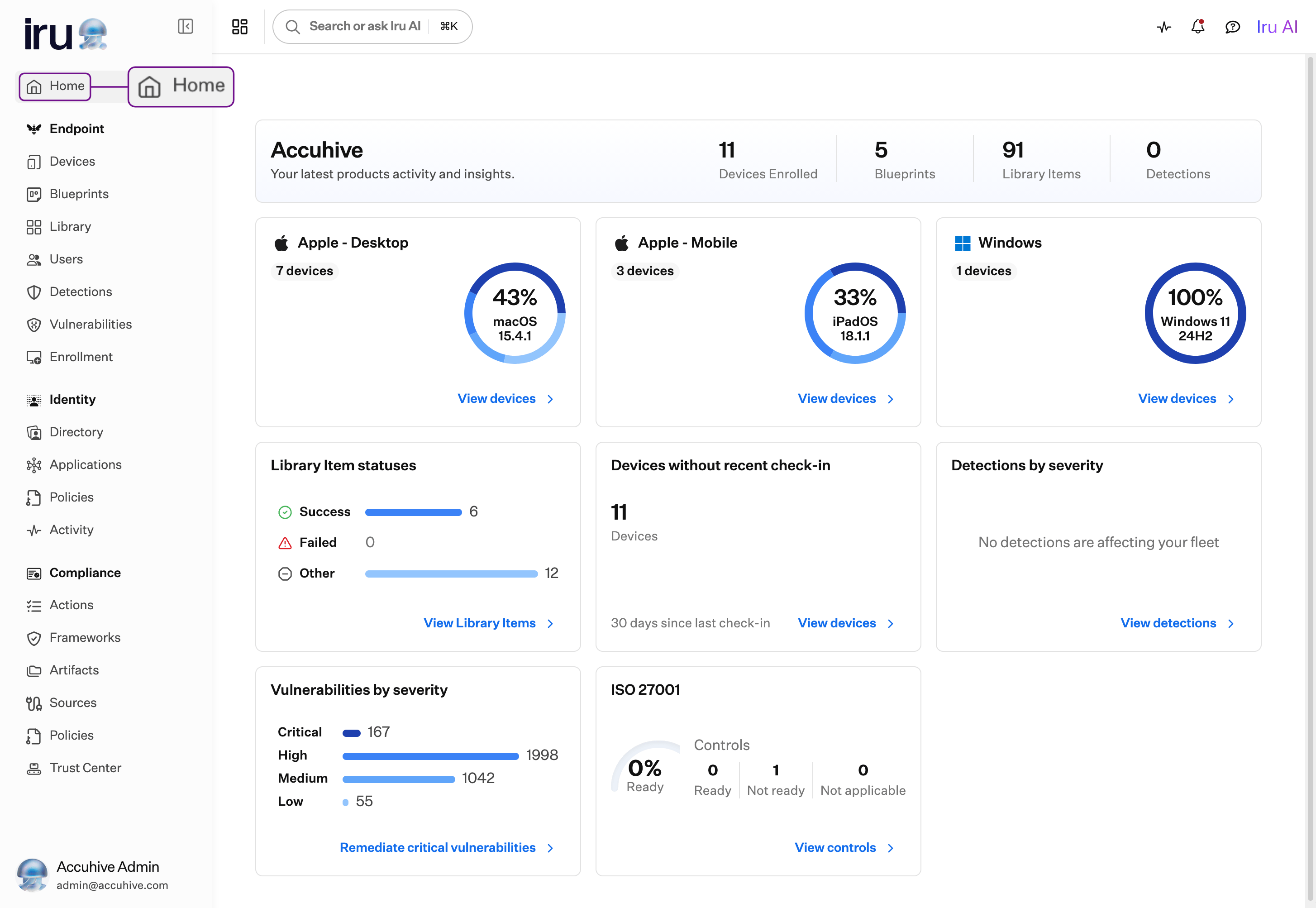
Tenant Summary
The top of the page shows the signed-in team member’s name and Your latest products activity and insights. The counts beside that line follow what the tenant is using. They can include Devices Enrolled, Blueprints, Library Items, and Detections.Insights
Insights appears only when there is at least one active insight card. Adaptive Compliance adds a card when a Compliance item you have open has a control update recommendation to serve. The card names the framework and how many controls Iru AI suggests updating. Select Review Control Updates to open the review panel.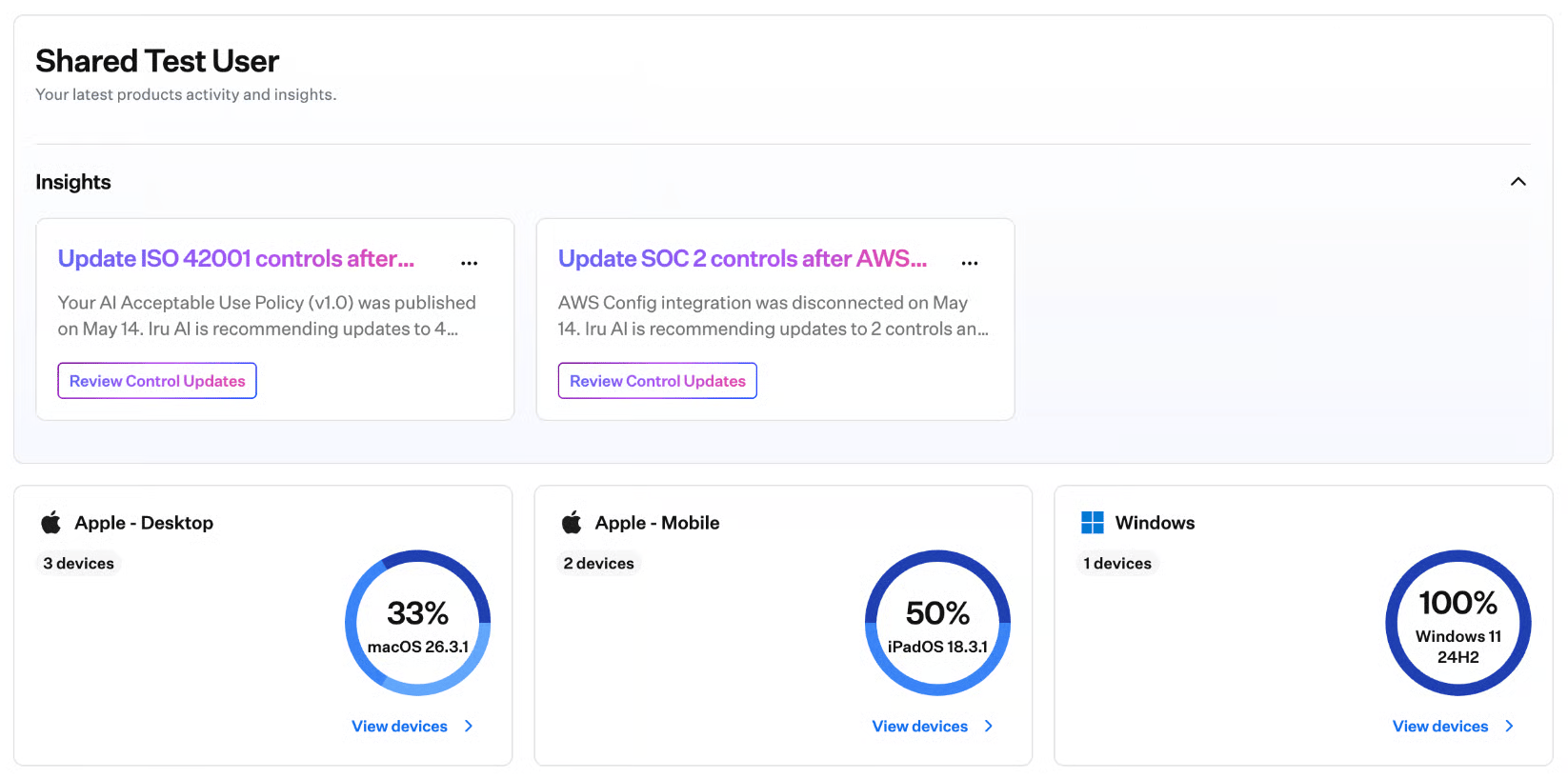
When Iru AI is off for the tenant, Insights is hidden. Account Owners turn Iru AI on or off on the Iru AI tab of the Organization page. Control update recommendations can still use Iru AI. See Managing Iru AI Access.
Tiles
A platform tile appears for each platform with enrolled devices. A product tile appears for each product that is enabled and configured.Platforms
- Apple - Desktop for Mac computers
- Apple - Mobile for iPhone and iPad
- Windows
- Android
Library Item Statuses
Library Item statuses groups Library Items as Success, Failed, and Other, with a count for each. Select View Library Items. See Library Overview.Devices Without Recent Check-in
Devices without recent check-in shows how many devices have not checked in within the window on the tile, such as 30 days since the last check-in. Select View devices. See Device Check In.Detections by Severity
Detections by severity summarizes detections in the fleet. When none are affecting the fleet, the tile says No detections are affecting your fleet. Select View detections. See Understanding the Detections Page.Vulnerabilities by Severity
Vulnerabilities by severity lists counts for Critical, High, Medium, and Low. Select Remediate critical vulnerabilities. See Vulnerability Management Overview.Frameworks
Each configured framework can have its own tile, such as Cyber Essentials or ISO 27001. The tile shows the percent Ready, and how many controls are Ready, Not ready, and Not applicable. Select View controls. See Frameworks Management.Related Articles
Iru Navigation and Interface
Find Home in the sidebar, and use search, Activity, and Iru AI in the top bar.
Adaptive Compliance
Review control update recommendations from a Home Insights card.
Compliance Permissions
See which Compliance roles can approve a control update.
Iru AI Overview
See what Iru AI does, and how to turn it on or off.