

This is the end-user view, not the administrator dashboard.
End users reach it after they sign in; administrators get a link to switch
into the admin console.
The app dashboard
After signing in, each user lands on their app dashboard, an app launcher that shows the applications assigned to them as tiles. It opens with a welcome that notes their apps are provided by your organization, using the name you set in organization settings.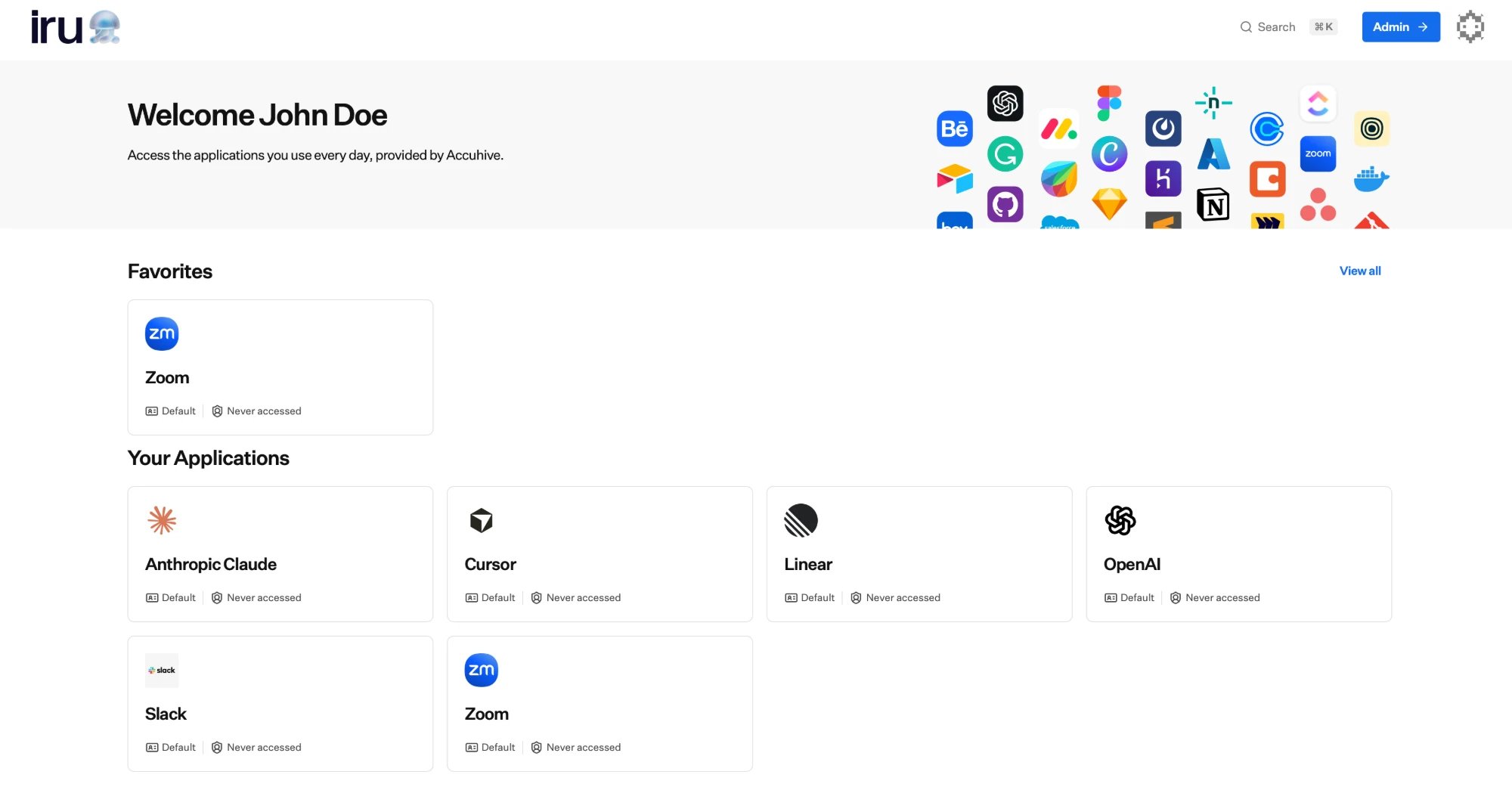
The app dashboard: a Favorites section and the full Your Applications grid.
Selecting a tile signs the user straight in to that application; Iru completes
the single sign-on, so there is no separate password to enter at the app. The
set of tiles a user sees is exactly the applications they have been
assigned through a group.
Favorites
Users can mark the apps they use most as favorites for quicker access. Hovering a tile reveals a star; selecting it adds or removes the app from their favorites.- Favorited apps appear in a Favorites section at the top of the app dashboard.
- A user can switch between viewing just their favorites and viewing all their apps.
- Favorites are personal to each user and do not affect anyone else or change who is assigned to an app.
The exact surface differs by app: the Iru Access desktop app shows apps on a
Home view with favorites surfaced at the top (alongside its other tabs),
while the mobile app has a dedicated Favorites tab rather than a separate
Home view.
Finding an app quickly
Alongside browsing tiles, users can search their apps by name from the app dashboard and open a match directly from the results. Recently opened apps are kept close at hand so they are one selection away the next time someone returns.Self-service account
From the account menu, each user opens their account settings, organized into two areas.- Profile and preferences
- Authenticators
The Profile area shows a user’s core identity details (name, username,
email, and their Iru domain), drawn from their directory profile. Core
identity fields are managed for them and shown read-only here.Users can set their own preferences (a preferred name, language,
time zone, whether dates show in relative form, and whether they
receive email updates) and upload a profile photo.
How it ties together
What an end user sees and can do depends on how you’ve configured Iru:- The directory determines who they are. See Users.
- Assignments determine which tiles appear. See Assigning access.
- Authentication policies determine what they must prove to sign in and to open each app. See Authentication policies.
- Organization settings determine the branding they see throughout. See Organization settings.
Related
Authenticators
The passkeys users manage in their self-service account.
The sign-in experience
What users see and do as they authenticate to reach this app dashboard.
Assigning access
Decide which applications appear as tiles for which users.
Organization settings
Set the branding and name your people see across their app dashboard.
Manage authenticators
End-user guide for passkeys, Iru Access, and backup devices
Accessing your apps
What end users see when they sign in and open apps
Installing Iru Access
First-time enrollment from an invitation