

Import administrators via CSV
1
Open Access
In the sidebar, select the Account Menu Button, then select Access. Open the Admin and authentication tab if it is not already selected.
2
Open the Administrator menu
Next to + Administrator, select the caret.
3
Select Import via CSV
Select Import via CSV.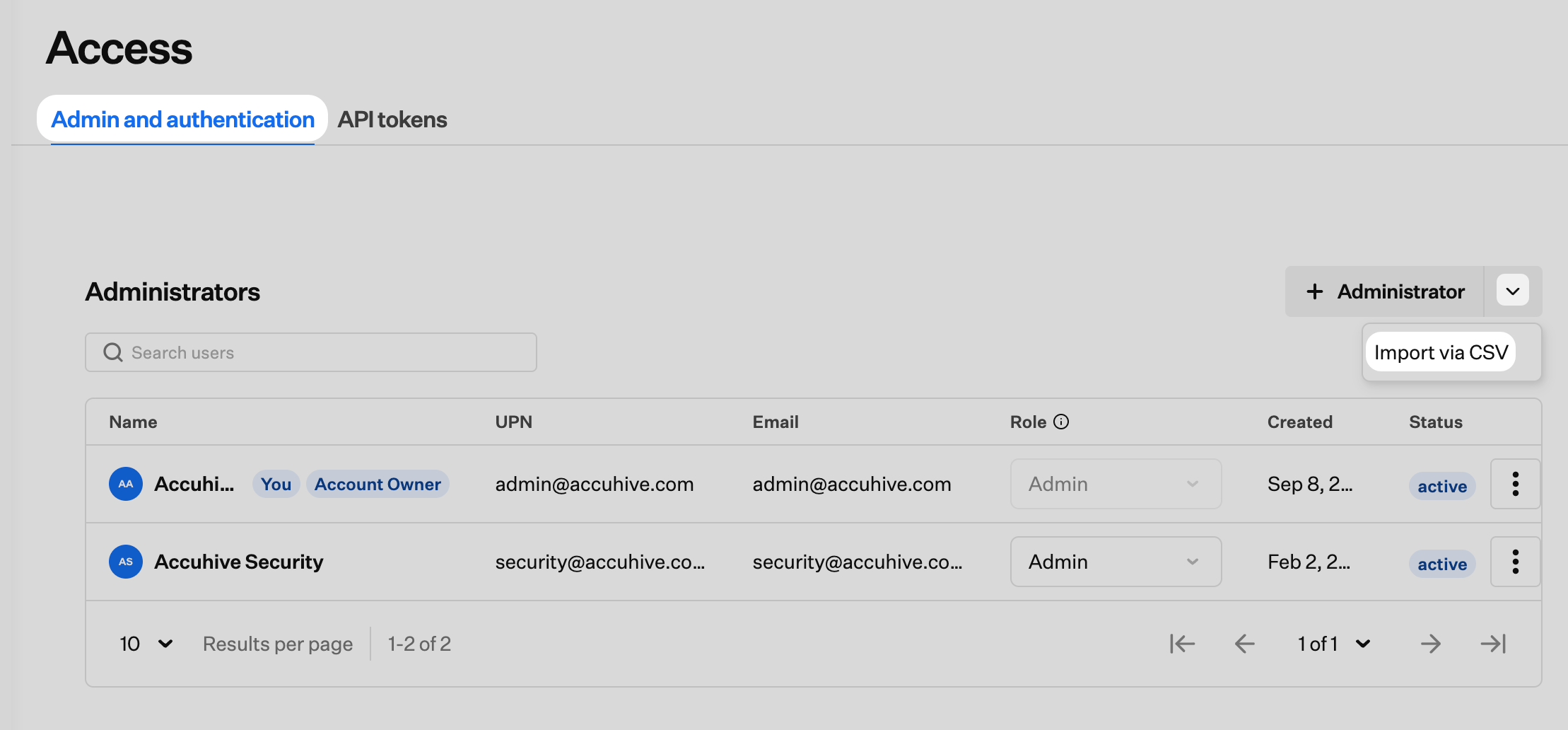
4
Download a sample CSV
In the Import administrators via CSV dialog, select Download sample.csv to get a template you can edit.
5
Upload your CSV
Drag your CSV into the upload area, or choose click to browse and select the file. Then select Import.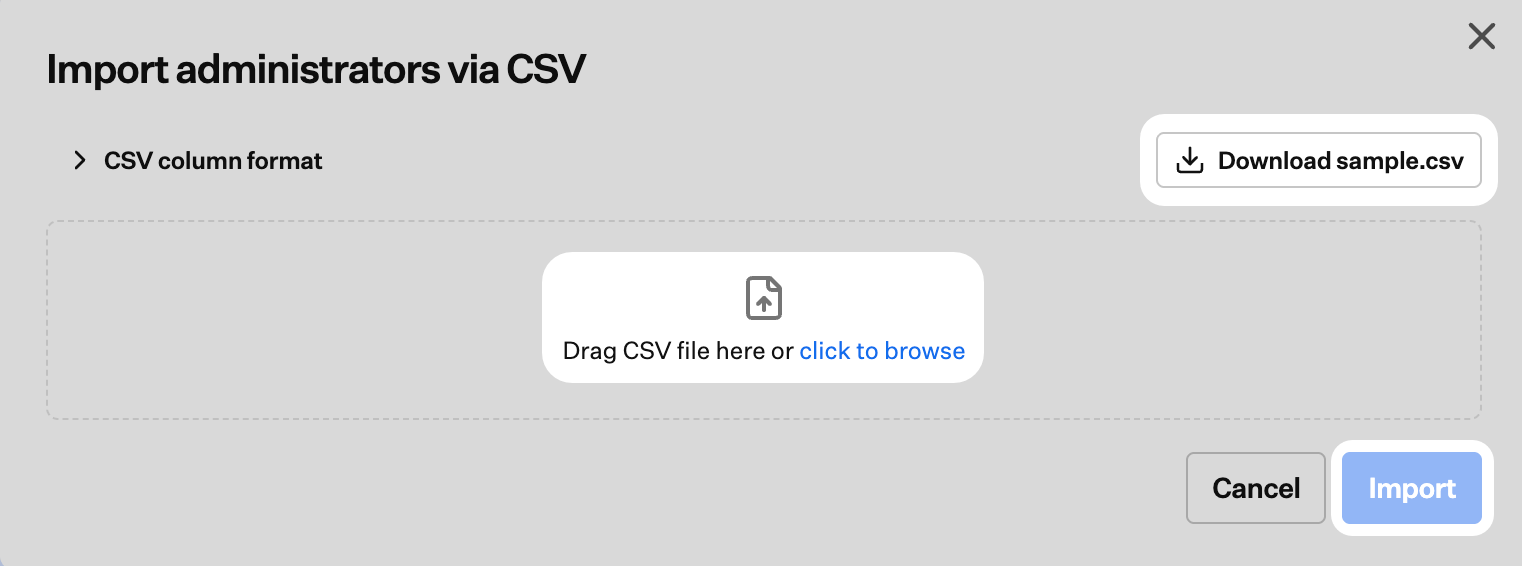
6
Review CSV column format
Expand CSV column format in the dialog for required and optional columns, accepted role values, and language values.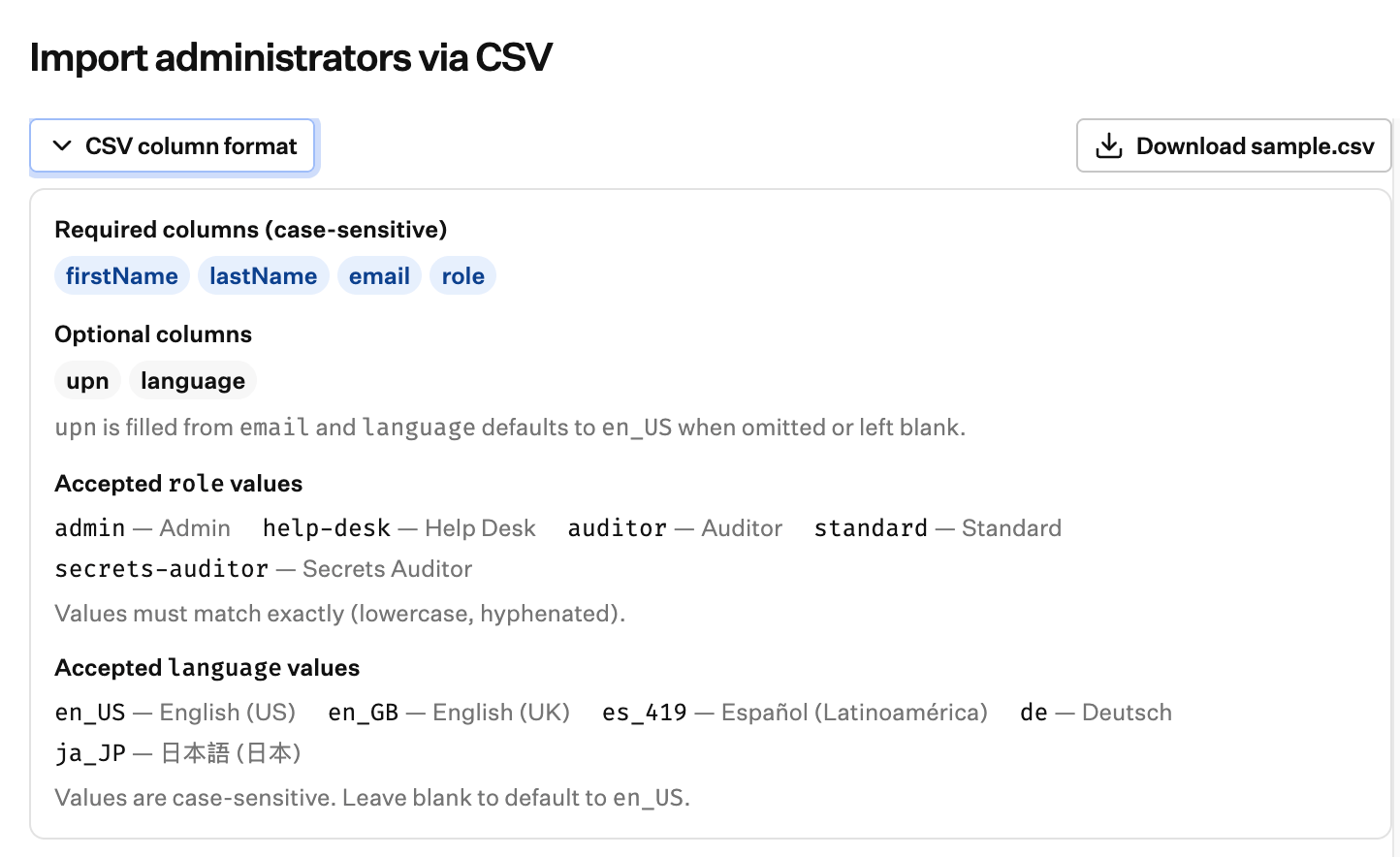
CSV column format
Column names are case-sensitive. Match the sample file headers exactly. The downloaded sample.csv uses this header order and includes one example row:upn blank to have Iru fill it from the email, as in the sample row.
Required columns
Optional columns
Accepted role values
Values must match exactly (lowercase, hyphenated where shown):
For what each level can do, see Team Member Role Permissions.
Accepted language values
Values are case-sensitive. Iflanguage is blank, Iru uses en_US.