

This guide applies to Mac computers and Windows devices
About the Detections Page
The Detections page in the Iru Endpoint Web App is where admins review threat events, monitor trends, and take response actions for devices with the EDR Library Item assigned. Access it by clicking Detections in the left-hand navigation bar (under Endpoint). For an overview of EDR capabilities and posture modes, see Endpoint Detection & Response (EDR) Overview.Dashboard Widgets
Detections Over Time
The Detections Over Time graph displays a chronological overview of security threats detected within a specified timeframe. By default, the graph shows data for the past 30 days. At the top of the Detections tab, click the date range beside Viewing (default Last 30 days) to change the period, such as Last 24 hours through Last 90 days, All time, or Custom date range.If you choose a date range exceeding 90 days, the system automatically limits the display to 90 days.
- Granular: Shows every individual threat detection
- Smooth: Displays general trends and patterns
- Balanced: Default setting between detailed data and trend visualization

Detections By Severity
The Detections By Severity view provides a visual breakdown of detections by severity level. Each detection is assigned one of five severity levels: Critical, High, Medium, Low, and Informational.
Devices Under Threat
The Devices Under Threat metric shows how many devices currently have active security threats. Adjust the timeframe using the date range at the top of the page. This data refreshes each time the page is loaded.
Filter by Date Range
On the Detections tab, click the date range at the top of the page to choose how far back threat events appear. The current range is shown to the right of Viewing and defaults to Last 30 days. Select a preset (Last 24 hours, Last 7 days, Last 30 days, Last 60 days, Last 90 days, or All time) or Custom date range for specific start and end dates. Your selection applies to the dashboard widgets and the detections table.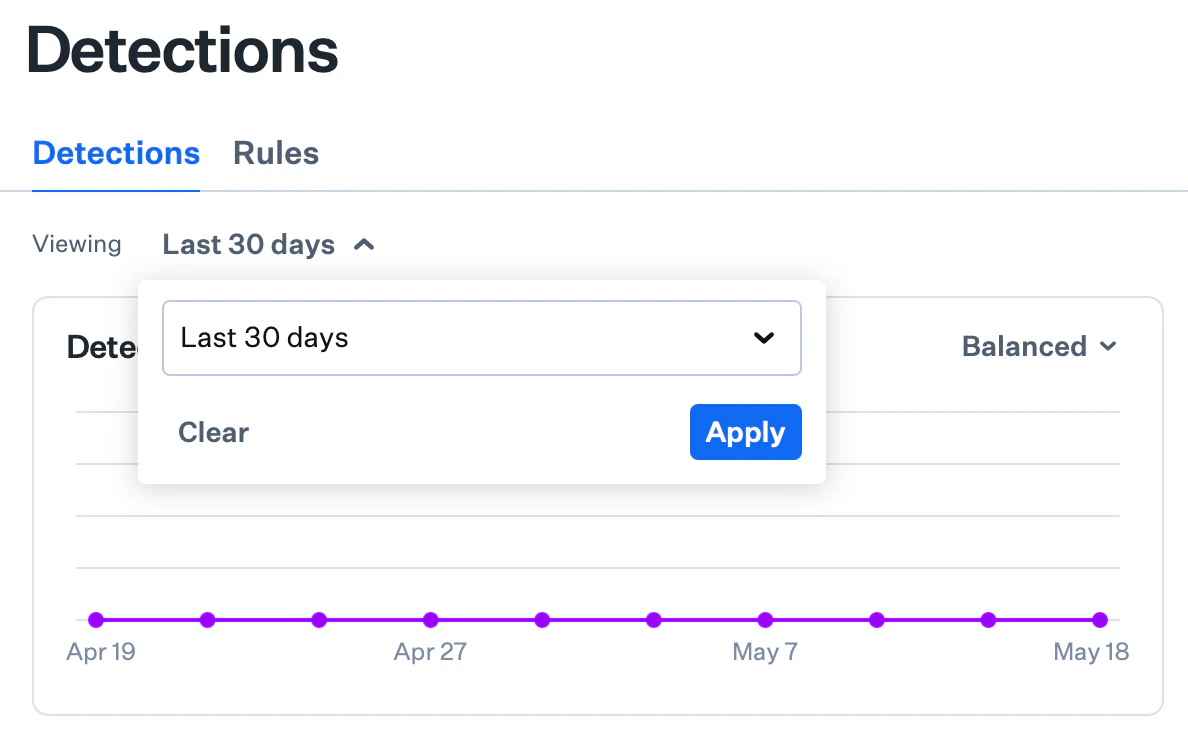
Search, Filters, and the Detections Table
Above the detections table, use Search and the filter dropdowns to narrow the list by detection type, classification, status, severity, and other criteria.

Threat Detail View
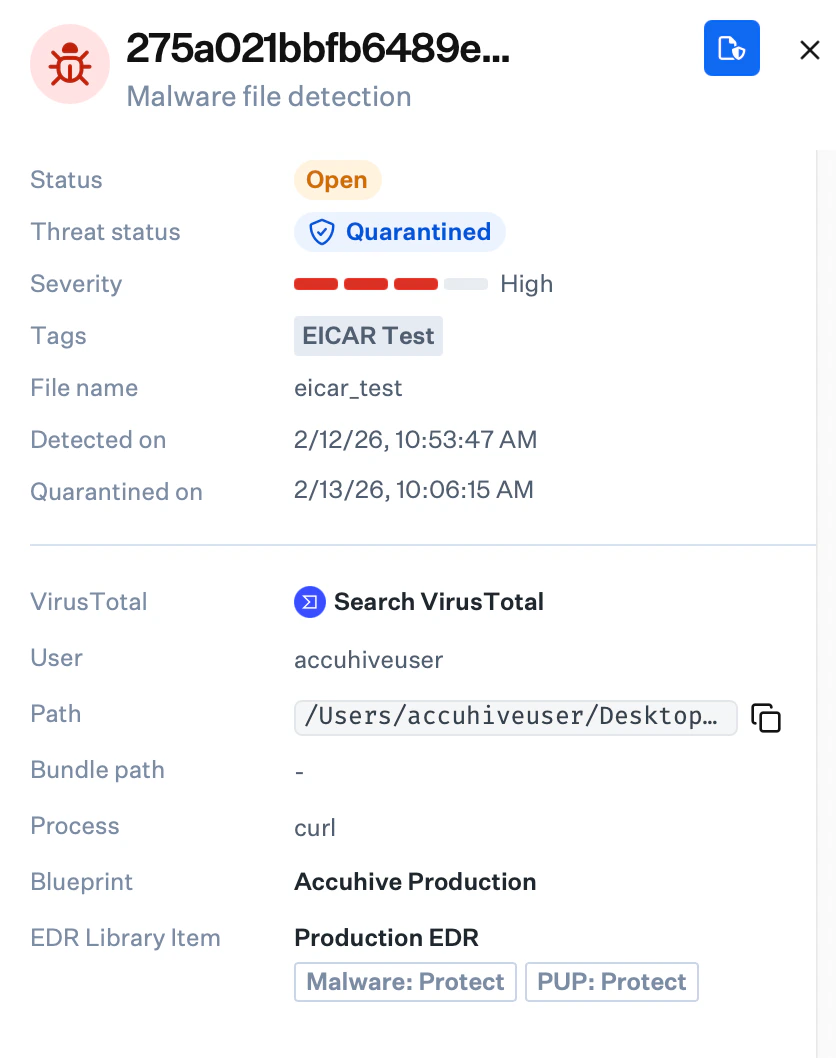
Click any threat event to open a side panel with detection and quarantine dates, file path, file hash, user information, and available response actions.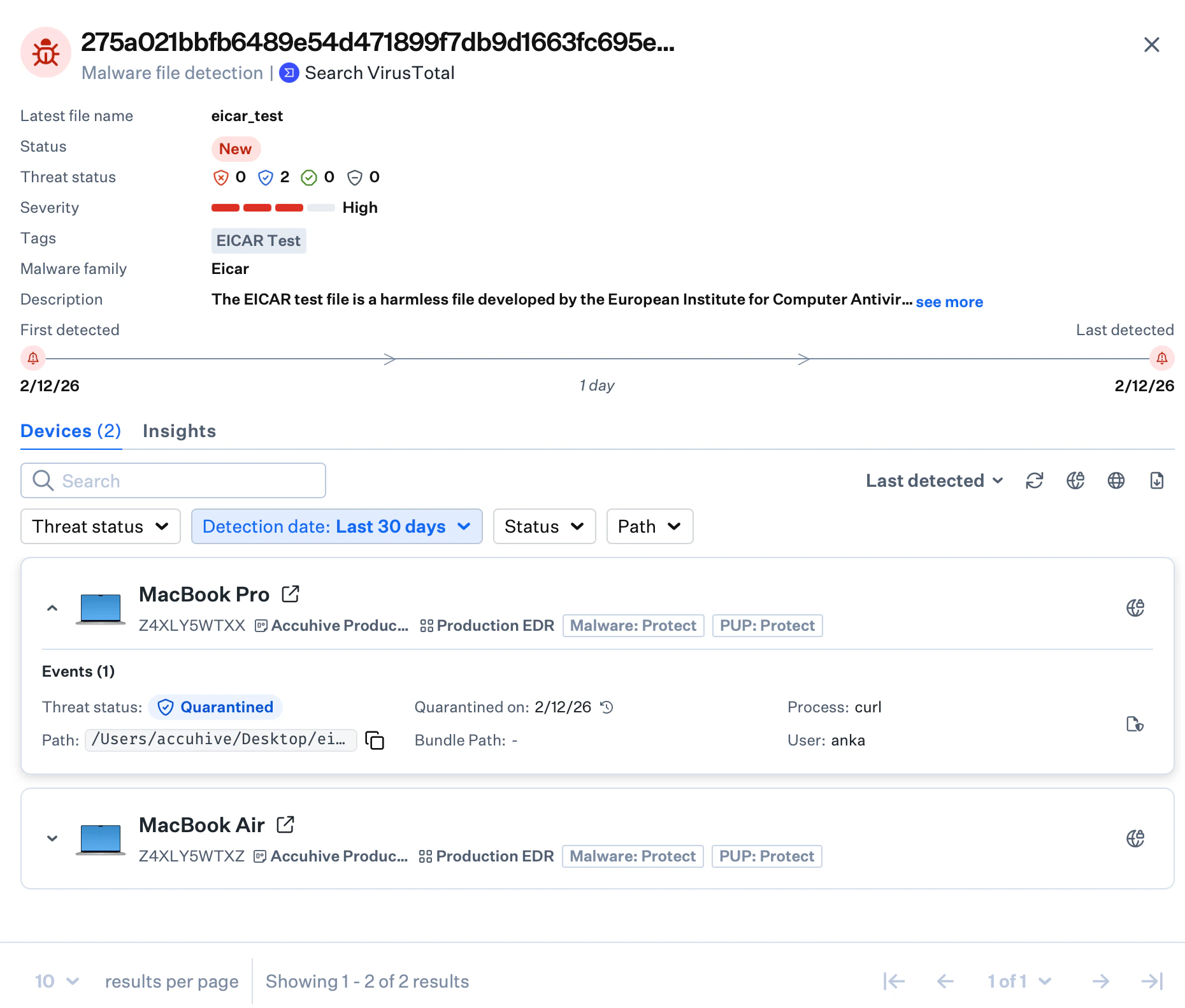
Device Record Detections Tab
The device record page shows the total number of threat events found on a specific device. To see the actual threat events, select the Detections tab.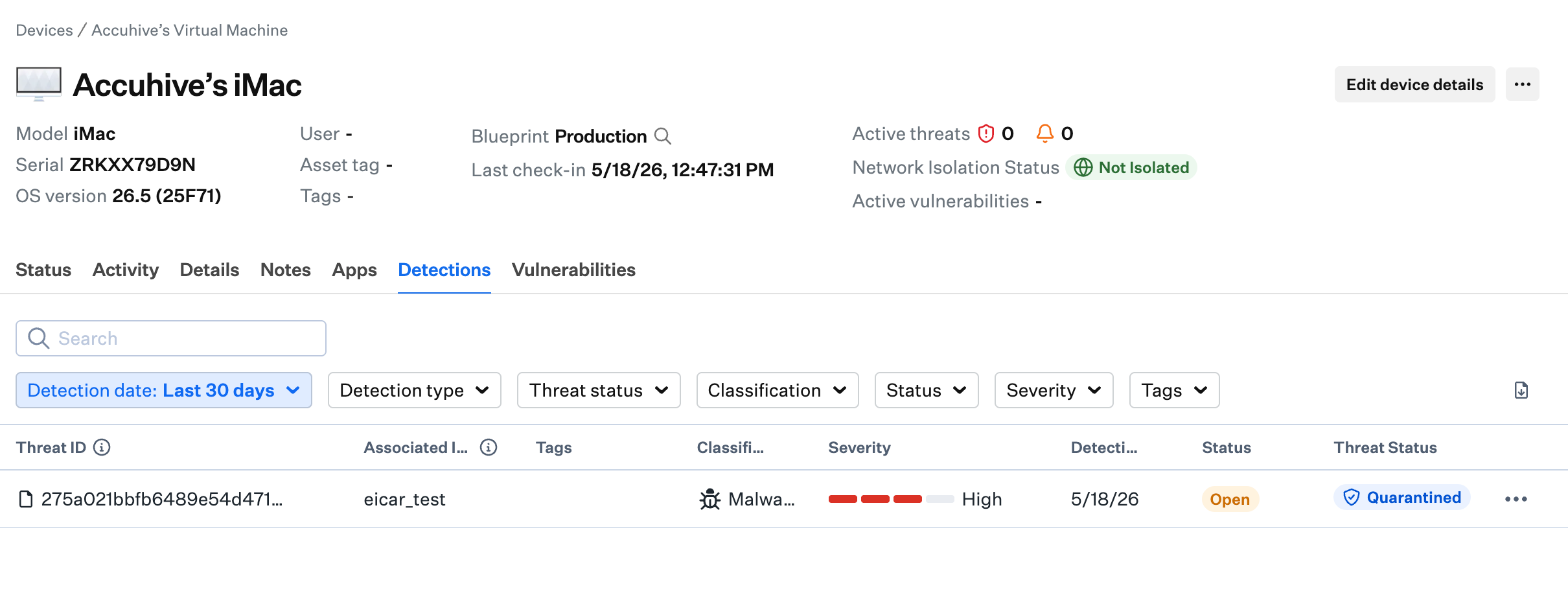
Platform-Specific Detections Features
- macOS
- Windows
Iru Endpoint EDR categorizes file detections as malware, PUPs, benign, or unknown, and behavioral detections as malicious or suspicious.Use the Detection type filter on the detections table to show File detections, Behavioral detections, or both.The threat detail side panel provides device isolation for quarantining affected devices from the network.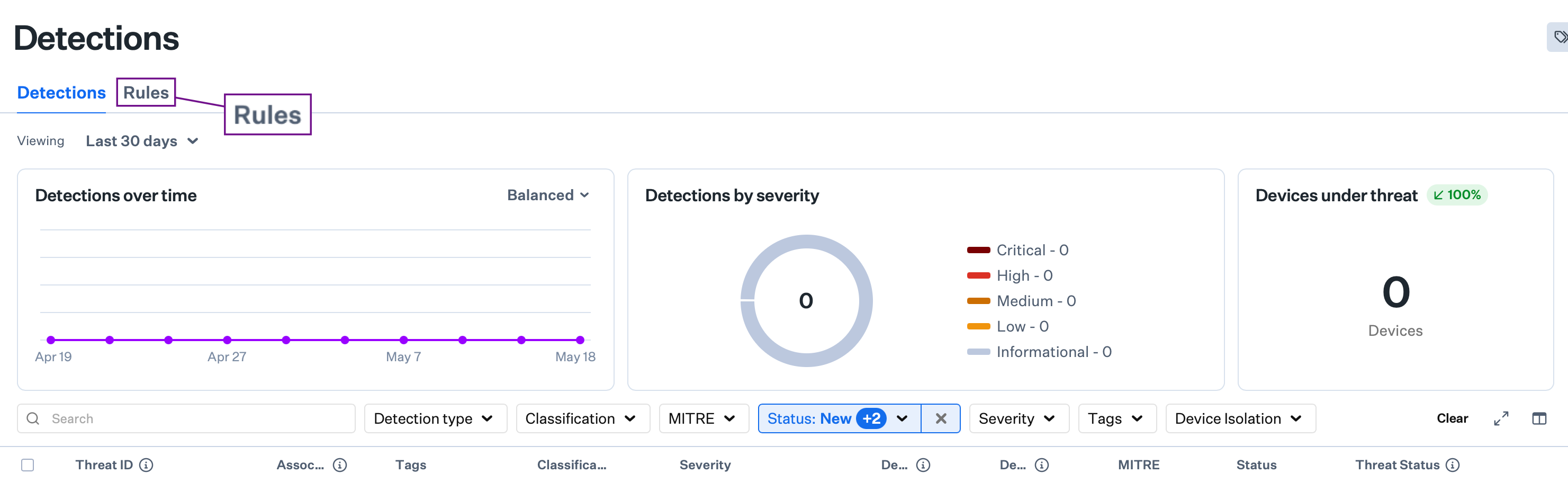
Rules Tab
The Rules tab on the Detections page lets you configure behavioral detection rule groups and detection levels. From here you can set a global rule detection level or set detection levels per rule group (Cautious, Moderate, or Aggressive), and manage rule exceptions. For full details, see Behavioral Detection Rule Groups.