

This guide applies to Mac computers
Download and Install iMazing Profile Editor
1
Download iMazing Profile Editor
Download iMazing Profile Editor from their website, or the Mac App Store.
2
Install the Application
If downloaded directly, open the iMazingProfileEditorMac.dmg and drag iMazing Profile Editor.app to your Applications folder.
Create Your Dock Profile
Once you have iMazing Profile Editor open, follow these steps.1
Configure General Settings
Select the General domain on the left side and configure the basic profile settings:
- Set Name to whatever you would like the profile name to be
- Set Identifier to a unique string
- Set Organization to your Organization’s name
- Set Payload Description to describe the profile’s purpose
2
Set Payload Scope
Set Payload Scope to System.
3
Add Dock Configuration Payload
In the upper right-hand search box, search for Dock, and Add Configuration Payload.
4
Configure Dock Options
Configure the appropriate options inside of the Dock payload.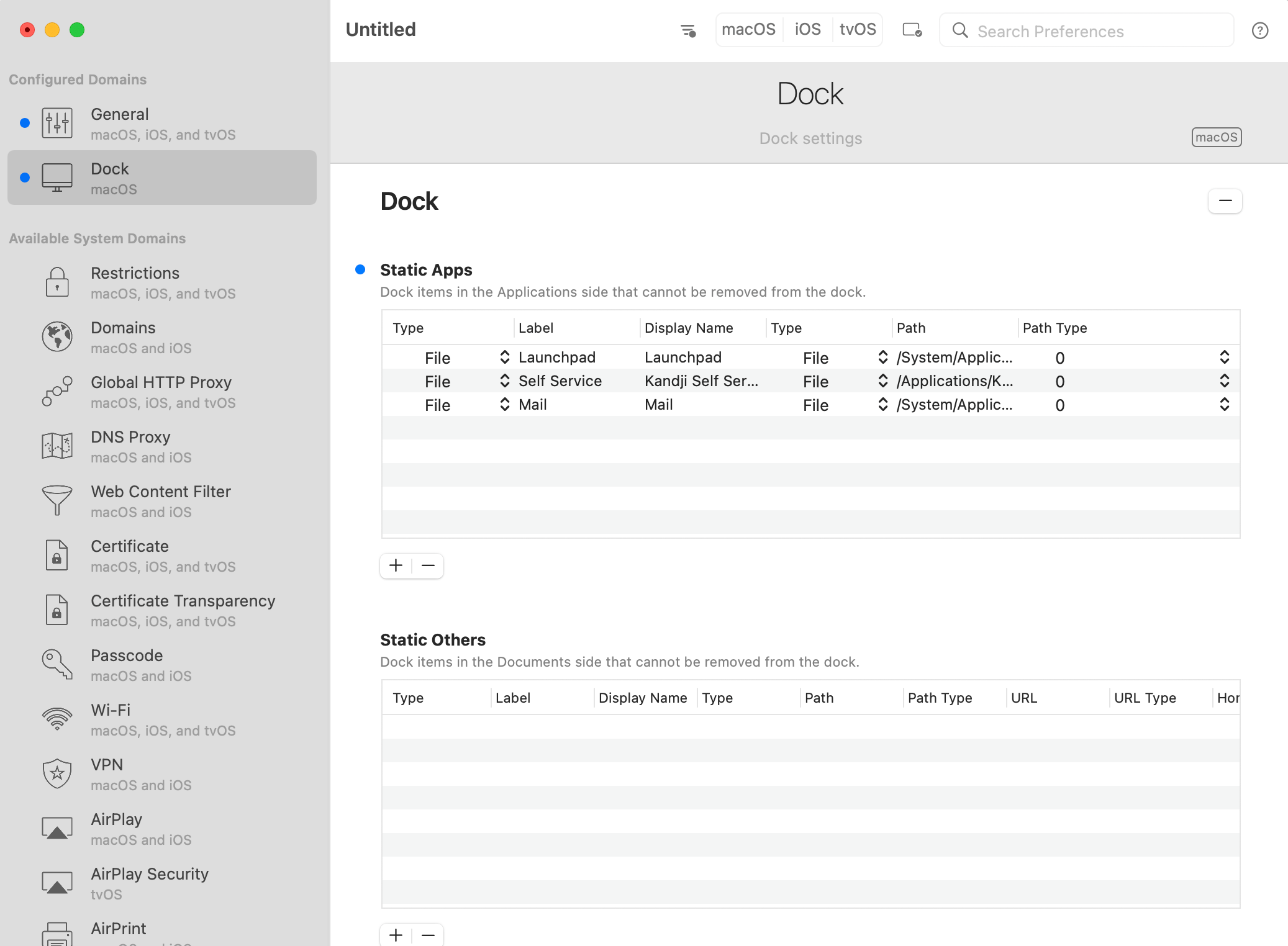
5
Save the Profile
Navigate to the Menu Bar and select File > Save, then select a save location and Save your profile.
If you deploy the profile using Iru Endpoint, you do not need to sign it. Iru Endpoint signs the profile during deployment.
Add Your Custom Profile Library Item
To add this Library Item to your Iru Endpoint Library, follow the steps outlined in the Library Overview article.Upload Your Custom Dock Profile to Iru Endpoint
1
Name the Profile
Give your profile a descriptive name.
2
Select Blueprint
Select a Blueprint from the Blueprint Assignment dropdown.
3
Set Device Family
Set your Device family to Mac.
4
Upload Profile
Drag and drop your dock profile to upload it.
5
Save Configuration
Save your custom profile.