Prerequisites
- Bitdefender installer package(s) from your Bitdefender admin portal. Ensure that an uninstall password is set in the package settings
- If you have both Intel-based Mac computers and Mac computers with Apple silicon, download the macOS kit (Intel x86) and macOS kit (Apple Silicon) packages. You need to include only one of the install.xml files. The post-install script used in this guide supports both installer types
- If you are only deploying to one architecture, you will still need that install package and the included install.xml file
- Bitdefender PFX Certificate Generator script (GitHub Link)
- Bitdefender Settings Profile (GitHub Link)
- This configuration profile enables full disk access for Notifications, System Extensions, Bitdefender SSL CA certificate, Privacy Preferences (PPPC), and a Network content filter
- Bitdefender macOS 15 or later Settings Profile (GitHub Link)
- This configuration profile includes the NonRemovableFromUISystemExtensions field for devices running macOS 15 or later
- Bitdefender Service Management Profile (GitHub Link)
- This configuration profile allows managed background items for Bitdefender
- Bitdefender Audit and Enforce Script (GitHub Link)
- Bitdefender Postinstall Script (GitHub Link)
Creating a PFX Certificate
This section steps through the creation of a PFX certificate for Bitdefender that can be uploaded to Iru Endpoint in a Certificate Library Item.Open Certificate Generator Script
Configure Certificate Information
Save Script
Open Terminal
Run Certificate Generator
Enter Password
Copy Password Hash
Locate Certificate File
Upload Certificate
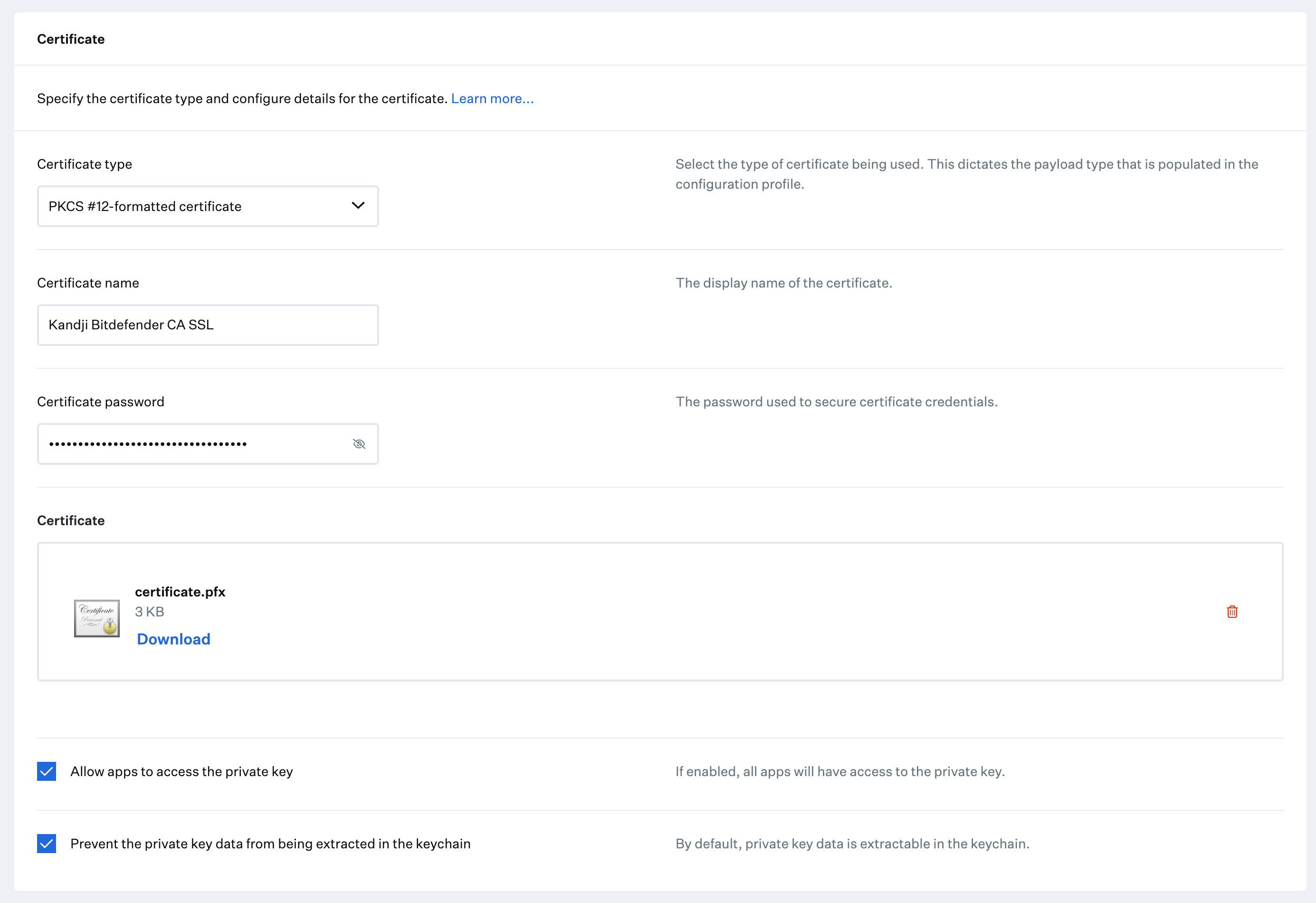
Add a Custom Profile Library Item
To add this Library Item to your Iru Endpoint Library, follow the steps outlined in the Library Overview article.Configure the Bitdefender Profiles
Create Profile
Select Platform
Assign to Blueprint
Upload Configuration File
bitdefender_settings.mobileconfig file you downloaded previously.Save Profile
Create Additional Profiles
bitdefender_settings_macOS15.mobileconfig and the bitdefender_service_management.mobileconfig files you downloaded in the prerequisites section.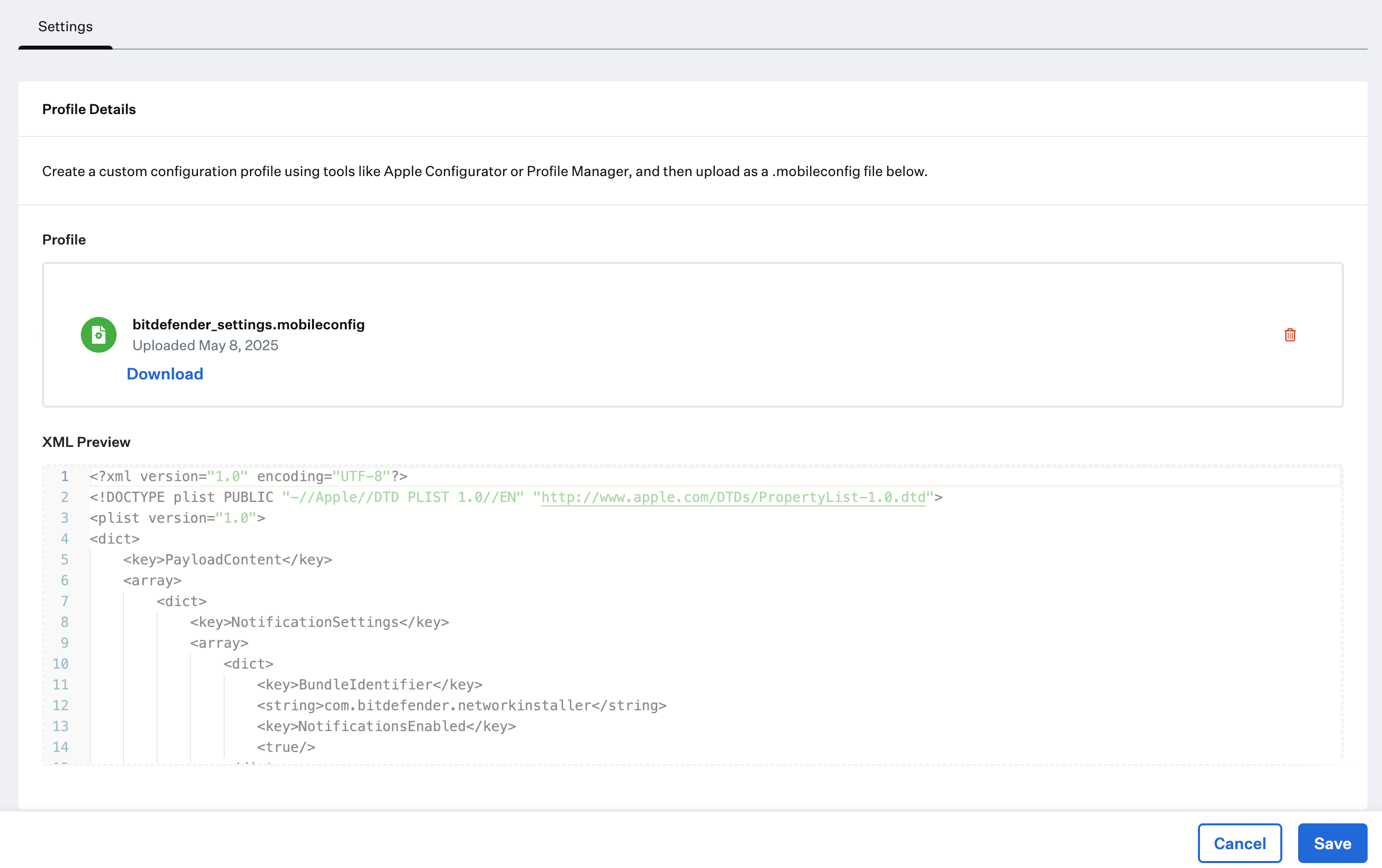
Zipping the Installer Files
Before uploading the installer files to Iru Endpoint, you will need to zip them up together first.Locate Installer Files
Organize Files
Select All Files
Compress Files
Rename Archive
Custom App
To add this Library Item to your Iru Endpoint Library, follow the steps outlined in the Library Overview article.Name the Custom App
Assign to Blueprint
Set Installation Type
Configure Audit Script
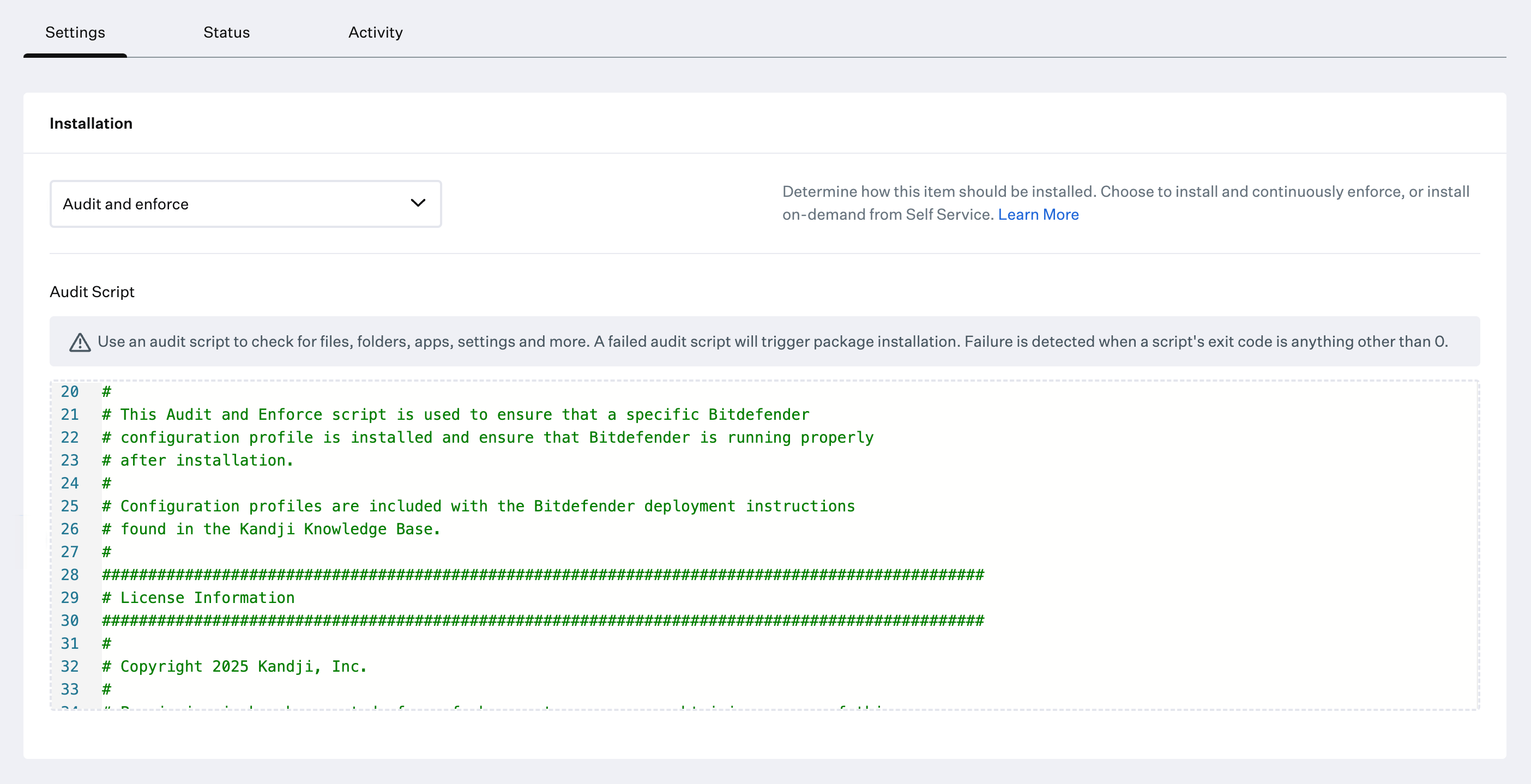
Set Deployment Type
Configure Unzip Location
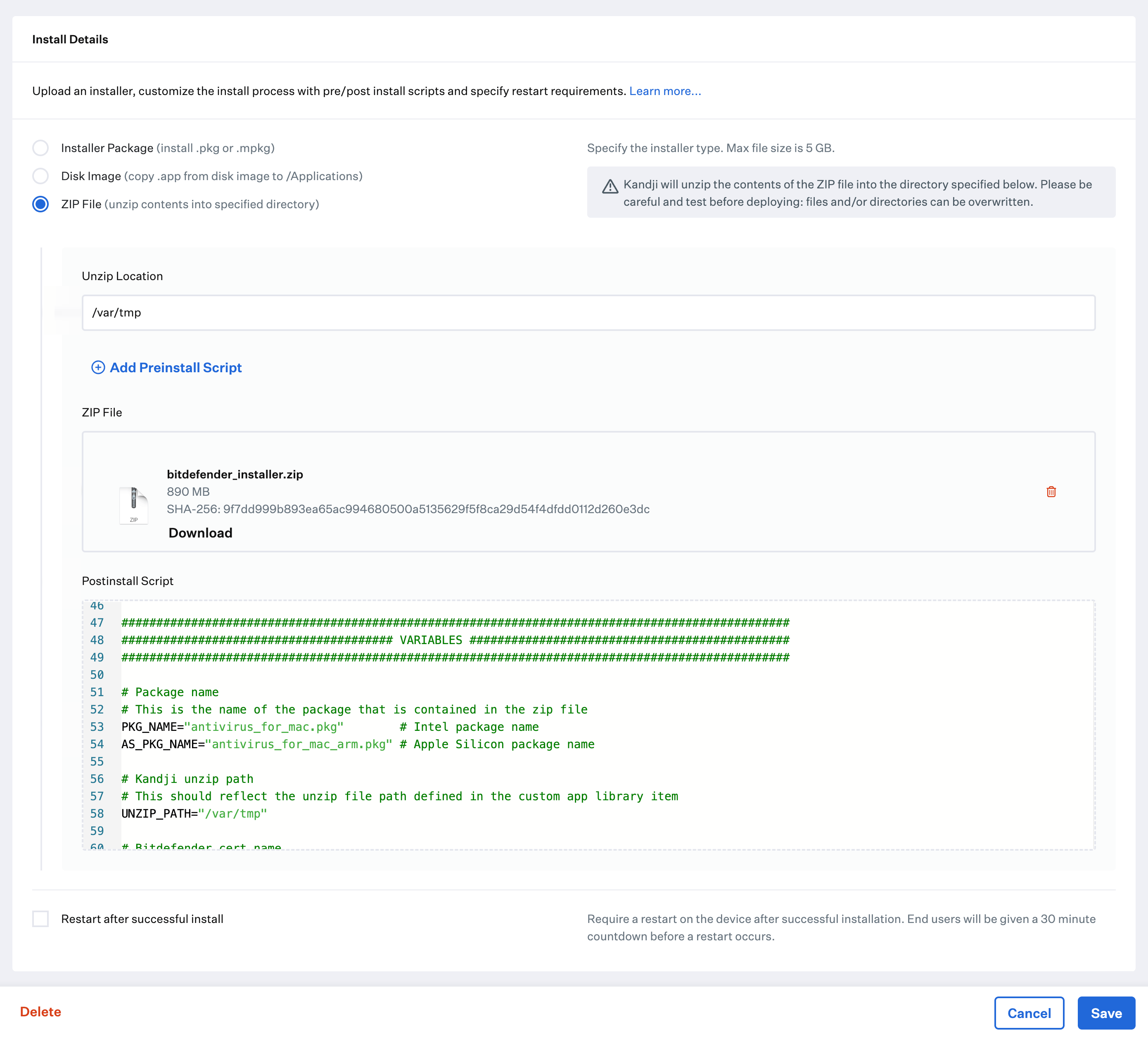
Upload Installer
Add Postinstall Script
Configure Postinstall Script
- Ensure that the package names match the names downloaded from Bitdefender
- Ensure that the certificate file name matches the cert file you created using the Bitdefender KB
Save Custom App
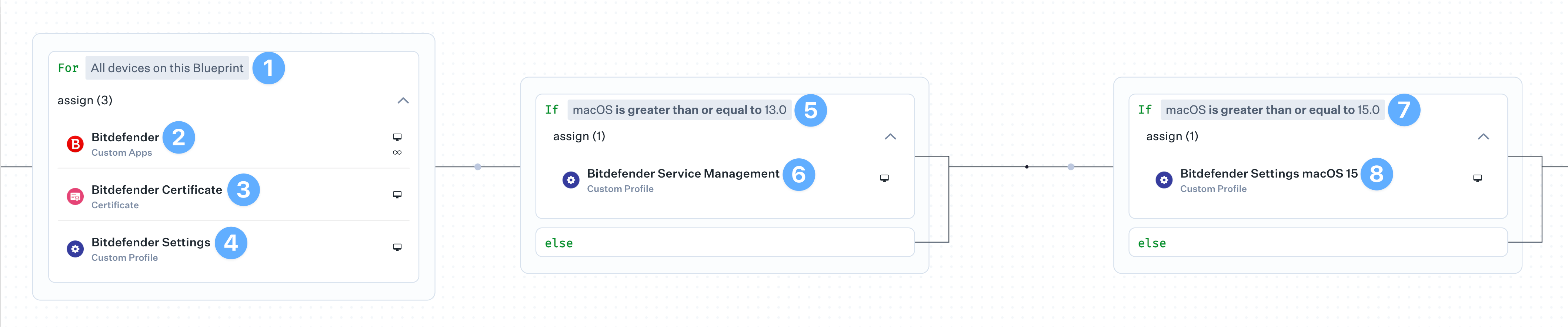
Deploying with Assignment Maps
Two of the Bitdefender Custom Profiles need conditional logic to ensure they are deployed to the correct devices. An Assignment Map provides an easy solution for all of your devices in one convenient view. Please review our Creating a Blueprint and Using Conditional Logic in Blueprints articles.Create Base Conditional Block
Assign Custom App
Assign Certificate
Assign Settings Profile
Set the macOS 13 or later condition
Assign Service Management Profile
Set the macOS 15 or later condition
Assign the macOS 15 or later Settings Profile