

This guide applies to Mac computers
About the Iru Agent CLI
The Iru Agent offers a suite of powerful Terminal commands that give admins additional control and information for their fleet of devices. While some commands can only be executed locally on a device using Terminal, others can be deployed through a Custom Script Library Item for greater flexibility.As of April 8, 2026, apps were updated from Kandji 
 to Iru
  branding. The Agent app name changed from Kandji Agent to Iru Agent. Please update scripts, automations, and utilities that still reference the old app names.
to Iru branding. The Agent app name changed from Kandji Agent to Iru Agent. Please update scripts, automations, and utilities that still reference the old app names.Local-Only Commands
The following commands must be executed directly on a device in Terminal. They cannot be deployed via a Custom Script or a Custom App Library Item.Interactive Mode (TUI)
Runsudo iru with no subcommand and no options to open a terminal user interface (TUI): a full-screen, menu-driven flow in Terminal so you can browse and trigger common agent actions without typing full commands and flags.
Terminal
Run
The agent will run and check in immediately. Normally, the agent checks in every 15 minutes. Without an internet connection, the agent will run in offline mode.Terminal
--reset-daily to force daily agent work to run even if it already ran in the last 24 hours:
- Blueprint Parameters: Daily Parameters run even if they already ran in the last 24 hours.
- Custom Scripts: Custom Scripts whose frequency is daily also run, not only scripts that run at every check-in or are continuously enforced.
- App inventory: Collects application inventory (including MDM commands) and ignores the once-per-day inventory schedule.
Terminal
Run Daily MDM Inventory Update
The agent will request the MDM server to initiate its daily MDM commands, such as validating Apps & Books from Apple Business or Apple School Manager, as well as querying certain device information.Terminal
Collect Apps
Collects full application inventory from the Mac.Terminal
Run Library Items
Checks for library items to execute.Terminal
--item with --reset-daily (same as -F):
Terminal
Print Iru Agent Logs
Prints log entries for the Iru Agent subsystem from the unified logging system. The--last option is required and specifies the number of previous seconds to print logs from. Replace <seconds> with a number, like 300. (Actual results displayed are limited based on available unified log storage.)
Redirect the output of the command using > to save to an external log file.
Terminal
Unified Logging is separate from product branding: subsystem identifiers on the Mac still use the
io.kandji prefix in log show predicates and in log config --subsystem, as in the examples below. Use those strings so commands match what the system records.Terminal
Terminal
Terminal
Subsystem predicate log command with options.
Terminal
- io.kandji.beekeeper
- io.kandji.cli
- io.kandji.daemon
- io.kandji.installer
- io.kandji.library-manager
- io.kandji.menu
- io.kandji.passport
- io.kandji.parameter-agent
- io.kandji.self-service
- io.kandji.liftoff
EDR
List quarantined files.Terminal
Terminal
Scriptable Commands
These commands can be executed through a Custom Script or a Custom App Library Item. They can also be run locally on a Mac in Terminal.Reboot
This option can be used in scripted workflows to force a reboot leveraging the Iru Agent and menu bar application. It’s visually similar to the reboot forced during FileVault enablement or a Managed OS upgrade. This initiates a restart by prompting the logged-in user with a countdown timer. If no delay is specified, the default 1800 (30 minutes) will be used. If no user is logged in, the delay will be ignored, and the Mac will restart immediately. Replace<seconds> with the countdown length in seconds (for example 300 for five minutes).
Terminal
Terminal
Dock
This option can be used in scripted workflows to add items to the end of the macOS Dock or remove items from the macOS Dock of the currently logged-in user. The application referred to by the bundle identifier must be in the /Applications folder. Optionally specifying the —all option adds the icon to the end of the Dock for all user accounts.Terminal
Terminal
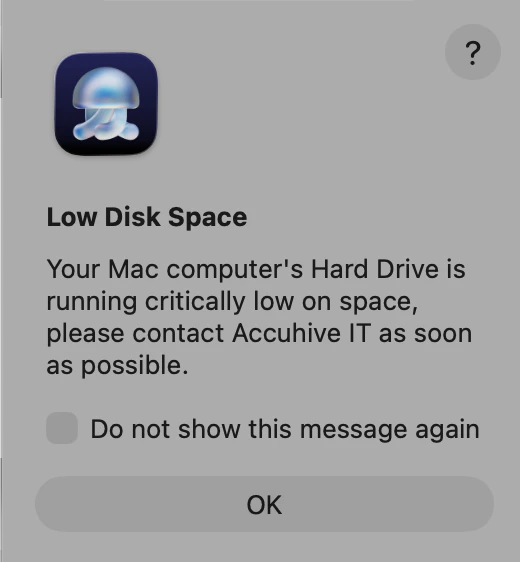
Alert
This command can be used in scripted workflows to present an alert to users.Terminal
Below is an example of the underlying command for an alert and the resulting experience in macOS Tahoe:
Terminal
Submit Diagnostics
Submit Diagnostics to Iru Endpoint. Equivalent to the action menu (gear) item available in the Iru menu.Terminal
Version
Display the installed Iru Agent version.Terminal
Help
Display help text.Terminal