

This guide applies to Mac computers
About SAP Privileges
SAP Privileges is an open-source tool for macOS that allows users to temporarily elevate their user accounts from standard to administrative when needed. This is particularly useful in environments where security best practices suggest that users should operate with the least privileges necessary for daily tasks but occasionally need administrative rights for specific actions.How SAP Privileges Works
The SAP Privileges app for macOS allows users to elevate their privileges temporarily to perform administrative tasks. Its built-in time-based rights expiration works only when users first Control-click the Dock icon and choose Toggle Privileges. The app then returns the user to standard privileges after the configured period. However, users can also launch the full SAP Privileges app to elevate their privileges, which bypasses the Dock icon method. To address this, we have released companion code that enforces the timeout even when privileges are escalated through other methods, such as launching the full app.Configuring SAP Privileges in Iru Endpoint
Requirements
- Privileges Checker audit script (GitHub Link)
- Privileges Checker remediation script (GitHub Link)
- A tool for custom profile creation, such as iMazing Profile Editor
- The SAP Privileges Auto App, Custom Script, and Custom Profile must all be added to the same Blueprint(s)
- The Demote user accounts to standard Parameter must be disabled on any Assignment Maps where Privileges is assigned
Adding the SAP Privileges Auto App
This Auto App deploys a configuration profile allowing background items for SAP Privileges and Privileges Checker. This is to ensure core functionality for the add-on, and has no impact if Privileges Checker is not present. To add this Library Item to your Iru Endpoint Library, follow the steps outlined in the Library Overview article.1
Assign to Blueprint
Assign the Auto App to a test Blueprint.
2
Configure Installation
Select desired installation method and hit Save.
Adding and Configuring the Privileges Checker Script
Add a Custom Script Library Item To add this Library Item to your Iru Endpoint Library, follow the steps outlined in the Library Overview article.1
Name the Script
Give the new Accessory & Storage Access Library Item a Name.
2
Assign to Blueprint
Assign to your desired Assignment Maps.
3
Set Execution Frequency
Select Run every 15 minutes as the Execution Frequency.
4
Configure Audit Script
Paste the audit script you downloaded earlier into the Audit Script text field. Edit the script on line 65 to set a Boolean value for USE_PROFILE_TIMEOUT, and a string value for USERS_TO_EXCLUDE.For USE_PROFILE_TIMEOUT: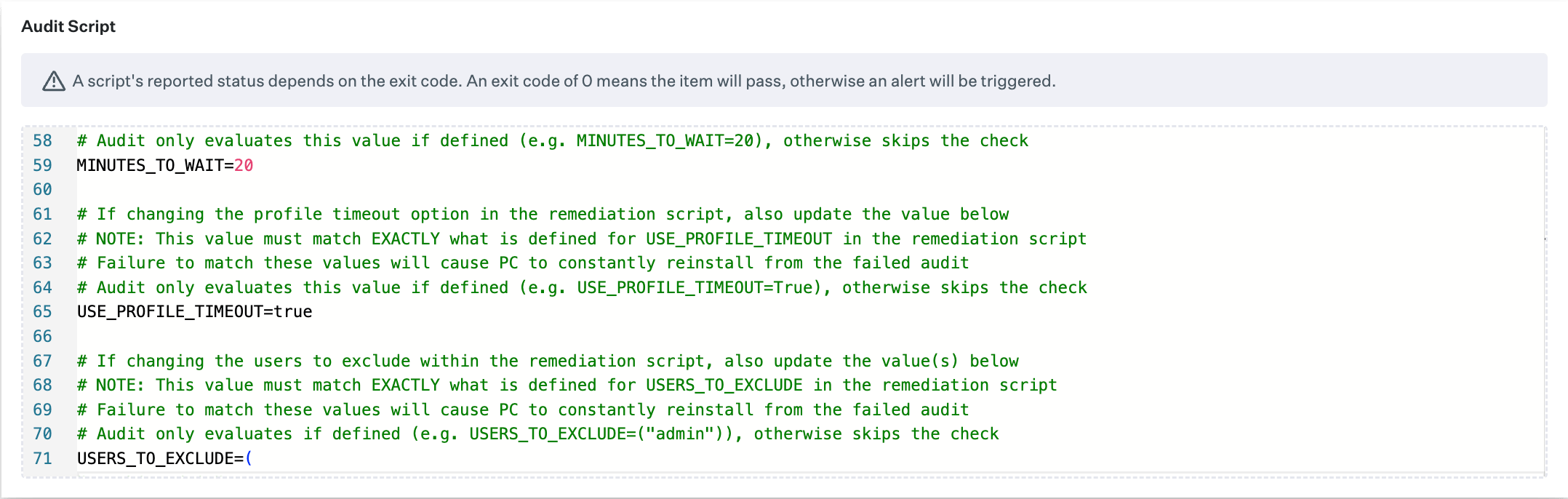
- Set to either True or False: Enforces a timeout in minutes from DockToggleTimeout key set in the Privileges configuration profile (see below)
- If the value is marked True but no profile is installed, or if the DockToggleTimeout key is not defined, the timeout will default to MINUTES_TO_WAIT. Otherwise, the configuration profile will override the locally set value MINUTES_TO_WAIT
- If no admin is defined, all admins will get demoted
- Admin names must be placed inside the double quotes
5
Configure Remediation Script
Paste the remediation script you downloaded earlier into the Remediation Script text field. Edit the script on line 56 to set an integer value for MINUTES_TO_WAIT. This is the number of minutes an end user should be allowed admin rights once granted.
6
Set Profile Timeout
Edit the script on line 64 to set a Boolean value for USE_PROFILE_TIMEOUT.
- Set to either True or False: Enforces a timeout in minutes from DockToggleTimeout key set in the Privileges configuration profile (see below)
- If the value is marked True but no profile is installed, or if the DockToggleTimeout key is not defined, the timeout will default to MINUTES_TO_WAIT. Otherwise, the configuration profile will override the locally set value MINUTES_TO_WAIT
7
Set User Exclusions
Edit the script on line 72 to set a string value for USERS_TO_EXCLUDE.
- Admin names must be placed inside the double quotes
8
Save Script
Select Save.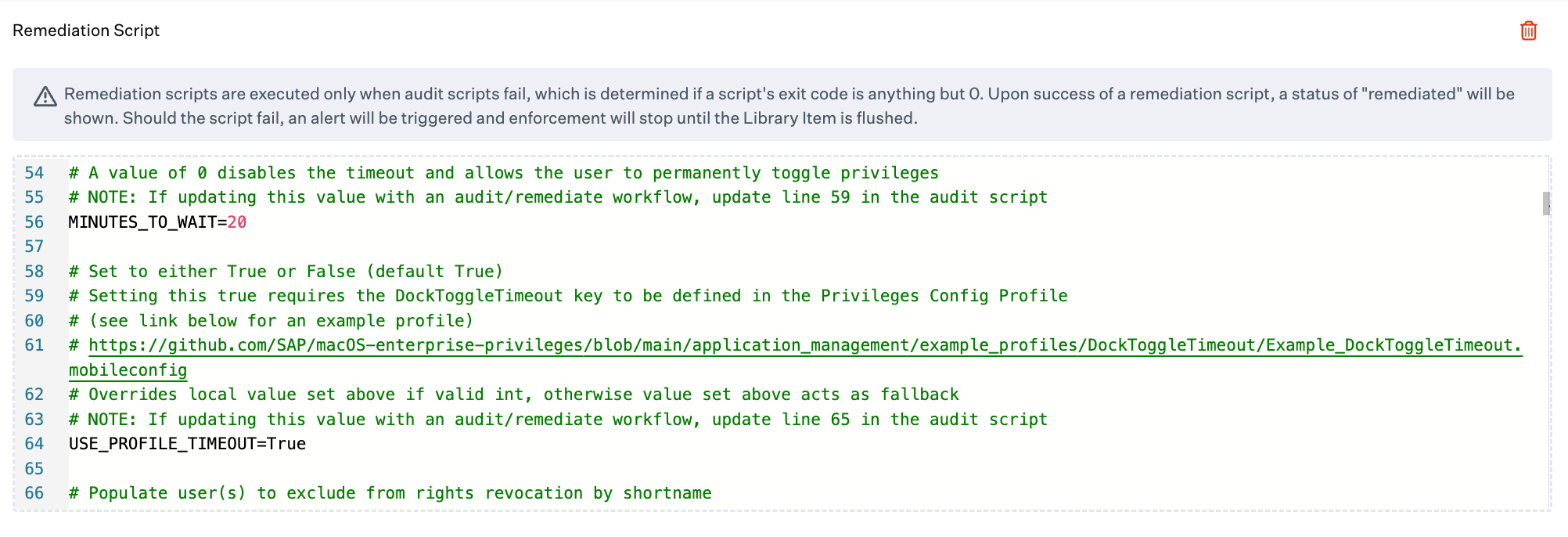
Create a Custom Profile
Profile creation steps are optional if you set the rights timeout with a script. You can also review additional profile options that SAP Privileges supports on its GitHub page.1
Open Profile Editor
Open iMazing Profile Editor.
2
Select SAP Privileges
On the left side, locate and select SAP Privileges under Available System Domains.
3
Add Configuration Payload
Select Add Configuration Payload.
4
Set Dock Toggle Timeout
Enter a value for Dock Toggle Timeout.If Privileges is configured with the DockToggleTimeout payload but Privileges Checker is not deployed, timed rights revocation occurs only when a user Control-clicks the Privileges Dock icon and chooses Toggle Privileges.
5
Configure Additional Settings
Optionally, configure any additional settings for SAP Privileges as desired.
6
Set General Information
Select the General section; populate the required values for Name and Identifier.
7
Save Profile
Hit Command+S to save your profile.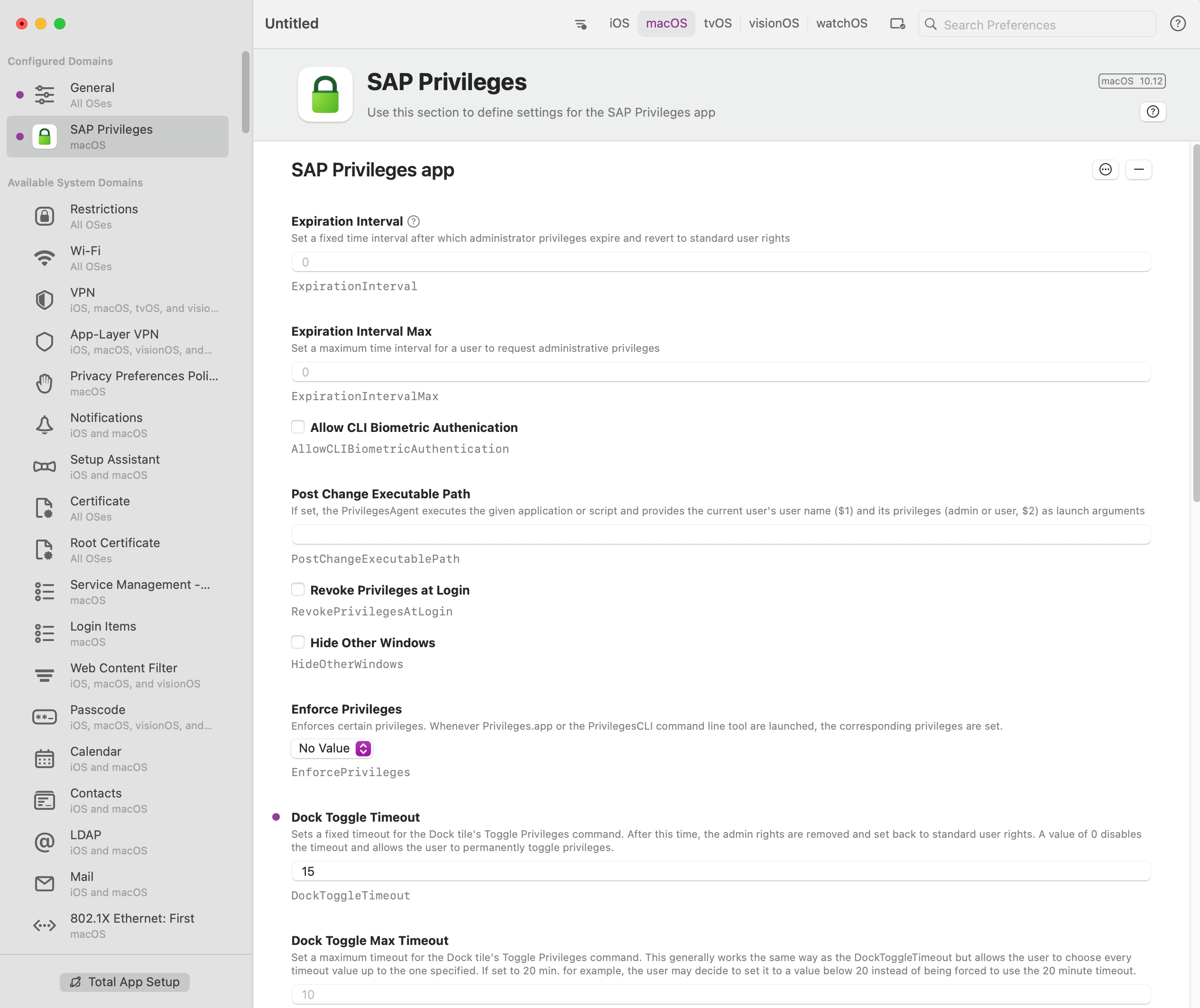
Add and Configure the Custom Profile
To add this Library Item to your Iru Endpoint Library, follow the steps outlined in the Library Overview article.1
Name the Profile
Give the profile a Name.
2
Assign to Blueprint
Assign your custom profile to a test Blueprint.
3
Set Device Families
Set the Device Families to Mac.
4
Upload Configuration
Upload the .mobileconfig you customized and saved above.
5
Save Profile
Save your custom profile.