

About Iru Endpoint
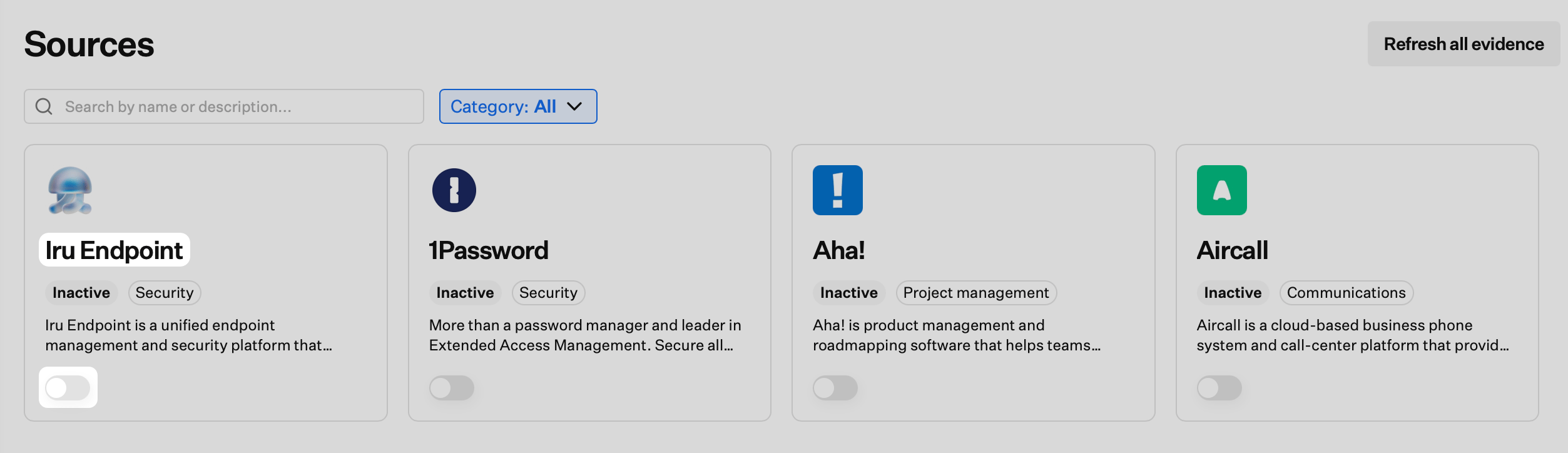
Iru Endpoint manages Apple, Windows, and Android devices. Apple coverage includes macOS, iOS, iPadOS, tvOS, and visionOS. Turn on Windows and Android in your tenant to use enrollment and policies there. For setup order and prerequisites, see Getting Started. Endpoint includes zero-touch deployment, app and OS patch management, compliance templates, threat detection, and APIs for automation. With this source on, Compliance can collect Artifacts about how devices are managed and how policy lines up with what is deployed, based on what your framework actions ask for.What You May See Collected
Depending on product configuration, examples include:- Device enrollment and management records
- Configuration or policy enforcement signals exposed to Compliance
- Endpoint compliance or posture summaries
- Inventory and assignment context relevant to controls
Typical Control Themes
- Endpoint management and asset inventory
- Device security configuration
- Operational visibility over managed endpoints
Endpoint Documentation
Configure devices, policies, and agents using the Getting Started path: foundation setup, platform setup, Blueprints and Library, and enrollment. Map Compliance actions to the Artifacts your security team expects (for example enrollment proof, configuration exports, or reports).Prerequisites
- An Iru API token from Iru Endpoint with GET / Read enabled for every API permission your security policy allows. This connector only reads from Iru Endpoint; when your policy permits broader GET access, Iru Compliance can attach more Artifacts automatically.
When you use the Iru Endpoint source with Iru Compliance, your API token is used on the Iru Endpoint Management API to gather Artifacts, and those requests count toward your tenant’s rate limit. See Considerations in Iru API Overview (open Rate limits).
Connect Iru Endpoint to Iru
- Iru Endpoint
- Iru Compliance
Complete this tab before you connect the source in Compliance.
1
Review the Iru Endpoint API documentation
Before you connect, read Iru API Overview for bearer authentication, how to create tokens, and where your tenant Iru API URL appears (US vs EU).
2
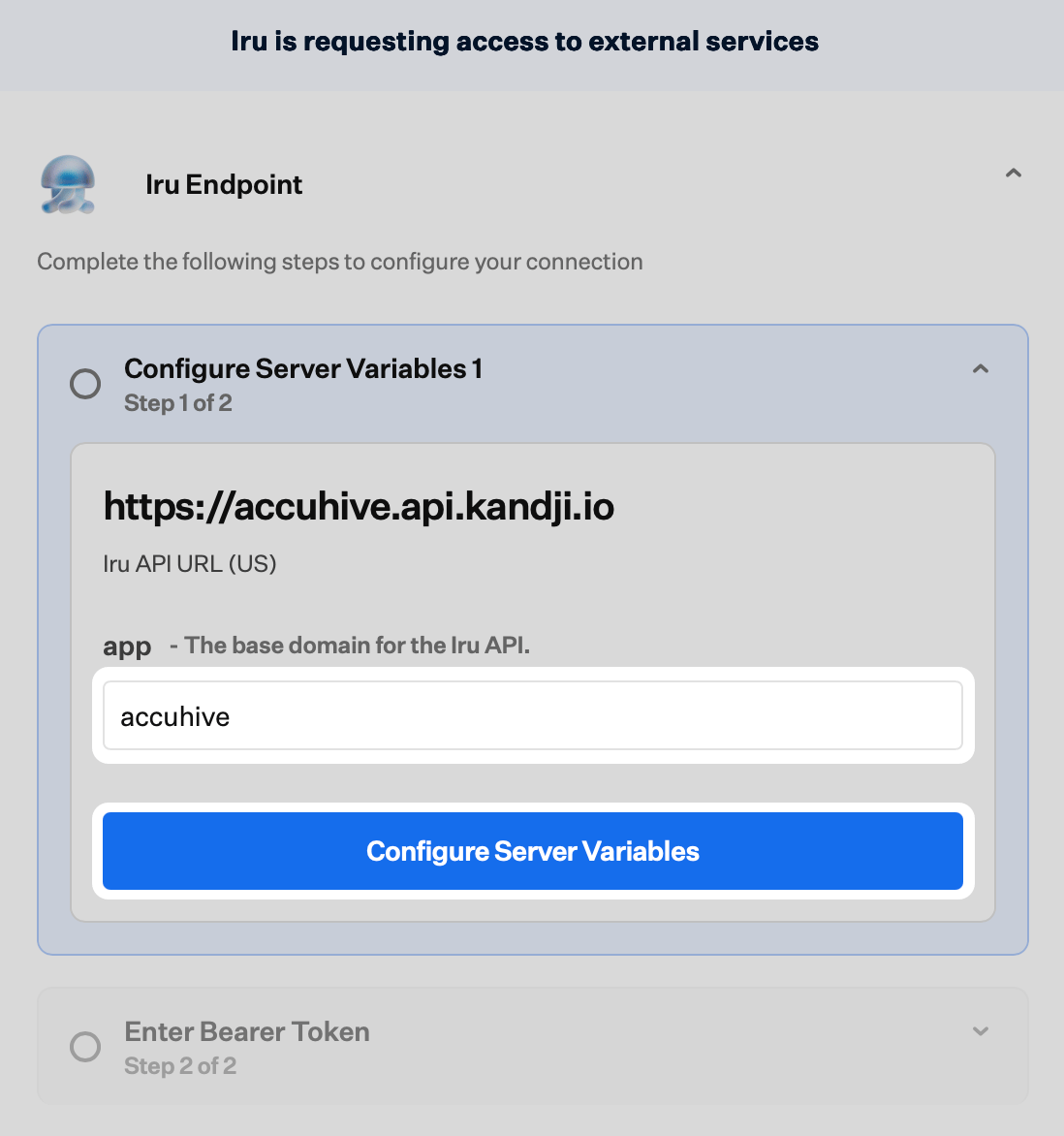
Understand the app segment in your API URL
Your
app value is the base-domain segment in that URL. It is the segment immediately before .api.kandji.io, .api.eu.kandji.io, or .api.iru.com. You’ll enter the same region and app in the Compliance connector wizard.3
Create an API token
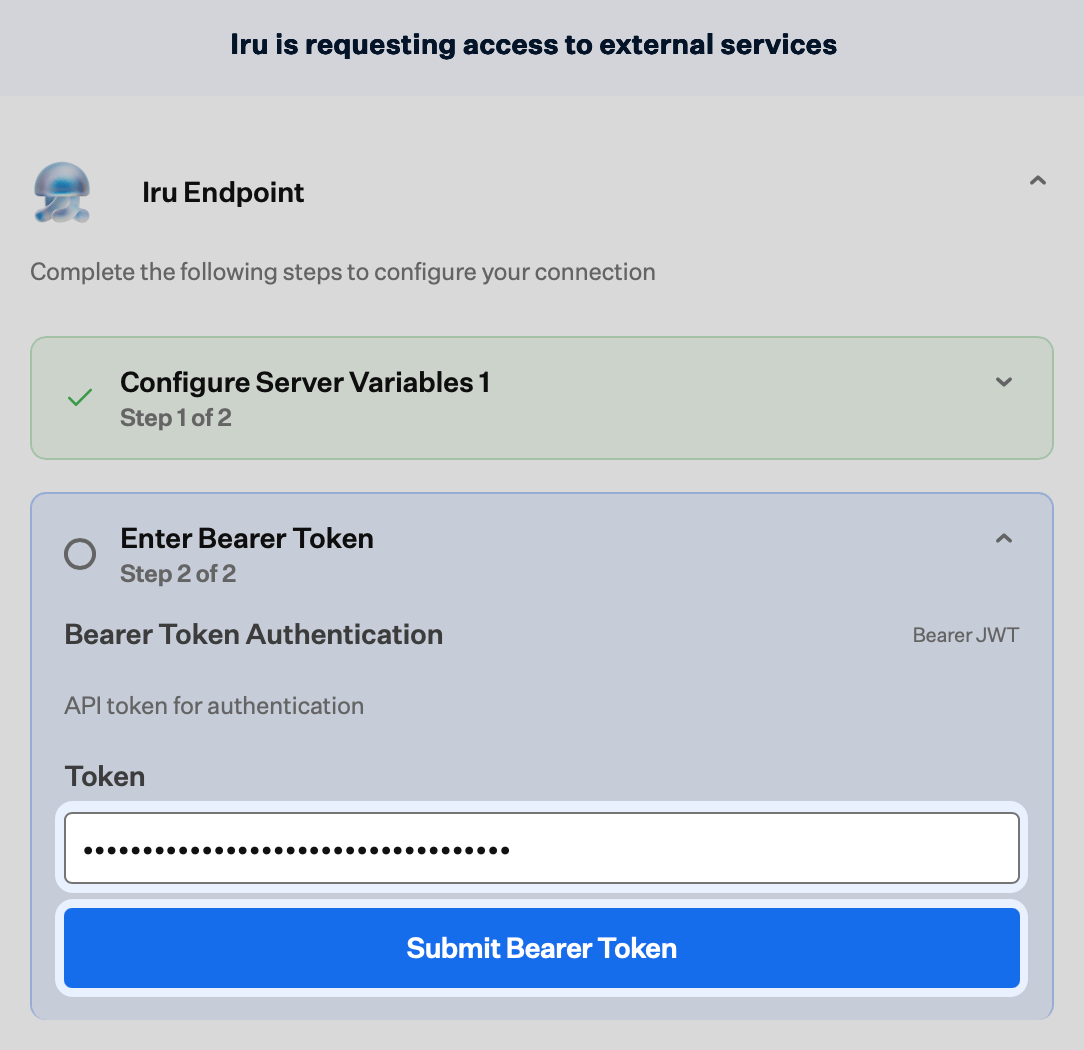
In the Iru Endpoint web app, open Access from the account menu. Select Add Token, enter a Name and Description, then create the token and copy the API token (the bearer credential Access shows once) to a secure place. In the Compliance connector wizard you paste that same value into the input labeled Bearer JWT. That text is the field label for where the bearer token is entered, not a separate credential type from the API token in Iru API Overview.
4
Confirm your tenant API URL for the Compliance wizard
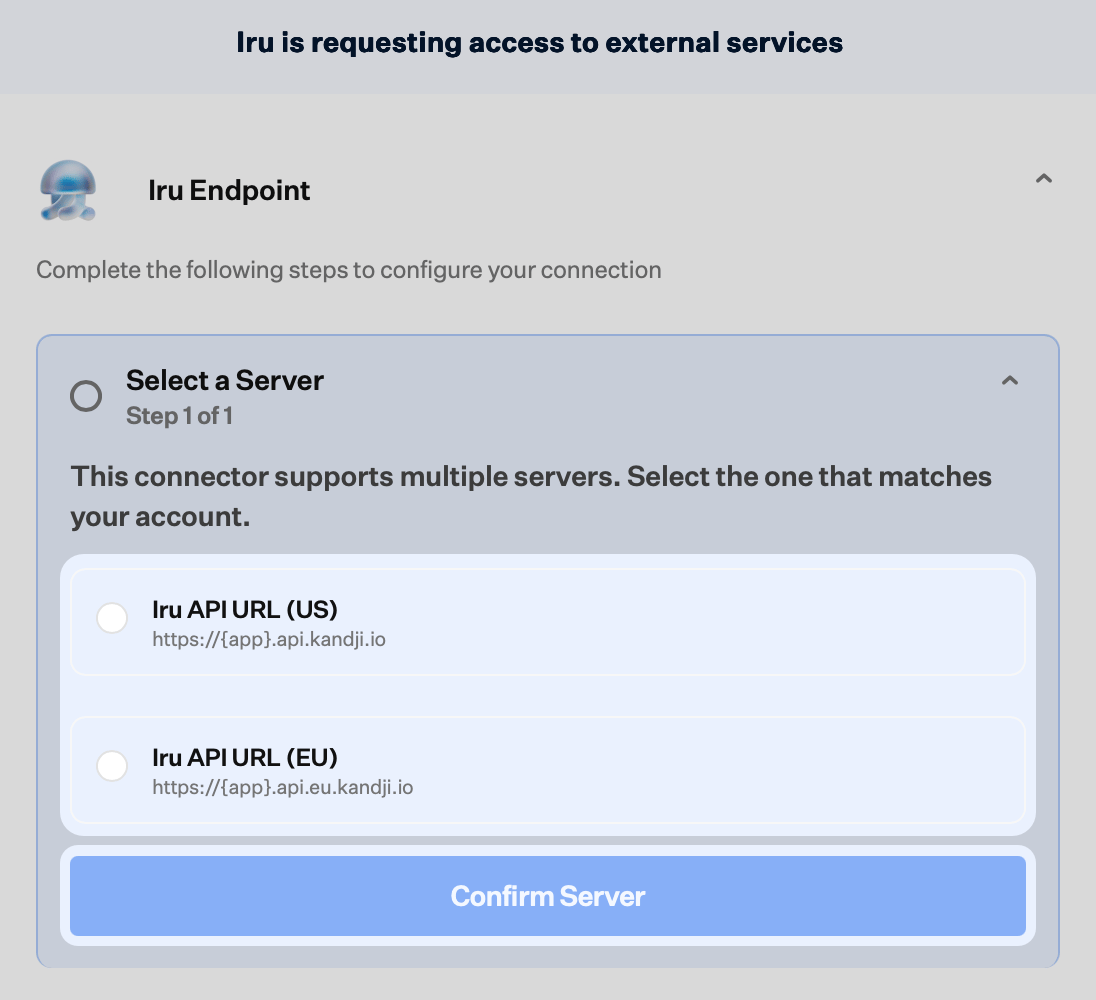
In Access, open the API tokens tab and find Your organization’s API URL. Use that hostname to double-check US vs EU and the
app segment when you run the Compliance wizard (Select API region and Configure the app variable).5
Configure GET permissions for Compliance
For the new token, open Configure and set Permissions: turn on GET for every API permission your security policy allows. GET is equivalent to Read in this model. Compliance collection is read-only, so you do not need the other permission levels for this connector. The more GET coverage the token has, the more Artifacts Iru can discover and attach from this source automatically.
Continue on the Iru Compliance tab.

Troubleshooting
Nothing opens when you turn the source on
Nothing opens when you turn the source on
Check pop-up blocker settings for the Iru site and try again.
Artifacts not syncing
Artifacts not syncing
If Artifacts from Iru Endpoint are slow to show up or stop updating, work through these checks:
- Rate limits: Your tenant might be hitting the Iru Endpoint API rate limit. Iru Compliance uses your token on the same hourly quota as your other scripts and integrations, so bursts elsewhere can leave this source waiting until usage falls. See Rate limits under Considerations in Iru API Overview.
- Permissions: The token might be missing GET access for routes this source needs. In Iru Endpoint, open Access, select the token, and review what is enabled under Edit against what your framework actions expect.
- Timing: Artifacts refresh when Iru Compliance runs this source on its schedule, so new Endpoint data is not always visible immediately. If you have already ruled out rate limits and permissions, wait for the next collection cycle and check the Artifacts page again.
Related Articles
Iru API Overview
Bearer tokens, tenant Iru API URL, and API permissions.
Getting Started With Compliance
Frameworks, actions, and Artifacts.
Iru Overview
How Endpoint, Compliance, and Identity fit together.
Sources Management
Browse and manage every Compliance source.