

Need help with a step? Contact Iru Support.
Where Evidence Comes from
- Manual uploads: Policies (create and publish them in Policies Management, or upload them as artifacts from Artifacts), screenshots, signed attestations, spreadsheets, PDFs, and similar files from Artifacts or an action or control when the UI offers an upload.
- Connected sources: Integrations that attach artifacts when action descriptions and source permissions allow. See Sources Management.
- Validation: Where supported, the product checks that an artifact fits the linked control or action before it counts toward readiness.
How It Works
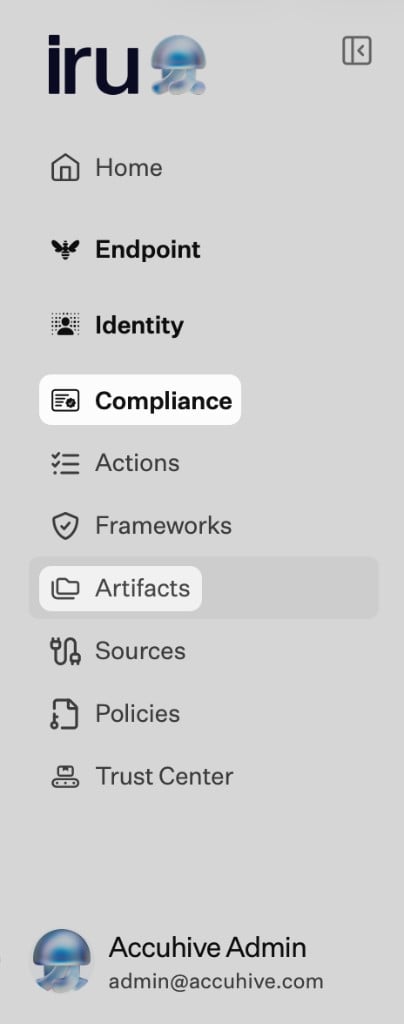
Use Artifacts to see evidence across frameworks in one list, open files for preview where supported, and confirm which controls and actions each item supports. New uploads may show a short notice while the file is processed; the row appears when it is ready. When Iru can check that the artifact fits the linked requirement, validation runs. Failed checks include a short reason so you can replace or supplement the file. Manual uploads and connector-supplied files can sit on the same action. Use whichever path matches where the evidence lives.Capabilities
Adding Artifacts
- From Artifacts, choose + Add artifact(s) (or + Add artifact when the list is empty). You can also start from an Action or Control detail page when the product links uploads there.
- In Artifact Details, drag and drop a file or select attach a file, then choose Add artifact (or Cancel to close without saving).
- If an artifact is expected from an integration, it may appear automatically when the source is Active and the action text is specific enough.
Each upload must be 50MB or smaller. If a file exceeds the limit, the modal shows an error naming the file and the maximum size; split or compress the file and try again.
Validation
When an artifact is added, the platform can automatically check:- Relevance to the linked control or action.
Linking to Controls and Actions
- Each artifact attaches to the action or control it supports.
- Users can view mappings from the artifact detail panel.
- One artifact may support multiple controls when it satisfies more than one requirement.
Managing Existing Artifacts
Users can open any artifact to:- Change the title or description for clarity.
- Preview attached documents without downloading.
- See which controls and actions the artifact supports.
Related Articles
Getting Started With Compliance
How artifacts fit with frameworks, actions, and sources.
Policies Management
Create, publish, and track acknowledgements for security and compliance policies.
Adaptive Compliance
Control update recommendations when policy artifacts or sources change.
Actions Management
Assign work and attach evidence to actions.
Sources Management
Connect systems that auto-collect artifacts mapped to actions.