

About Iru Trust Center
Iru Trust Center is a branded portal where you publish certifications, policies, and answers to common security questions. Visitors can request access to restricted documents; you approve accounts, enforce NDAs when needed, and revoke access from one place. On the left navigation bar, expand Compliance and select Trust Center. The page uses tabs for Accounts, Editor, Answers, and Questionnaires.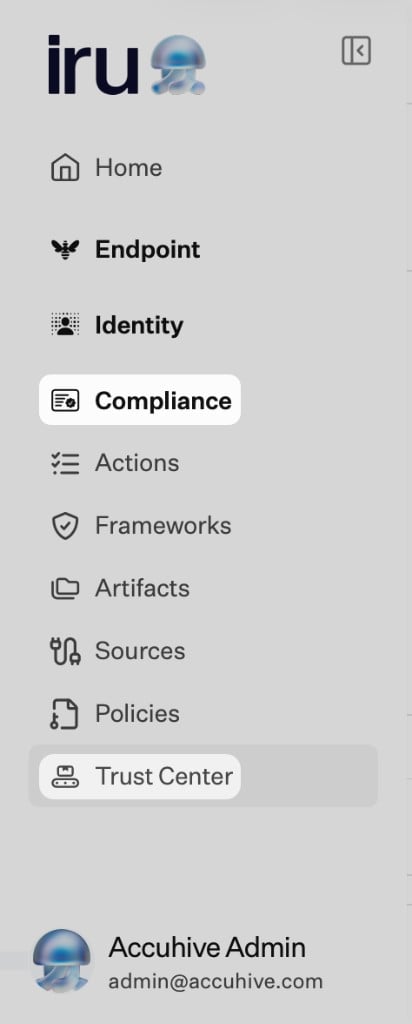
How It Works
You can run Trust Center alongside the full Compliance suite or on its own. Either way, you control branding, domains, which artifacts and answers are public, and who can sign in after approval. Visitors open your portal, request access to restricted content when needed, sign an NDA if you require it, then read or download only what you published. Your admins use the Editor, Accounts, Answers, and Questionnaires tabs (see Compliance Permissions for who can change each area). Default hosting uses an Iru subdomain; you can add a custom domain with DNS verification. See Trust Center Setup.Trust Center Capabilities
Accounts Management
Manage who can view and download your published compliance documents (Accounts tab).- Review Access requests and approve or reject them
- View and manage approved accounts with granted access
- Select Access rules to open Access request rules. Turn Access auto-approval on or off depending on whether visitors with a signed NDA should be approved automatically.
- Review and verify signed NDAs before approval when your process requires it
- Revoke or delete access instantly
Editor
Customize and brand your public Trust Center to reflect your organization’s identity (Editor tab).- Use Get started in the section header when you are setting up the profile for the first time
- Complete Your profile (logo, company name, brand colors, tagline, description, domain, email, privacy policy URL)
- Set a custom domain (for example
trust.yourdomain.com) with CNAME verification where supported - Under Certifications, choose standard entries and add custom certifications as needed
- Use Manage artifacts to choose which evidence appears on the public page
- Under NDA - Access requests, upload a manual NDA PDF, or use the DocuSign card: turn the toggle on, then Select template once DocuSign shows as connected (until then the card shows Not connected).
- Enable NDA protection so users must sign before viewing restricted materials
Artifacts Integration
Publish approved compliance documents, reports, or policies directly to your Trust Center.- Create and publish policies in Policies Management, then share them through Trust Center
- Upload or select existing artifacts from the Artifacts module
- From the artifact’s detail drawer, toggle “Show in Trust Center”
- Manage all published documents through the Editor tab for visibility and NDA settings
Answers
Create and manage a repository of pre-approved responses for security and compliance questionnaires (Answers tab).- Add entries with + Add entry or + Bulk entries; use Manage categories to organize the library
- Include questions, answers, comments, categories, owners, and support links
- Toggle Show in Trust Center to make answers publicly visible
- Feed responses into Iru AI for automatic questionnaire completion
Questionnaires
Upload questionnaires from customers or vendors and let Iru AI automatically generate answers using your Answers library and Trust Center artifacts (Questionnaires tab).- Start with + Upload questionnaire. The flow accepts CSV, XLSX, DOCX, and PDF (shown in the modal).
- Optionally link sources for generated answers by selecting artifacts from the list
- Displays each questionnaire’s progress and status
- Review, edit, approve, or mark questions as non-applicable
- Download or email the completed questionnaire to customers once approved
Public Trust Center Portal
A fully branded, secure webpage where approved users can view and download published compliance information.- Public visitors can request access to restricted materials
- Approved users see certifications, artifacts, and published answers
- Access is gated behind NDA enforcement when enabled
- Supports a dual-domain experience: default Iru subdomain and optional custom URL
Core Concepts
Trust Center
A branded portal for publishing and sharing compliance information securely with external stakeholders.Accounts
The list of users or organizations that have requested or been granted access to the Trust Center.Access Requests
Pending access requests that must be reviewed before approval.Editor
The configuration section used for branding, domain setup, and publication of documents and certifications.Artifacts
Compliance evidence, reports, or policies published from Policies Management, Artifacts, or uploaded directly.Answers
Pre-approved responses for recurring compliance or security questions.Questionnaires
Uploaded security or compliance assessments that Iru AI can automatically populate with answers and evidence.NDA Protection
A feature that enforces signing an NDA before access to sensitive materials is granted.Quick Start Guide
Set Up Your Trust Center
1
Navigate to Trust Center
On the left navigation bar, expand Compliance and select Trust Center
2
Configure Basic Settings
Set up your company information, logo, and contact details
3
Configure Domain
Set up your custom domain or use the default Iru subdomain
4
Enable NDA Protection
Upload your NDA document and enable protection if needed
Publish Your First Artifacts
1
Upload Artifacts
Upload compliance documents, reports, or policies
2
Mark for Trust Center
Toggle “Show in Trust Center” for artifacts you want to publish
3
Review Published Content
Check how artifacts appear on your public Trust Center
Set Up Answers Library
1
Create Answer Entries
Add frequently asked security and compliance questions
2
Publish to Trust Center
Toggle “Show in Trust Center” for public answers
3
Test AI Integration
Upload a test questionnaire to verify AI auto-answering
Related Articles
Once you’ve completed the quick start guide, explore these detailed guides:Iru Overview
Trust Center in context with Endpoint, Compliance, and Identity on one platform.
Policies Management
Create and publish security policies before sharing them on Trust Center.
Trust Center Setup
Configure branding, domains, and NDA protection.
Trust Center Accounts Management
Access request management and account approval.
Trust Center Answers & Questionnaires
AI-powered questionnaire processing.
Trust Center Public Portal
The external user experience.