

Connect a source system
Import a file (manual)
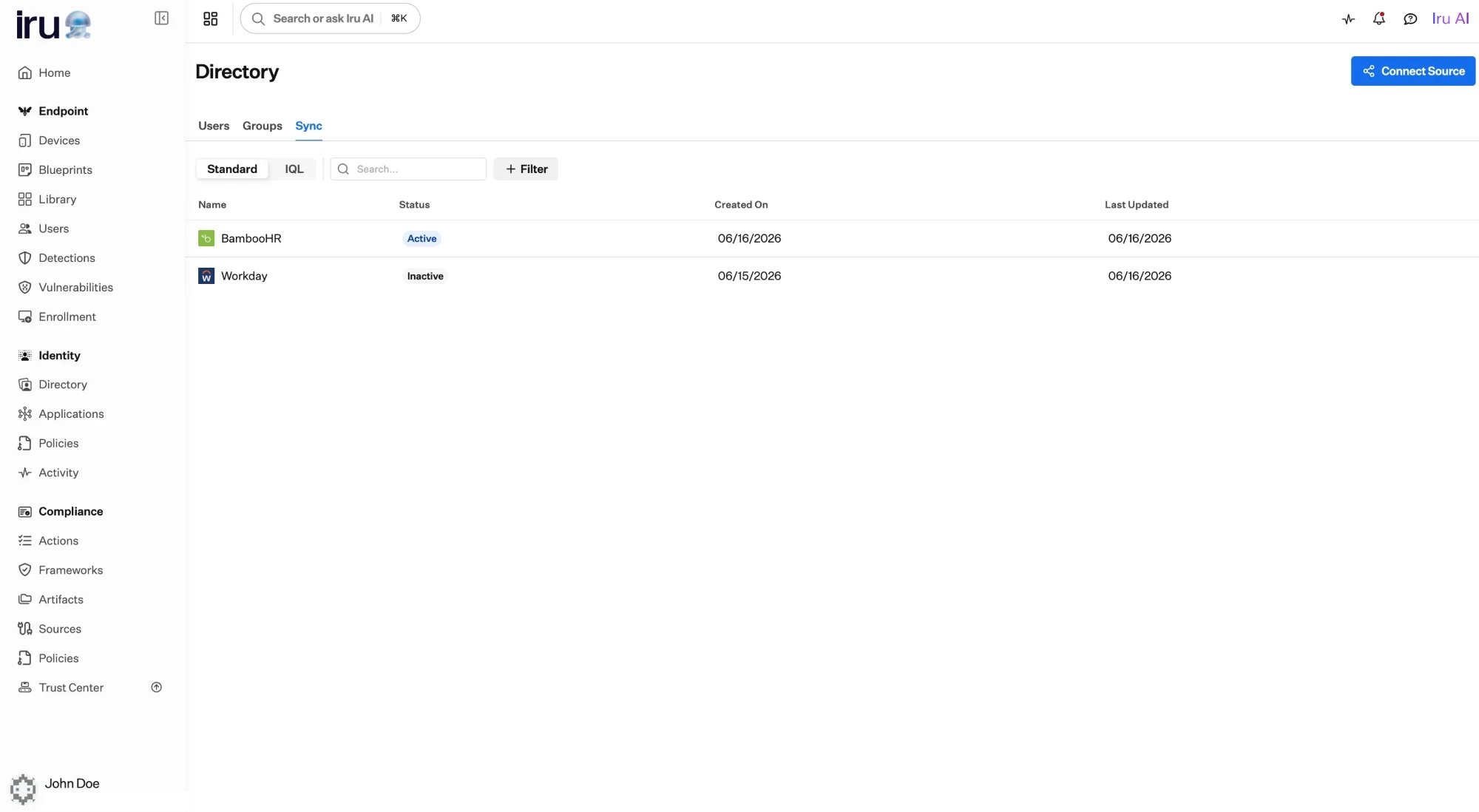
Connected sources are listed under Directory, on the Sync tab.
How it works at a glance
- Choose your provider.
- Connect: enter credentials so Iru can read your user data.
- Configure (some providers only): tell Iru where your data lives.
- Map the source’s fields to Iru fields.
- Enable: turn on syncing and choose how often it runs.
Ideas that apply to every connection
- Your source system leads. Once connected, it’s the authority on user data; Iru reflects what it sends.
- Every user needs a stable ID. You pick one field that uniquely and permanently identifies each user, so Iru always updates the right record.
- You decide how fields line up. Iru doesn’t guess. You map each source field to the matching Iru field, and can transform values with IQL when they don’t line up one-to-one.
Set it up
Choose your provider
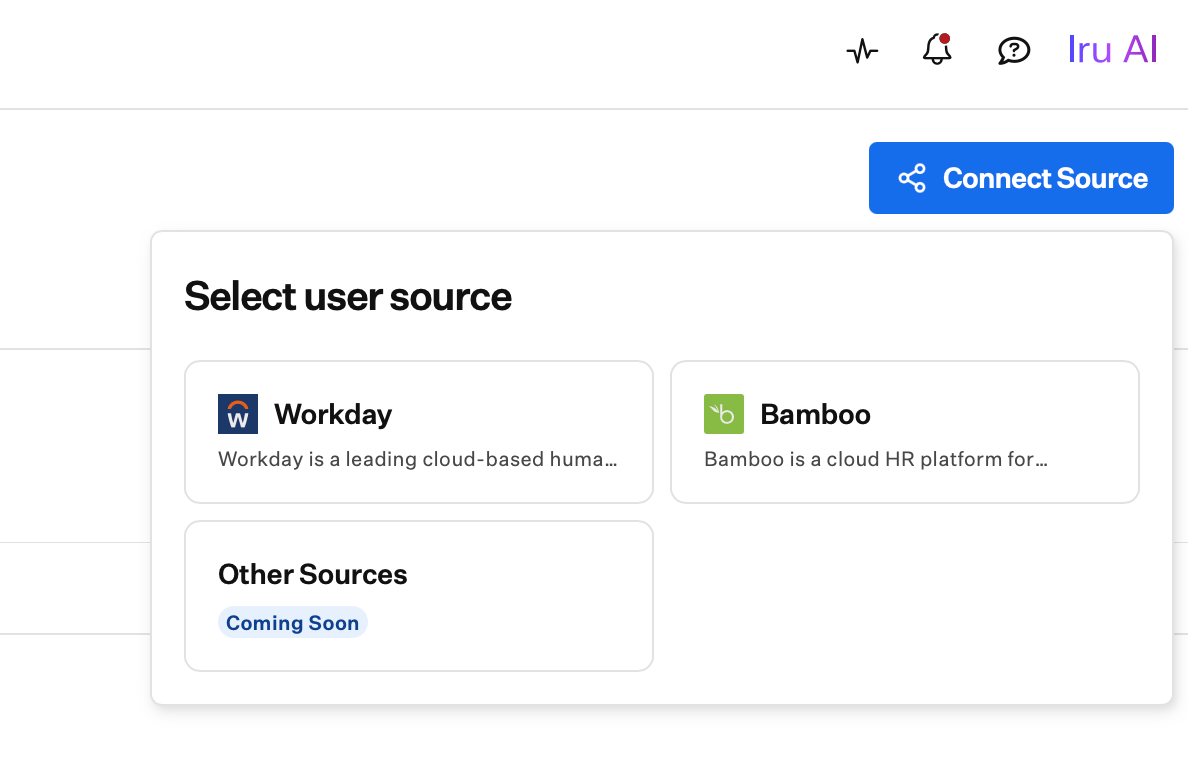
Connect Source lists the source systems you can connect.
Connect with credentials
- Workday: instance host, Workday tenant, Integration System User, and password.
- BambooHR: company domain and API key.
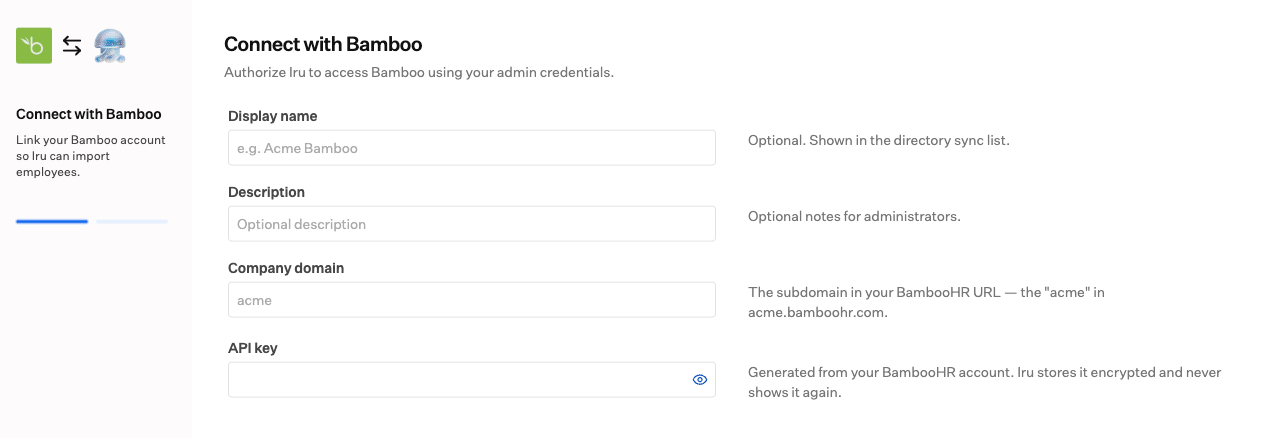
BambooHR connection: company domain and API key entered in Iru.
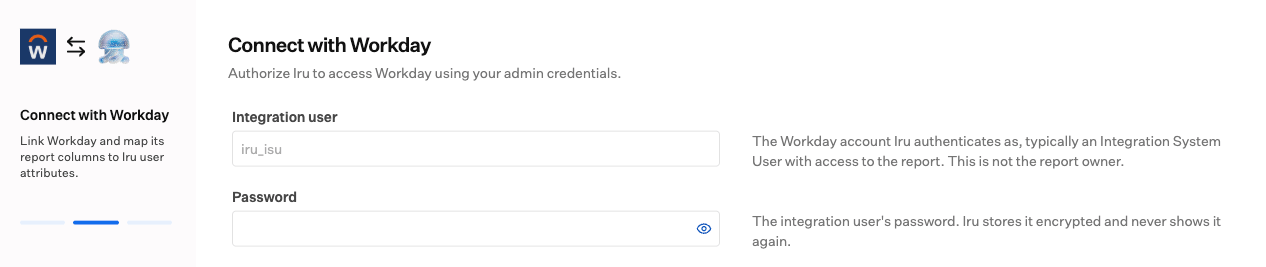
Workday connection: Integration System User credentials entered in Iru.
Configure where your data lives (some providers)
Map your data to Iru
Finish and enable
Map your data
Mapping is where most of the setup happens: connecting your source’s fields to the matching fields in Iru.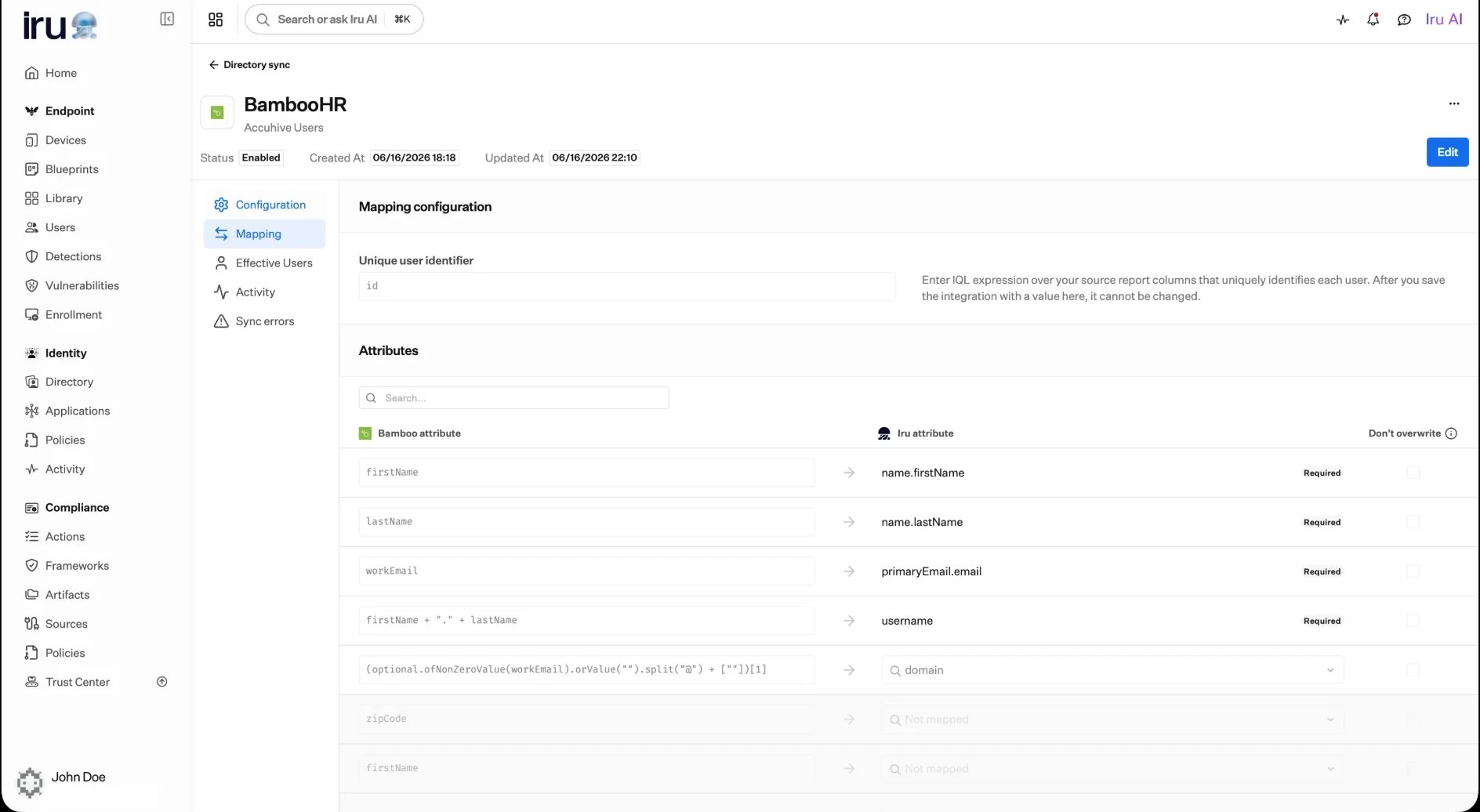
The Mapping tab: a unique-identifier expression plus one row per attribute, each filled by a source field or an IQL expression.
Set a unique identifier
Choose the field that uniquely identifies each user, often an employee ID or similar stable identifier. Iru relies on one stable value per user to update the right record on every sync, even when names or emails change.Match fields to Iru
For each Iru attribute, pick the source field that should fill it. Four attributes are required and always mapped:- First name
- Last name
- Username
Transform values with IQL
Most fields are a simple pick-and-go. When the value you want needs to be built from a field rather than copied as-is, write a short IQL expression instead. As you type, Iru suggests the available fields and checks your expression, so you catch a typo or a missing field before you save, not during a sync. See Attribute mapping and IQL expressions for the full syntax. Common examples (use your provider’s own field names):- Build a username from an email (everything before the
@):email.split("@")[0] - Combine two fields into one value:
firstName + " " + lastName - Prefer one field, fall back to another when the first is blank:
optional.ofNonZeroValue(workEmail).orValue(homeEmail)
Choose your provider
The flow is the same for each; these guides cover the steps that differ.Connect Workday
Connect BambooHR
What happens on each sync
Once enabled, Iru syncs on the interval you choose and reconciles your directory with the source system: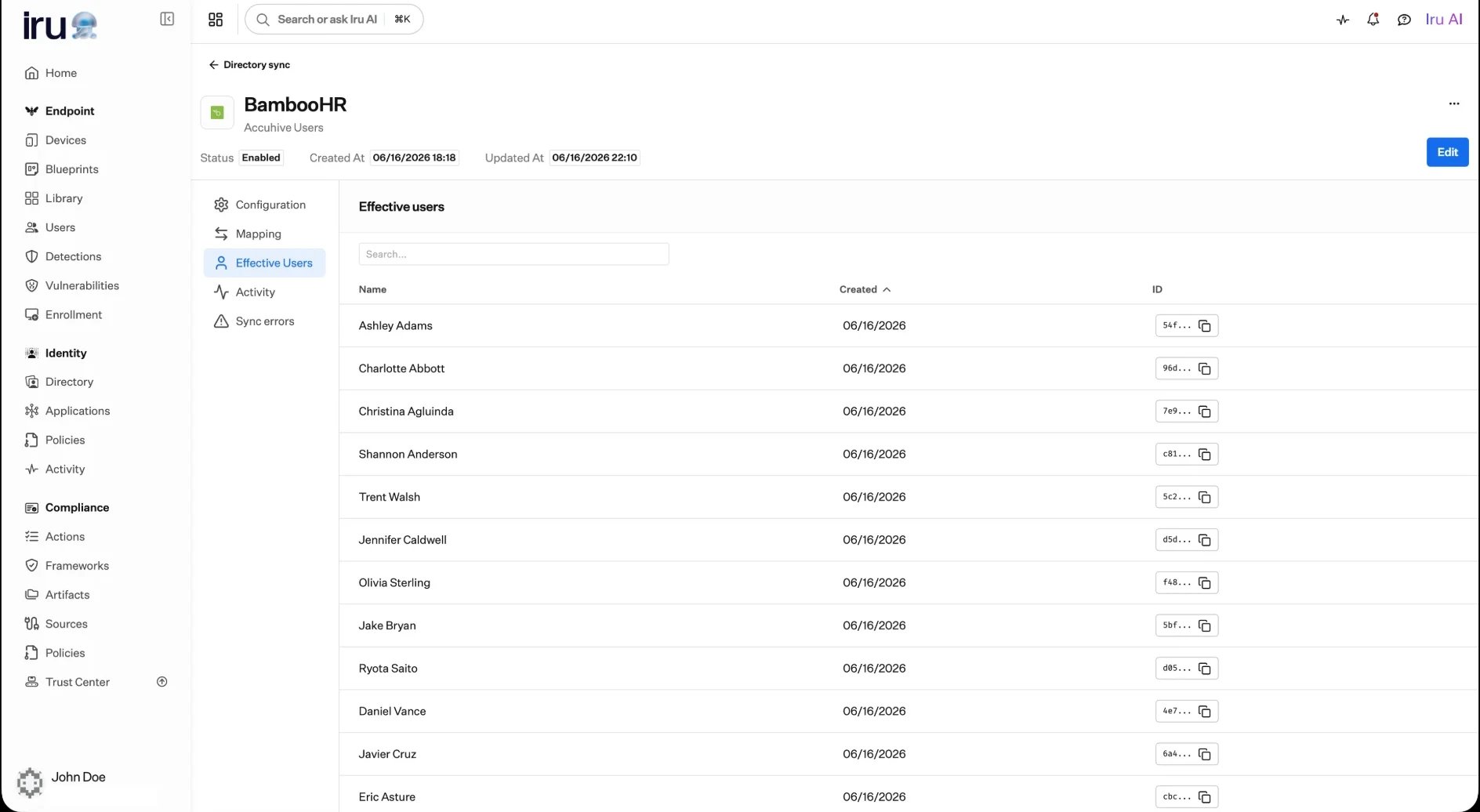
A connection's Effective Users: the users currently synced in from the source.
Sync schedule and on-demand sync
On a connection’s Configuration tab, set Sync frequency with the Interval control. Choose how often Iru pulls the latest directory, or set it to Manual only and sync on demand. Available intervals:- Manual only (no automatic sync)
- Every 30 minutes
- Every hour
- Every 2 hours
- Every 4 hours
- Every 8 hours
- Every 12 hours
- Every day
- Every 2 days
- Every week
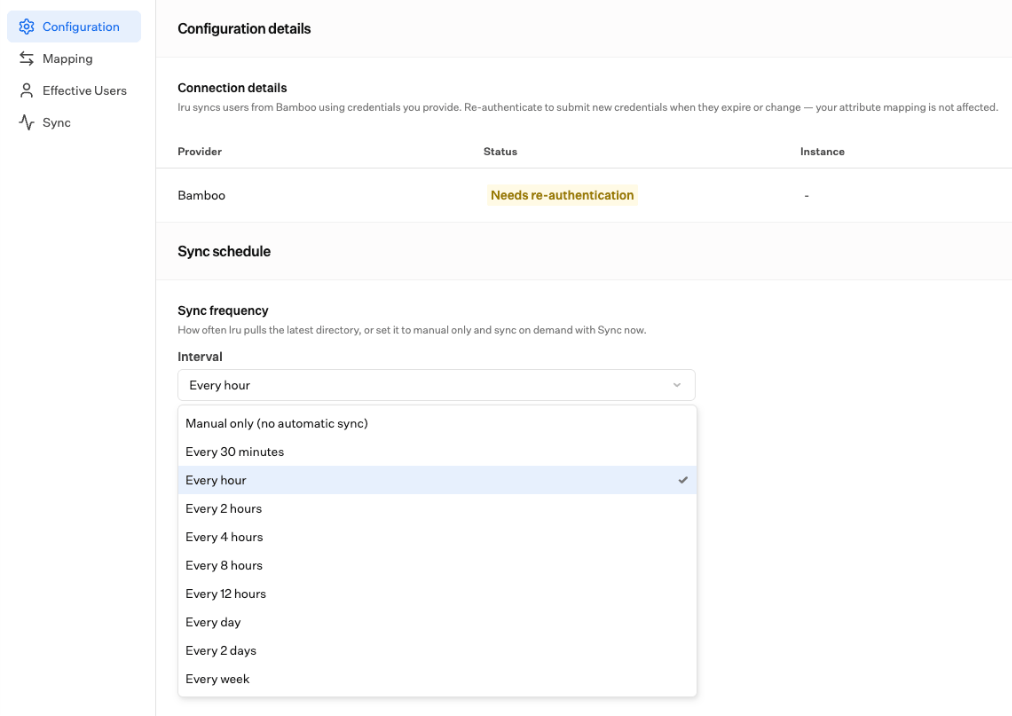
Choosing how often Iru syncs the connection.
Manage the connection over time
From a connection’s detail page you can:- Re-authenticate: submit fresh credentials when they expire or change, without touching your mappings.
- Edit your configuration or mappings: adjust what’s imported as your needs evolve.
- Set the sync interval or run Sync now.
- Force attribute sync (Workday): re-read the latest available fields from your report without waiting.
- Review activity, effective users, and sync errors: see what’s flowing in and spot anything that needs attention.
- Enable or disable the connection, or remove it.
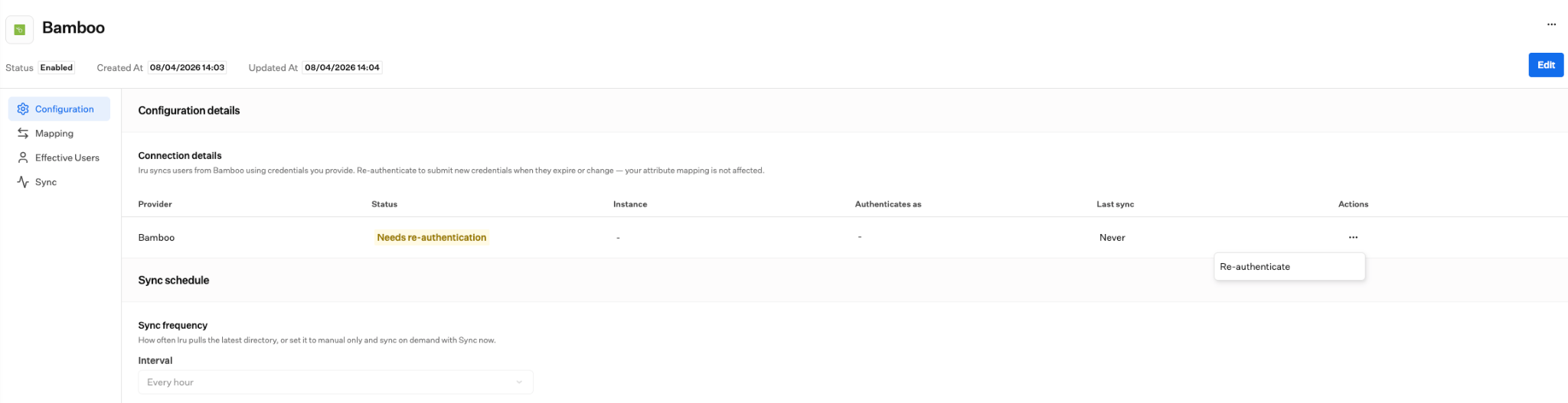
A connection's detail page: status, connection health, and Re-authenticate.
Connection status and re-authentication
Connection status and re-authentication
- BambooHR: re-enter the company domain and API key.
- Workday: re-enter the Integration user and password.
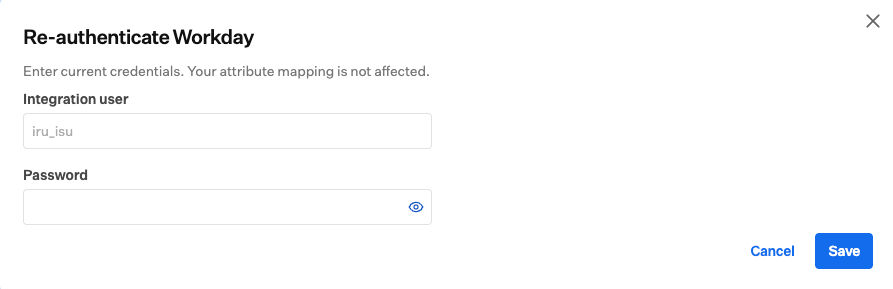
Re-authenticating Workday with current Integration System User credentials.
Sync errors
Sync errors
- Pull-stage errors happen when Iru cannot read from the source: bad or expired credentials, an unreachable instance, a missing report, or a rejected API call. Fix the connection (often with Re-authenticate or by correcting the report / domain settings), then run sync again.
- Apply-stage (sync) errors happen after Iru has the records but cannot create or update a particular user in your directory. Iru records a sync error you can review: when it occurred, the affected user, the action Iru attempted, an error code, and a message. If many records fail with the same error, the cause is usually a mapping: a required attribute left unmapped, or a unique identifier that isn’t actually unique. Fix the mapping, then let the next sync run.
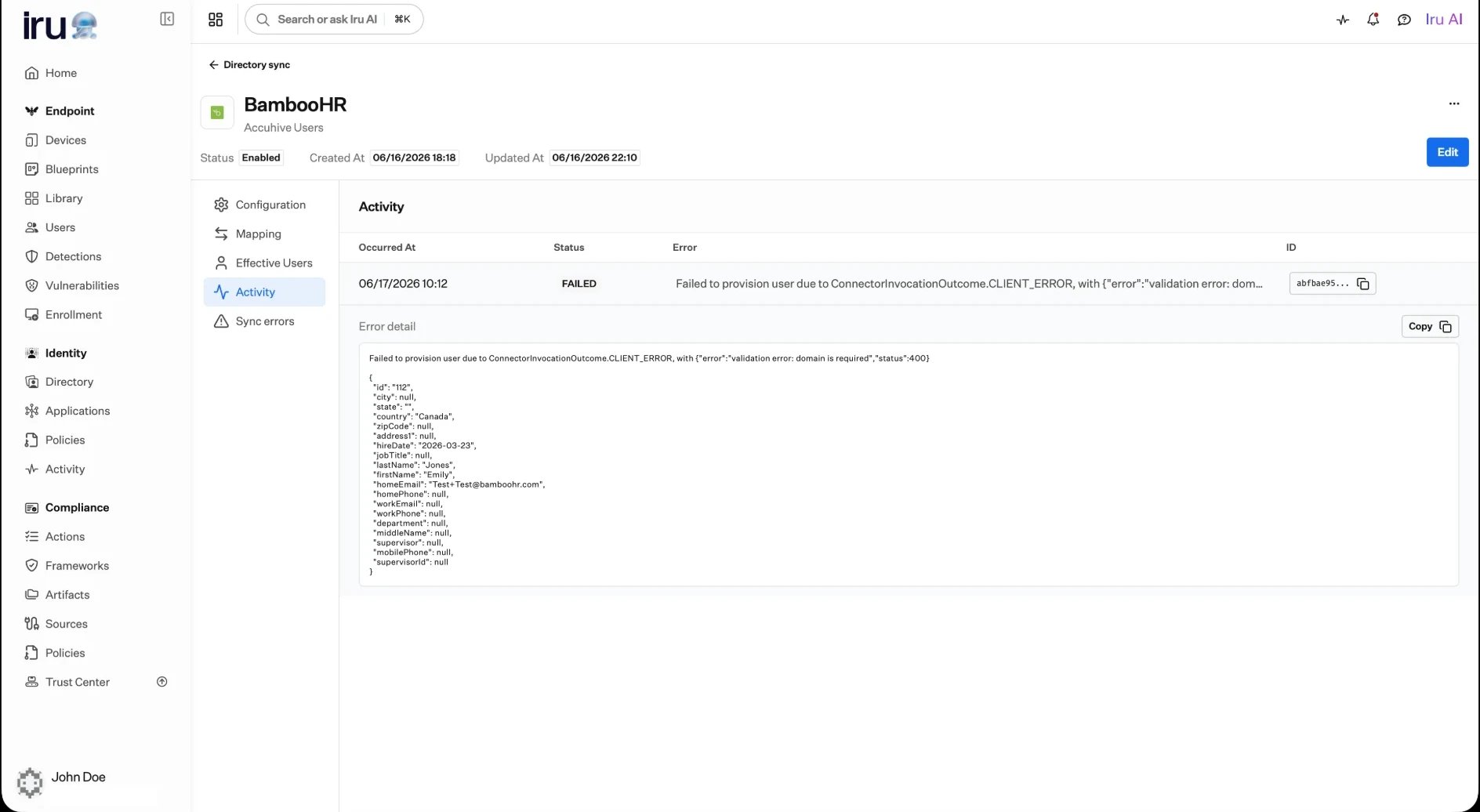
A failed sync on the Activity tab, with the full error detail. Here, a record was rejected because a required attribute was missing.