Connect Workday to Iru Identity so it reads workers from a custom report and keeps your Iru directory in sync as people are hired, transferred, or terminated.
Connecting Workday lets Iru pull worker records straight from a Workday report
and keep your directory in sync: when
someone is hired, changes departments, or leaves, those updates flow into Iru on
their own.
For the Workday-specific steps only. For concepts shared across all sync
connections (the unique identifier, required fields, IQL, and what happens on
each sync), see
Directory Sync.
1
Choose Workday
In Directory → Sync, select Connect Source and pick Workday.
2
Enter connection details
Give the connection a display name and an optional description. Enter the
instance host and Workday tenant so Iru knows which Workday environment
to call, then continue.
3
Enter integration credentials
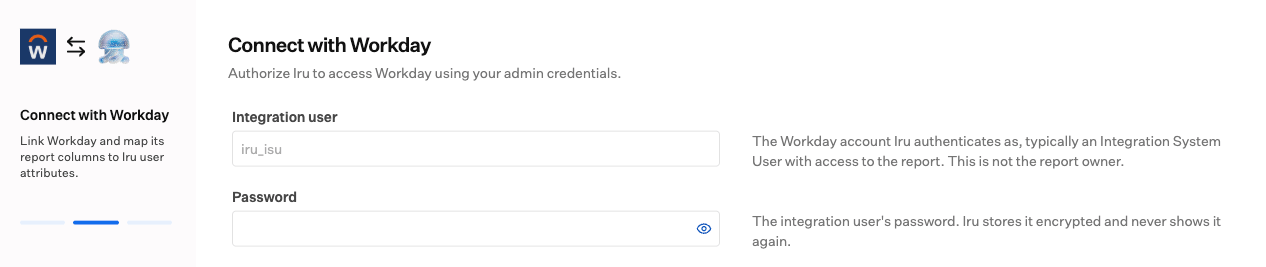
Enter the Integration user (the Workday Integration System User that runs the
report) and its Password. Iru submits these credentials directly; there is no
separate Workday consent window. Iru stores the password encrypted and does not
show it again after you save.
Authorizing Iru with the Integration System User credentials.
Use a dedicated Integration System User rather than a personal login, so the
connection keeps working as users come and go. This is not the report owner.
4
Point Iru at your report
Enter the report name Iru should run.Everything Iru imports comes from the columns in that report, so make sure it
includes every field you care about (email, name, department, manager, employee
ID, and so on).
5
Map your data to Iru
Iru reads your report’s columns and lays them out to match to Iru attributes.
Set a unique identifier: choose the column that uniquely identifies each
user, usually an employee ID. Once you save the connection, it can’t be
changed.
Map the required attributes:email, first name, last name, and username
must be mapped; everything else is optional.
Transform with IQL when needed: pick a column, or write a short IQL
expression to build a value. Iru suggests your report’s column names and checks
the expression as you type.
Examples (illustrative; use your report’s own column names):
Build a username from an email: email_work.split("@")[0]
Combine two columns: first_name + " " + last_name
Prefer one column, fall back to another: optional.ofNonZeroValue(email_work).orValue(email_home)
See Map your data for more
on mapping, including the safe pattern for sometimes-blank fields.
6
Finish and turn it on
Save your mappings. You’ll land on the connection’s detail page; review
everything, then Enable. A connection starts disabled, so enabling it kicks
off the first import and keeps Iru in sync.On the detail page you can later re-authenticate, edit your report or
mappings, set how often Iru syncs, run Sync now, and review activity,
effective users, and sync errors.
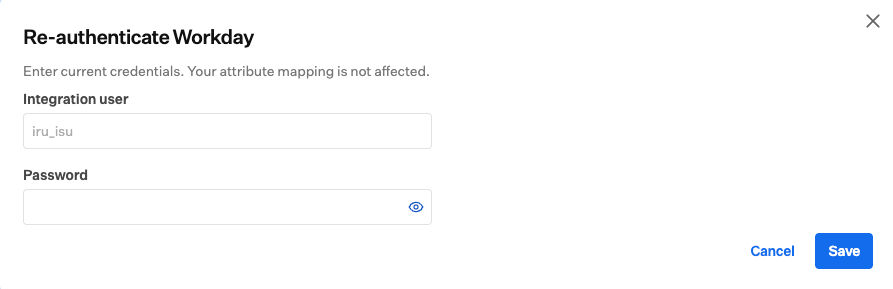
Re-authenticate submits current Integration System User credentials without changing your mappings.