

- Apps: the apps you have added, including custom apps and apps created from a template.
- App Templates: a catalog of ready-made app definitions you can start from. See Application templates.
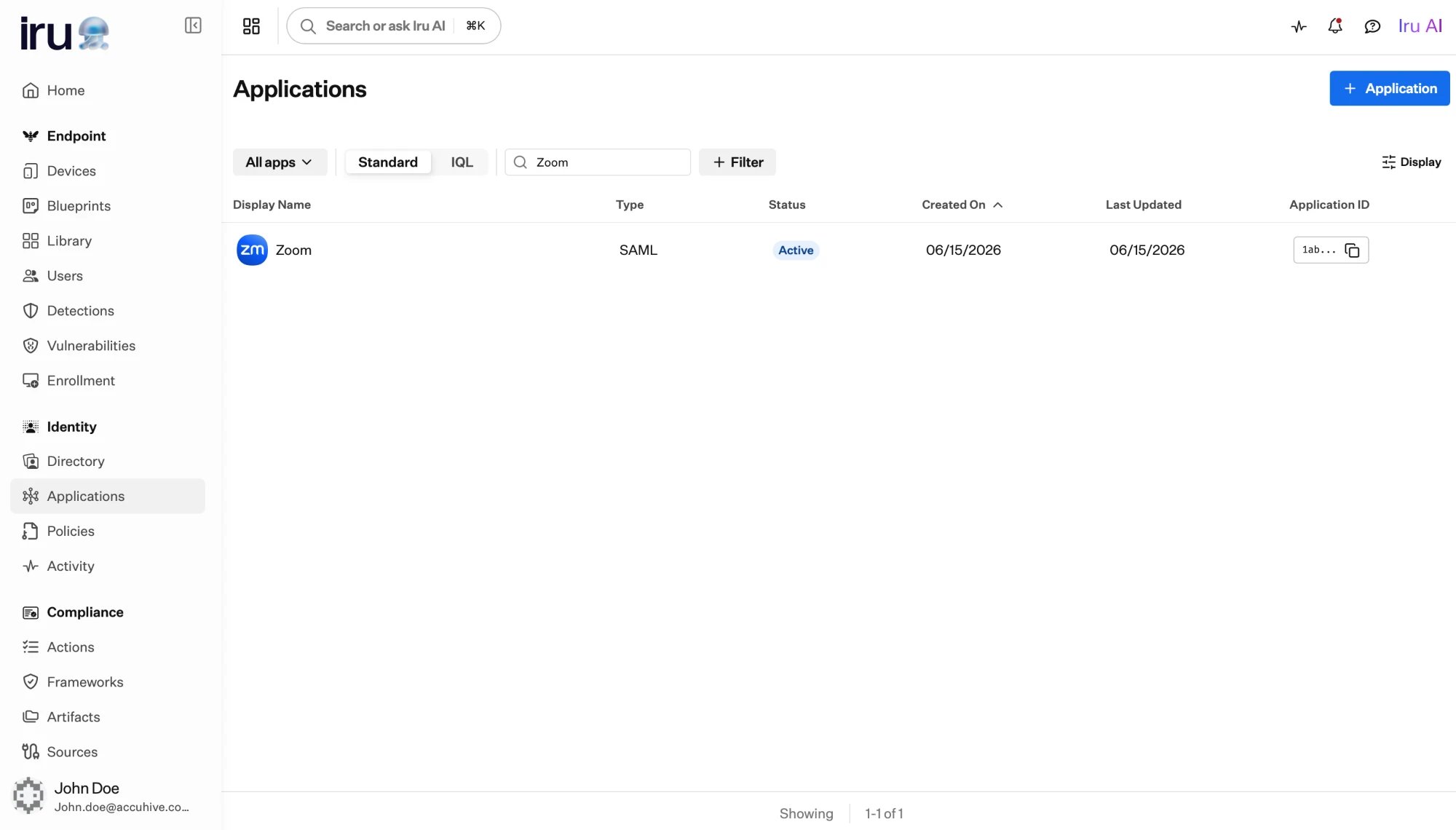
The Applications list, showing each app's protocol, status, and Application ID.
Choose a protocol: SAML or OIDC
Every application uses one protocol type, chosen when you add it: SAML or OIDC. Pick whichever standard the app supports for single sign-on. Both let Iru sign users in; they differ in the details Iru exchanges with the app.- SAML
- OIDC
Iru gives the app service-provider-facing details (an entity ID, an
ACS URL, and downloadable metadata) and signs the response and assertion it
sends. You choose the NameID format and map profile attributes into the
assertion.Configure one in SAML applications.
A protocol is chosen per application and cannot be switched afterward. If you
need the other protocol, add a new application.
How an application maps identity
Each application maps user-profile attributes into the identity Iru sends, so the app receives the fields it expects. Every app has a subject, the primary identifier for the signed-in user, plus any additional attributes you add.- For OIDC, the default subject is the
subclaim, mapped from the user’suser.id. - For SAML, the default Subject is mapped from the user’s
user.username.
How versioning works
Applications are versioned so you can change configuration safely without disrupting users who are signing in.1
Edit a draft
You make changes in a draft version. Drafts are not live, so editing one
never affects the version users are signing in with.
2
Set it as current
Publishing a draft makes it the current version, the configuration Iru
uses for live sign-on. There is one current version at a time.
3
Older versions are archived
When a new version becomes current, the previous current version becomes
archived. Archived versions are kept for reference and can be restored
at any time from the version selector.
Active and inactive
Separately from versioning, an application is either active or inactive, toggled from the app’s header.Active
The current version is live. People who are assigned can sign in, and any
configured provisioning runs.
Inactive
Sign-on is stopped without deleting the app or its configuration. People can
no longer reach it, and further provisioning actions pause. Deactivating is
reversible; reactivate the app at any time.
An active application cannot be deleted. Deactivate it first if you intend to
remove it.
Add an application
From Apps, choose to add an application and either start from a template or build a custom app.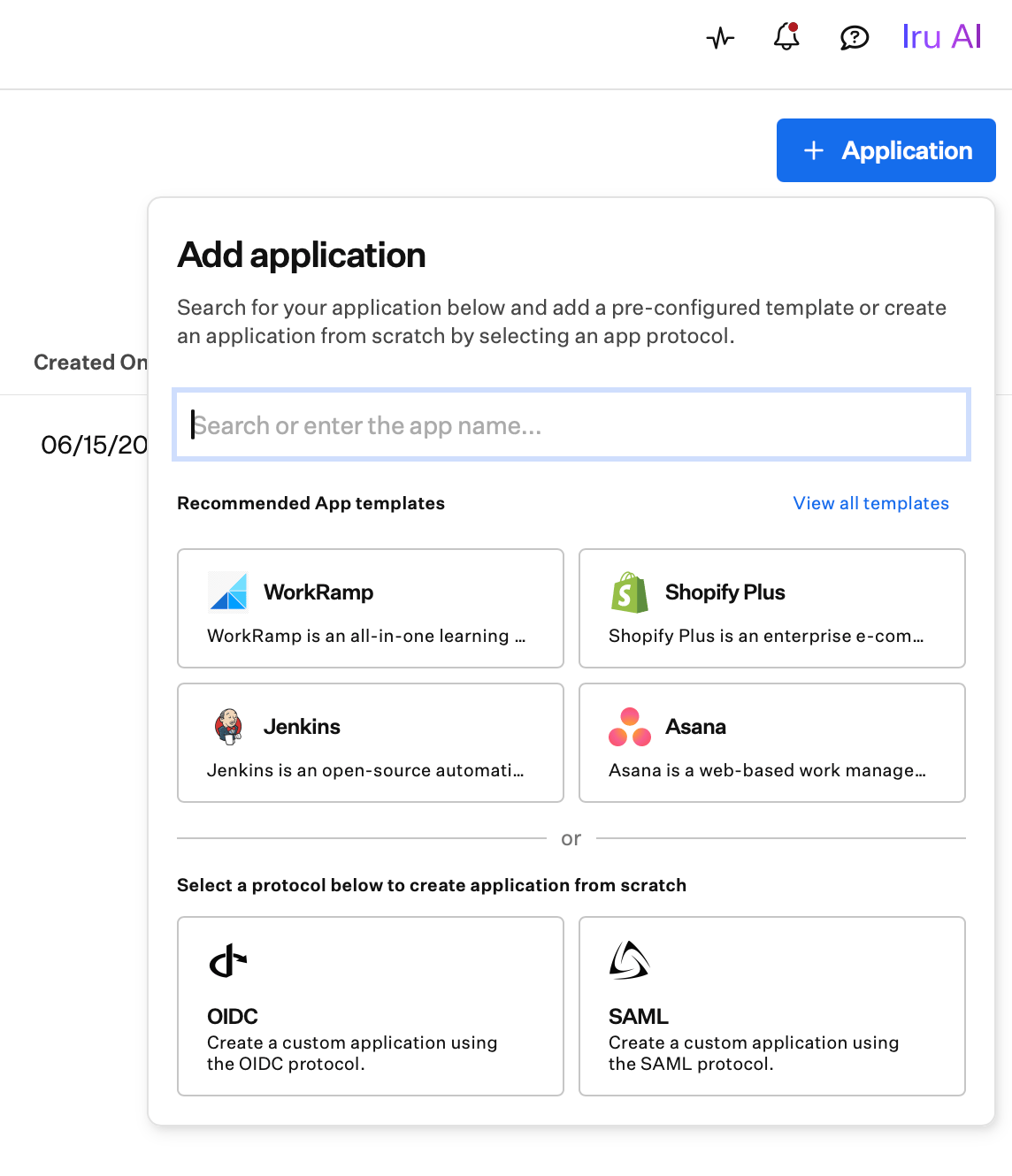
Add an application from a template, or from scratch with OIDC or SAML.
1
Start from a template (recommended)
Search the catalog for your service and create the app from a template. The
standard configuration is filled in, so you only supply what is specific to
your tenant. See
Application templates.
2
Or create a custom app
Enter a name and pick a protocol (SAML or OIDC) to build the app
from scratch. Iru creates it as a draft for you to configure.
3
Configure the protocol details
Fill in the SAML or OIDC settings and the attribute mapping. See
SAML applications or
OIDC applications.
4
Assign access and activate
Assign the groups that should have the app, then activate it. See
Assigning access.
Where to go next
Application templates
Start from a ready-made definition in the catalog.
SAML applications
Configure a SAML app: provider details, NameID, and signing certificates.
OIDC applications
Configure an OIDC app: credentials, redirect URIs, scopes, and claims.
Assigning access
Grant the app to users and groups, and review who has access.
Provisioning
Create and remove accounts in the app automatically as access changes.
Authentication policies
Decide who can sign in to the app and what they must prove.