

A policy only takes effect once it is assigned to one or more
applications. An application’s policy governs sign-in to that application;
see Assign a policy to applications.
How a policy is structured
A policy is a set of rules arranged as a tree of conditions. Iru walks the tree from the top each time it evaluates the policy:- Branch conditions send the sign-in down different paths based on context. For example, a policy branches on the kind of device signing in, so a macOS device is checked against macOS requirements and a Windows computer against Windows requirements.
- Requirement conditions check that something is true; for example, that a device’s disk is encrypted or that it is managed. Each requirement that is not met is recorded as a violation.
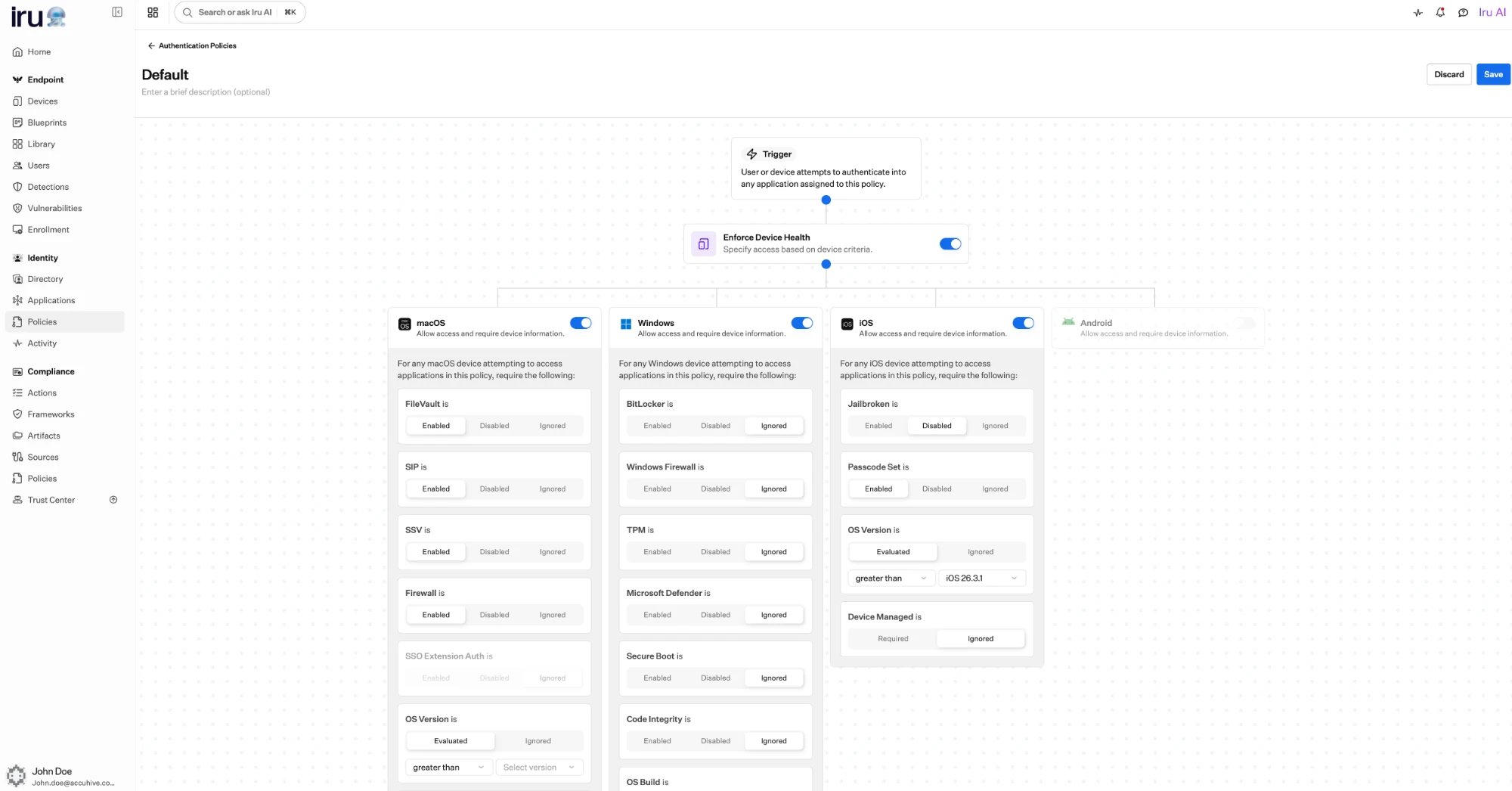
The policy builder: a Trigger leads to Enforce Device Health, which branches by platform; each platform has its own device-health requirements set to Enabled, Disabled, or Ignored.
How a policy is evaluated at sign-in
Every sign-in to an application produces a decision, and Iru records that decision, including any violations, so you can review what happened later in the activity log.A policy decides whether a sign-in is allowed and what must be true
for it. Whether a user is assigned the application is a separate check.
Both must succeed for someone to reach an app. See
Assigning access.
What a policy can require
A passkey or Iru Access authenticator is always required to sign in; that is built in for everyone, not something a policy turns on. What a policy adds on top is device trust: which devices may sign in and the shape they must be in.A trusted device
Require sign-in from a known, healthy, managed device (for example, one with
disk encryption on. See
Device trust.
A specific platform
Allow sign-in only from the device platforms you choose, and deny the rest.
A device-health posture
Require per-platform signals such as disk encryption, a firewall, or a minimum
OS version. See Device trust.
What happens when a policy fails
When a sign-in does not meet a policy’s requirements, Iru denies it and records the reason as one or more violations. Each violation captures the requirement that was not met, what the policy expected, and what was actually seen; for example, a requirement that disk encryption be enabled when it was found disabled.Build a policy
1
Create the policy
In Policies → Authentication policies, choose Add policy and give it
a clear name and description. The name is how you will recognize it when
assigning it to applications.
2
Choose what each sign-in must satisfy
Add the conditions the sign-in must meet. You can allow sign-in only from
specific device platforms and, for each, require device health signals such
as disk encryption being on or the device being managed. See
Device trust for the full set of
available signals.
3
Assign the policy to applications
Attach the policy to the applications it should govern. From that point on,
every sign-in to those apps is evaluated against this policy.
4
Verify the experience
Sign in as a test user to an assigned app and confirm the outcome. If access
is denied unexpectedly, review the recorded violations in the
activity log.
Assign a policy to applications
A policy does nothing until it is attached to applications. Each policy keeps a list of the applications it is scoped to, and you attach or detach applications from the policy’s page in the dashboard. An application’s assigned policy is what Iru evaluates whenever someone signs in to that application.Where to go next
Authenticators
The credentials users use to prove who they are on every sign-in.
Device trust
Require known, healthy, managed devices as a condition of access.
Risk and adaptive access
Let access adapt to how trustworthy a sign-in looks.
The sign-in experience
See what evaluation looks like from the user’s side.