

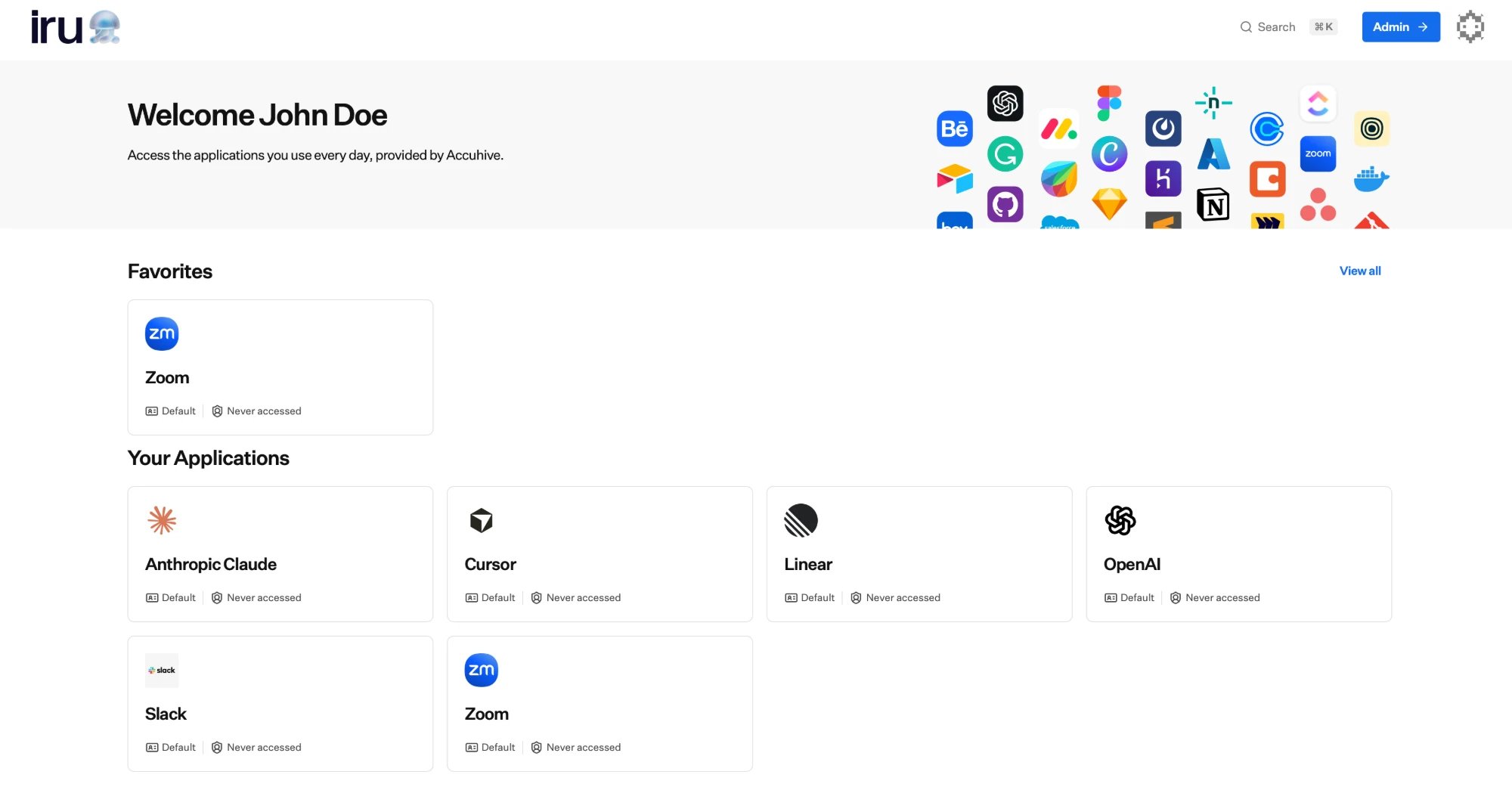
Your app dashboard lists every application assigned to you.
Find and open an app
1
Go to your organization's Iru site
In your browser, open your organization’s Iru site. The address is your
organization’s name followed by
.iru.com, for example yourcompany.iru.com.
That’s your app dashboard. Not sure of the address? Ask your IT team, and
bookmark it once you’re there.2
Sign in
Confirm it’s you with your passkey or the Iru Access app: a quick fingerprint,
face, or screen-lock gesture. There’s no separate password.
3
Pick an app
Your app dashboard shows your assigned apps as tiles. Selecting one signs
you straight in; Iru handles the sign-on for you.
You’ll also find your apps in the Iru Access app itself: the desktop app
shows them on a Home view with your favorites at the top, and the mobile
app has a dedicated Favorites tab.
1Password autofill
If 1Password is installed with autofill on, choosing a passkey on the Iru sign-in page can open a 1Password prompt you have to dismiss before you continue with biometric sign-in. Hide 1Password on that page so the extra prompt no longer appears. These steps can vary slightly depending on your operating system and browser.1
Open the Iru sign-in page
In your browser, open your organization’s Iru site, for example
yourcompany.iru.com.2
Open the 1Password menu
Right-click the page, then hover over 1Password - Password Manager.
3
Hide 1Password on this page
Select Hide on this page.
4
Confirm
When 1Password says it will no longer make autofill suggestions on this
page, select OK.
Favorites and search
- Favorite the apps you use most so they’re front and center; look for the star on a tile to add or remove it.
- Search your apps by name to jump straight to one, and recently opened apps stay close at hand.
Your account settings
From your avatar in the top-right of the dashboard, open Account to manage your own details and sign-in. It has two tabs:- Profile: your name, username, email, and Iru domain, plus preferences such as time zone, language, and whether you get weekly status emails. Use Edit to update them.
- Authenticators: the passkeys and Iru Access devices registered to you. See Manage authenticators.
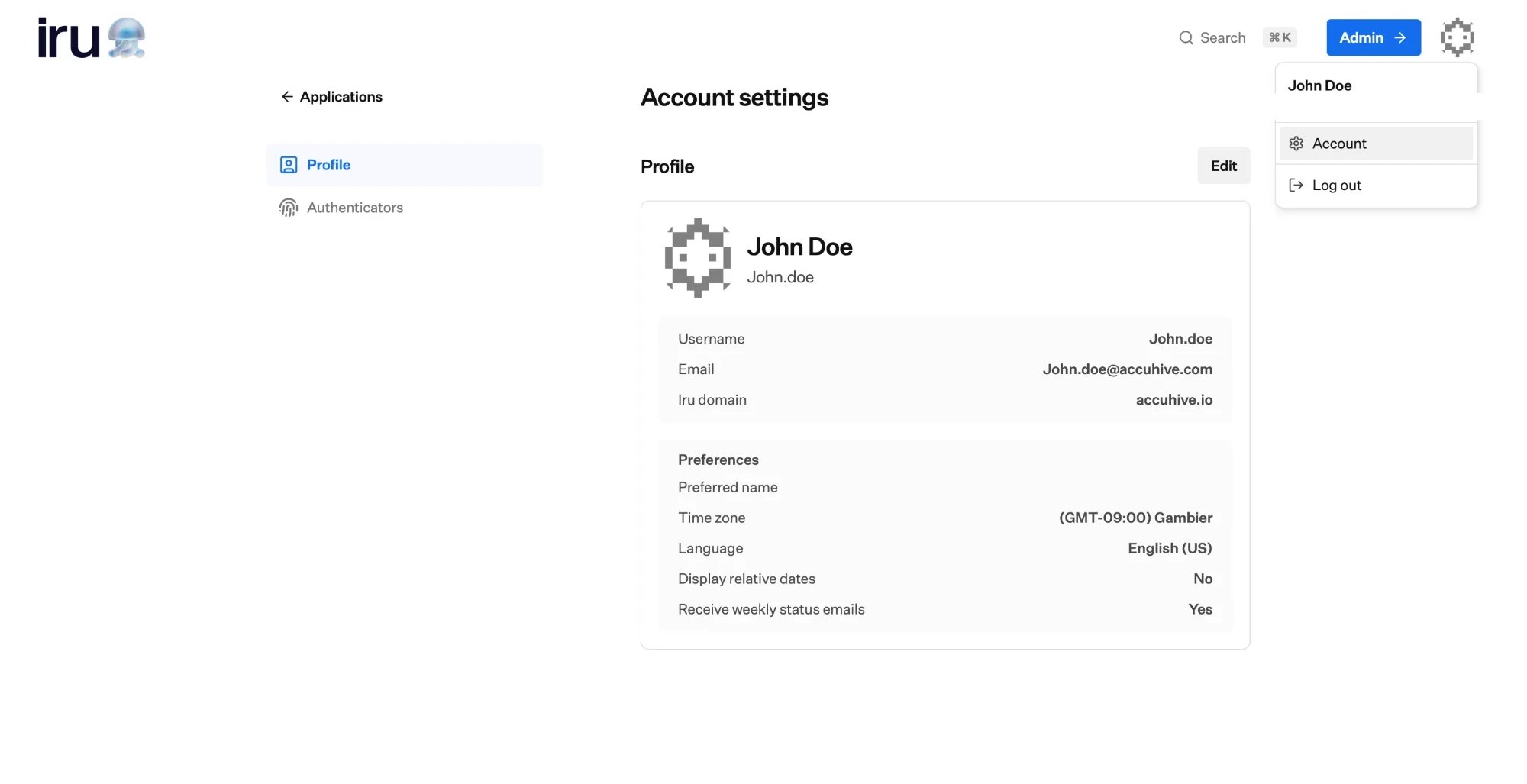
Open Account from your avatar menu to manage your profile and authenticators.
Iru Spotlight (macOS)
Iru Spotlight is Iru Access’s built-in launcher: a quick way to find and open your apps, or find a user in your organization, without leaving what you’re doing.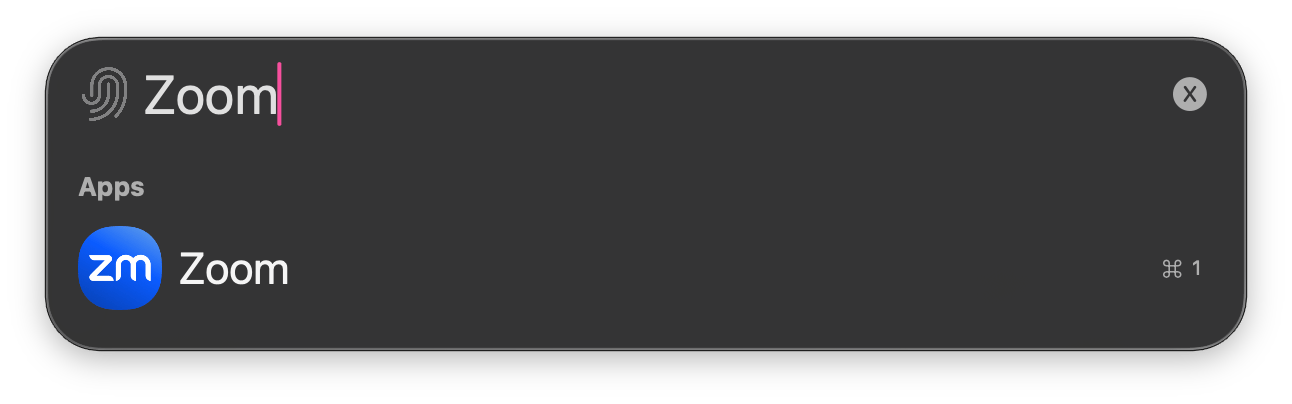
Iru Spotlight: start typing to find an app or a user.
1
Open Iru Spotlight
From anywhere, press ⇧⌘ Space (the default shortcut). You can turn
Iru Spotlight on or off and customize the shortcut in
Iru Access settings (macOS).
2
Find an app or user
Start typing. Matching apps appear under Apps, alongside users in your
organization.
3
Open it
Press the number next to a result (⌘ 1 for the first) or select it. Iru
Access signs you in to that app in your chosen browser. Press Esc to close.
Your apps in macOS Spotlight
Iru Access also plugs into macOS’s own Spotlight (⌘ Space). Search an app’s name there and you’ll see a “Log in to Zoom with Iru Access” action you can run right from Spotlight, with no need to open Iru Access first.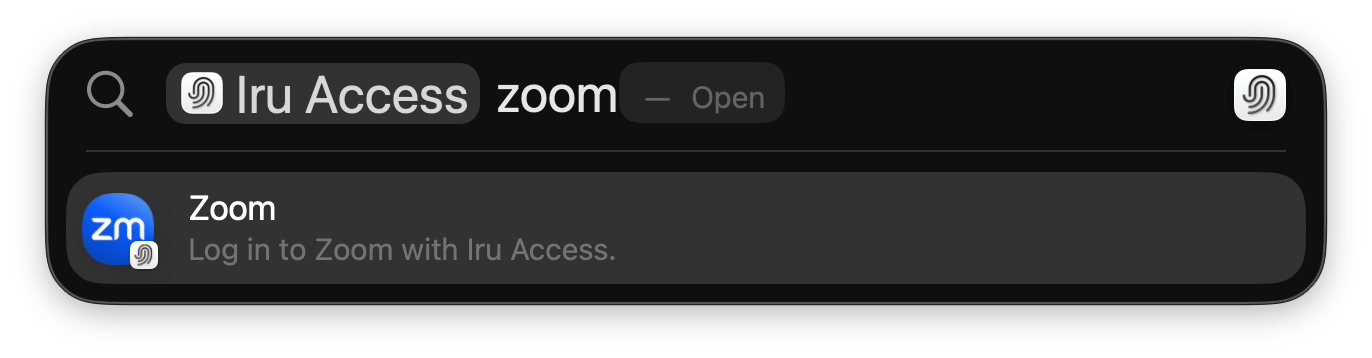
An assigned app surfaced directly in macOS Spotlight, ready to sign in.
- Favorited apps rank higher in the results.
- The same action is available through Siri and the Shortcuts app.
This is macOS’s system search (⌘ Space), separate from Iru Spotlight
(default ⇧⌘ Space, customizable in
Iru Access settings (macOS)) above. You need
macOS 15 or later. On iPhone and iPad (iOS/iPadOS 18+), your apps appear
the same way in Spotlight search.
Iru Access settings (macOS)
On a Mac, open the Iru Access menu and choose Settings… (or press ⌘ ,) to control how Iru Access behaves.- Open apps with: choose which browser your apps open in. By default that’s your system browser; pick any installed browser and it saves right away, so every app you launch from Iru Access opens there. To use a different browser just once, right-click an app and choose Open Once With (your current default is marked (Default)).
- Show Iru Access in the Menu Bar: keep Iru Access in the macOS menu bar so your apps are a click away without opening the main window.
- Iru Spotlight Shortcut: turn Iru Spotlight on or off and set the keyboard shortcut that opens it from anywhere. The default is ⇧⌘ Space.
- Appearance: match your system theme, or force light or dark.
These settings are macOS-only. On iPhone and iPad, apps open in your system
default browser.
Where to go next
Installing Iru Access
Set up Iru Access if you haven’t yet.
Manage authenticators
Add a backup passkey so you’re never locked out.
Start here
Overview of passkeys, Iru Access, and how sign-in works.