

Your IT team may deploy Iru Access to your device for you. If it’s already
installed, skip to registering. Otherwise, start from
the invitation your organization sends you.
Install Iru Access
If the app isn’t already on your device, install it from the link in your invitation or your organization’s Iru Access download page (you can scan the QR code shown in the app’s Add New Device screen or open the link). On iPhone and iPad, Iru Access is also available on the App Store.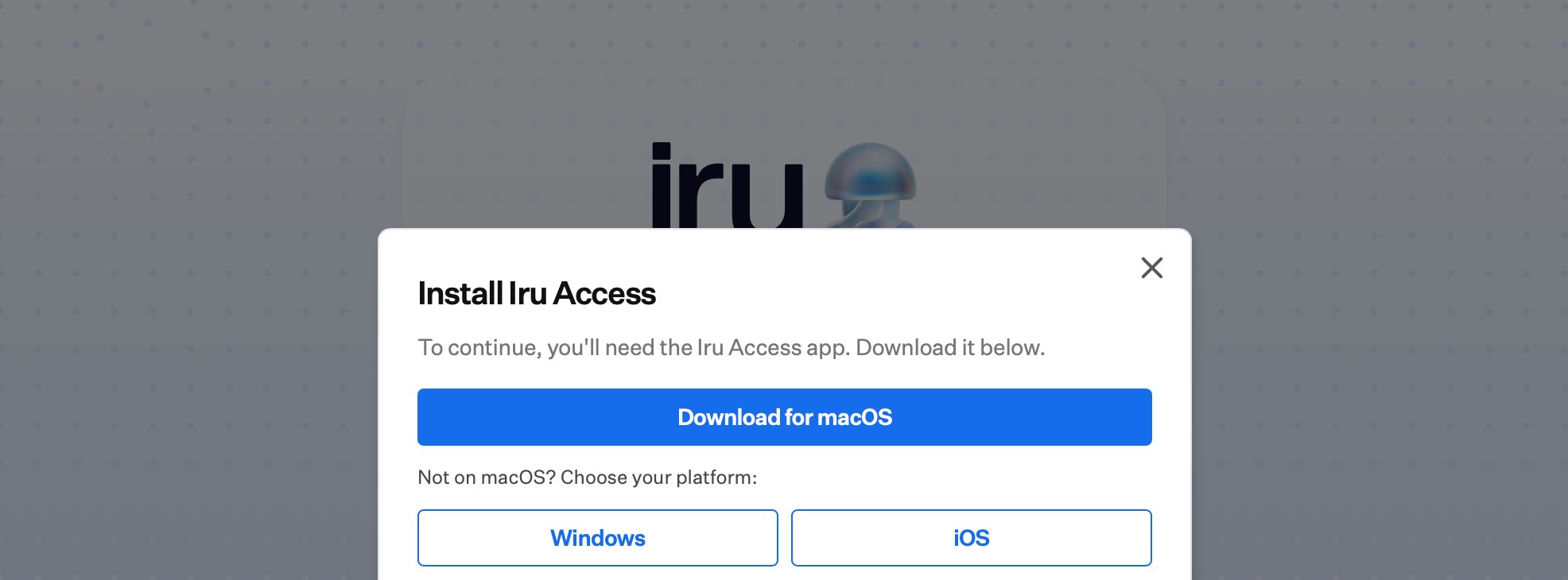
The install prompt offers the right download for your platform.
Register your device
Opening your invitation brings you to a page where you choose how to register. Choosing Iru Access launches the app and walks you through registration; you can also register a standalone passkey or continue with a connected provider. For how standalone passkeys differ from Iru Access, see Manage authenticators.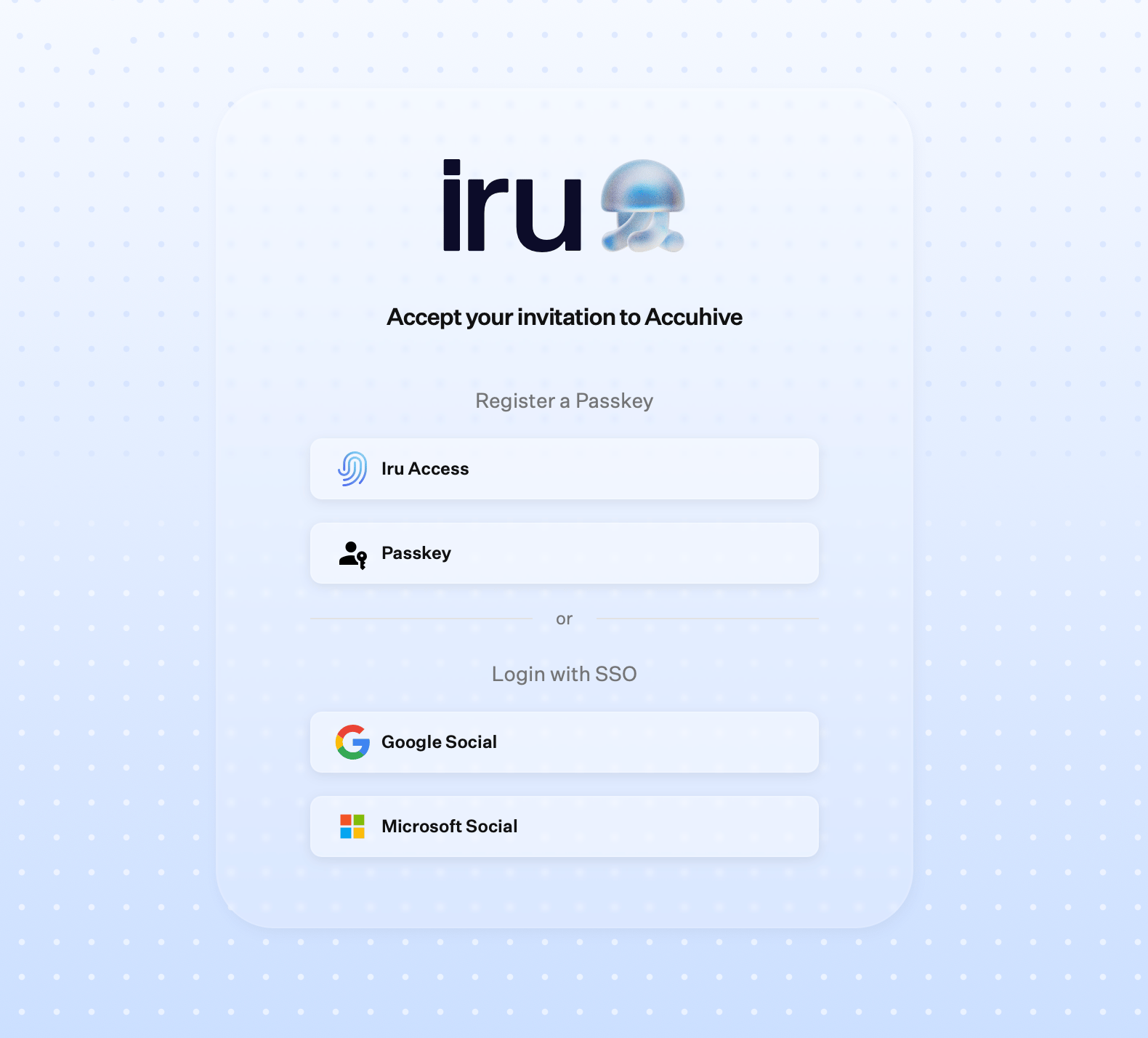
Your invitation page: choose Iru Access, a standalone passkey, or your SSO provider.
- macOS, iPhone & iPad
- Windows
1
Open the invitation
The link opens Iru Access on your device. If the link has expired you’ll
see “Registration Failed”; ask your administrator for a new one.
2
Review your details
Iru greets you with “Welcome, [your name]” and shows your
Username and Iru server. Check they’re right and choose
Continue.
3
Finalize registration
On the “Finalize Registration” screen, confirm with your device’s
biometric or screen lock (Touch ID on a Mac, Face ID on an
iPhone, or your device passcode/password. This secures your credential to
the device.
4
Done
You’ll see “Registration Complete”. Choose Done; on a Mac you
land on your Home screen, on iPhone/iPad on your Account screen. You’re
ready to open your apps.
Apple Vision Pro is supported: Iru Access runs there as the iPad app, so
follow the iPhone & iPad steps above.
Add another account
Iru Access can hold more than one account at once, handy if you have a second Iru identity, such as a separate administrator account or an account at another organization.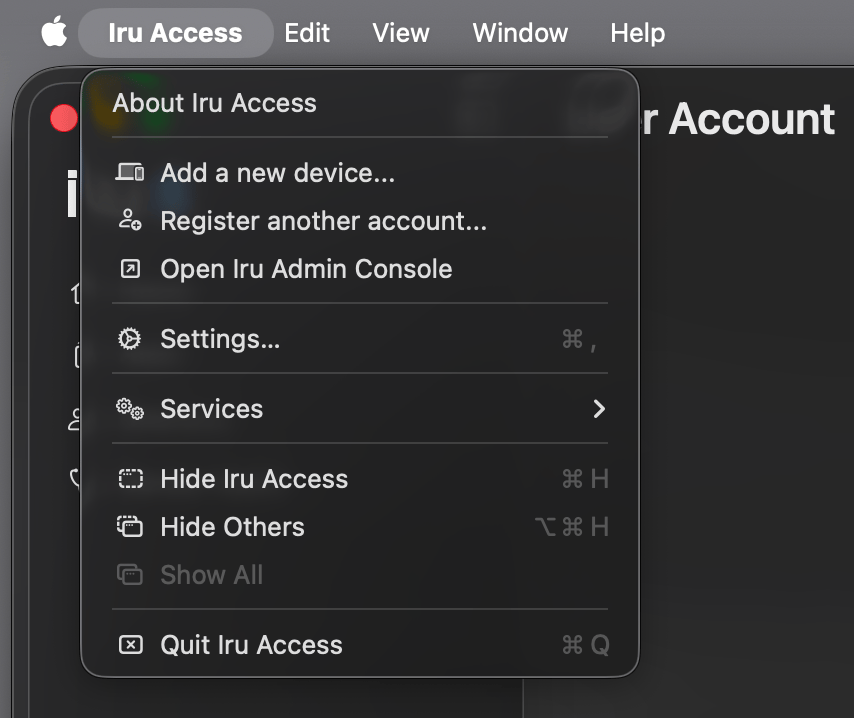
The Iru Access menu on macOS: add a device or register another account.
- Register another account… begins a fresh registration for an additional account; finish it from that account’s invitation, exactly as you did the first time.
- Add a new device… registers this Mac against an account you already use on another device; see Manage authenticators.
Where to go next
Accessing your apps
Open your assigned apps once Iru Access is set up.
Manage authenticators
Add another device or a standalone passkey, and manage what you have.
Your privacy
What Iru Access shares with your organization, and what stays private.