

Use these steps to manage users one at a time. To add many users at once, see
Importing users or sync them from an
HR system with Directory Sync.
Create a user
1
Navigate to Directory
Navigate to Directory in the left-hand navigation bar (under
Identity).
2
Open the Users tab
Select the Users tab if it isn’t already selected.
3
Add a user
Select + User in the upper-right. A blank profile form opens.
4
Enter the essentials
Give the user a name, a username, and at least one email address. The
username and a domain together form how the user signs in.
5
Add an additional email (optional)
Select + Add under Additional Emails if you want an alternate
address for their invitation, such as a personal email.
6
Fill in the rest of the profile
Add any other built-in details (phone numbers, addresses, a role) and fill
in the custom attributes you have defined in your
schema.
7
Create
Select Create. The user is created with a pending status.
8
Send the invitation (optional)
After the user is created, a prompt asks whether to send the invitation
now. Choose the email address that should receive the invite, such as
their work or personal address, then select Send now. Or select
Later to dismiss the prompt and send the invitation from the user’s
menu when you’re ready.
The user profile
A profile is a collection of facets. Some are built in; the rest are the custom attributes you define. Built-in facets include:
Beyond these, every custom attribute you define appears on the profile in
its category. See
Schema for how
the schema is built.
The attributes on a profile are the raw material that applications and
policies use. An application maps profile attributes into the identity details
it receives, and an Auto Group can
compute its membership from an attribute’s value.
Find and filter users
The users list can be filtered, searched, and saved as reusable views - useful once your directory grows beyond a handful of users.Filters
Add a filter to narrow the list by any attribute, built-in (status, domain, role, created date) or a custom attribute you have defined. Pick the attribute, choose an operator such as equals, and set the value; add more than one filter to combine conditions.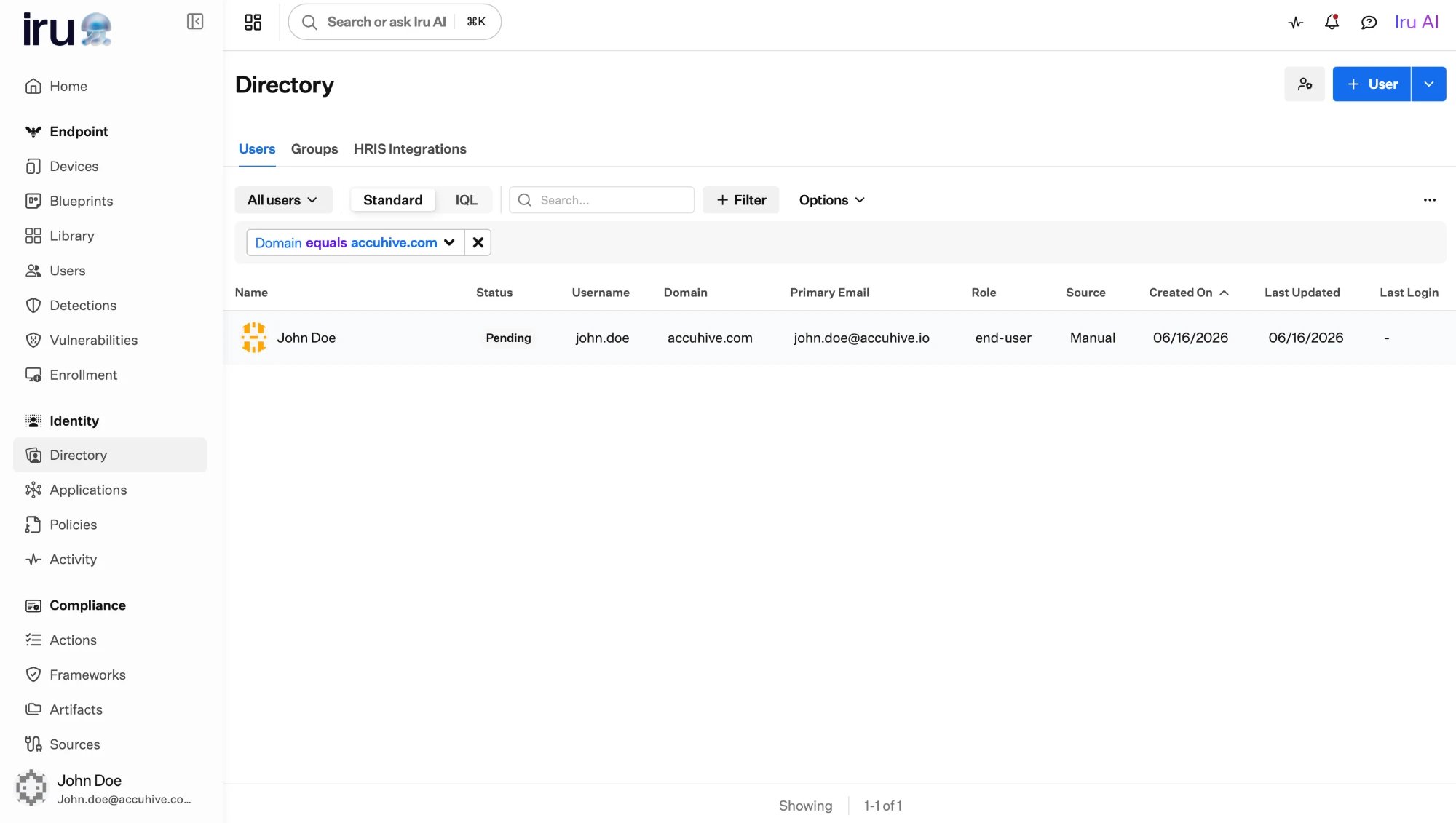
A filter narrowing the list to a single domain.
IQL filters
For more precise queries, switch the list from Standard to IQL and write the filter as an IQL expression, for exampledomain == "accuhive.com". This is the same expression language that
powers Auto Group rules and mapping.
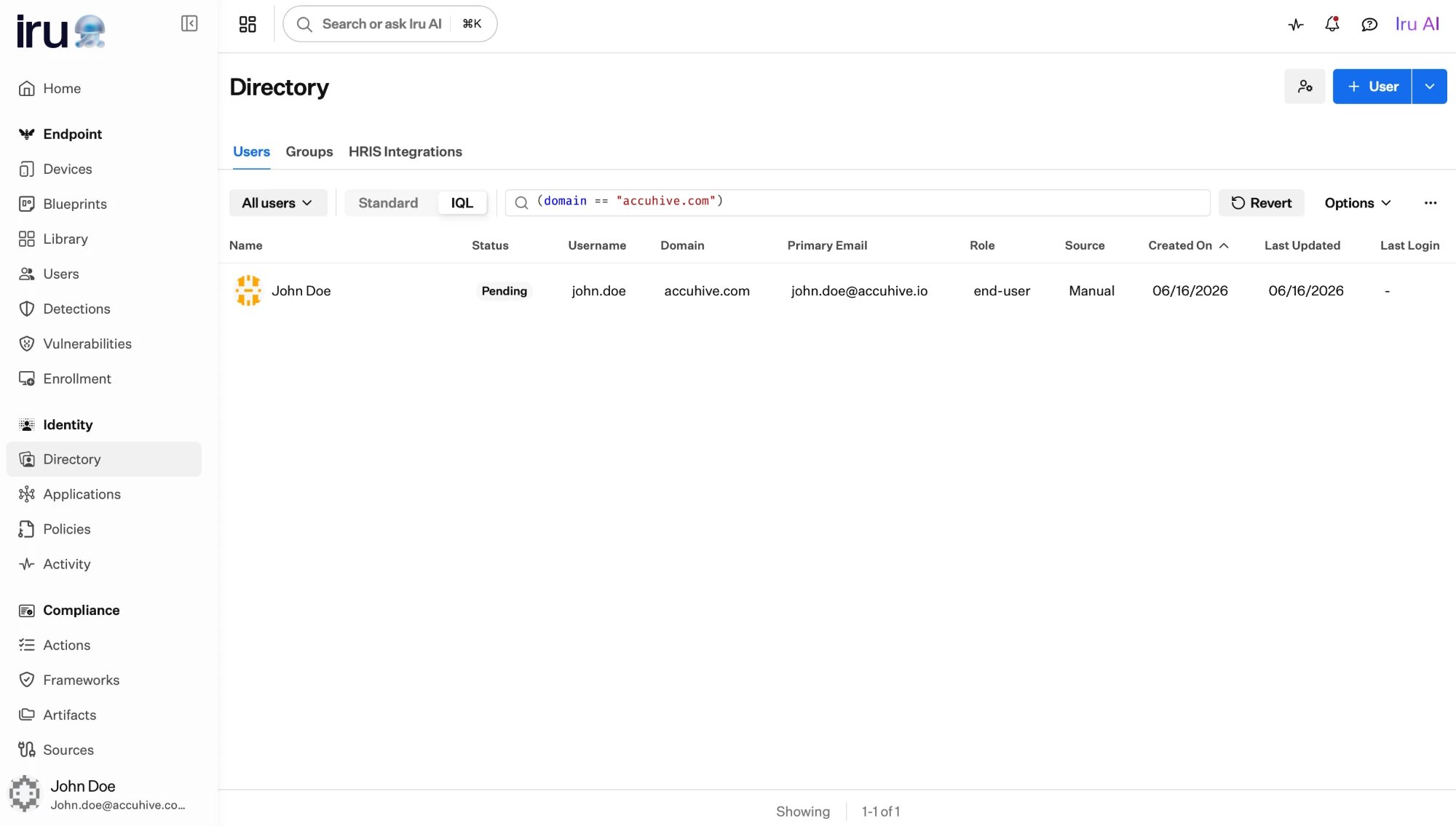
The same filter written as an IQL expression.
Saved views
Once you have built a filter you will reuse, open Options → Create view, give it a name, and save it. The view remembers your filters, so you can return to the same slice of the directory in one click.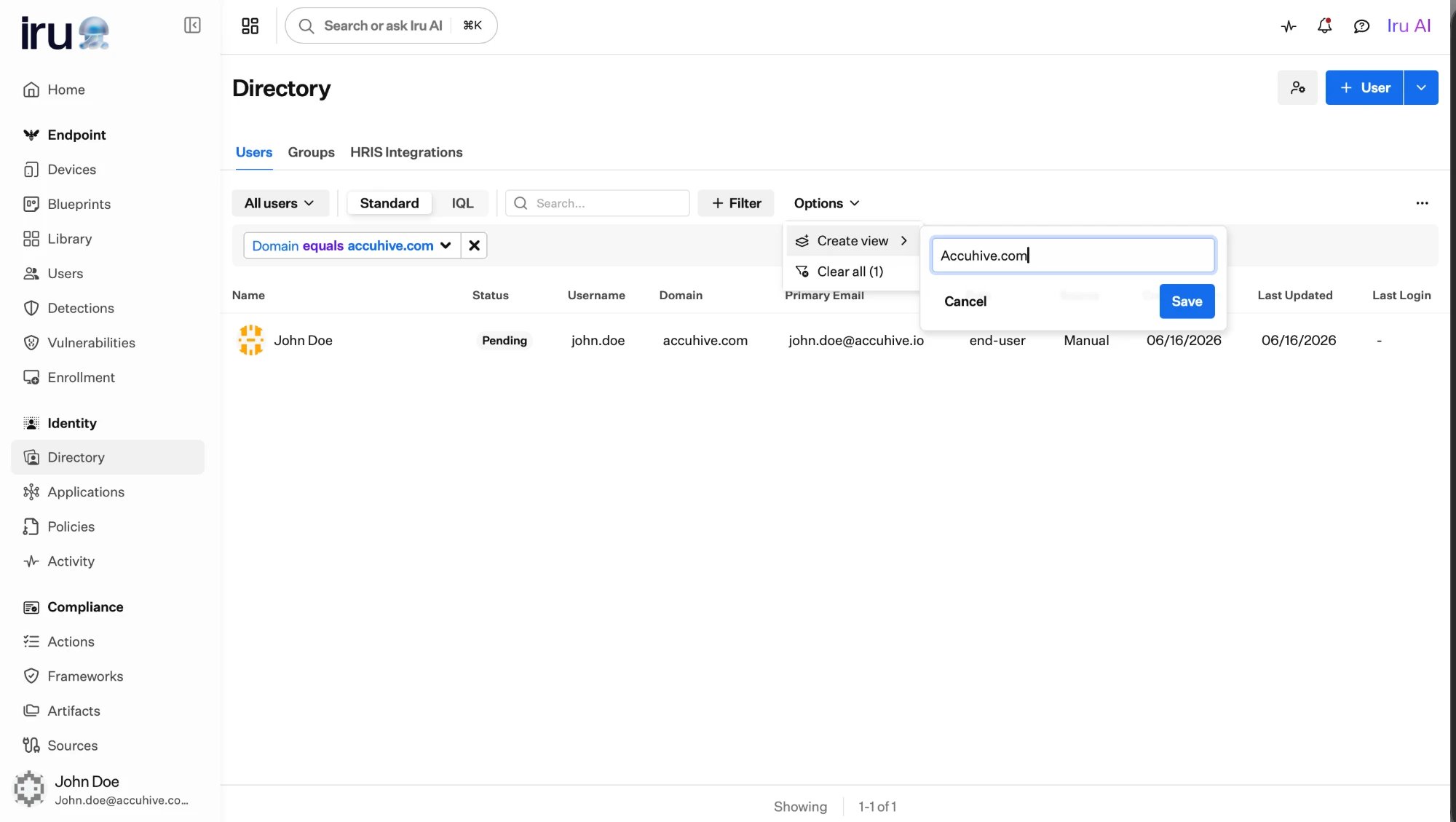
Saving the current filter as a named view.
User statuses
A user is always in one of three statuses, and you can filter the users list by status.Pending
Created but not yet active. This is where a freshly added or imported user
starts, before they finish setting up their account.
Active
Fully enabled. The user can sign in and reach the applications assigned to
them.
Suspended
Access is blocked, but the record and history are preserved. The user
cannot sign in until they are reinstated.
Suspending vs. removing
Both stop a user from signing in, but they are different tools for different situations.Suspend (reversible)
Suspend (reversible)
Suspending blocks a user’s access while keeping their record, profile, and
history intact. Reinstating a suspended user returns them to the status they
held before, so this is the right choice when someone is on leave, under
investigation, or being offboarded but not yet fully gone. You can suspend a
user whether they are active or still pending.
Remove - permanent
Remove - permanent
Removing a user deletes their directory record. Reach for this only when a
user has left for good and you no longer need to keep their identity. When
your HR system is connected, an offboarding there can remove users from the
directory automatically; see
Directory Sync.
Inviting users
A newly created user is pending until they finish setting up their account. Inviting a user sends an invitation to their email with a secure link to complete first-time setup, including registering an authenticator such as a passkey. By default, invitations go to the user’s primary email. If the profile has an additional email (typically a personal address), you can send the invitation there instead. Use that when the user cannot open their work mailbox until they have a passkey.- You can invite a single user from their profile, or invite pending users in bulk from the users list.
- Invitations expire 48 hours after they are sent. You can resend one if it was missed or has expired; sending a new invitation supersedes any earlier one for that user.
Resend invites in bulk
1
Open pending users
Navigate to Directory in the left-hand navigation bar (under
Identity). Select the Users tab if it isn’t already selected. Open
Preset Views and choose Pending.
2
Open Resend invites
Select the ellipsis in the upper-right, then select Resend invites.
3
Choose the destination email
Use Set all to to send every selected invite to Primary email or
First additional email. Clear or select checkboxes to exclude or include
users. To choose an address for one user, open that row’s Email dropdown
and pick the address.
4
Send
Select Send.
Resend an invite for one user
1
Open the user
Navigate to Directory in the left-hand navigation bar (under
Identity). Select the Users tab if it isn’t already selected, then
open the user record.
2
Resend invite
Select the ellipsis, then select Resend invite.
3
Choose which email receives the invite
Select the primary email or an additional email, then select Send.
Next steps
Shape your profiles
Define the custom attributes every user profile can hold.
Organize users into groups
Assign access to groups instead of individuals so it scales.
Import in bulk
Add many users at once from a CSV file.
Automate the lifecycle
Let your HR system create, update, and remove users for you.