

About Google Cloud Platform
Iru connects to your Google Cloud project with a service account and a JSON key. Create the account once, grant the read-only roles you need, then upload the key in Iru. Iru collects configuration and inventory evidence. It does not change resources in your project.How It Works
Iru authenticates with the service account JSON key you upload in the connector wizard. Grant roles at the project level so Iru can read resources in that project.What Iru collects
Read-only roles
Add each role you need. All of these roles are read-only.
Official references: Service accounts, Create service account keys, Organization policies for service accounts.
Prerequisites
- Permission in Google Cloud to create service accounts and service account keys in the project you want Iru to monitor (for example Service Account Admin and Service Account Key Admin).
- Admin access to the Iru web app.
- The Google Cloud project you want Iru to monitor. Grant roles on that project so evidence covers its resources.
Connect Google Cloud Platform to Iru
Create the service account and JSON key in Google Cloud, then upload the key in Iru Compliance.- Google Cloud
- Iru Compliance
Complete this tab before you turn on Google Cloud Platform in Iru Compliance.
Create the service account and grant roles
1
Sign in and select the project
Open the Google Cloud console and select the project Iru should monitor.
2
Open Service Accounts
In the navigation menu, go to IAM & Admin → Service Accounts.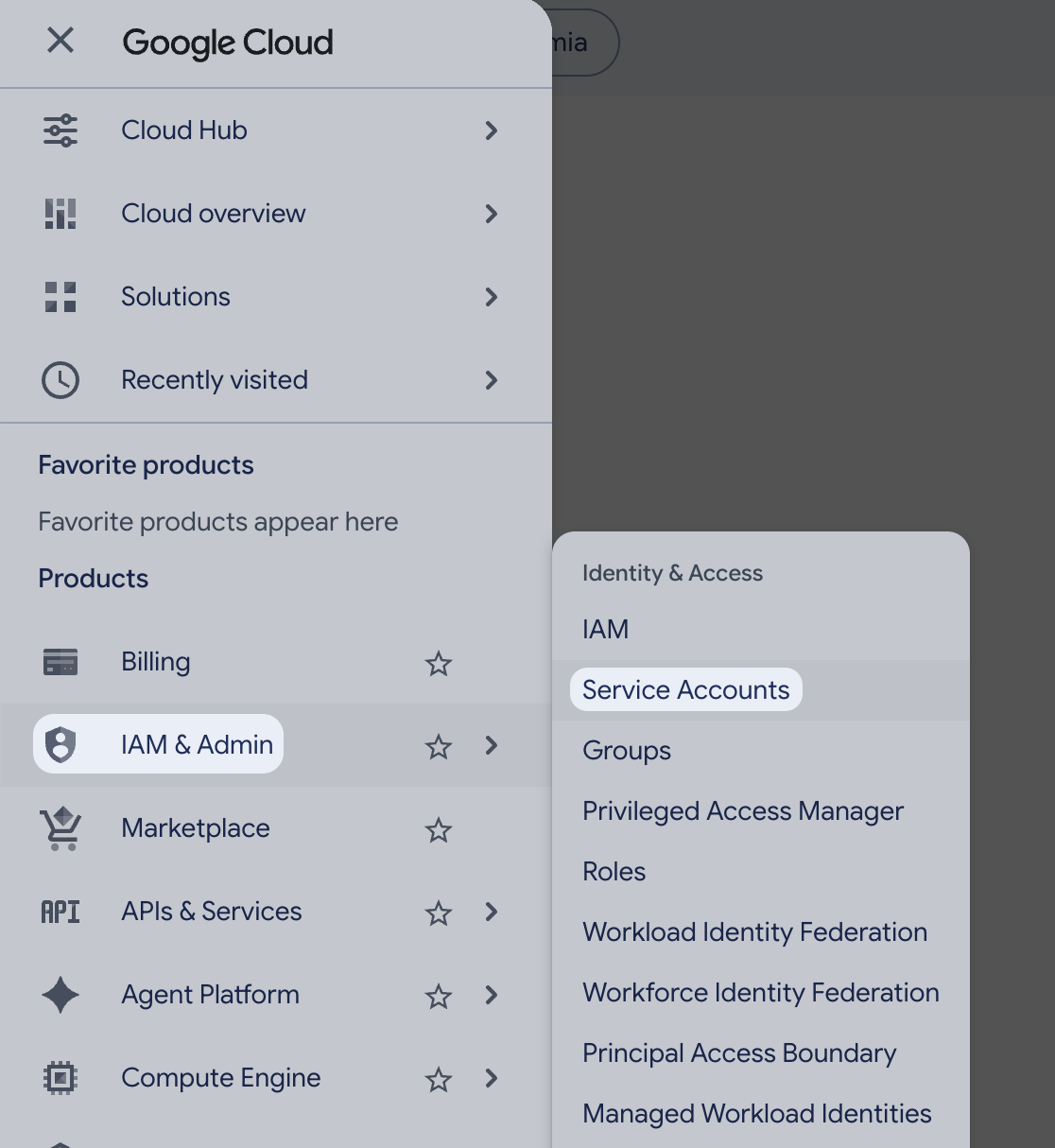
3
Create the service account
Select Create service account. Enter a Service account name (for example Iru Compliance). Google fills in the service account ID and email. Select Create and continue.
4
Grant the read-only roles
In the Permissions step, add each role from the Read-only roles table that you need, then select Continue and Done.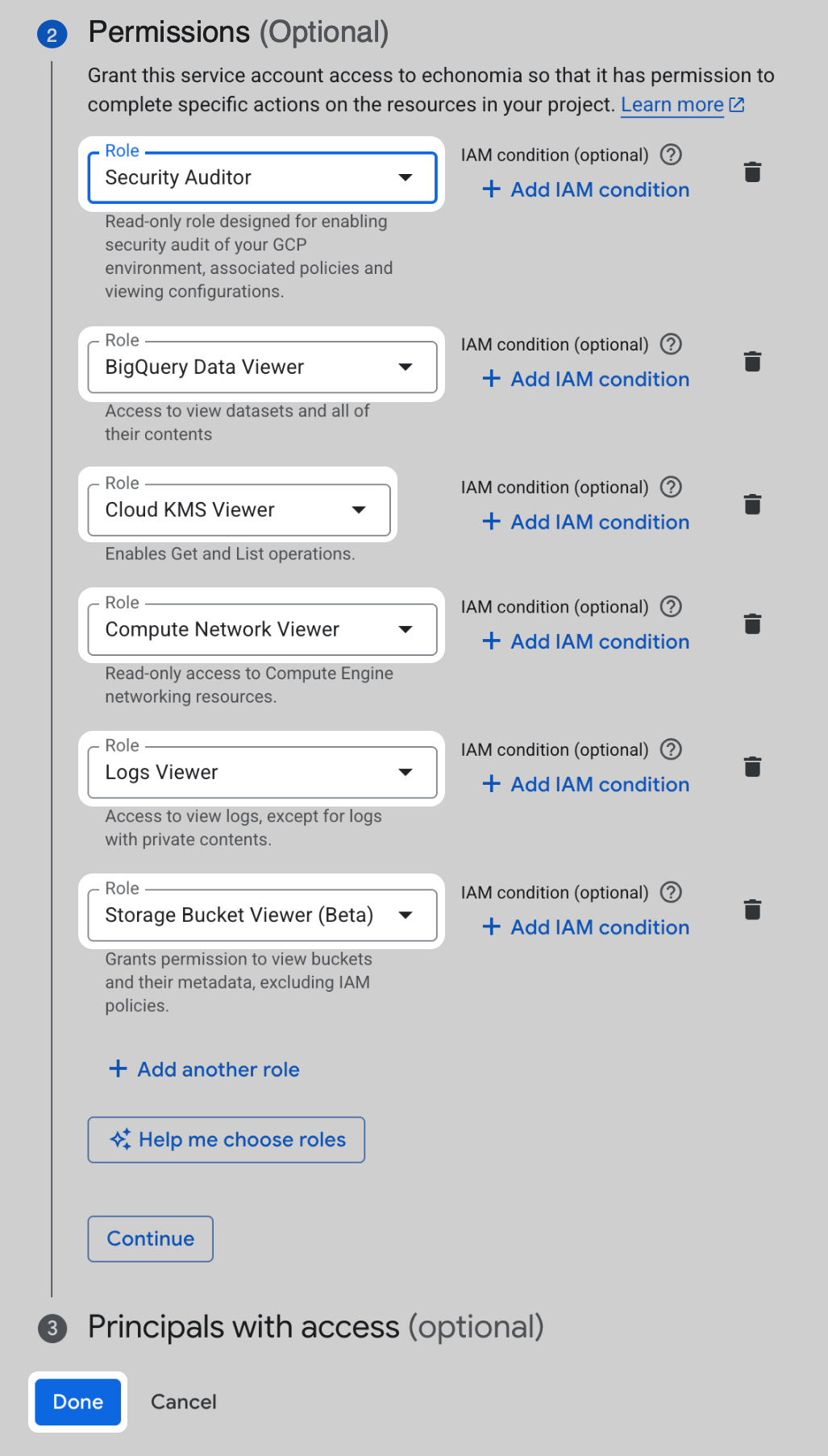
Create and download the JSON key
1
Open the service account
Go to IAM & Admin → Service Accounts, then open the account you created.
2
Select the Keys tab
Select the Keys tab.
3
Select Add key
Select Add key.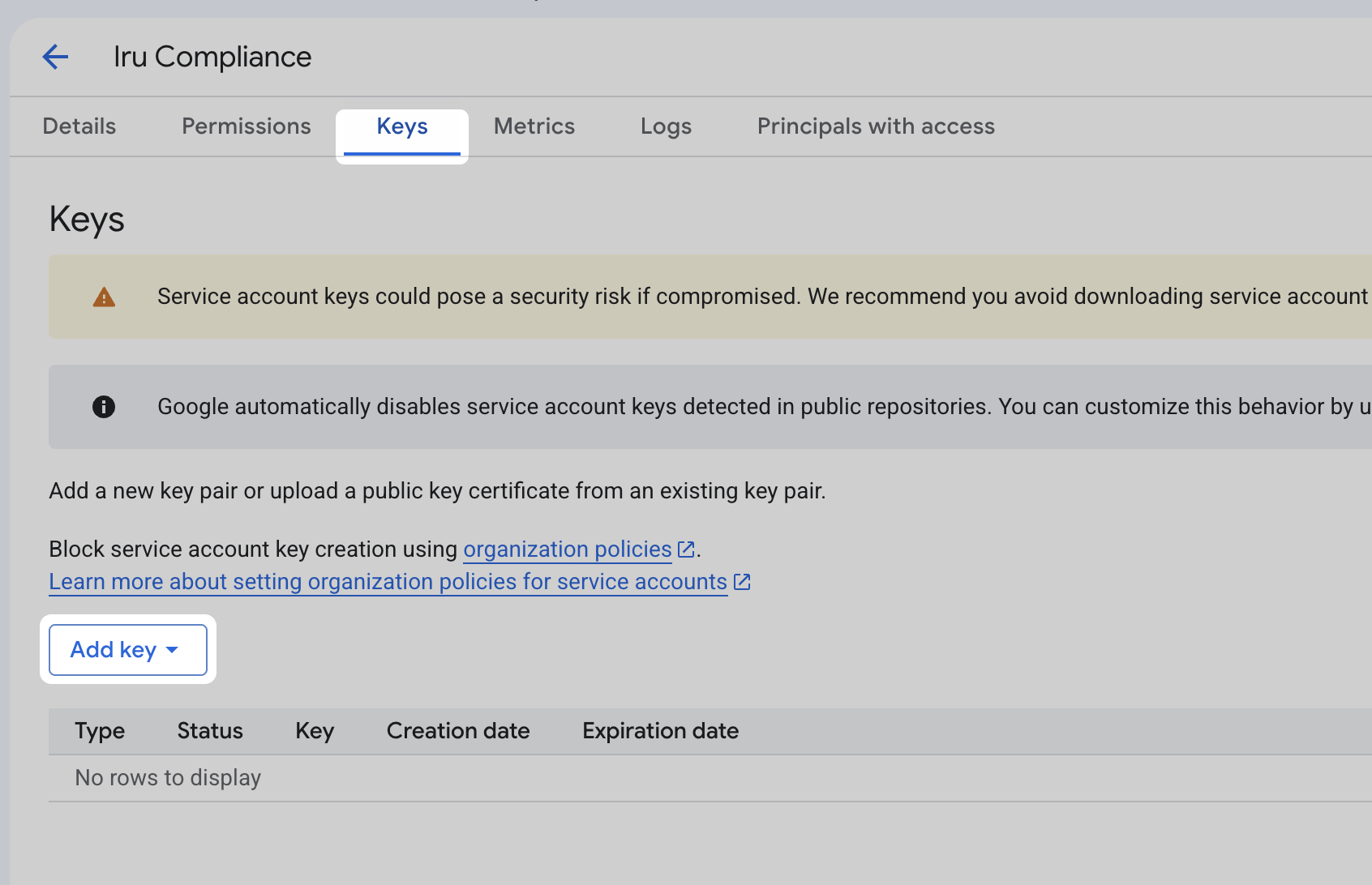
4
Create a new key
Select Create new key.
5
Select JSON and create the key
Select JSON, then select Create. The key file downloads to your computer.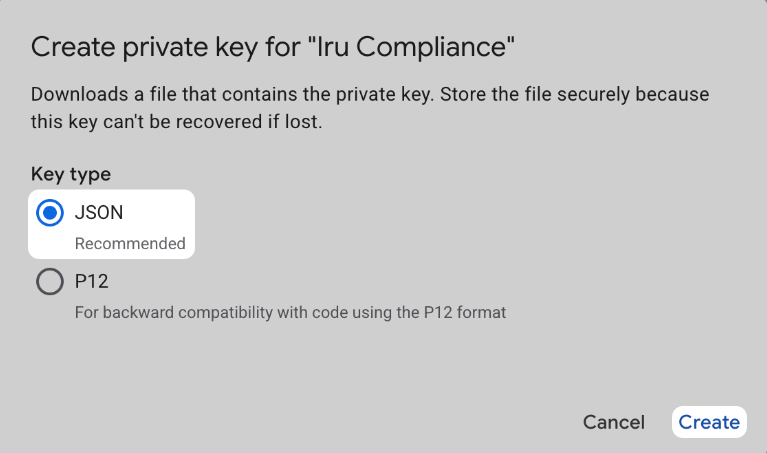
6
Store the key securely
Google cannot recover this file if you lose it. Anyone with the file has the service account’s access. Store it in a password manager or secrets vault, and delete your local copy after you connect the source in Iru.
If your organization restricts predefined roles
If your organization restricts predefined roles
Some organizations limit which predefined roles an admin can grant. Build a custom role with the same read-only permissions instead:
- Go to IAM & Admin → Roles and select Create role.
- Add the permissions you need. Use the role IDs in Read-only roles as a reference for what each predefined role includes.
- Assign the custom role to the service account instead of the predefined roles.
Optional: create the service account with gcloud
Optional: create the service account with gcloud
If you prefer the CLI, run this with gcloud while signed in as a user who can create service accounts and keys in the project. Set The script writes
PROJECT_ID, then run the script.iru-compliance-key.json to the directory you run it from. Upload that file in the Iru Compliance tab.Continue on the Iru Compliance tab.

Troubleshooting
Nothing opens when you turn the source on
Nothing opens when you turn the source on
Check pop-up blocker settings for the Iru site and try again.
Key creation is blocked by organization policy
Key creation is blocked by organization policy
If Create returns a policy error, your organization may enforce
constraints/iam.disableServiceAccountKeyCreation. An organization policy administrator must add an exception for your project before you can download a key. See Google’s guide to organization policies for service accounts.Connection fails or evidence is incomplete
Connection fails or evidence is incomplete
Confirm the JSON key belongs to the service account in the correct project, and that the account has the roles listed under Read-only roles for the evidence you need.
Related Articles
Sources Management
Browse and manage every Compliance source.
Getting Started With Compliance
Frameworks, actions, and Artifacts.
Iru Overview
How Endpoint, Compliance, and Identity fit together.
Artifacts Management
Upload, review, and organize evidence from sources and actions.