About OneLogin SAML Integration
Single Sign-On with OneLogin (SAML) in Iru Endpoint lets you set up SAML-based SSO integration with OneLogin for users accessing Iru Endpoint through their OneLogin credentials.How It Works
OneLogin SAML integration lets users authenticate to Iru Endpoint using their existing OneLogin credentials. Once configured, users can access Iru Endpoint through a single sign-on experience. The integration works by establishing a trusted relationship between Iru Endpoint and OneLogin, where OneLogin acts as the identity provider (IdP) and Iru Endpoint acts as the service provider (SP). When users attempt to access Iru Endpoint, they’re redirected to OneLogin for authentication, and upon successful login, OneLogin sends a SAML assertion back to Iru Endpoint confirming the user’s identity. SSO can be used for Iru Endpoint Web App sign-in and for Require Authentication with Automated Device Enrollment.- Iru Web App Configuration
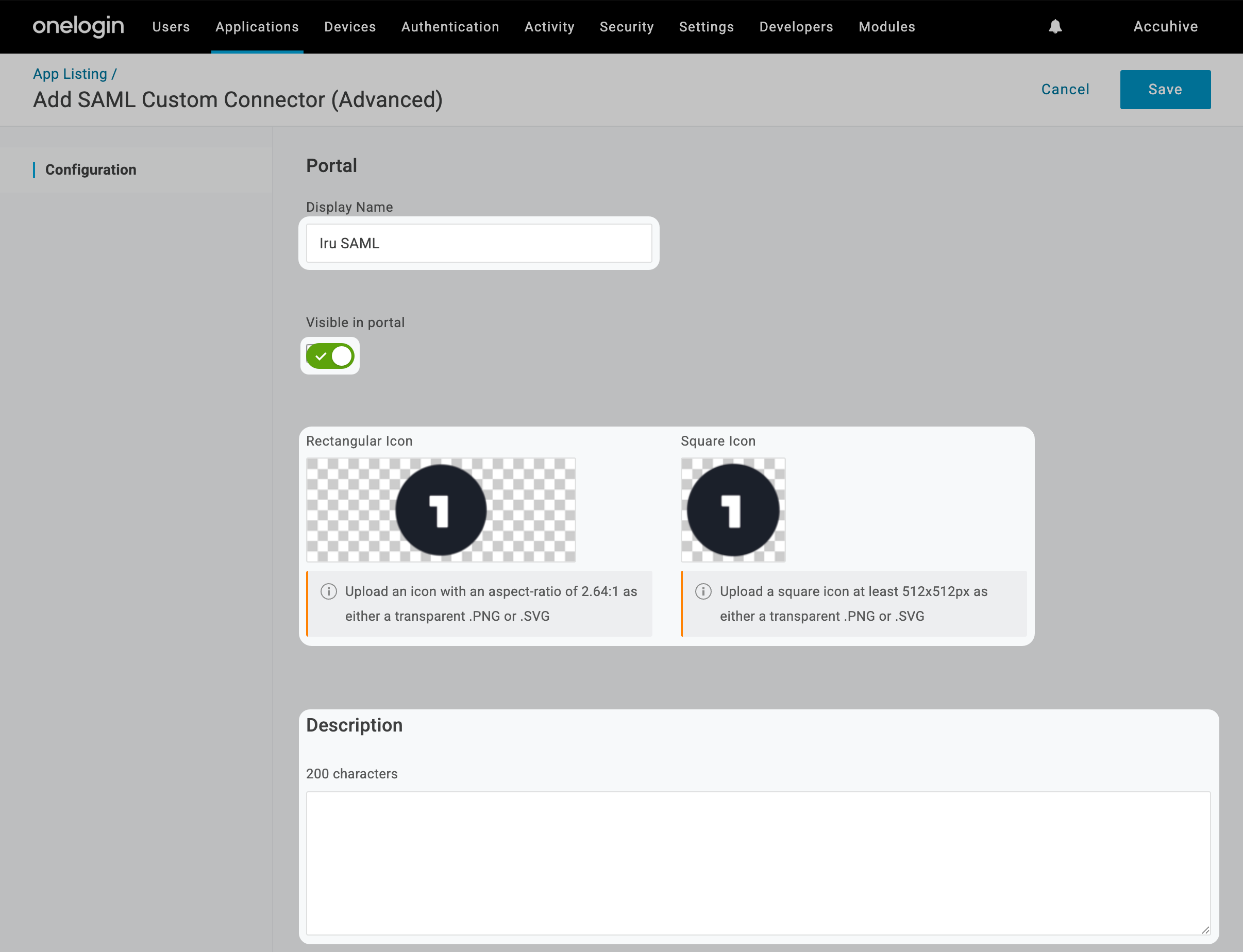
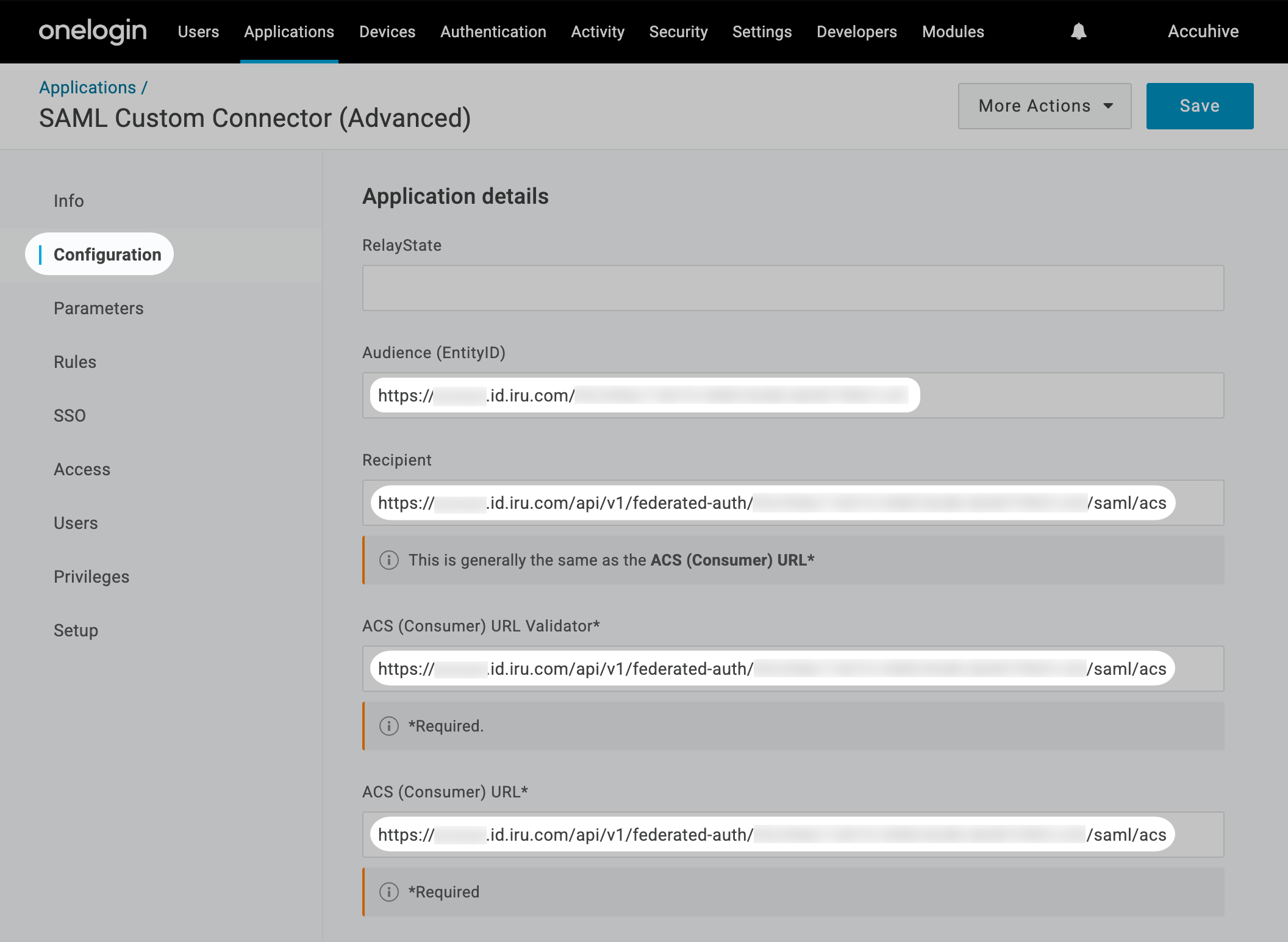
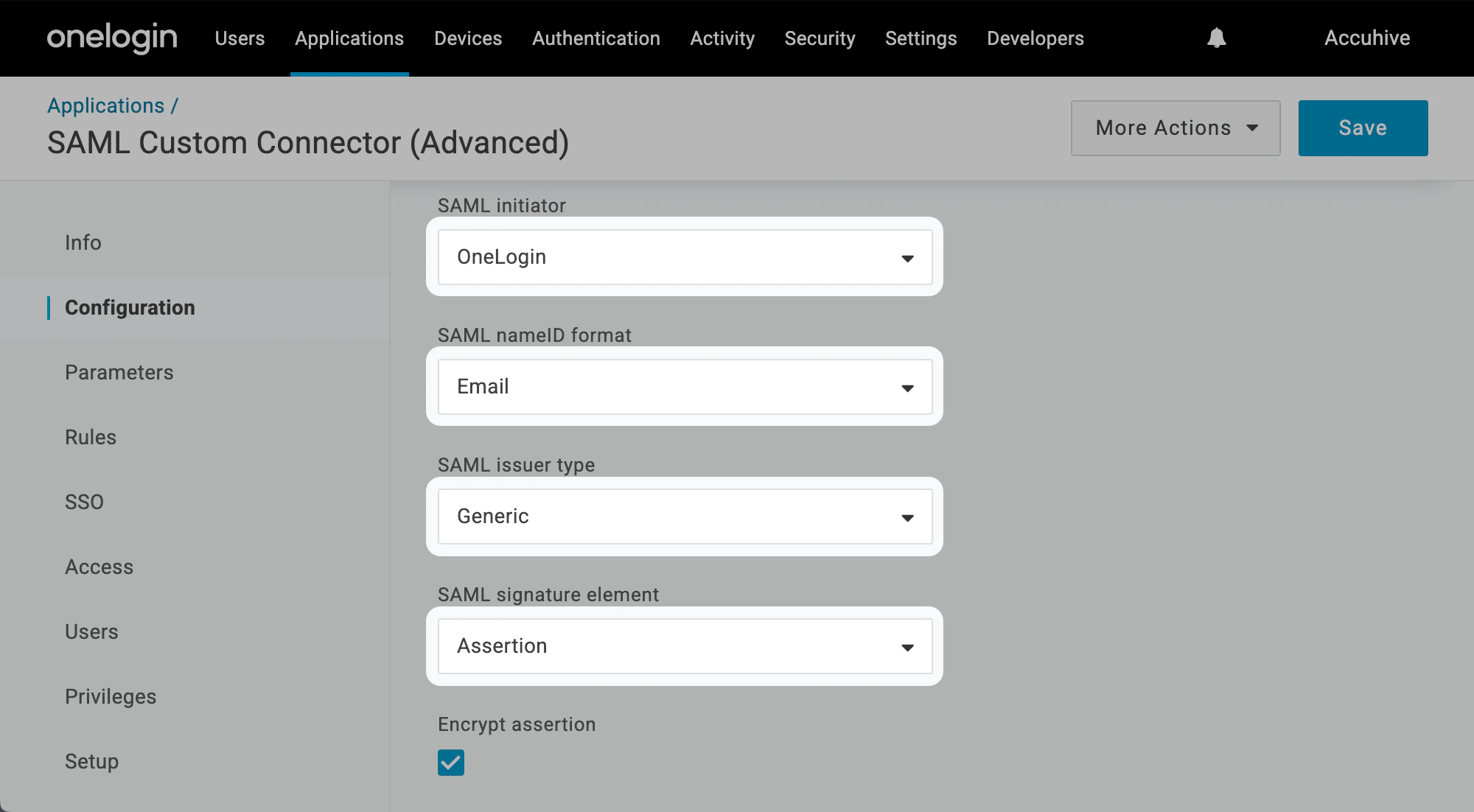
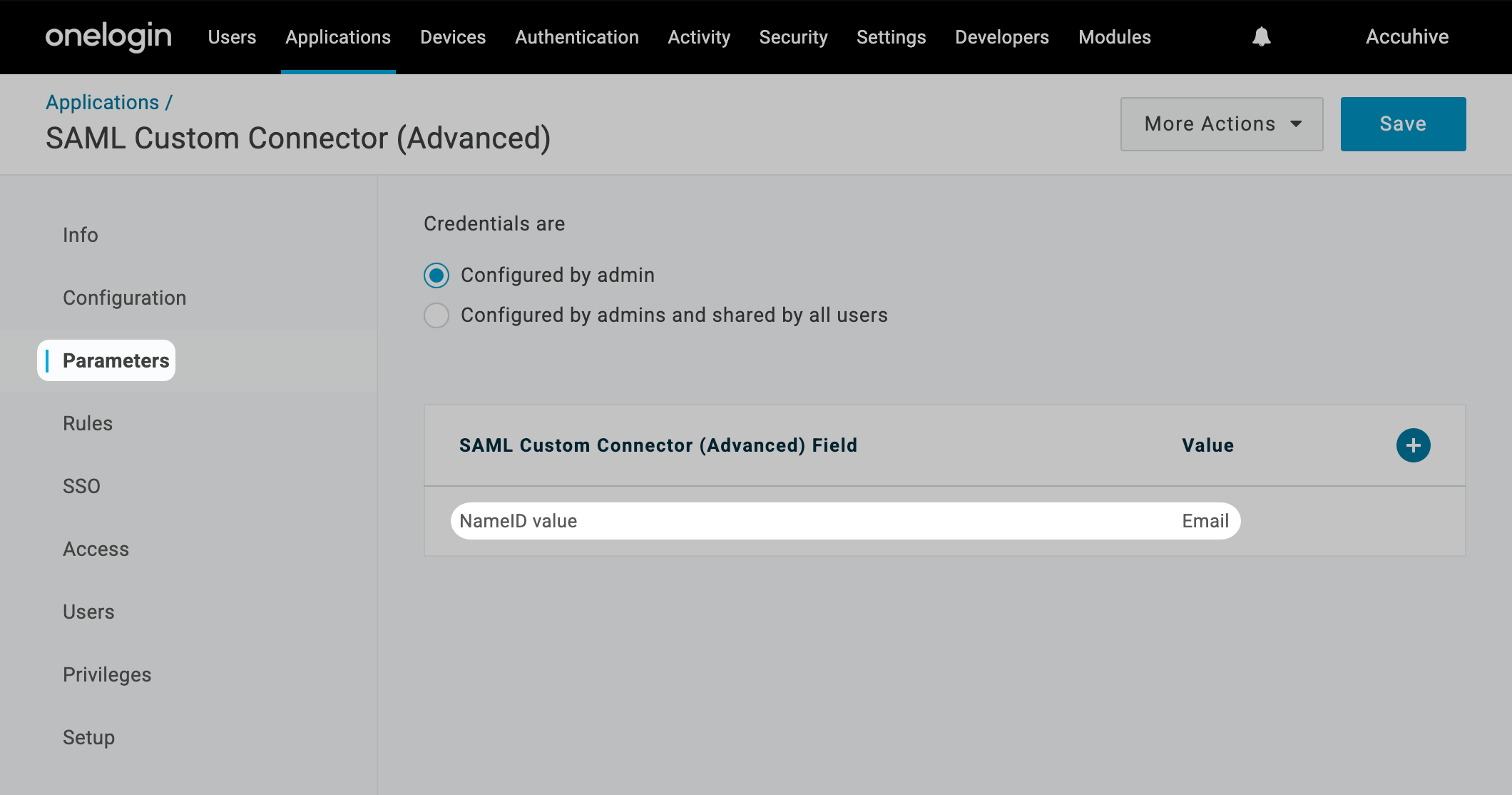
- OneLogin Configuration
Setting Up the SAML Connection
You’ll need to complete the initial setup in Iru Endpoint first to get the configuration information required for OneLogin. After copying the Entity ID and ACS URL, switch to the OneLogin Configuration tab and continue with Configuring OneLogin Application.
1
Navigate to the Account Menu Button
In Iru Endpoint, in the sidebar, select the Account Menu Button.
2
Access Authentication Settings
Select the Access option in the menu.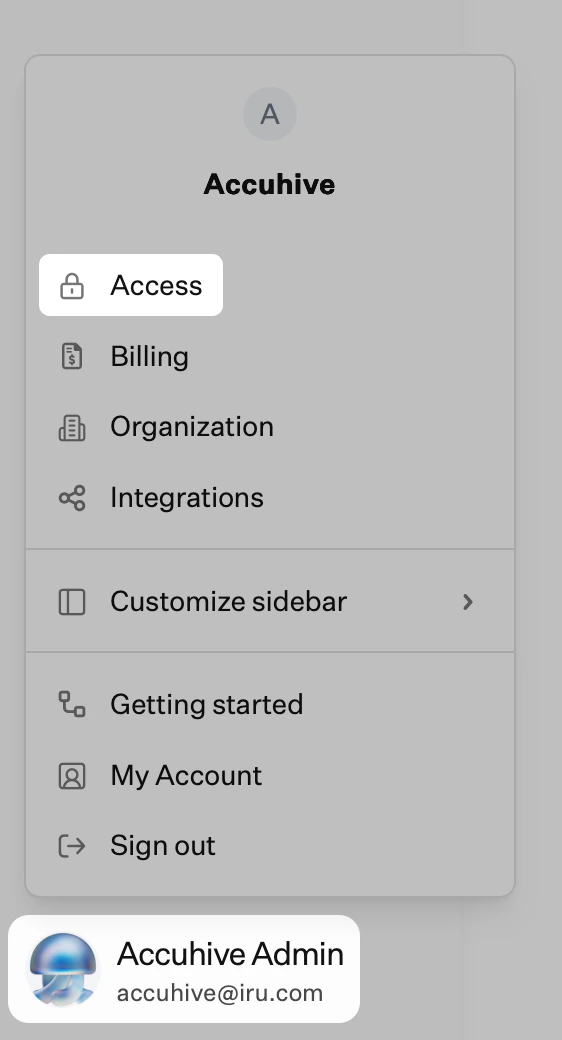
3
Select Admin and Authentication
Select the Admin and authentication tab (selected by default) and scroll down to Authentication methods.
4
Add Authentication Method
Select + Authentication method.
5
Enter Display Name
Enter a display name for the SSO Connection.
6
Select Authentication Method
Select SAML for the Authentication method.
7
Create Connection
Select Create.
8
Configuration Information
Select Configuration information if that section is not already expanded.
9
Copy Service Provider Entity ID
Copy the Service provider entity ID into a text document for later use. You’ll need this for the OneLogin configuration.
10
Copy ACS URL
Copy the Assertion consumer service (ACS) URL into a text document for later use. You’ll need this for the OneLogin configuration.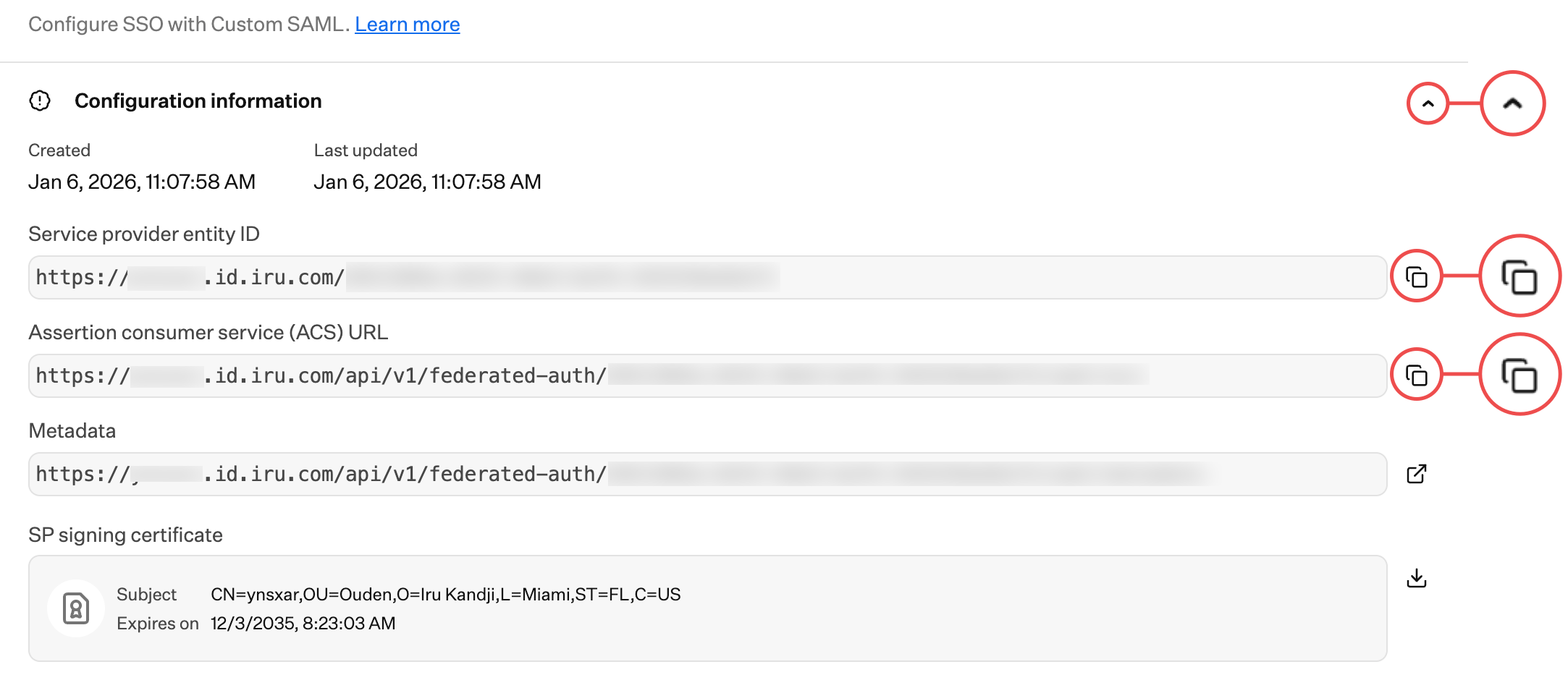
11
Keep Tab Open
Keep the Iru Endpoint configuration modal open, then switch to the OneLogin Configuration tab to continue with Configuring OneLogin Application.
Configuring Iru Endpoint SAML Connection
After completing the OneLogin configuration, return here to finish Configuring Iru Endpoint SAML Connection in Iru Endpoint. You’ll need the Single Sign-on URL, IdP Entity ID, and certificate from OneLogin.
1
Return to Iru Endpoint
Go back to the Custom SAML modal in Iru Endpoint.
2
Set IdP Attribute
Set IdP attribute to Subject.
3
Set Attribute Name
Leave Attribute name blank.
4
Set User Attribute
Set User attribute to User Principal Name (UPN).
5
Add IdP Entity ID
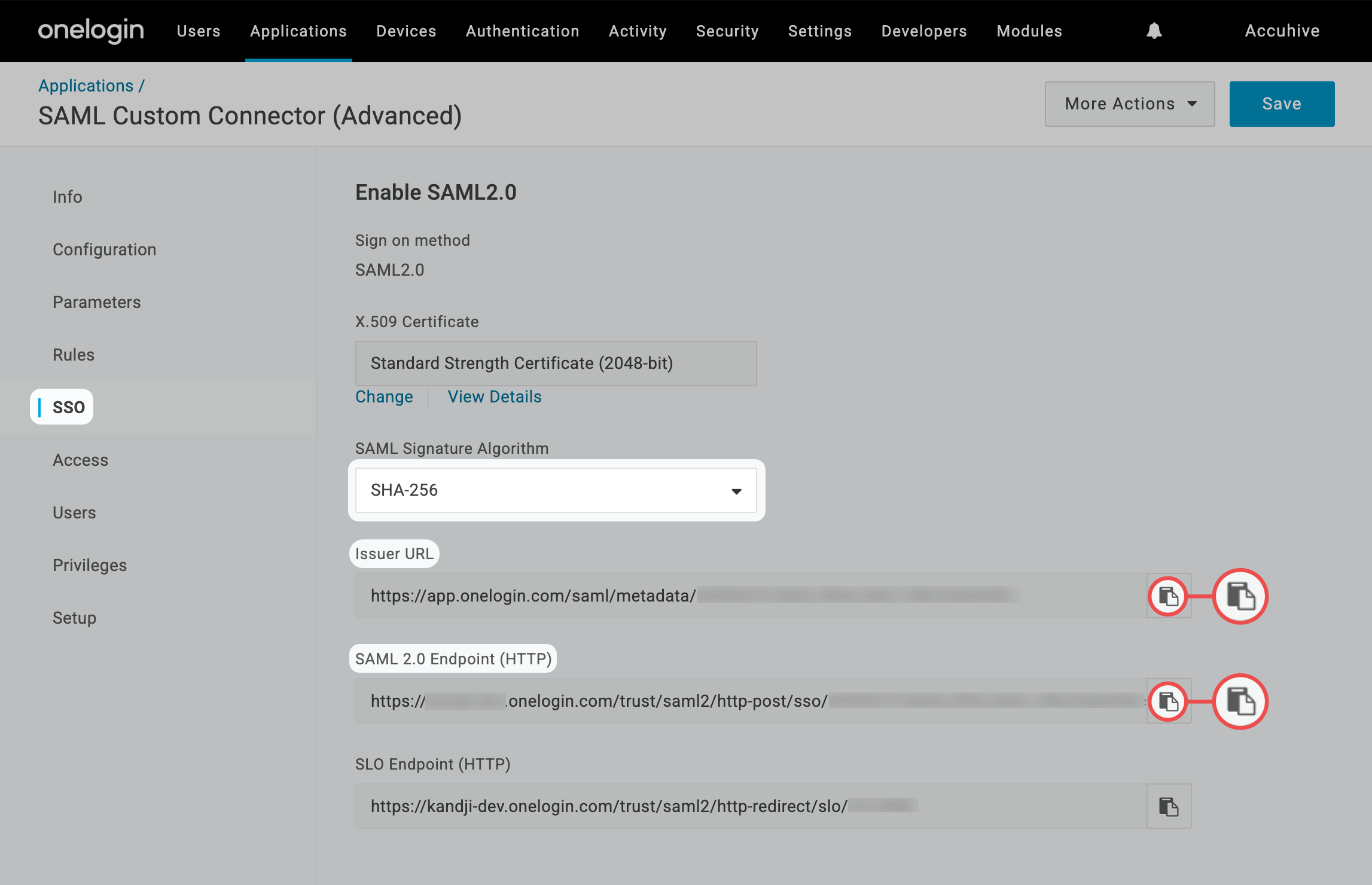
Paste the Issuer URL you copied from OneLogin into the IdP Entity ID field.
6
Configure Sign In URL
Paste the SAML 2.0 Endpoint (HTTP) URL you copied from OneLogin into the IdP Single Sign-on URL field.
7
Upload Certificate
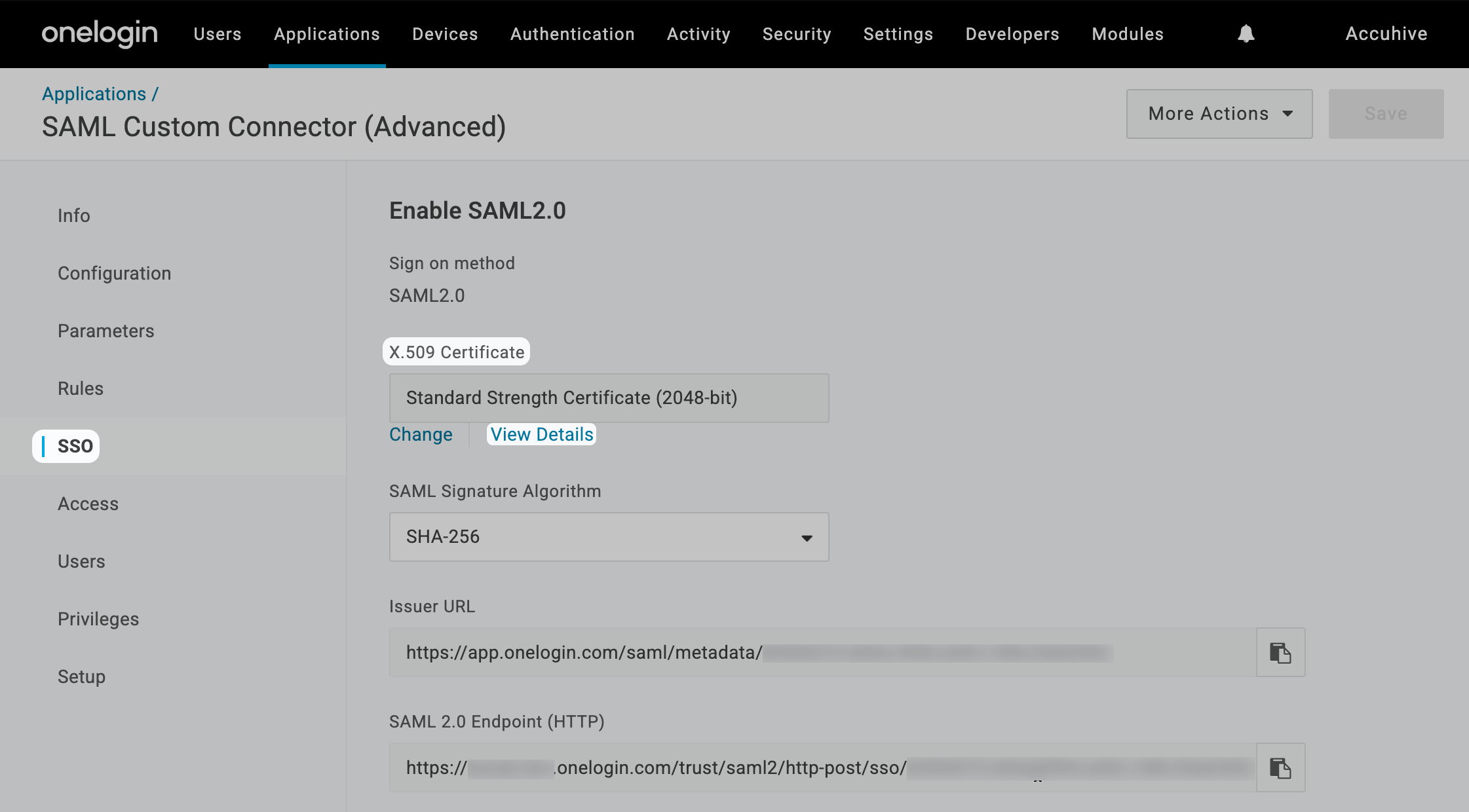
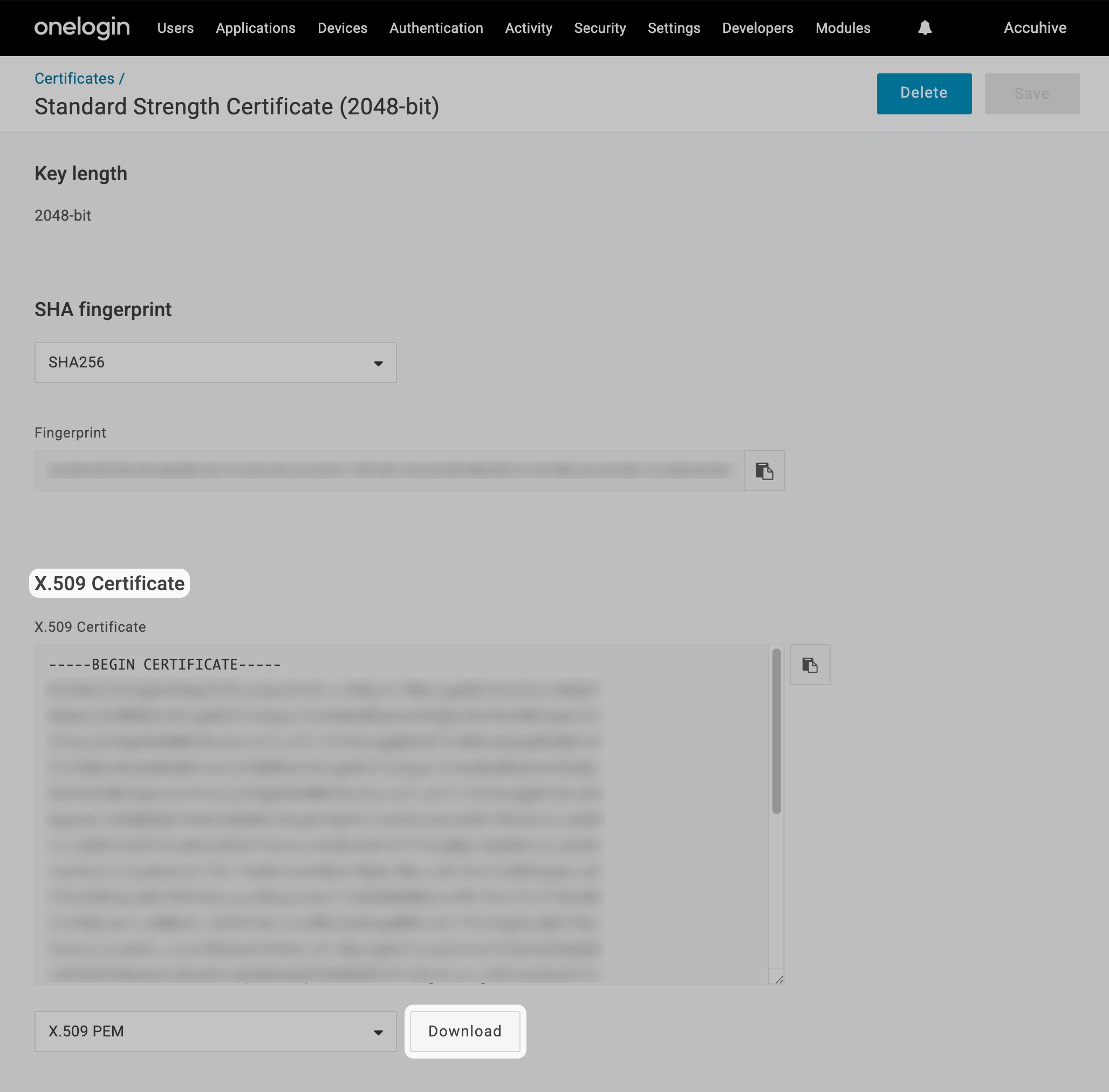
Upload the OneLogin certificate you downloaded earlier.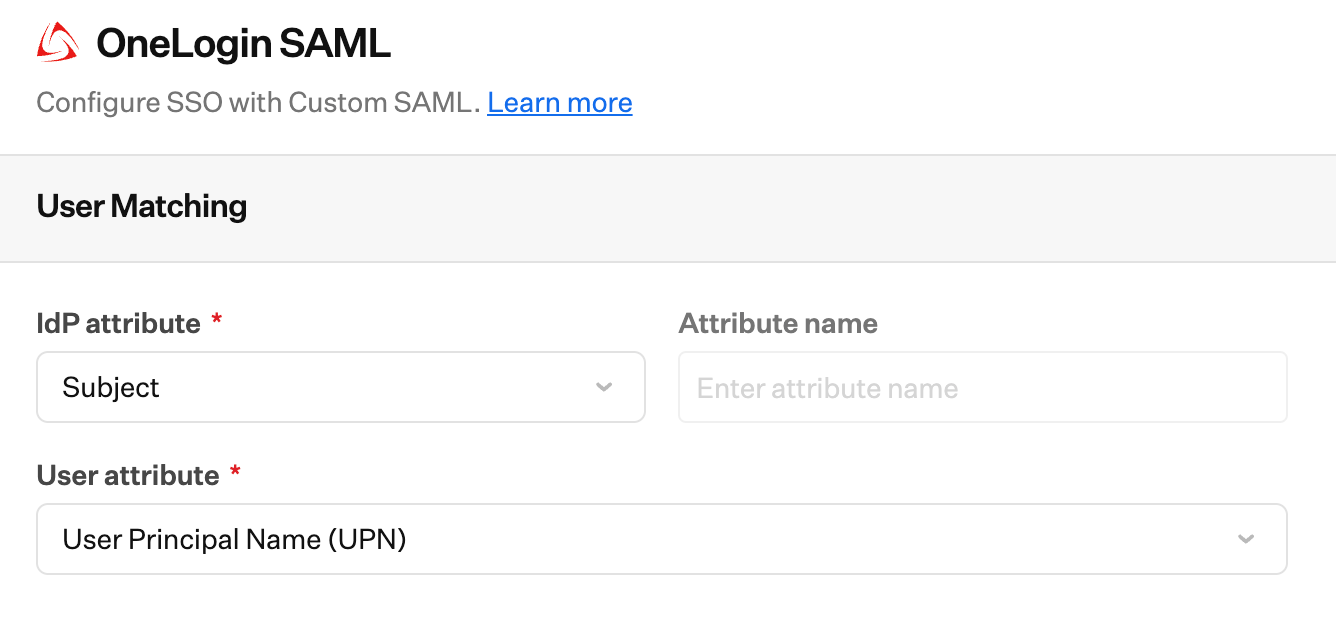
8
Set Protocol Binding
Set the Protocol Binding to HTTP-POST.
9
Set Request Algorithm
Ensure that the Request Algorithm is set to RSA-SHA256.
10
Set Digest Algorithm
Ensure that Sign Request Algorithm Digest is set to SHA256.
11
Enable Sign Request
Ensure that Sign Request is enabled.
12
Set Response Signature Verification
Set the Response Signature Verification to Assertion.
13
Set Destination
Leave the Destination field blank.
14
Set Allowed Signature Algorithm
Set Allowed Signature Algorithm to RSA-SHA256.
15
Set Allowed Digest Algorithm
Set Allowed Digest Algorithm to SHA256.
16
Save Configuration
Select Save.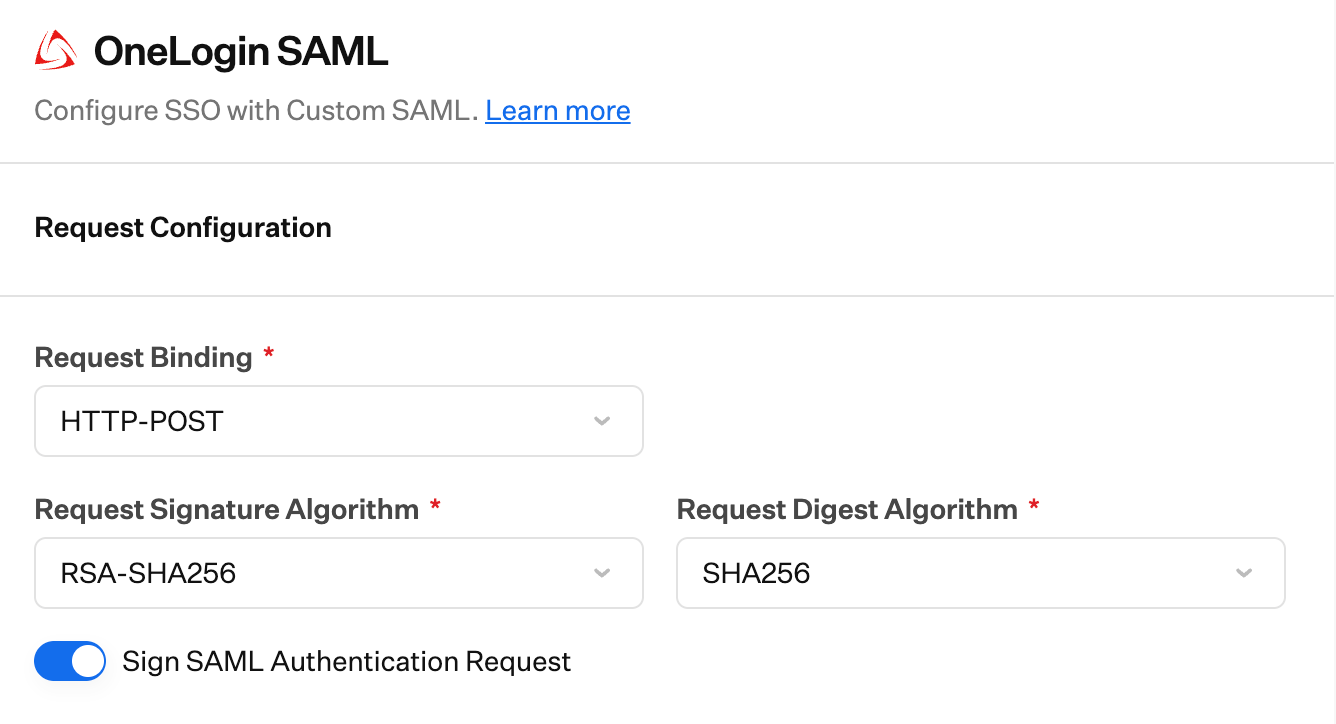
Allow for Tenant Authentication
Once you have configured the SAML connection in Iru Endpoint and your identity provider, you can allow its use for tenant authentication. For step-by-step instructions, please refer to the Allowing Tenant Authentication and Managing Connections section in our Single Sign-on support article.Limit Authentication to Domain
When configuring the SAML connection, you can optionally limit authentication to one or more domains. This can be useful when the SSO connection could authenticate to multiple domains. You can limit the authentication to your Iru tenant to a subset of the available domains.Enforcing Single Sign-On
Once you have configured at least one Single Sign-on connection, you can disable Passkey, Google Social, and Microsoft Social connections. Disabling these connections will disable the ability for Iru Endpoint administrators in your tenant to authenticate via those methods. Please refer to our Single Sign-on support article for step-by-step instructions.Testing the Integration
1
Add Test User
Add a test user to the Admin Team in Iru Endpoint by selecting New User.
2
Configure User Information
Fill in all of the corresponding user information. This user must exist in OneLogin and must be assigned to the Iru Endpoint SSO app in your OneLogin tenant.
3
Submit User
Select Submit.
4
Close Invite Window
Once the invite is submitted, close the Invite User window.
5
Refresh Access Page
Refresh the Access page in Iru Endpoint. You should see the user you added.
6
Test SSO Login
Go to the user’s email to accept the invite and log in with the new SAML SSO connection.