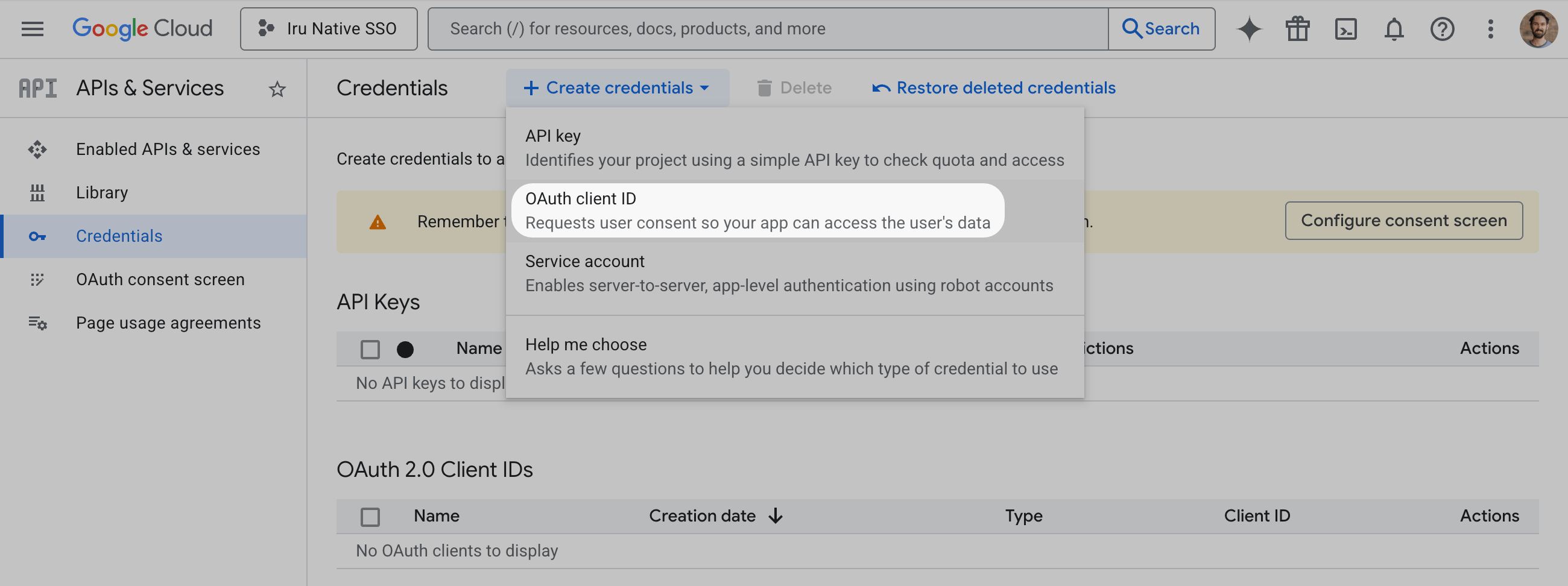
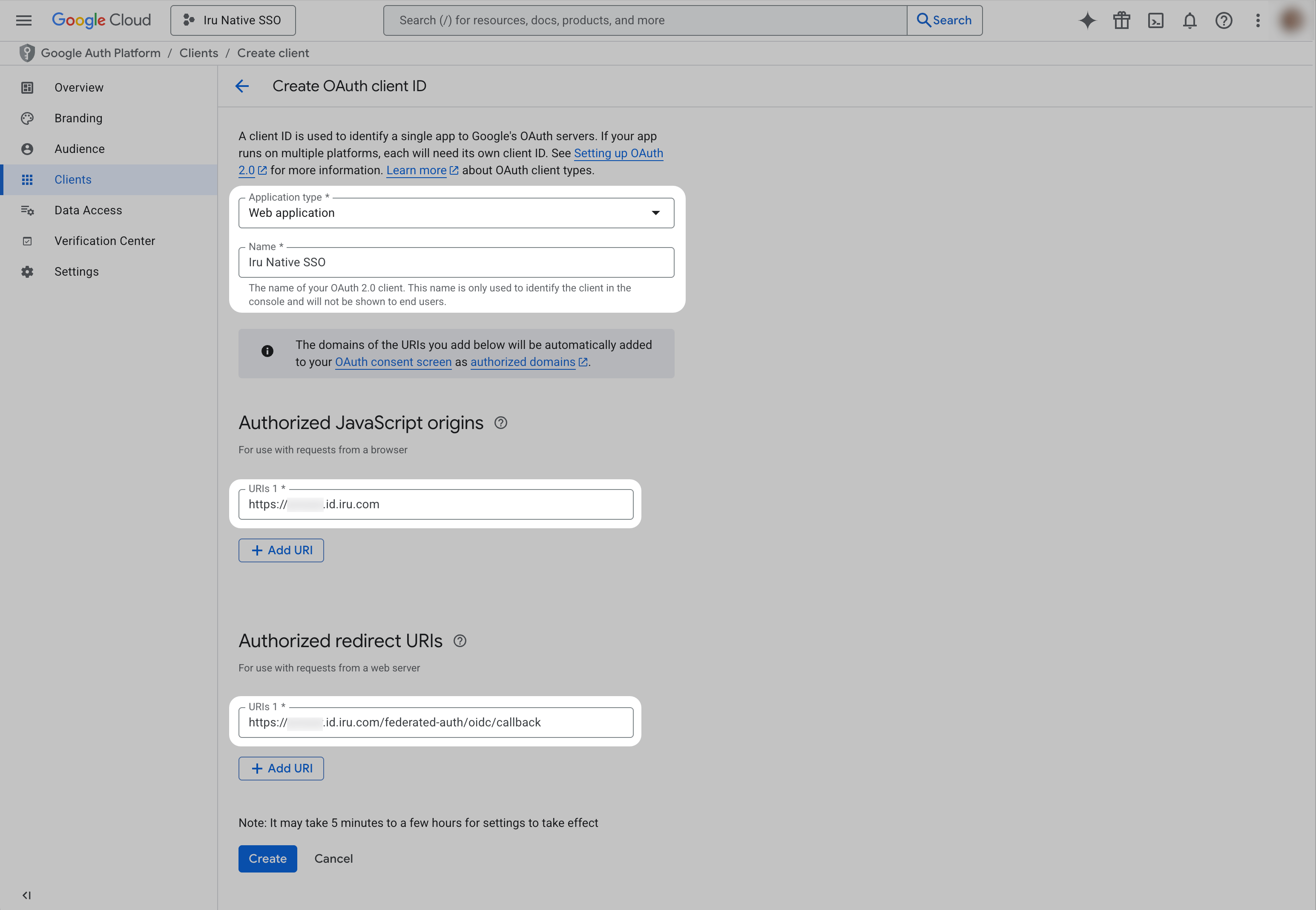
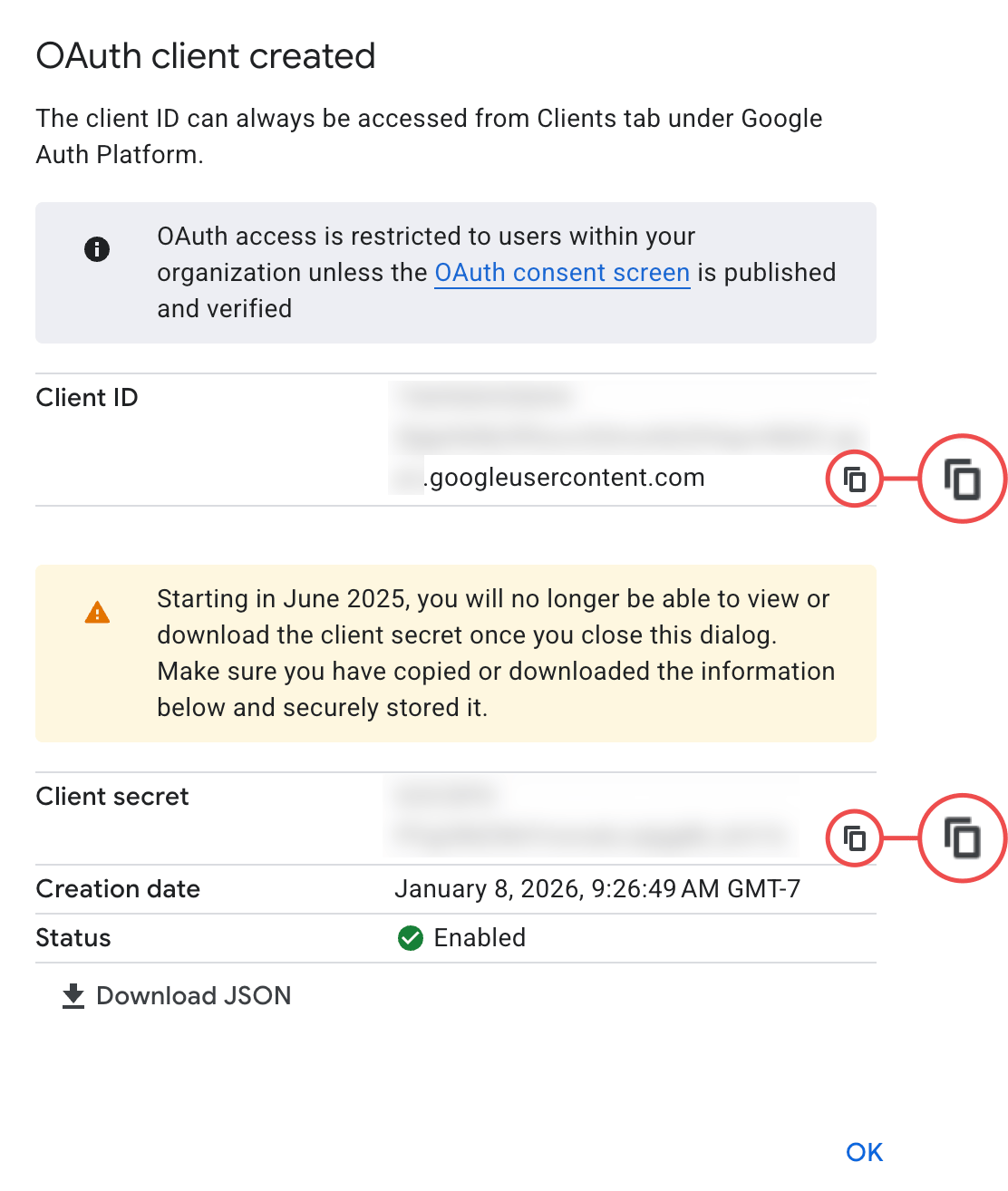
About Google Workspace Native Integration
Google Workspace Native integration in Iru Endpoint lets you set up native Google Workspace integration for SSO. Users authenticate using their Google Workspace credentials without requiring custom SAML configuration.How It Works
When users attempt to access Iru Endpoint, they’re redirected to Google Workspace for authentication using OAuth2/OpenID Connect protocols. After successful authentication, Google Workspace sends an access token back to Iru Endpoint, which validates the user’s identity and grants access to the platform.Prerequisites
Before you begin, ensure you have:- Access to the Iru Endpoint Web App as an Admin or Account Owner
- A Google Workspace super administrator account to complete the Google Workspace configuration steps
- Iru Web App Configuration
- Google Workspace Configuration
Configuring Iru Endpoint Connection
Follow these steps to configure the connection in Iru:1
Navigate to the Account Menu Button
In Iru Endpoint, in the sidebar, select the Account Menu Button.
2
Access Authentication Settings
Select the Access option in the menu.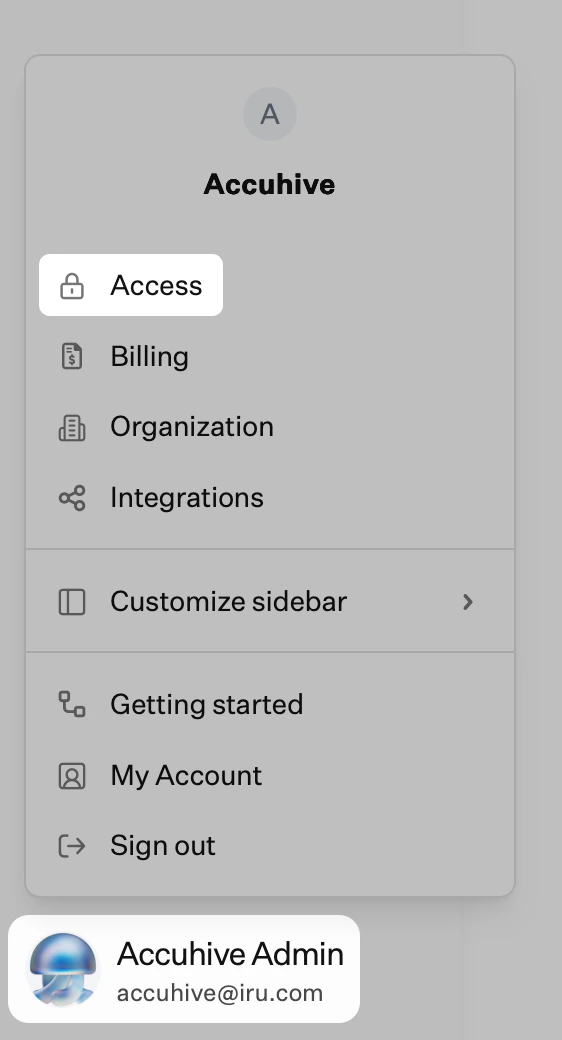
3
Select Admin and Authentication
Select the Admin and authentication tab (selected by default) and scroll down to Authentication methods.
4
Add Authentication Method
Select + Authentication method.
5
Enter Display Name
Enter a display name for the SSO Connection.
6
Select Google Workspace
Select Google Workspace.
7
Create Connection
Select Create.
8
Copy Redirect URL
Copy the Redirect URL into a text document for later use. You’ll need this for the Google Workspace configuration.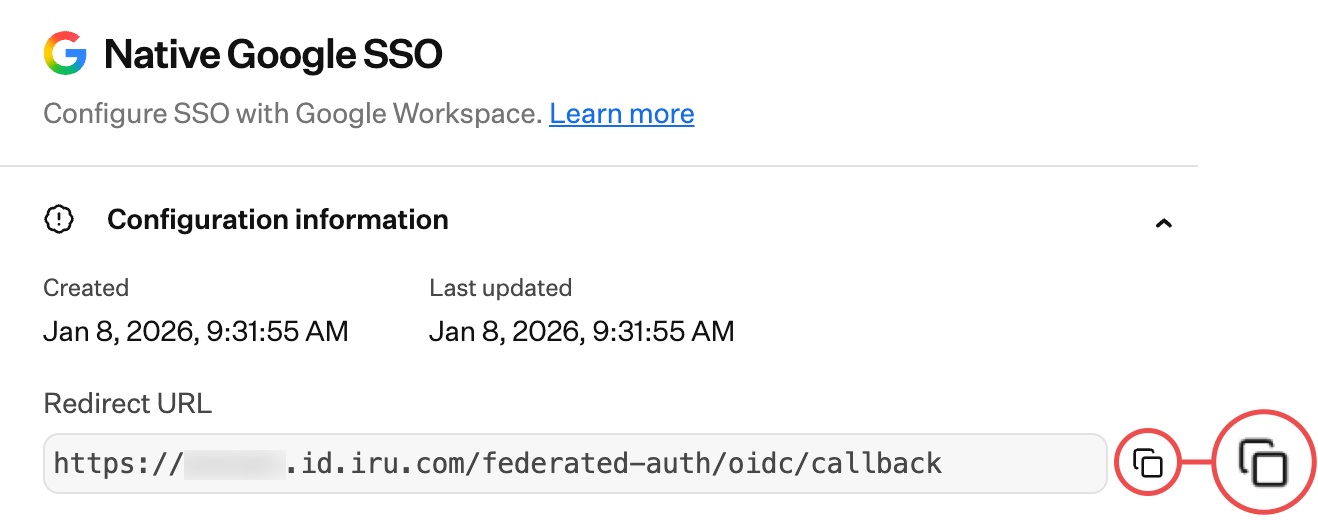
9
Keep Tab Open
Keep the Iru Web App configuration modal open, then switch to the Google Workspace Configuration tab to continue with Setting Up Google Workspace Application.
After completing the Google Workspace Configuration, return here to finish setting up the SSO connection in Iru Endpoint. You’ll need the Client ID, and Client secret you copied from Google Workspace.
Completing the Iru Endpoint Connection
Follow these steps to complete the configuration:1
Enter Google Workspace Domain
Enter your Google Workspace domain from Google Workspace.
2
Paste Client ID
Paste the Client ID you copied from Google Workspace into the Client ID field.
3
Paste Client Secret
Paste the Client secret you copied from Google Workspace into the Client secret field.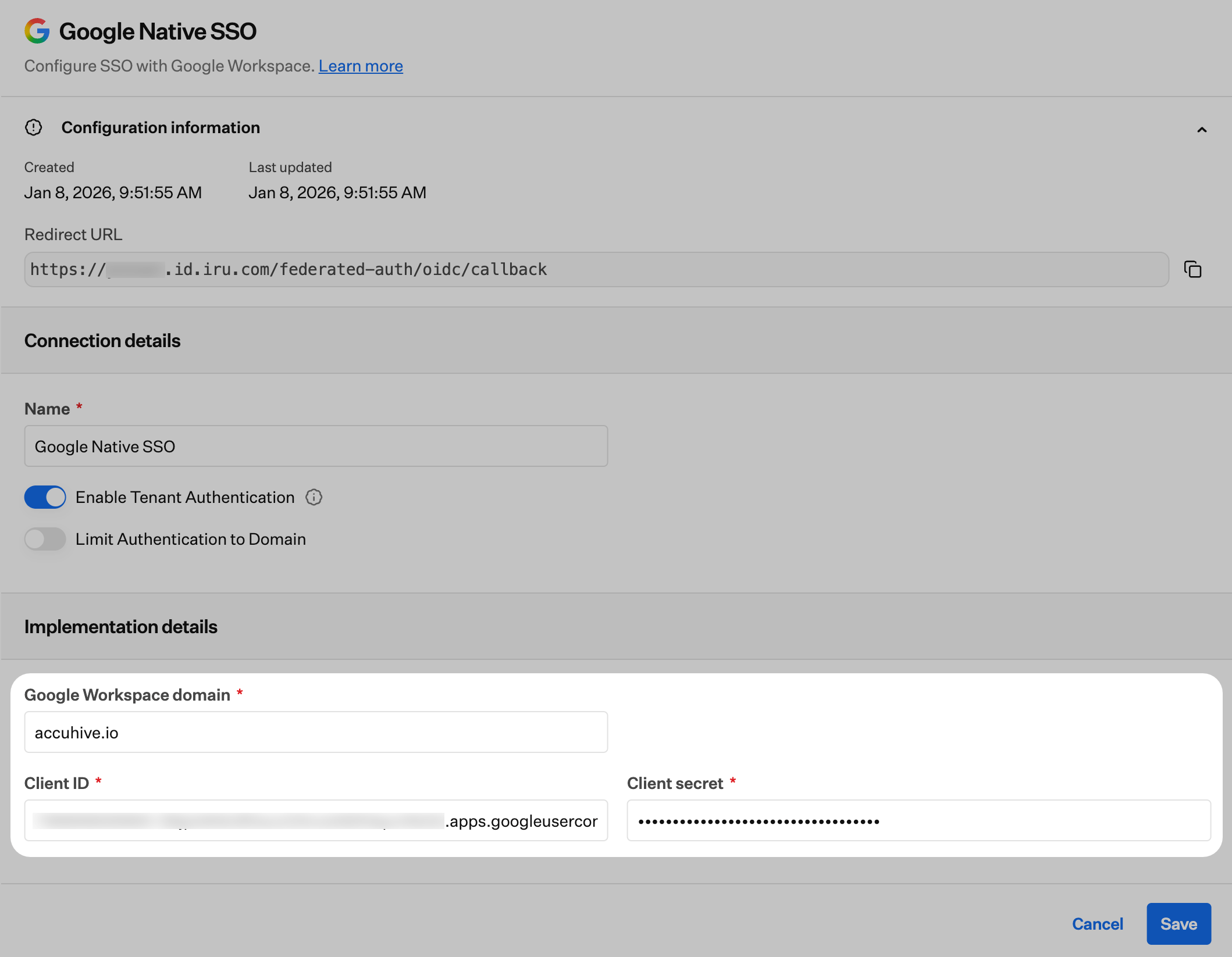
4
Save Configuration
Select Save.
5
Confirm Setup
Your connection has now been successfully configured and may be enabled and tested.