

About SAML-based Single Sign-On
SAML, or Security Assertion Markup Language, is a standard that helps different systems communicate about user authentication and authorization. It’s mainly used for Single Sign-On (SSO), which means you can log in once and access multiple applications without entering your credentials again. In Iru Endpoint, you can use SAML for Iru Endpoint Web App access and Require Authentication with Automated Device Enrollment.How It Works
There are three components that make up a SAML configuration:- Identity Provider (IdP) - This is the system that verifies your identity. It checks your credentials and shares this information with the service you want to use.
- Service Provider (SP) - This is the application or service you’re trying to access. It trusts the IdP to confirm your identity and lets you in based on that information.
- SAML Assertions - These are messages that carry information about your identity and access rights from the IdP to the SP. There are three types:
- Authentication Assertion - Confirms your identity and how you were authenticated.
- Attribute Assertion - Shares extra details about you.
- Authorization Decision Assertion - States whether you can access the service.
1
User Requests Access
The user attempts to access a service provider, in this case, Iru Endpoint.
2
SAML Request Generation
Iru Endpoint generates a SAML authentication request and redirects the user to the IdP.
3
User Authentication
The IdP authenticates the user, usually by prompting them to log in if they aren’t already authenticated.
4
SAML Response Creation and Transmission
Once the user is authenticated, the IdP generates a SAML response, which includes a SAML assertion. This assertion contains information about the user, such as their identity and any attributes or roles they have. The SAML response is sent back to Iru Endpoint via the user’s browser.
5
Assertion Validation
Iru Endpoint receives the SAML response and validates the SAML assertion. This involves checking the digital signature to ensure it comes from a trusted IdP.
6
Access Granted
If the assertion is valid, Iru Endpoint lets the user log in to the Iru Endpoint web app or enroll during Automated Device Enrollment.
Setting Up a SAML Connection
These instructions cover how to create a generic Custom SAML SSO connection. For more information on creating IdP-specific Custom SAML connections, please see the following support articles:- Single Sign-On with Okta (SAML)
- Single Sign-On with Google Workspace (SAML)
- Single Sign-On with JumpCloud (SAML)
- Single Sign-On with Microsoft Entra ID (SAML)
- Single Sign-On with OneLogin (SAML)
1
Navigate to the Account Menu Button
In Iru Endpoint, in the sidebar, select the Account Menu Button.
2
Access Authentication Settings
Select the Access option in the menu.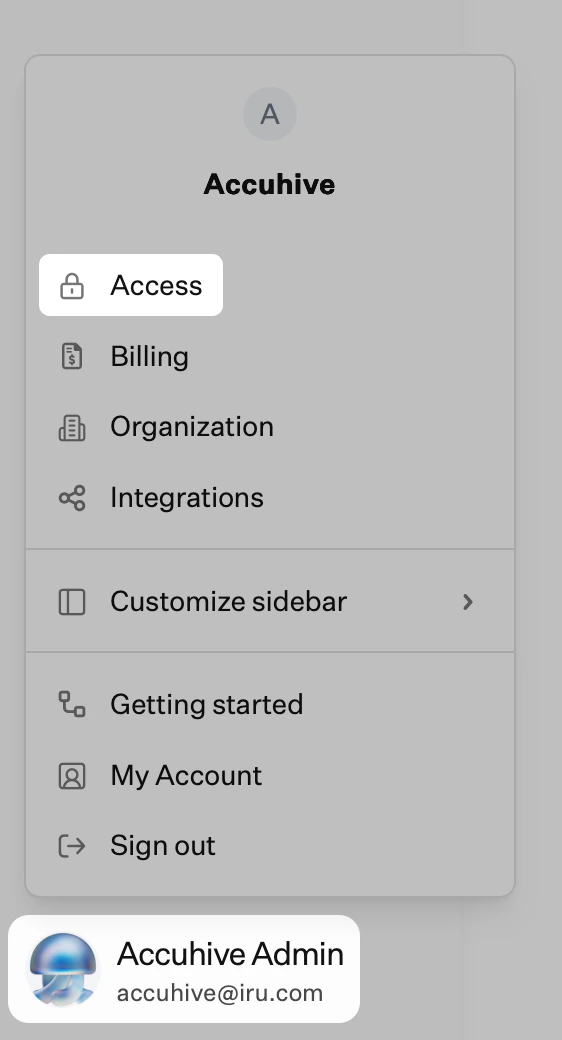
3
Select Admin and Authentication
Select the Admin and authentication tab (selected by default) and scroll down to Authentication methods.
4
Add Authentication Method
Select + Authentication method, then enter a display name for the SSO Connection and select SAML.
5
Create Connection
Select Create.
6
Configuration Information
Select Configuration information if that section is not already expanded.
7
Copy Service Provider Entity ID
Copy the Service provider entity ID into a text document for later use.
8
Copy ACS URL
Copy the Assertion consumer service (ACS) URL into a text document for later use.
9
Keep Tab Open
Leave this browser tab open as you proceed with the instructions below.
Configuring SAML Connection
Once you have created the connection, you will see the following configuration options displayed in the modal.Configuration Options
Metadata File: This is the URL to the metadata file for the service provider details. Provide this metadata file to your identity provider if it supports metadata files. Note that this link will not be live until you save the connection page. Configuration Information: If your identity provider does not support metadata files, select Configuration information. The Configuration information section, which is covered later in this article, contains information from within the metadata file. Name: Provide a display name for the connection. This will be shown on the login page. Sign-In URL: This is the application sign-in URL provided by your identity provider. IdP Entity ID: This is the Entity ID coming from your identity provider (Google, Okta, Microsoft Entra ID, etc.), not the Entity ID from the Iru side. This field is required and must match the Entity ID configured in your identity provider. Signing Certificate: Paste the contents of the signing certificate in X.509 PEM format from your identity provider. This certificate is used to evaluate the validity of an incoming SAML claim. Paste the full contents of the certificate, including the BEGIN CERTIFICATE and END CERTIFICATE header/footer. User ID Attribute: Specify the attribute within the SAML claim that should attempt to match against an existing administrator. Typically this will be the NAME ID URI (example below) as long as your identity provider is configured to send the user’s email for the NAME ID value. Otherwise, match against any additional custom attribute that you intend on sending within the claim.Required Claim Attributes
The following attributes are required in your SAML claim. NameID is technically optional within Iru Endpoint so long as another attribute is specified to match the email address.If the surname and given name attributes are missing from your claim, the email address will be used for these values.
| Attribute URI | ||
NameIDhttp://schemas.xmlsoap.org/ws/2005/05/identity/claims/nameidentifier | The email of the user matching the email of a team member in your Iru Endpoint tenant. | Needed to match the user authenticating to Iru Endpoint. |
http://schemas.xmlsoap.org/ws/2005/05/identity/claims/surname | The last name of the user. | Needed to update the user’s last name. |
http://schemas.xmlsoap.org/ws/2005/05/identity/claims/givenname | The first name of the user. | Needed to update the user’s first name. |
Advanced Details
If your identity provider does not support configuring a service provider application via a metadata file, you will manually fill in this information.1
Service Provider Metadata File
This is the URL to the metadata file for the service provider details. Provide this metadata file to your identity provider if it supports metadata files.
2
ACS URL
The URL that a SAML assertion should be sent to.
3
Entity ID
The entity ID of the service provider (this is also the SP Issuer ID used for SLO requests).
4
Service Provider Signing Certificate
This certificate is used to sign requests from the Service Provider to the Identity Provider.