

Apple Business Manager is now Apple Business. Apple School Manager is unchanged. For more information, see Introducing Apple Business and Apple Business Manager is now Apple Business.
About Removing App Store Apps from the Library
You can remove App Store app Library Items from the Library when no licenses are assigned to the Apps and Books token in Apple Business or Apple School Manager for your Iru Endpoint tenant. First unassign the app’s licenses in the portal, then remove the app from the Iru Endpoint Library.Unassigning App Store licenses in Apple Business or Apple School Manager
Unassign all licenses for the app from the organizational unit used for your Iru Endpoint tenant’s Apps and Books token in Apple Business or Apple School Manager before you remove the app from the Iru Endpoint Library.1
Sign in to Apple Business or Apple School Manager
Sign in to Apple Business or Apple School Manager with a Managed Apple Account that can manage Apps and Books.
2
Create an organizational unit in Apple Business or Apple School Manager
Follow Apple’s instructions for configuring organizational units in Apple Business or Apple School Manager. You will transfer your app license(s) to this organizational unit in a later step.
3
Open your organization menu
Click your organization name at the top right of the page.
4
Open Settings
Click Settings.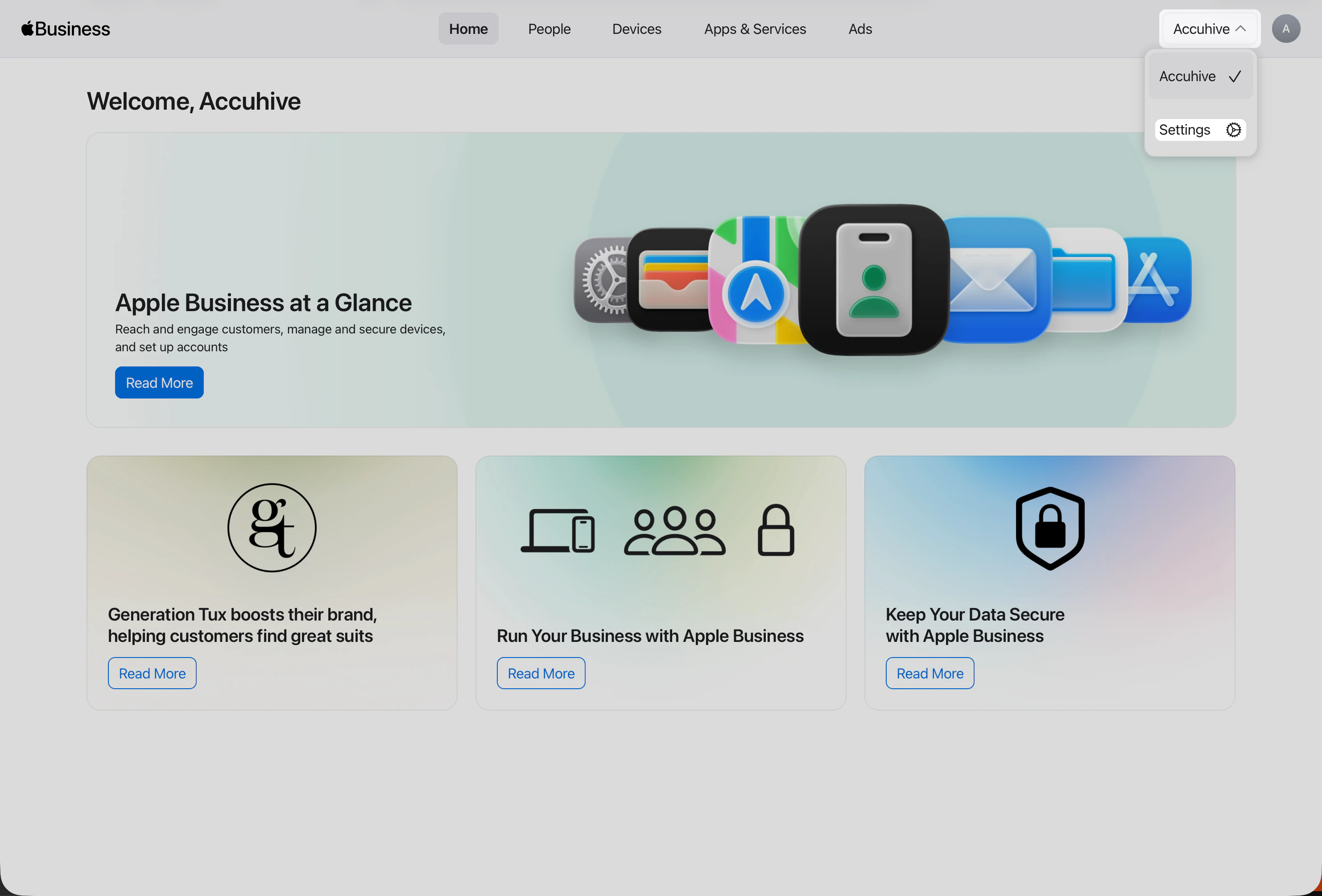
5
Apps & Books in Settings
After you open Settings, go to Payments & Billing → Apps & Books if you are not already there. This view is where your organization manages Apps and Books licenses and content tokens.
6
Open license management for the app
Find the app you want to unassign licenses from and select it.
7
Start the license transfer
Next to the organizational unit used for your Iru Endpoint tenant’s Apps and Books token, click Transfer.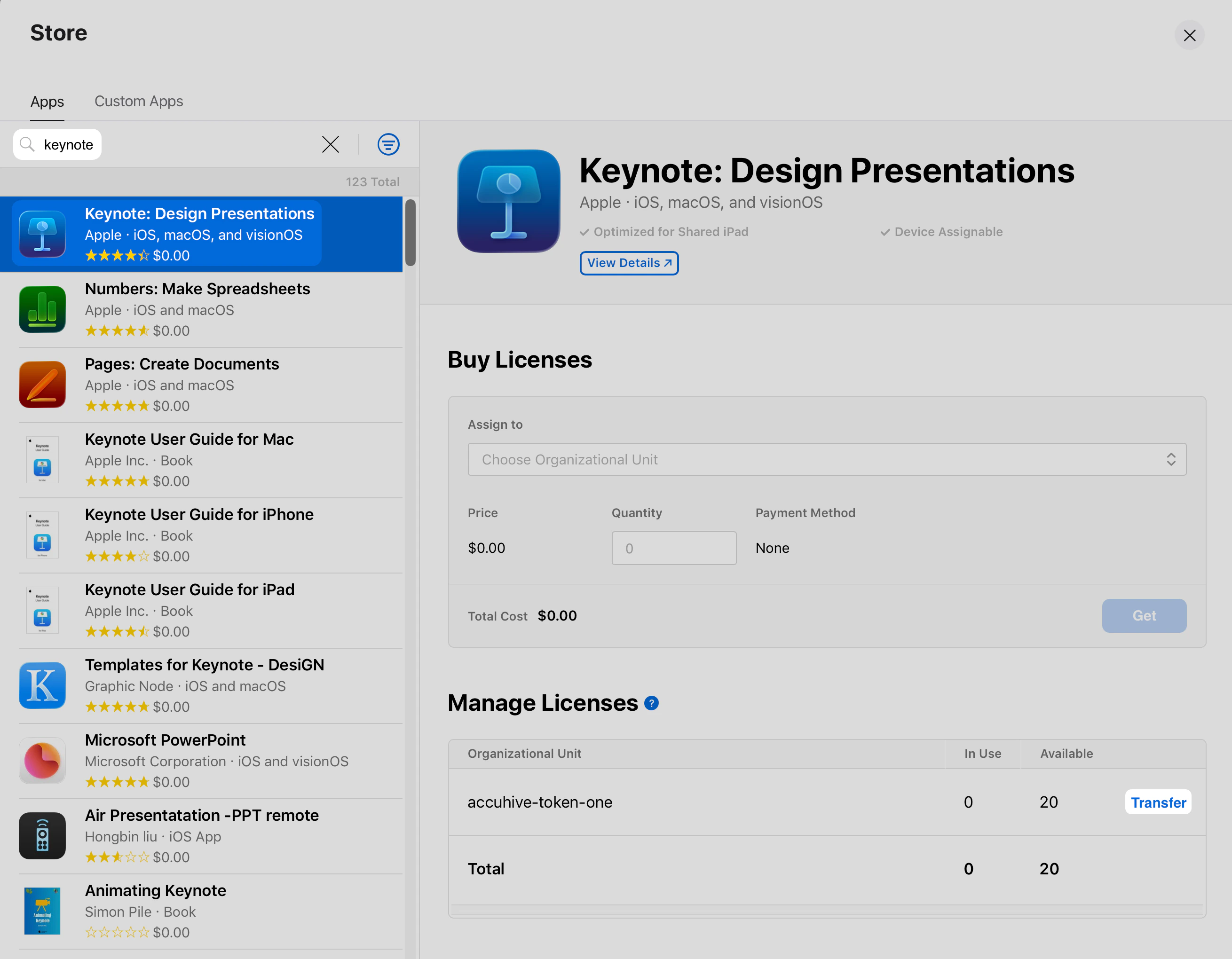
8
Enter the license quantity
In the Quantity field, enter the total number of licenses assigned to that organizational unit.
9
Choose the destination organizational unit
In Transfer to, choose the organizational unit you created earlier in these steps.
10
Complete the transfer
Click Transfer.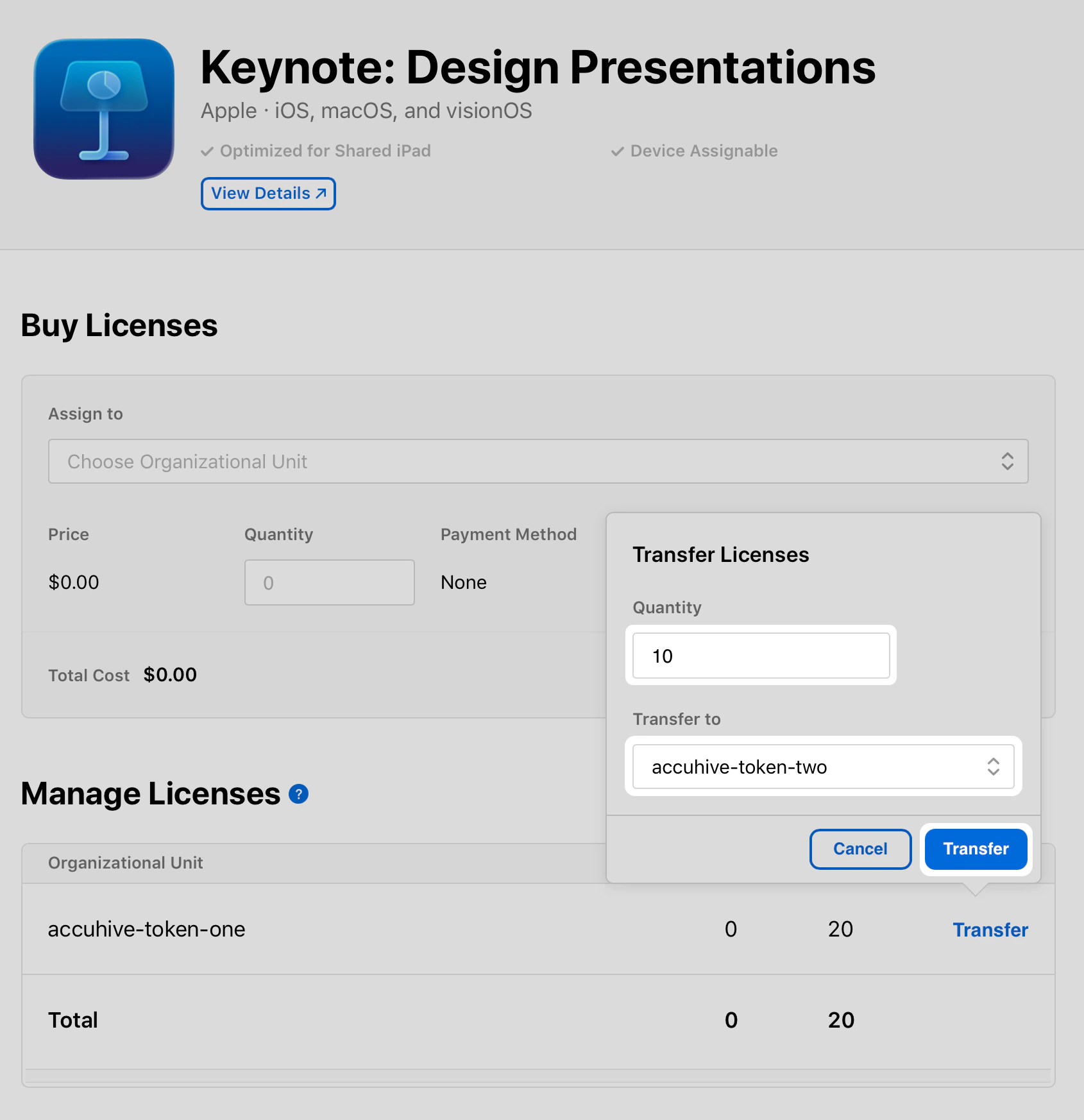
11
Wait for transfer to complete
You will see a Processing status where the Transfer option was previously. Wait for this to complete before proceeding.
12
Verify licenses moved
The licenses should now appear under the new organizational unit. Use the steps below to remove the app from your Library.
Removing an App Store app from the Library
After you have unassigned licenses in Apple Business or Apple School Manager, remove the app from your Iru Endpoint Library.1
Access your Iru Endpoint tenant
Open your Iru Endpoint tenant in a web browser and sign in if needed.
2
Open the Library
Select Library from the left navigation.
3
Sync App Store apps
Click the Sync App Store Apps button near the top right of the page.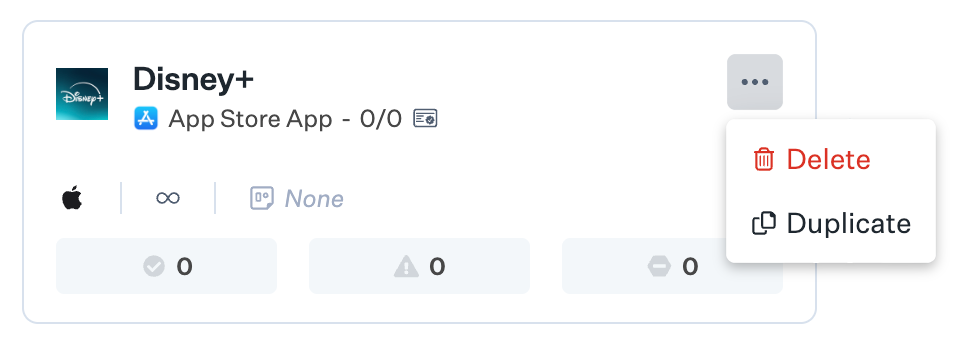
4
Find the app
Search for the app you want to remove from the Library.
5
Open the app menu
Click the ellipsis on the app tile.
6
Remove the app
Choose Delete from the menu.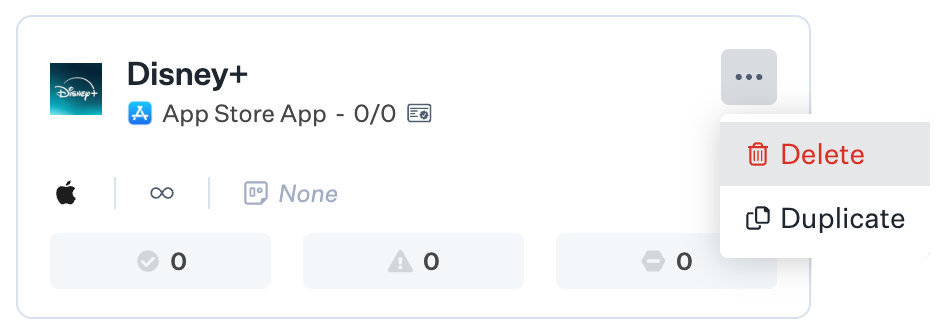
If the Delete option is not available, check back later and click Sync App Store Apps again. If you still don’t see it, open Apple Business or Apple School Manager. Confirm that no licenses for that app are assigned to the organizational unit used for your Iru Endpoint tenant’s Apps and Books token.
7
Confirm removal
Confirm by clicking Delete in the prompt.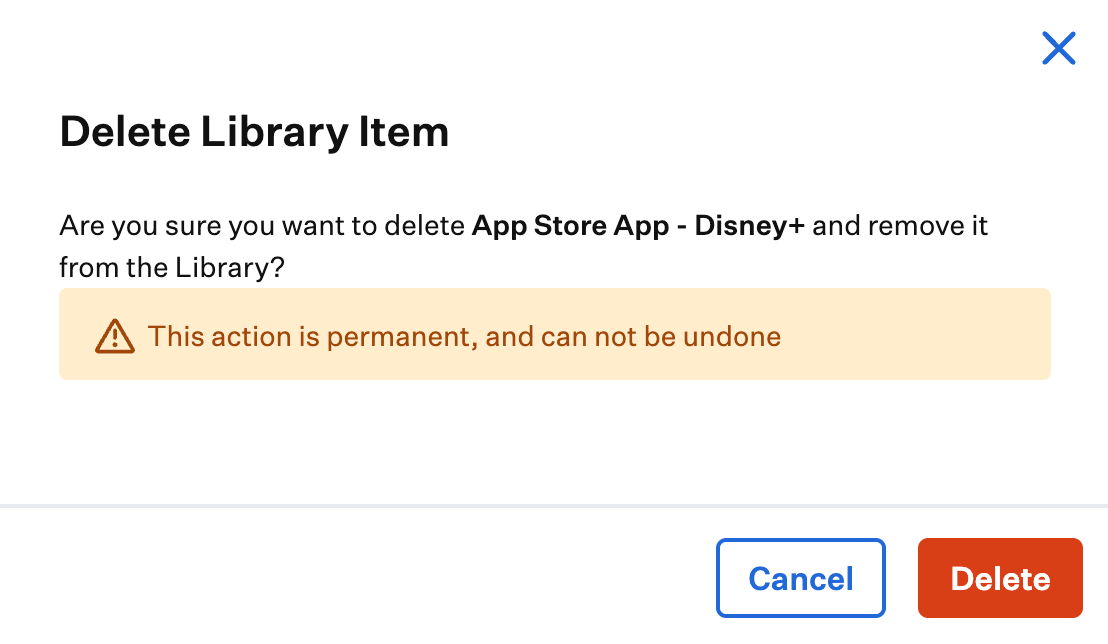
Related Documentation
Library Overview
Curate and manage Library Items and add them to Blueprints.
Configure Apps and Books
Set up Apps and Books integration for App Store app distribution and license management.
Add Apps from Apps and Books to Iru Endpoint
Deploy App Store and Custom Apps through Apple Business or Apple School Manager integration.
Apple Integrations Overview
Apple Business or Apple School Manager, APNs, Apps and Books, and related integrations.