

About Passport with Microsoft Entra ID Mac Login
Passport with Microsoft Entra ID Mac Login signs users in at the Mac login window with their Microsoft Entra ID username and password. For Web Login (Microsoft Entra ID sign-in in the Passport web view, including when you need MFA), use Configure Passport with Microsoft Entra ID - Web Login.How It Works
Passport integrates with your Microsoft Entra ID tenant to authenticate users at the macOS login screen using standard username and password fields. When users enter their Entra ID credentials, Passport verifies them against your tenant and creates or updates the local Mac user account.Prerequisites
- Access to a Microsoft Entra ID admin account that can grant the Passport app the correct permissions.
- Microsoft Entra ID
- Iru Endpoint
 Iru Endpoint
Create the App Registration
Sign in to Microsoft Entra admin center
Navigate to Identity
Access App registrations
Start new registration
Configure application details
Set supported account types
Configure redirect URI
Enter redirect URI
https://localhost.redirectComplete registration
Configure Application Details
Prepare secure document
Copy Application ID
Access endpoints
Copy metadata document
Access Authentication settings
Allow public client flows
Save authentication settings
Access Token configuration
Add optional claim
Configure token type
Select claim
Add the claim
Add groups claim
Select groups
Add groups claim
Configure API Permissions
Access API Permissions
Add permission
Select Microsoft Graph
Select delegated permissions
Expand OpenID permissions
Select email permission
Select profile permission
Search for User.Read permission
Confirm User.Read selection
Add permissions
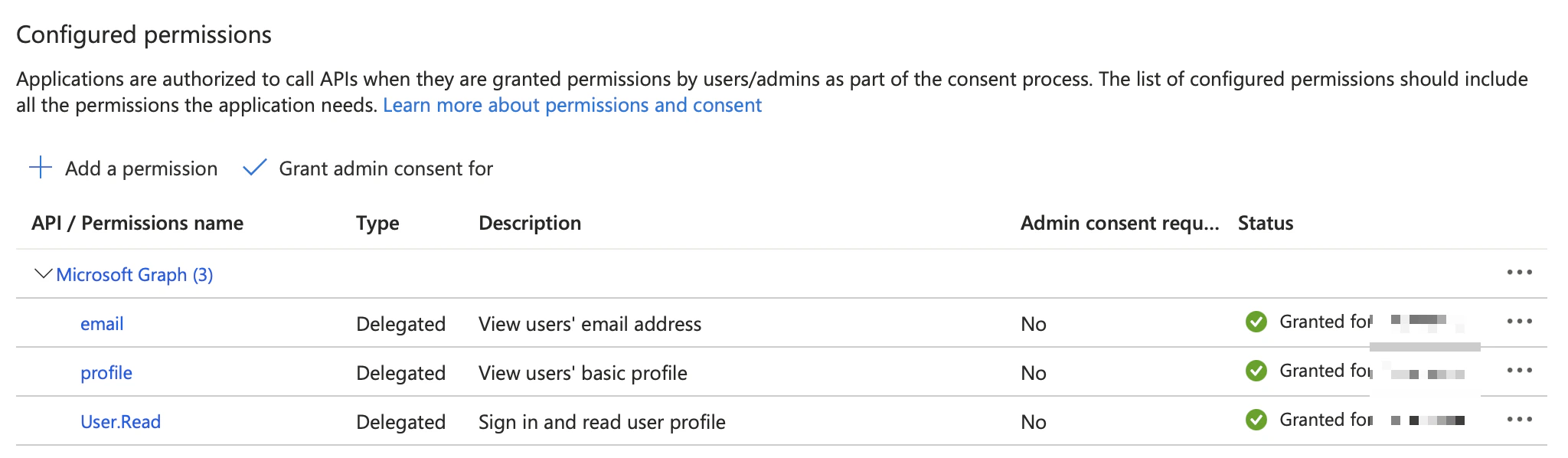
Grant admin consent
Confirm admin consent
Assign Users and Groups
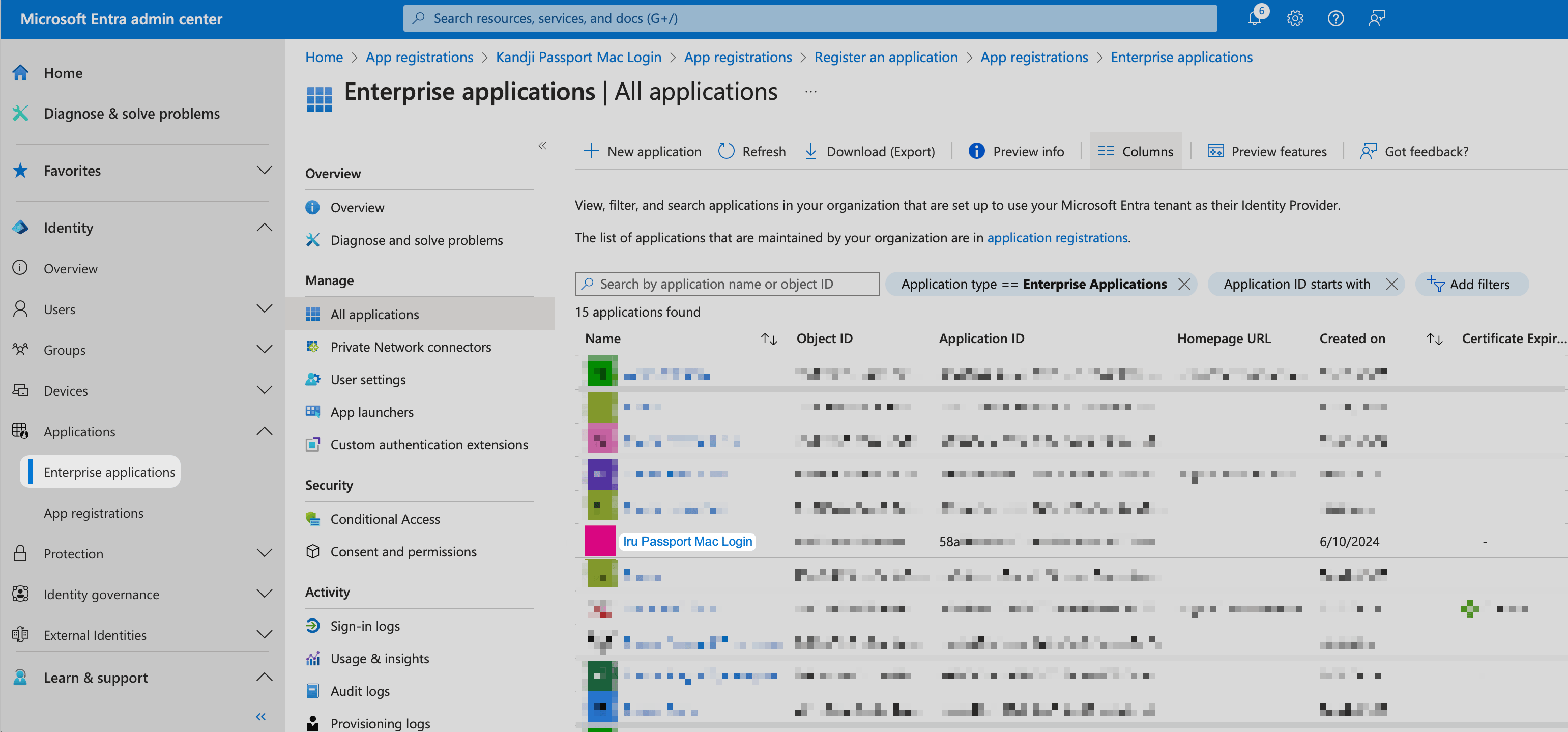
Access Enterprise Applications
Select your Passport app
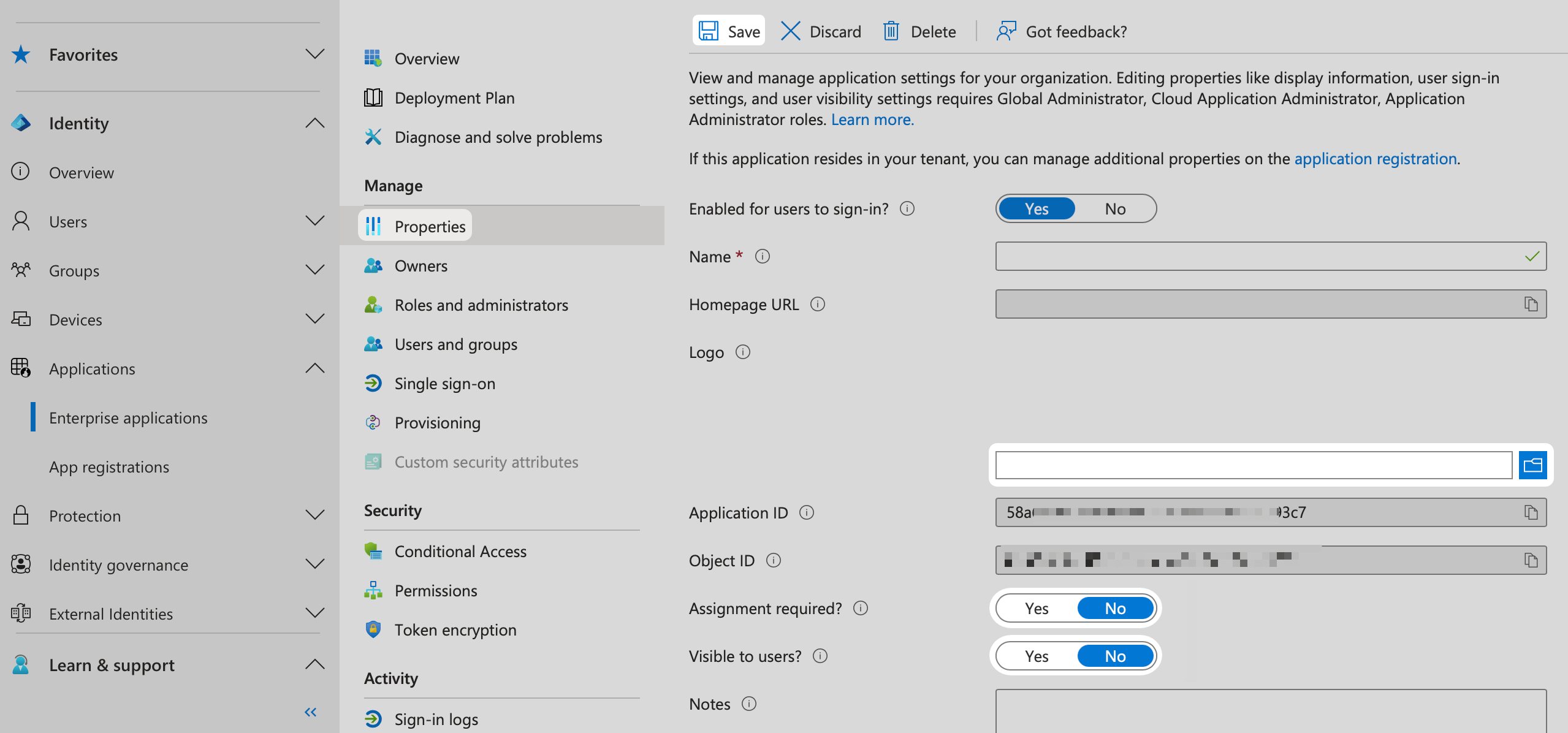
Access Properties
Add logo (optional)
Check assignment requirement
Configure visibility
Save properties
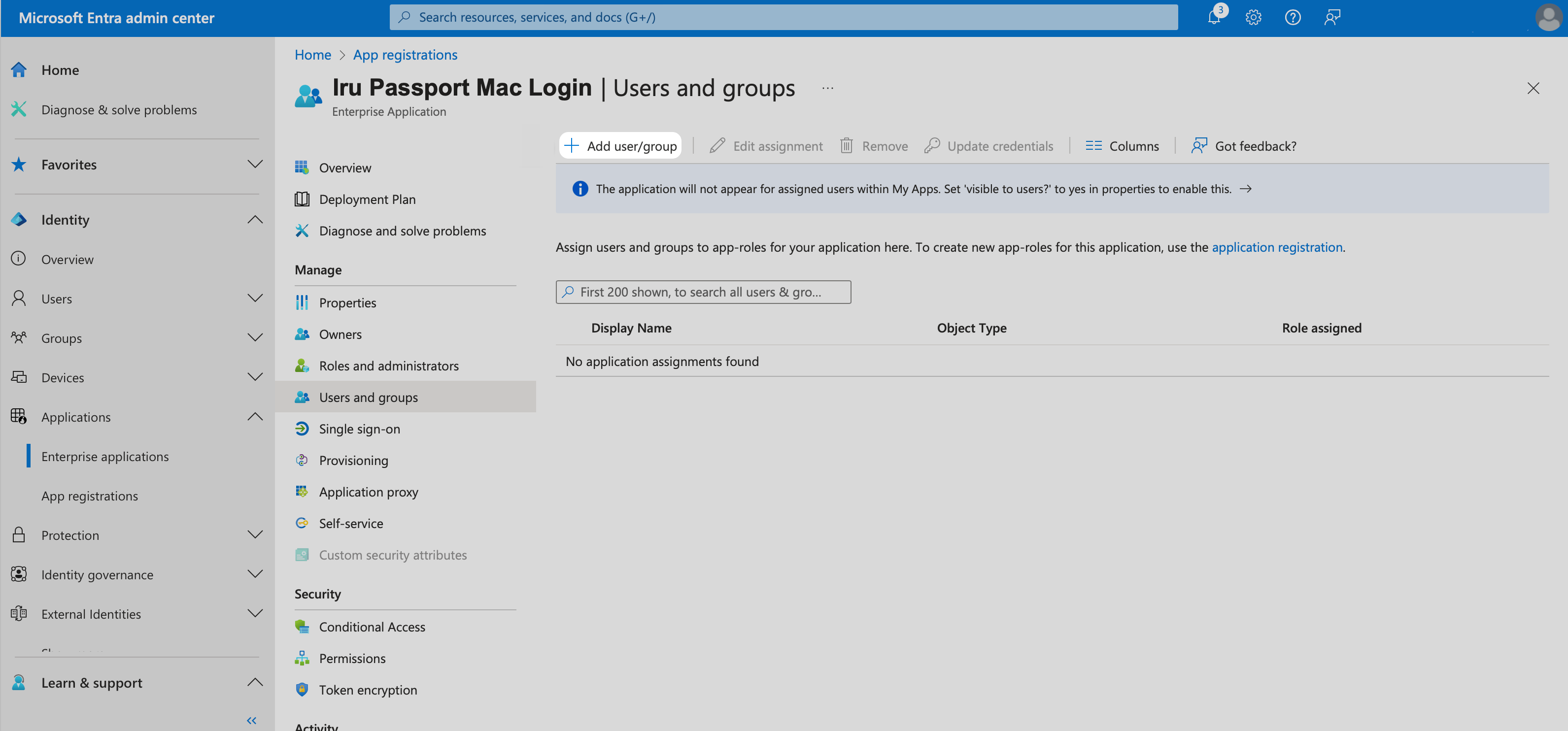
Access Users and Groups
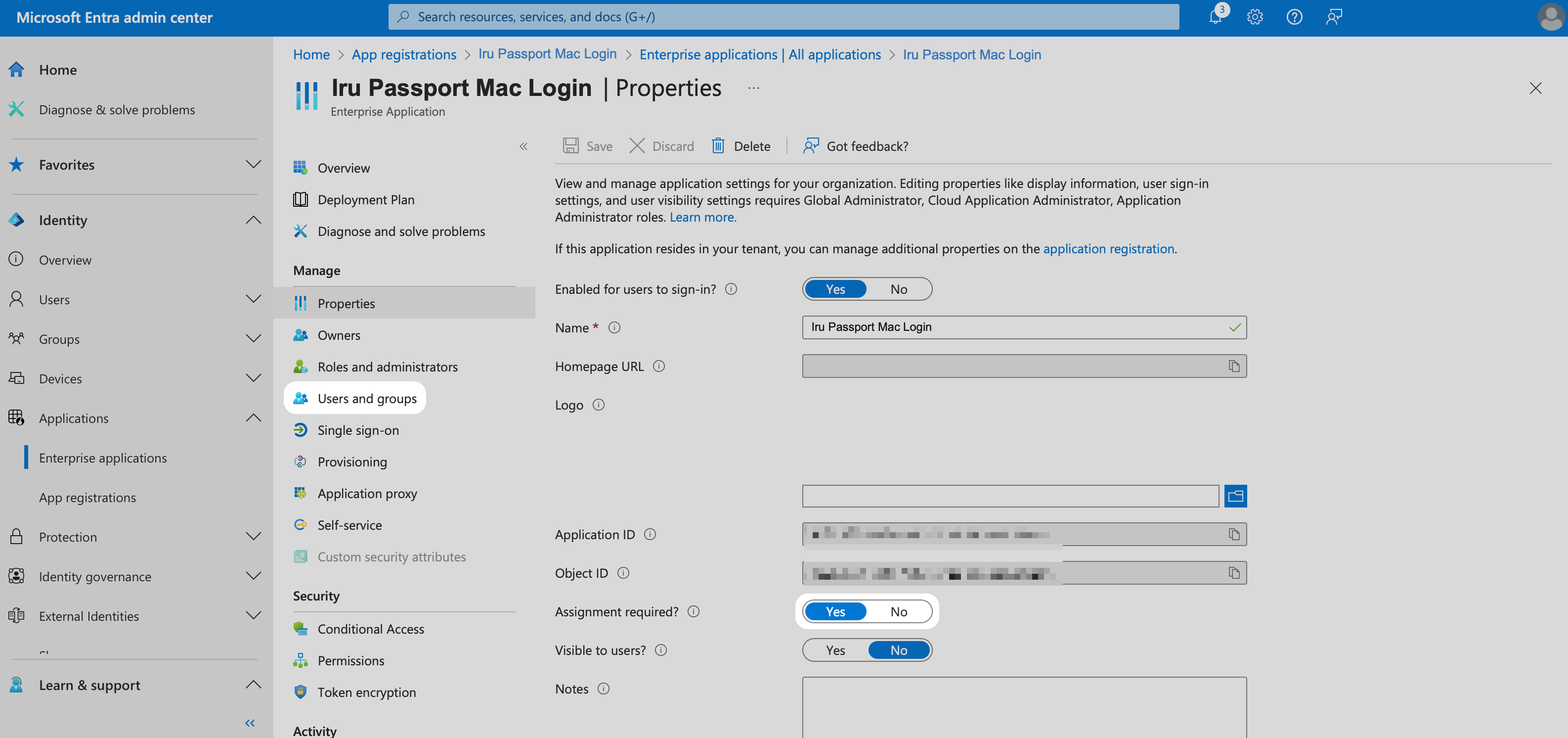
Add user or group
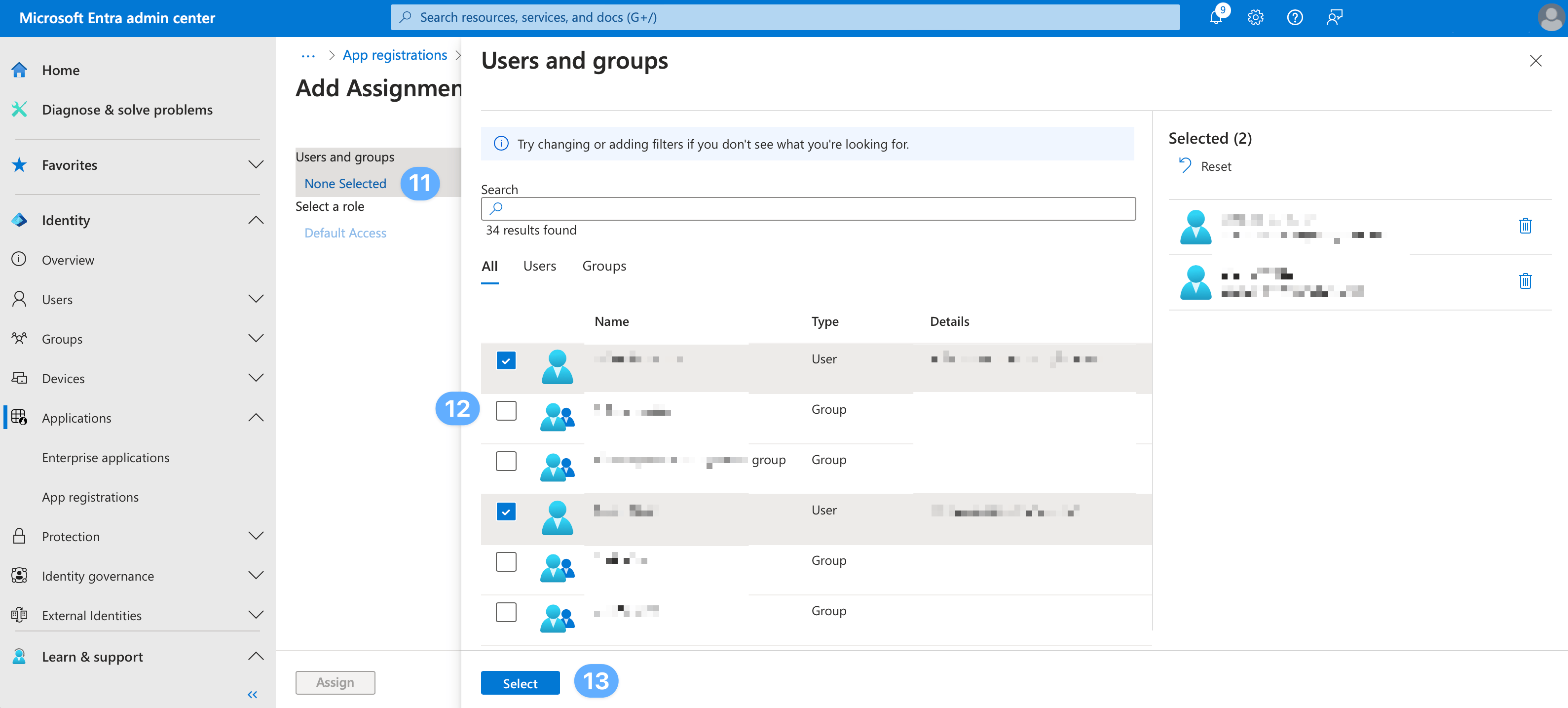
Select users and groups
Choose users and groups
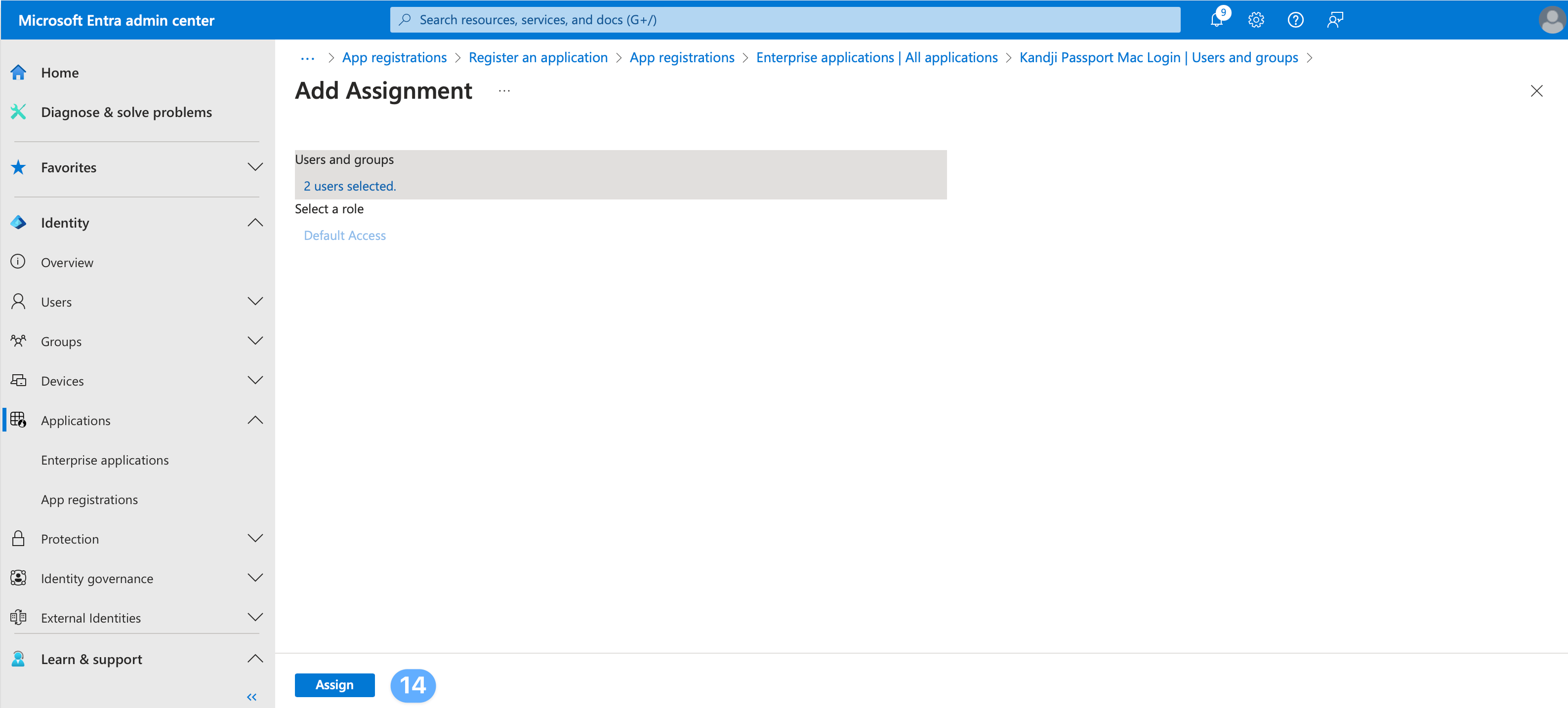
Confirm selection

Complete assignment
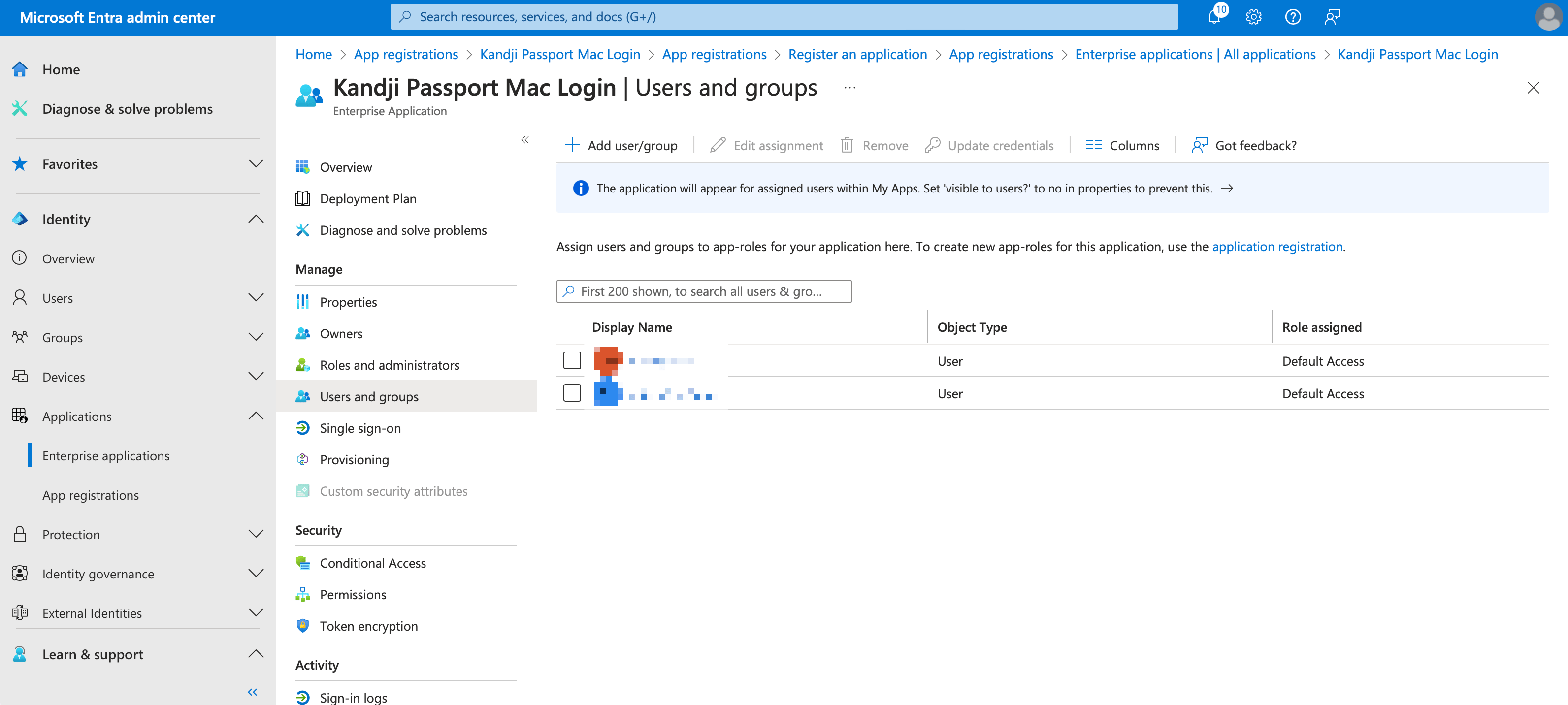
Verify assignment
Review configuration
Microsoft Entra ID Conditional Access Considerations
Complete the steps below to register Passport - CA Policy API, add its scope to your Passport app, and exclude that app from applicable policies. Skip this section if you do not use Conditional Access. When you finish, add the scope under Additional scopes (optional) in Authentication Mode on the Iru Endpoint tab.Create the Passport - CA Policy API application
Create this application registration so Passport can request a scope beyond baseline scopes.Open App registrations
Register the application
Grant admin consent for Microsoft Graph
Expose an API
Add a scope
Set Application ID URI
api://cca588ed-dfe6-4fb4-b695-abfa23b6475a). The default is fine. Select Save and continue. You do not need to copy this URI; copy the scope URI in Copy the scope URI below.Configure the Passport scope
Passport without spaces or special characters. Leave Who can consent at the default. Enter a display name and description in the Admin consent fields, then select Add scope.
Copy the scope URI
api://cca588ed-dfe6-4fb4-b695-abfa23b6475a/Passport), select Copy. Save it for Add Additional scopes in Authentication Mode on the Iru Endpoint tab.Add the custom scope to your Passport app registration
Open your Passport app registration
Add API permission
Select Passport - CA Policy API
Add the Passport delegated permission
Grant admin consent
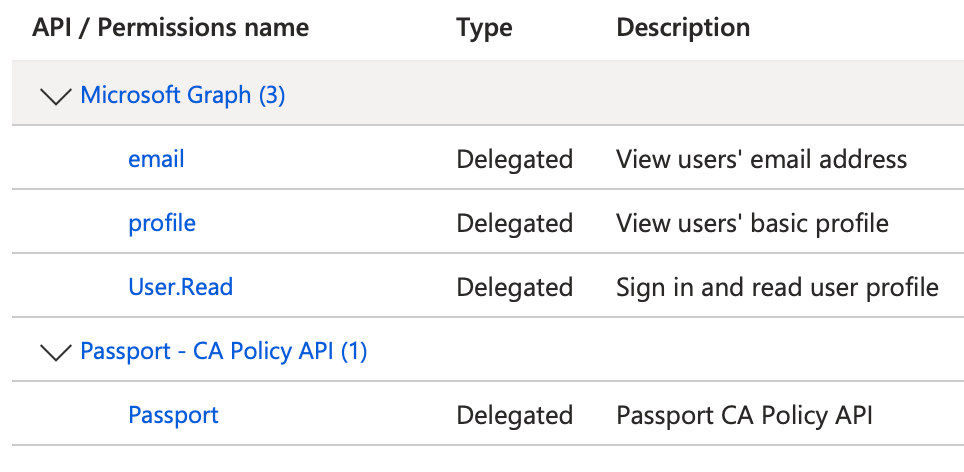
Exclude Passport - CA Policy API from All resources policies
If you use Conditional Access, exclude Passport - CA Policy API from each policy scoped to All resources. Policies scoped to All resources include sign-ins that use theopenid scope. Excluding Passport - CA Policy API removes the MFA requirement for ROPG, which Passport uses for password verification and synchronization in Mac Login.Open Conditional Access
Open a policy scoped to All resources
Exclude Passport - CA Policy API
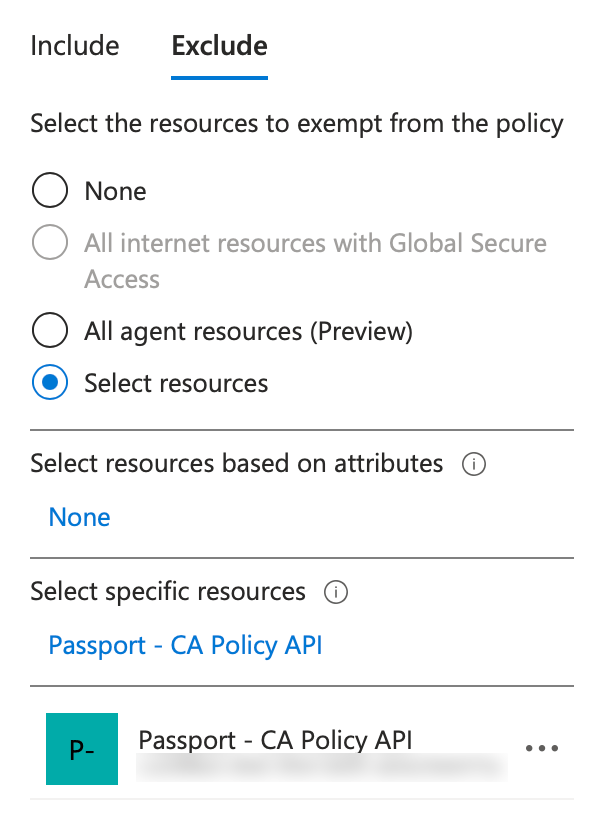
Repeat for each All resources policy
User account provisioning using Passport
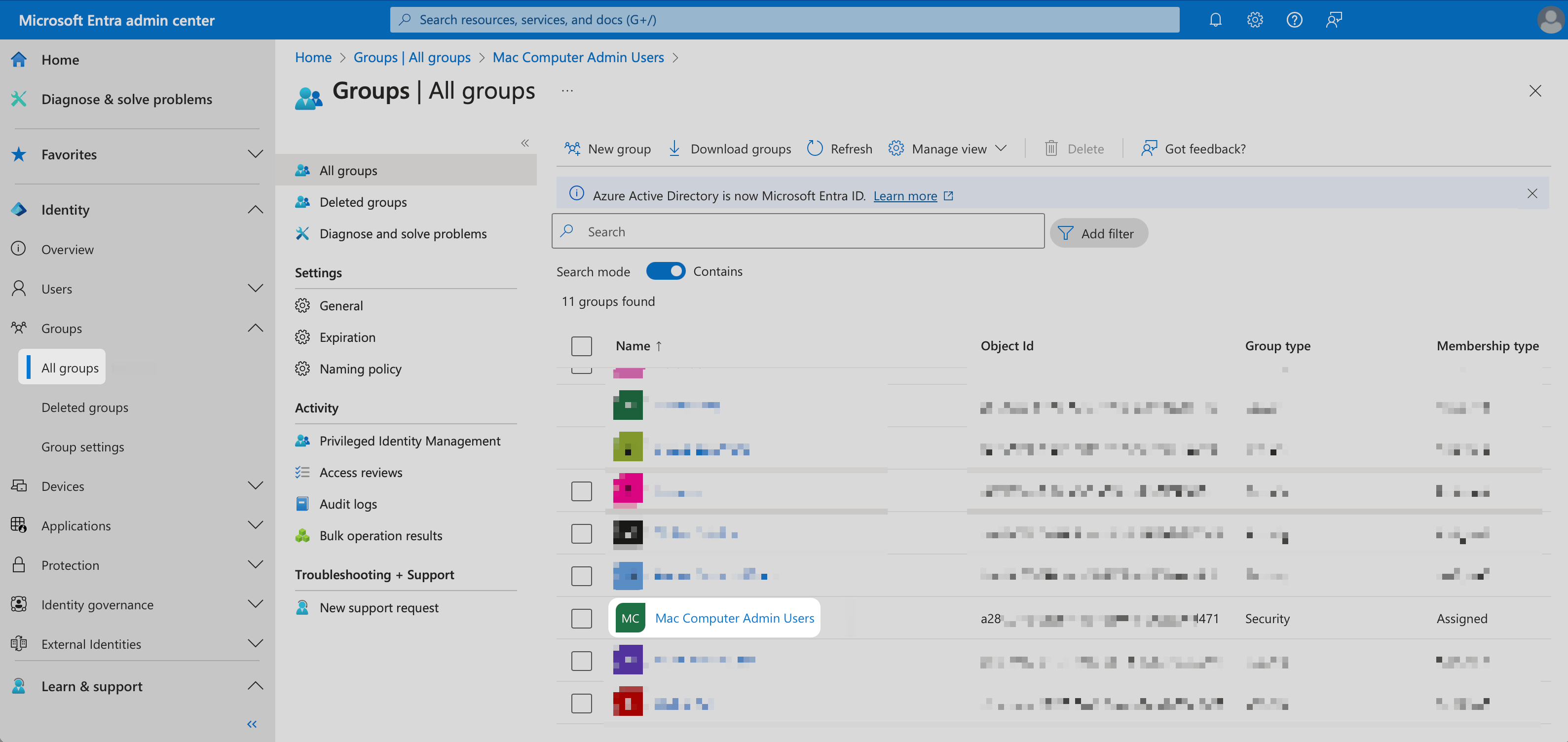
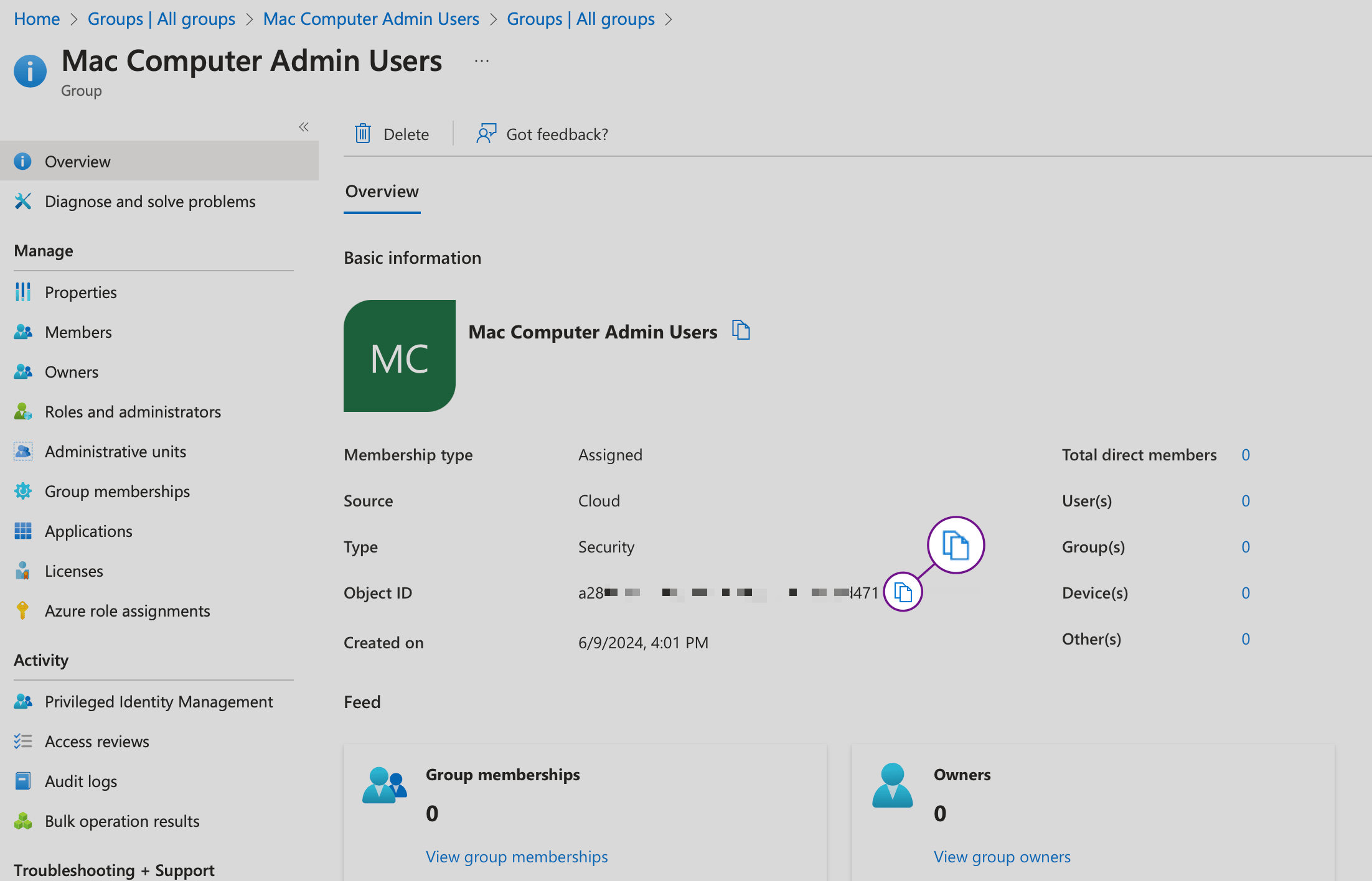
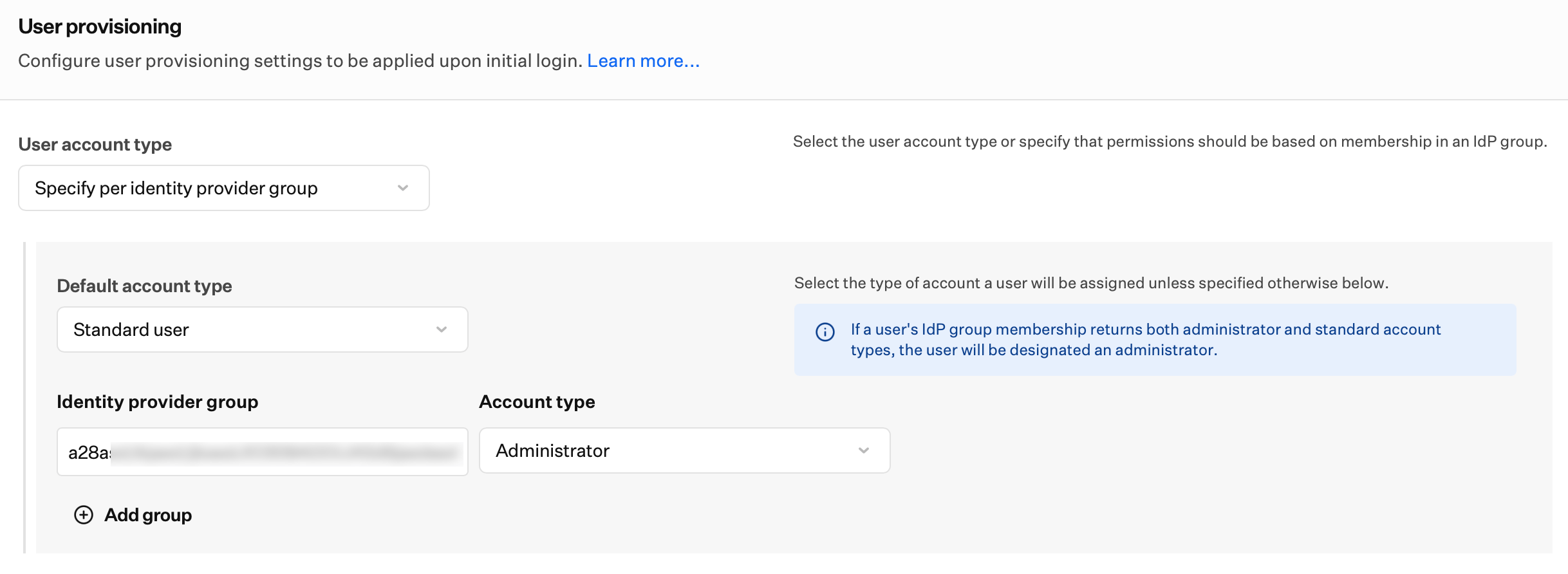
If you want Passport to set each user’s Mac account type from Entra ID security group membership, collect each group’s Object ID in the Microsoft Entra admin center using the steps in this section. You will use those values under User provisioning on the Passport Library Item Iru Endpoint tab. For more detail on this mode, see User provisioning in Configure the Passport Library Item.The number of security groups supported by Microsoft Entra ID is 150 for SAML assertions. In larger organizations, the number of groups where a user is a member might exceed the limit that Microsoft Entra ID applies before emitting group claims in a token. Exceeding this limit will cause Microsoft Entra ID to omit group claims from the token.Access Groups
Select group
Copy Object ID
Repeat for additional Entra ID groups
Required Changes Before June 15, 2026
On June 15, 2026, Microsoft Entra ID starts enforcing Conditional Access more broadly for policies that target All resources (formerly All cloud apps) and include resource exclusions. Sign-ins that request only baseline scopes, includingopenid, profile, email, and User.Read, will be subject to those policies.
If you skip these updates
If you do not prepare before June 15, 2026:- New users might not be able to sign in with Passport.
- Password sync and state management can stop working.
- Microsoft Entra ID might record extra failed sign-in events.
If you do not use Conditional Access policies
If you do not use Conditional Access, or you want the old behavior across your tenant while you test:Register a placeholder application
Exclude the application from the relevant policy
Select the application in Baseline scopes settings
No Passport Library Item changes required
If you use Conditional Access policies
If you use Conditional Access with Passport Mac Login, complete the steps below before June 15, 2026.Create the Passport - CA Policy API application
Open App registrations
Register the application
Grant admin consent for Microsoft Graph
Expose an API
Add a scope
Set Application ID URI
api://cca588ed-dfe6-4fb4-b695-abfa23b6475a). The default is fine. Select Save and continue. You do not need to copy this URI; copy the scope URI in Copy the scope URI below.Configure the Passport scope
Passport without spaces or special characters. Leave Who can consent at the default. Enter a display name and description in the Admin consent fields, then select Add scope.Copy the scope URI
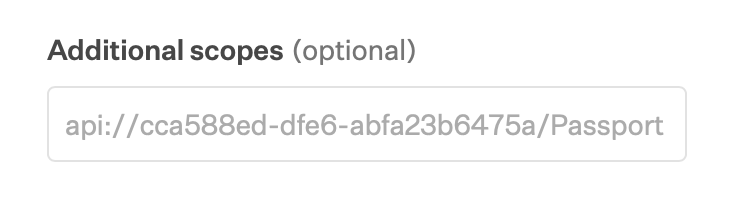
api://cca588ed-dfe6-4fb4-b695-abfa23b6475a/Passport), select Copy. Save it for Update your Passport Library Item.Add the custom scope to your Passport app registration
Open your Passport app registration
Add API permission
Select Passport - CA Policy API
Add the Passport delegated permission
Grant admin consent
Exclude Passport - CA Policy API from All resources policies
Policies scoped to All resources include sign-ins that use theopenid scope. Excluding Passport - CA Policy API removes the MFA requirement for ROPG, which Passport uses for password verification and synchronization in Mac Login.
Open Conditional Access
Open a policy scoped to All resources
Exclude Passport - CA Policy API
Repeat for each All resources policy
Update your Passport Library Item
Open the Passport Library Item
Add the scope URI
Repeat for other Passport Library Items