

This guide applies to Mac computers
Microsoft Entra ID is the new name for Azure AD (Azure Active Directory)
About Passport in Federated Microsoft Entra ID Environments
Passport in a federated Microsoft Entra ID environment applies when Entra ID is the service provider (SP) for an external identity provider. Both Mac Login and Web Login need extra configuration so authentication and password validation can complete against Entra ID correctly.How It Works
Passport still uses Entra ID as the OIDC authority even when users federate through another IdP. For Mac Login and Web Login, create a Home Realm Discovery (HRD) policy in Entra ID with PowerShell so password validation can complete against Entra ID in a federated environment.Prerequisites
Confirm everything below before you create the HRD policy. This article applies when you use Passport with Entra ID for Mac Login or Web Login in a federated tenant.Azure and Microsoft Entra ID
- An active Azure subscription (create a free account if needed).
- A user who can manage directory apps and policies: Global Administrator, Cloud Application Administrator, Application Administrator, or service principal owner.
Windows and PowerShell
- A Windows or Windows Server computer (physical or VM) where you can open PowerShell as administrator.
- AzureADPreview installed, on a current preview build. You cannot run GA and preview modules side by side; uninstall the AzureAD module first if both are present.
Identity sync for Passport
- Users who sign in with Passport must be represented in Entra ID in a way that supports your sign-in path.
- Hybrid Active Directory: use Microsoft Entra Connect with password hash sync where that applies.
- Cloud federated IdP: confirm usernames and passwords from the federated IdP reach Entra ID as you expect for ROPC-style sign-in.
Passport already in place
- Entra ID app registration (Enterprise application) for Passport, following Configure Passport with Microsoft Entra ID - Mac Login and/or Configure Passport with Microsoft Entra ID - Web Login, depending on which authentication mode you use.
- Configure the Passport Library Item completed in Iru Endpoint for that Passport deployment.
Authentication Flow in a Federated Environment
The diagram below depicts the Passport authentication flow when Entra ID acts as a service provider (SP) federated with another identity provider (IdP).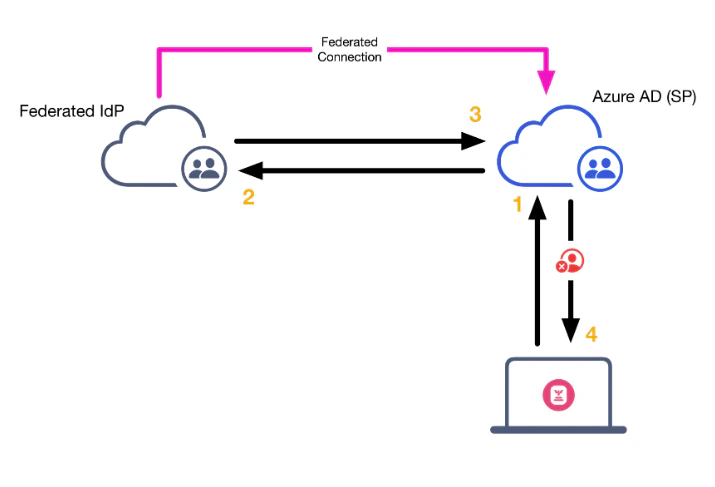
1
Passport sends authentication request
Passport sends an authentication request to Microsoft Entra ID.
2
Microsoft Entra ID forwards request
Microsoft Entra ID forwards the authentication request to the federated IdP.
3
IdP validates request
The IdP validates the authentication request and sends it back to Microsoft Entra ID.
4
Authentication fails
Microsoft Entra ID receives the validation but has no reason to forward it to Passport. The authentication attempt fails, and Passport displays an error.
Authentication Flow with HRD Configured
The diagram below shows the Passport authentication flow with a Home Realm Discovery policy in Microsoft Entra ID. When a user attempts to authenticate using Passport, the request looks like this:
1
Passport sends authentication request
Passport sends an authentication request to Microsoft Entra ID.
2
Entra ID validates with HRD policy
Entra ID validates the authentication request using the HRD policy and responds to Passport with a successful user authentication response.
Create an HRD Policy
You need an HRD policy when you use Passport with Microsoft Entra ID and your tenant is federated with an external IdP. That requirement applies to both Mac Login and Web Login.
1
Access Windows computer
Go to the Windows computer.
2
Open PowerShell as administrator
Open PowerShell as an administrator.
3
Connect to Entra ID
Connect to your Entra ID tenant with the command Connect-AzureAD. A web view will open prompting you to enter your Entra ID credentials.
4
Create HRD policy
Create a new policy with the command below. This will allow users to authenticate to a specific application directly with Entra ID with their username and password in a federated environment. If you have existing HRD policies in your environment, you can set the DisplayName to something like IruHRDPolicy.
5
Get policy ObjectID
Run the command Get-AzureADPolicy to list the policy that you’ve just created and copy the ObjectID string listed under the ID column in the output.
6
Get Service Principal ObjectID
Run the command Get-AzureADServicePrincipal to get the Service Principal (Azure Enterprise Application) ObjectID.
If you know the name of the Enterprise Application, you can add the -SearchString your_app_name_here to the command above. Example: Get-AzureADServicePrincipal -SearchString “Iru Passport”
7
Add application to HRD policy
Run the following command to add the Iru Passport Enterprise Application to the HRD policy. Replace <ObjectID of the Service Principal> with the Iru Enterprise App ObjectID copied earlier. Replace <ObjectId of the Policy> with the HRD ObjectID copied earlier.
If you do not create the right policy, you can use the command below to remove it and try again.
8
Verify policy assignment
Check the apps assigned with Get-AzureADPolicyAppliedObject -id <ObjectId of the Policy>.
9
Disconnect from Azure
To disconnect the PowerShell session from Azure, run Disconnect-AzureAD.