

This guide applies to Apple TV
Enrollment occurs during the initial setup of an Apple TV. Devices that are already past the initial setup screen must be erased to enroll.
Assign Apple TV Devices to Iru Endpoint
1
Access Apple Business or Apple School Manager
Sign in to Apple Business or Apple School Manager.
2
Open the Devices tab
Select the Devices tab at the top middle of the page.
3
Search for Device
Search for a device in the search field.
4
Select Device
Select the device from the list.
5
Assign Device Management
Select Assign Device Management.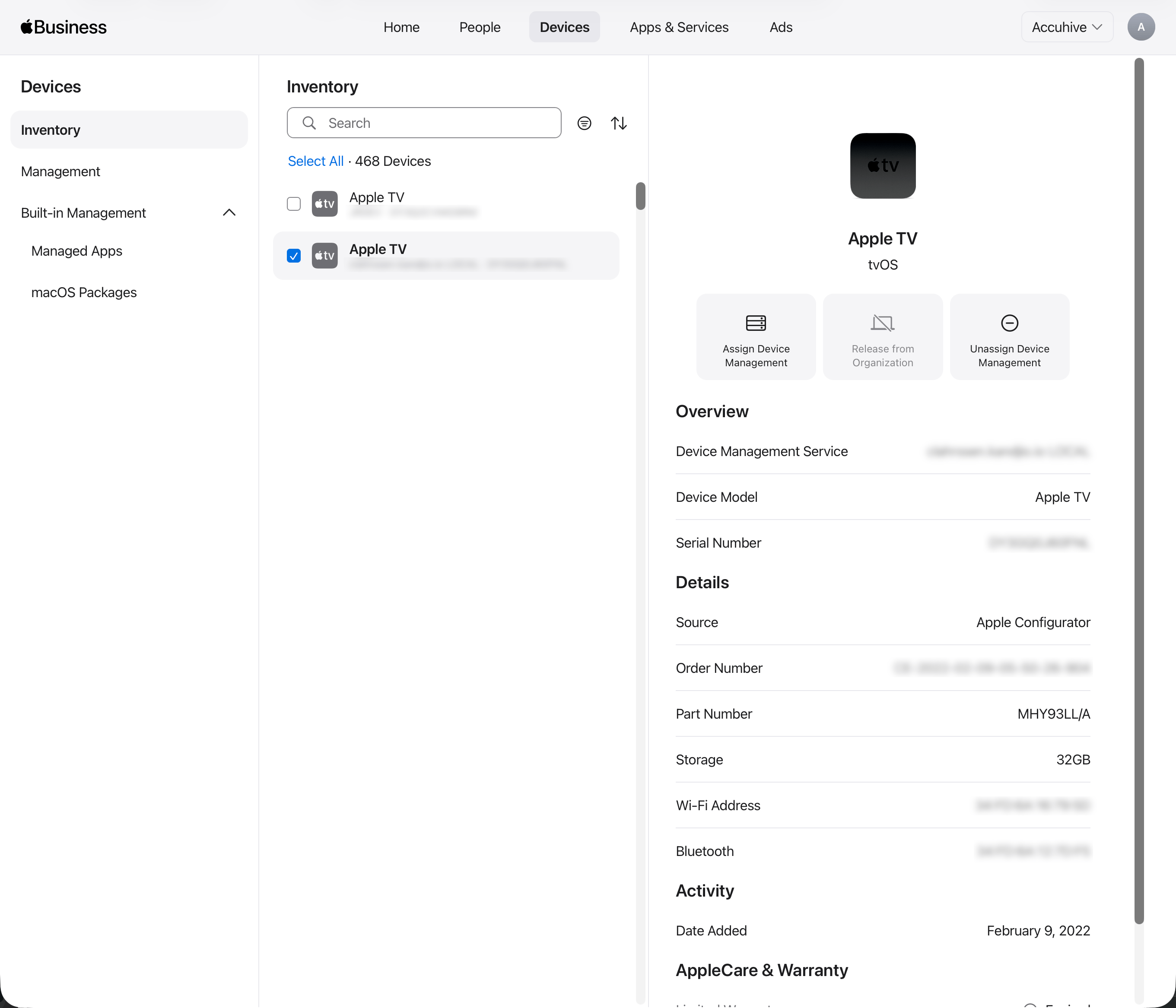
6
Assign to Iru Endpoint
Select Assign to the following MDM and choose the Iru Endpoint server you created when enabling MDM with Iru Endpoint.
7
Continue Assignment
Select Continue.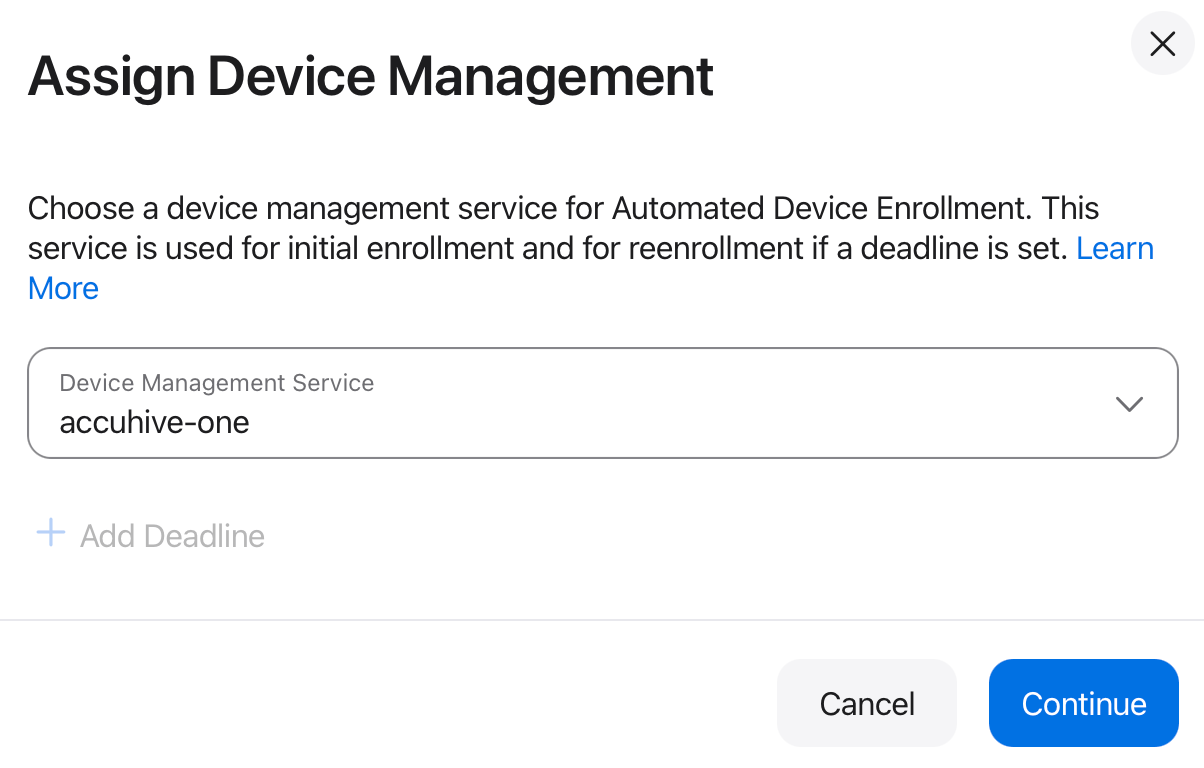
8
Confirm Assignment
Confirm that you want to change the MDM server the device is assigned to.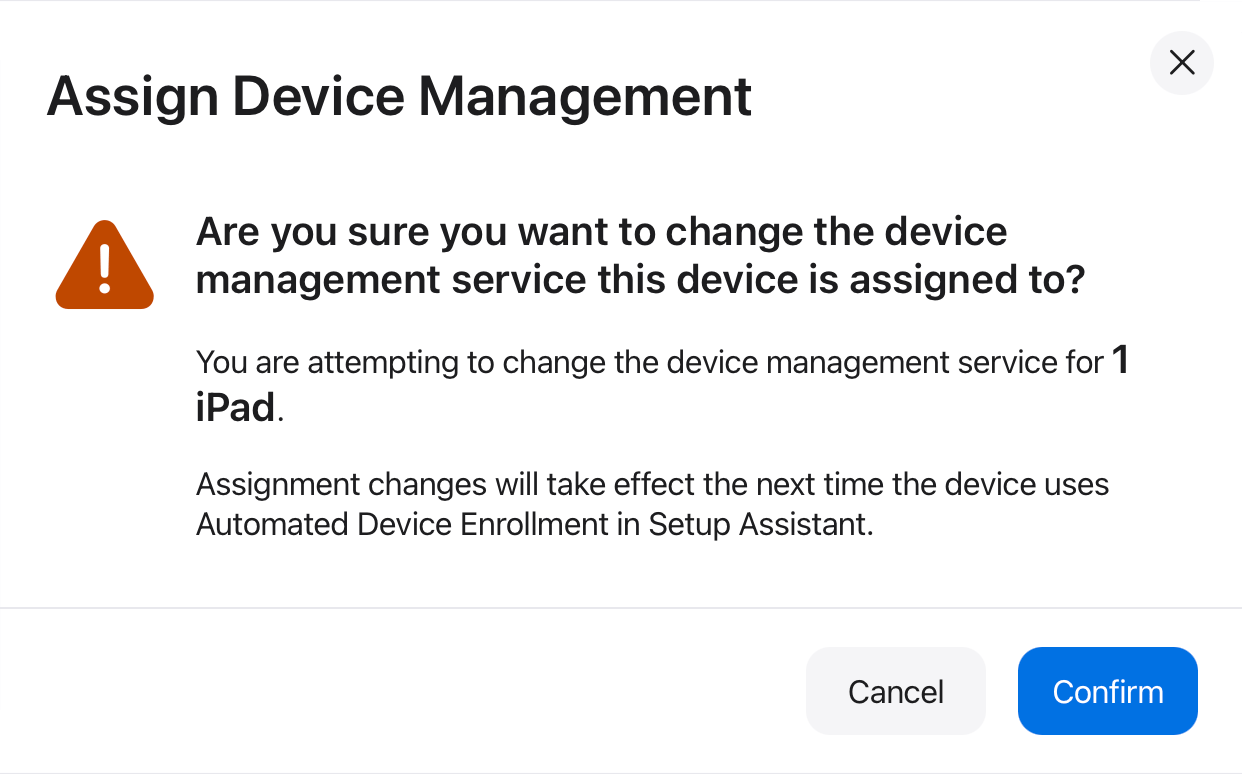
Set Default MDM Server Assignment
1
Open the Devices tab
In Apple Business or Apple School Manager, select the Devices tab at the top middle of the page.
2
Open Management
In the left sidebar, select Management.
3
Open Default Device Assignment
Under Management Services, select Automatically assign devices to your preferred device management service.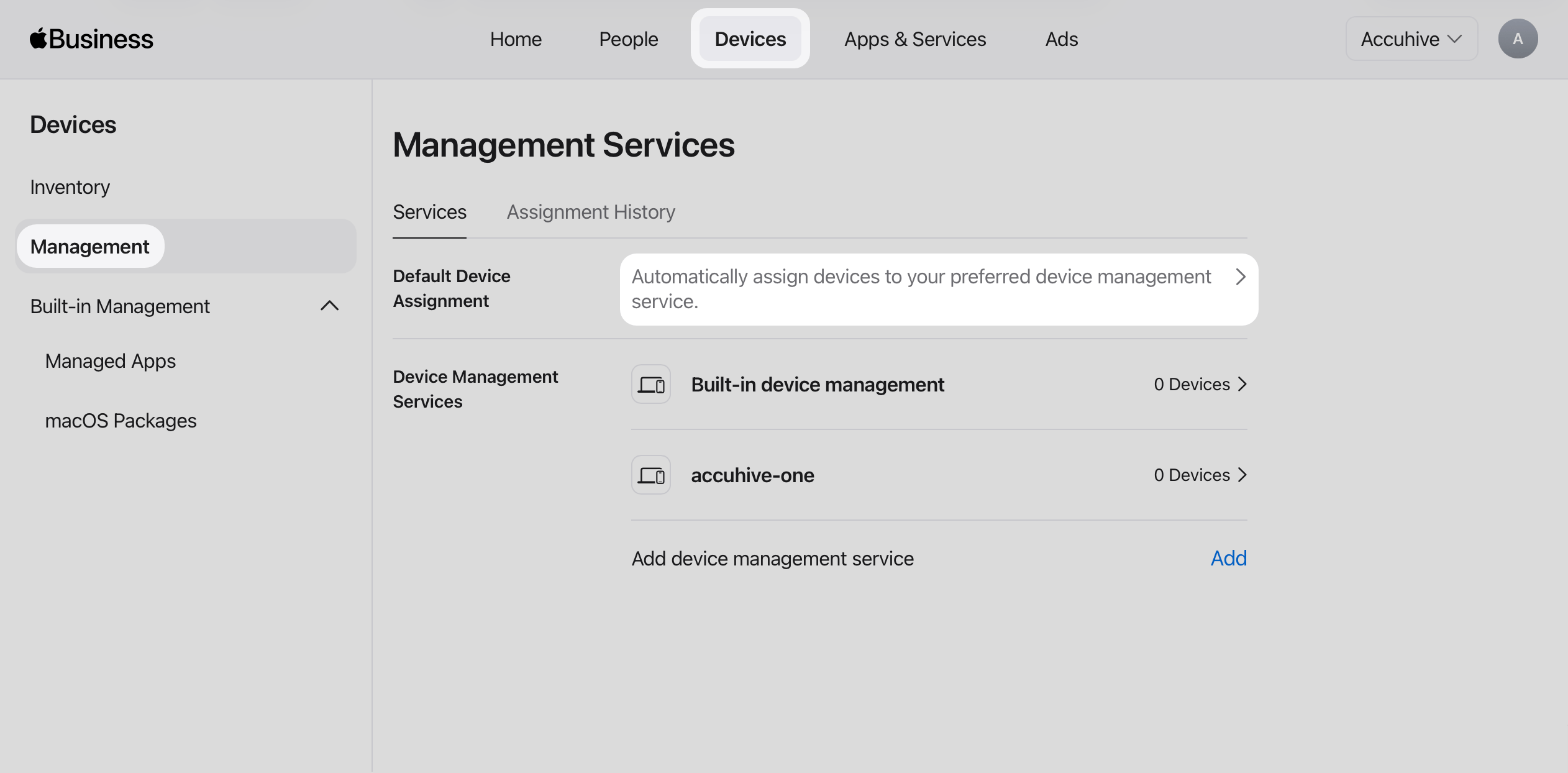
4
Set the default MDM service for Apple TV
On the Default Device Assignment page, for Apple TV, choose the Iru Endpoint device management service you use for MDM.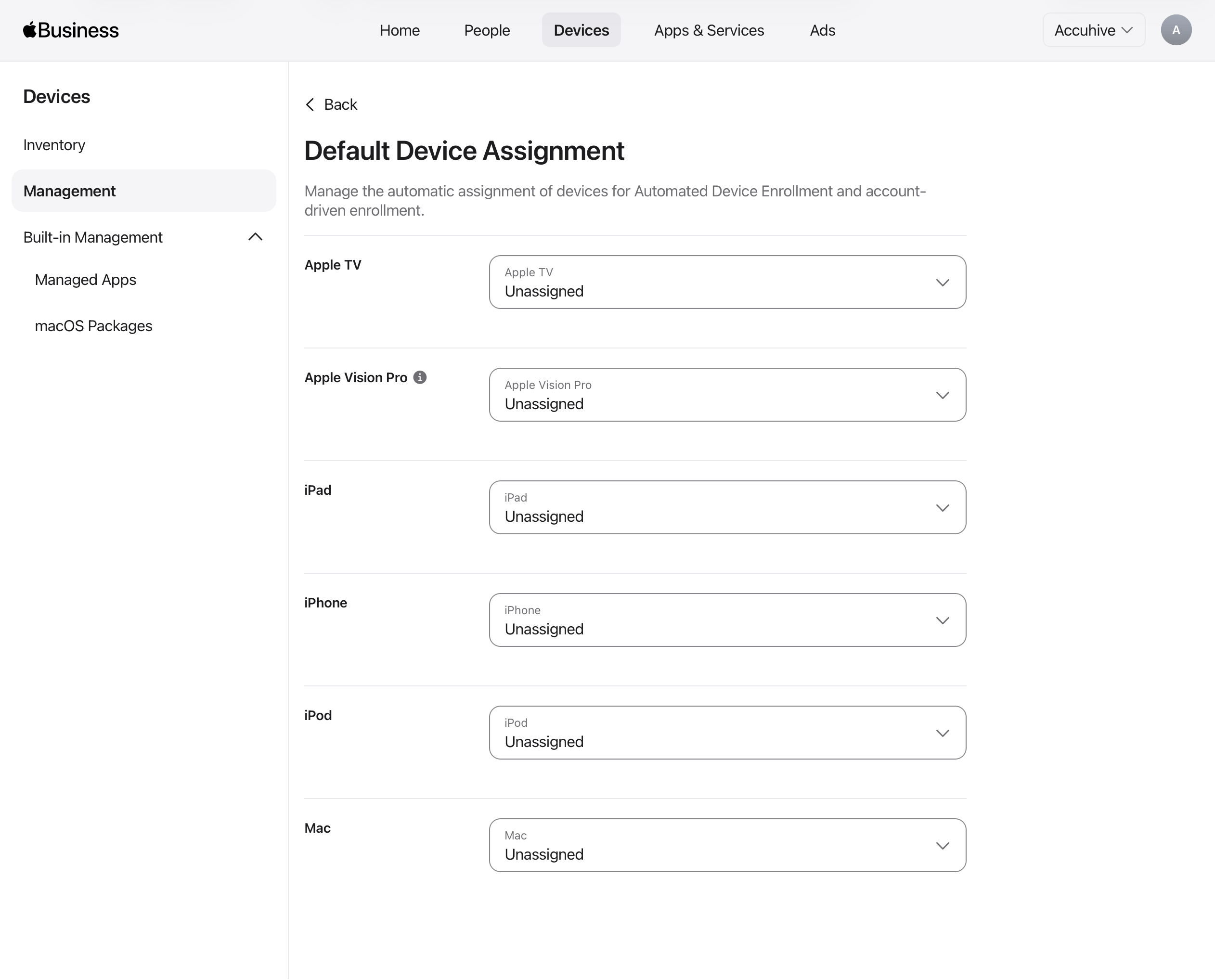
Confirm Apple TV Devices in Iru Endpoint
1
Navigate to Enrollment
In the Iru Endpoint Web App, select Enrollment in the left-hand navigation.
2
Open the Automated Device Enrollment tab
On the Enrollment page, select the Automated Device Enrollment tab.
3
Verify Device Assignment
Confirm that you see the Apple TV device(s) that you assigned from Apple Business or Apple School Manager. If you don’t see the Apple TV device(s), select the Fetch devices button.