This guide applies to Mac computers and Windows computers
About EDR Library Item Configuration
The EDR Library Item is the core component of Iru Endpoint EDR. Configure detection settings, posture modes, end-user notifications, and custom allow and block lists to meet your organization’s security requirements.Adding an EDR Library Item
To add this Library Item to your Iru Endpoint Library, follow the steps in Library Overview.1
Add the EDR Library Item
Open the Iru Endpoint Web App and navigate to your Library. Add a new EDR Library Item and give it a Name.
2
Assign to Blueprints
Assign the Library Item to the Blueprints containing the devices you want to protect.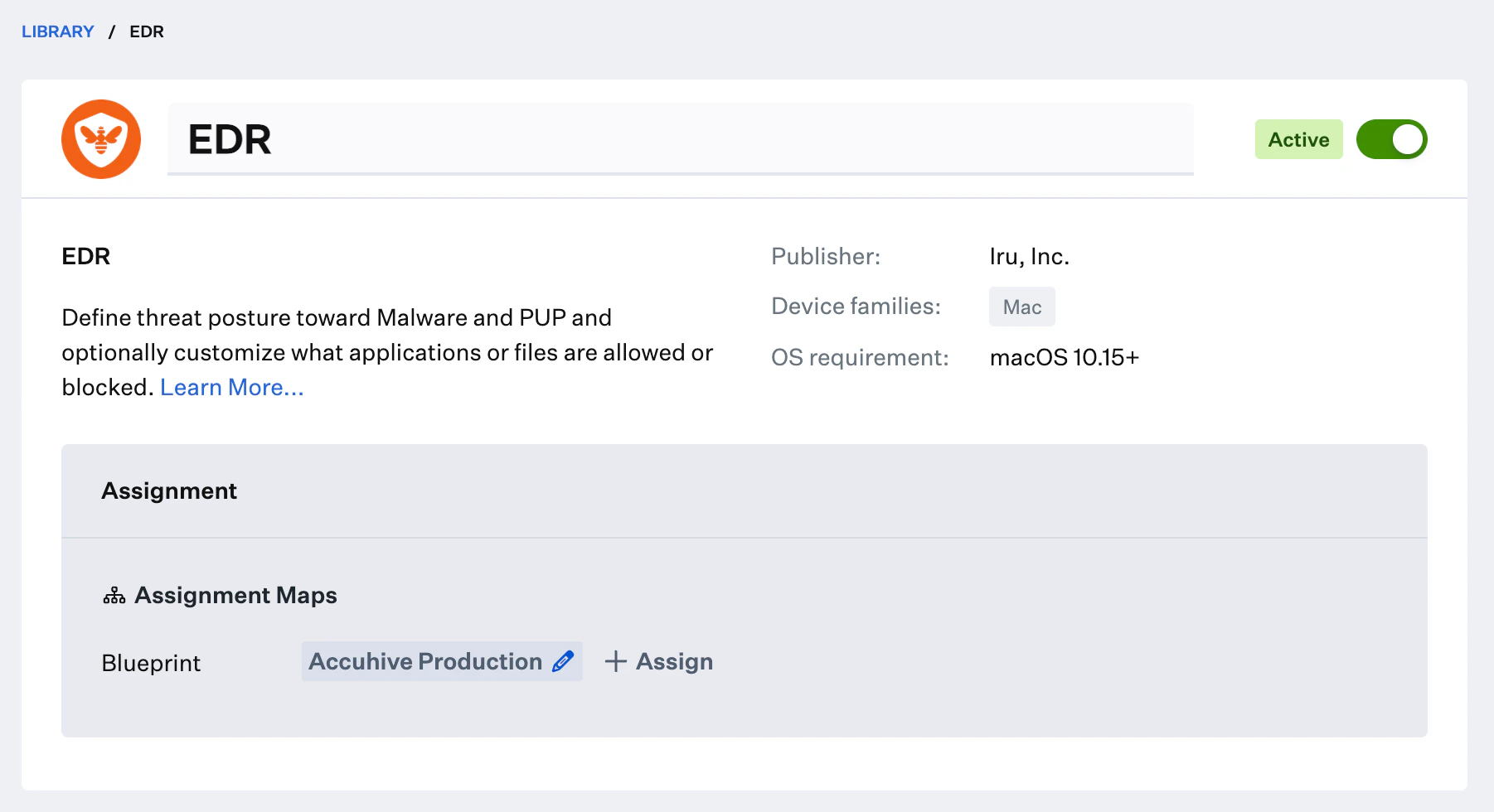
- macOS
- Windows
Configuring File Detection Settings
Configure individual posture mode preferences for Malware and PUPs. Detect mode scans and reports known malicious items. Protect mode scans, reports, and automatically quarantines known malicious items.1
Configure Malware Posture
Select Detect or Protect for Malware Posture.
2
Configure PUP Posture
Select Detect or Protect for PUP Posture.
3
Configure Notification Settings
If either Malware or PUP posture is set to Protect, a Send user alerts toggle becomes available to enable or disable end-user notifications.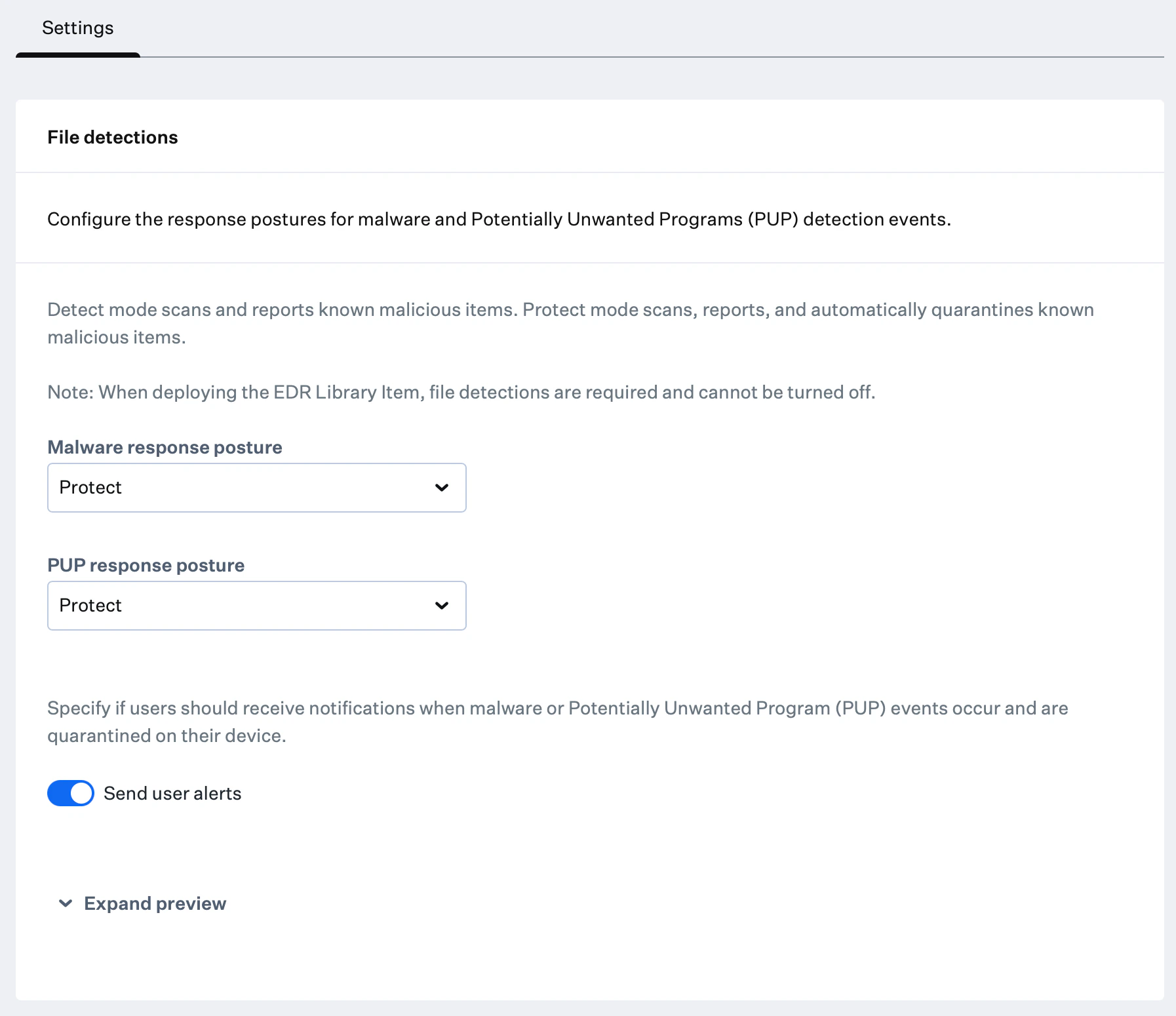
You can select Expand preview to see a sample of the user notifications.
Configuring Behavioral Detections
Behavioral detections are turned on by default when creating a new EDR Library Item, but can be turned off to suit certain workflows.1
Enable Behavioral Detections
Toggle the switch to enable Behavioral detections.
2
Configure Malicious Behavior Posture
Under Malicious behavior posture, select either Detect or Protect.
- Detect mode identifies and reports malicious behavioral detections
- Protect mode identifies, reports, and blocks malicious behavioral detections
3
Configure Notification Settings
If Malicious behavior posture is set to Protect, a Send user alerts toggle becomes available to enable or disable user notifications.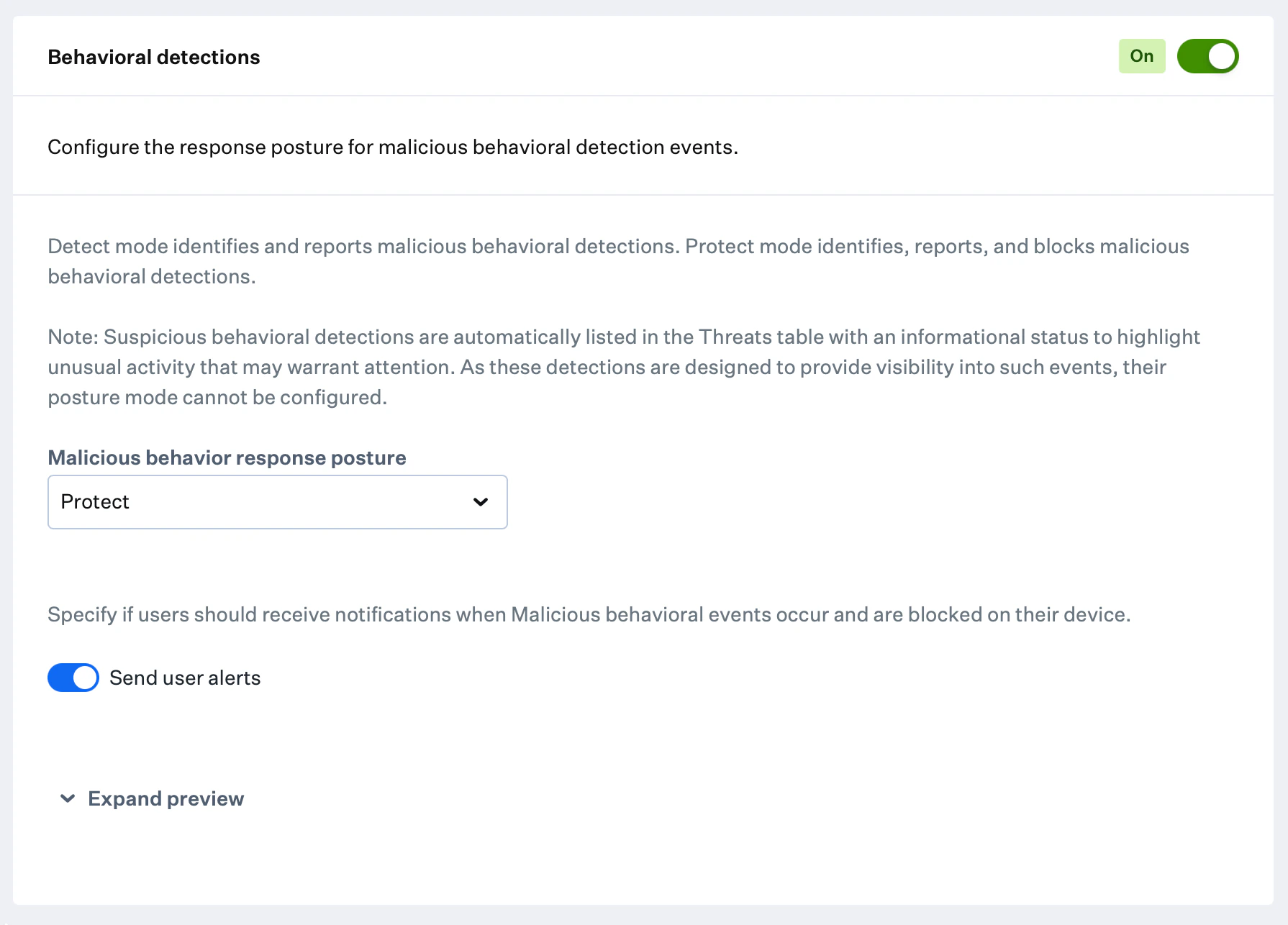
You can select Expand preview to see a sample of the user notifications.
Security Events in Self Service
End users can view a list of quarantined files and blocked processes on their Mac computers by opening Self Service and selecting Security events from the left-hand navigation menu.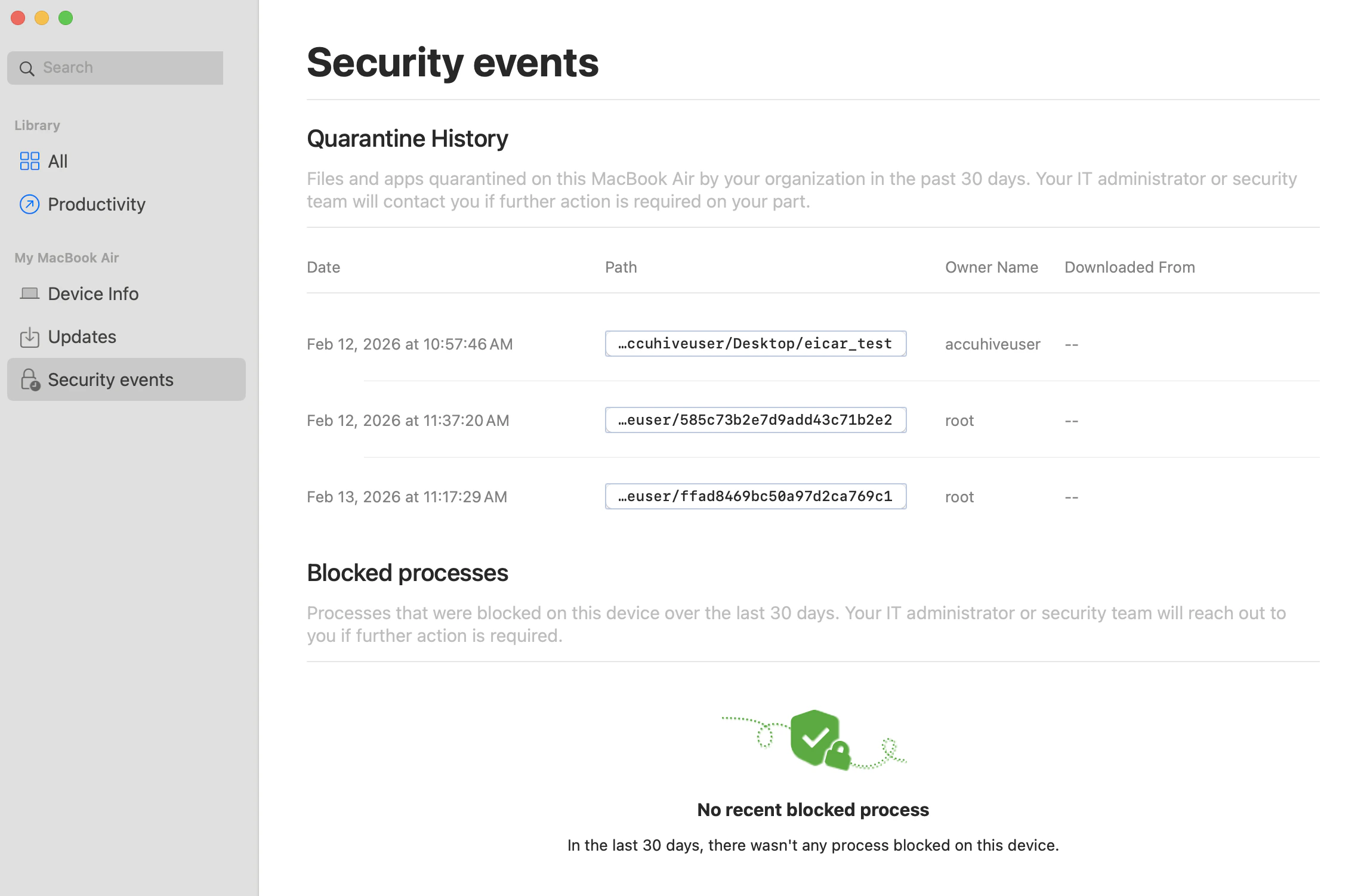
Configuring Allow and Block Lists
Allow and Block lists ensure that specific files or applications are always allowed or blocked in your environment, regardless of whether they appear in Iru Endpoint EDR’s threat feeds.1
Add New Item
Select the + Add item button.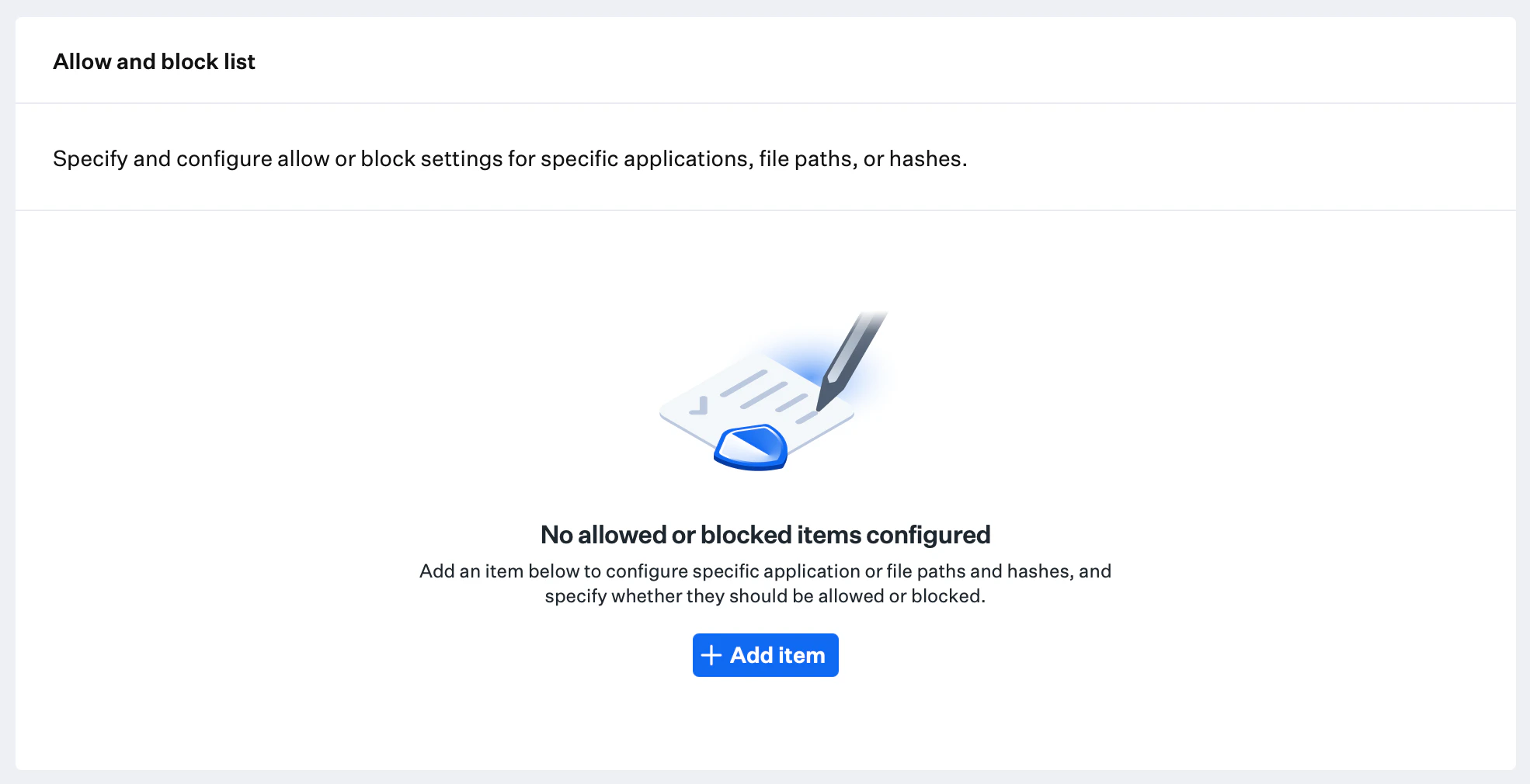
2
Configure Item Details
Give the item a Name.
3
Set Item Action
Select Allow to permit a file or application. Select Block to block it.
4
Select Item Type
Specify the item type Hash or Path for the file or application.
5
Enter Item Information
If Path was selected, enter the application or file path. If Hash was selected, enter the file hash.For Path entries, wildcard matching is supported:
*matches characters within a single path segment.**matches one or more directory levels (recursive matching).
/usr/*/file.*, **/file.bin.6
Add Item to List
Select Add to add the item to the Allow and Block list.Optionally, toggle Add another item in the lower-left corner to continue adding items.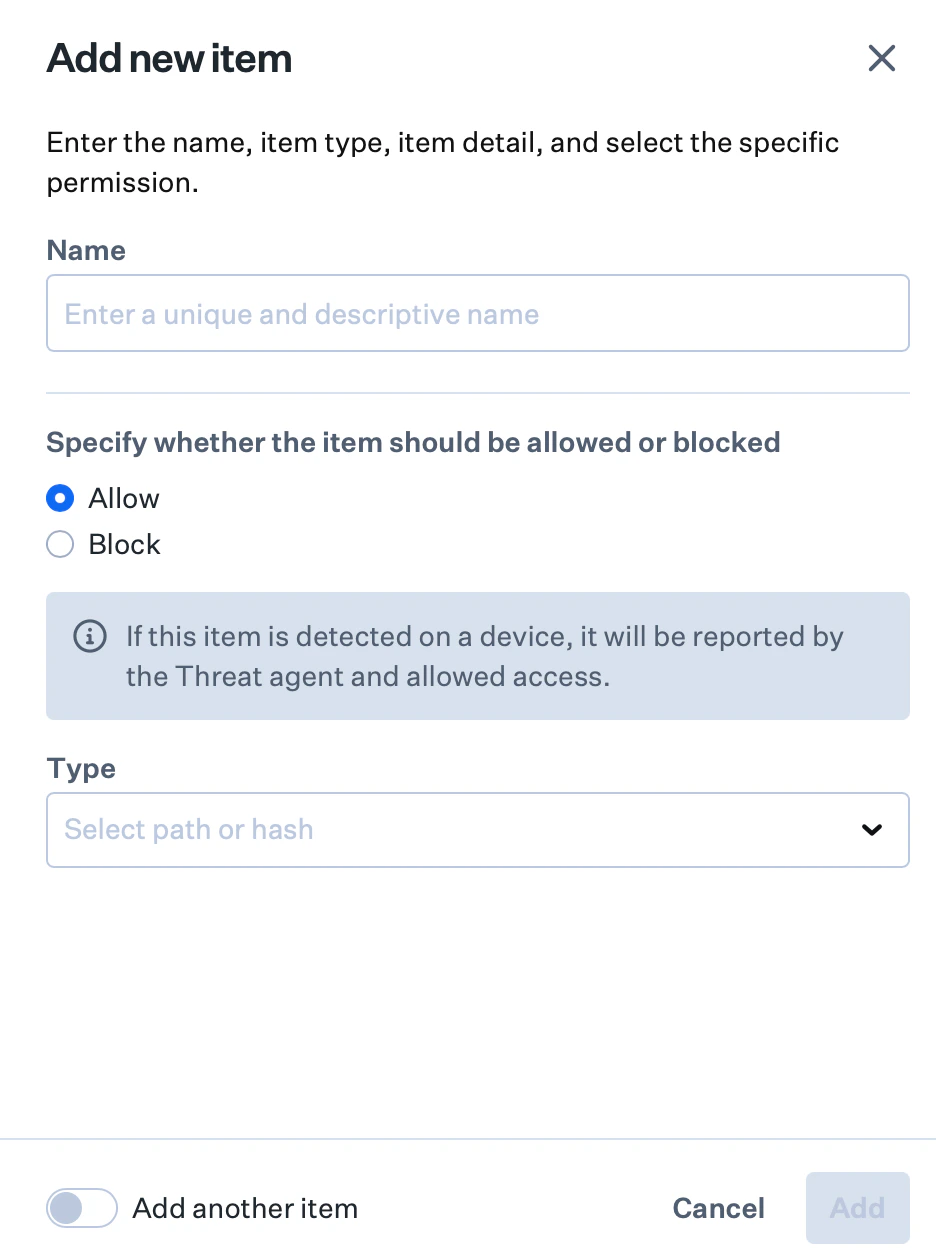
7
Save Configuration
Select Save in the lower-right corner. Settings deploy and activate automatically on enrolled devices in the assigned Blueprints.
Determine Hash Value
The Hash item type is only supported for files. The Path item type is supported for both files and applications.
Considerations
- Posture mode selection: Choose Detect for visibility without blocking, or Protect to actively quarantine known threats
- Behavioral detection: Enable behavioral detections to monitor threats; consider impact on performance and false positive rates
- User alert management: Configure user alerts to balance security awareness with user experience when files are quarantined
- Device isolation: EDR provides device isolation for quarantining compromised devices from the network
- Allow and block list management: Maintain accurate lists to prevent legitimate applications from being blocked while ensuring malicious software is identified
- Hash vs. path configuration: Use hash-based entries for specific file versions and path-based entries for applications that may update frequently
- Testing and validation: Test configuration changes on a pilot device before broad deployment
Next Steps
See Testing EDR Malware Detection to validate your deployment.Viewing Edit History in the EDR Library Item
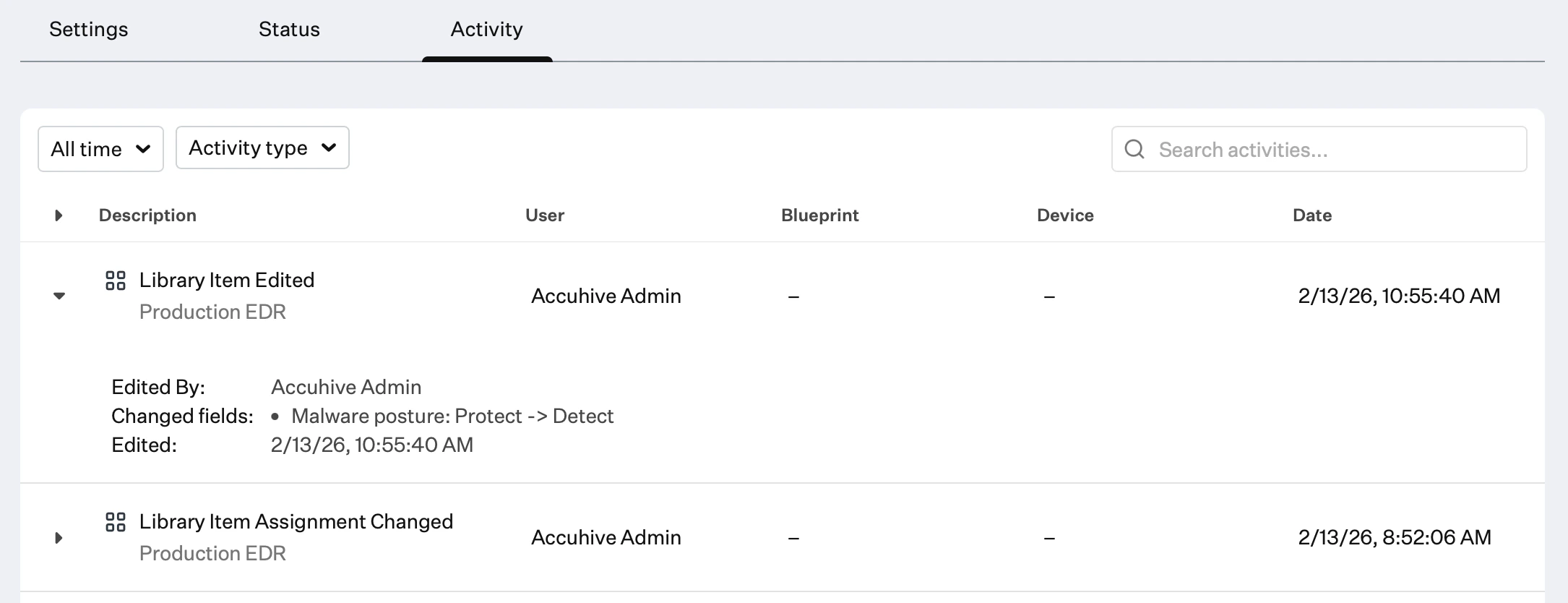
You can audit changes to the EDR Library Item in the Activity tab of the Library Item or on the Activity Page. This shows what configurations changed, the previous state, and who made the change.1
Access Activity Log
Select Activity in your EDR Library Item or the Activity icon in the top-right navigation bar to open the Activity Page.
2
Review Changes
Select the disclosure triangle next to Library Item Edited for the entry you want to review.