

This guide applies to Mac computers
About Device Isolation
Device Isolation allows administrators to immediately sever a device’s network connection, effectively quarantining it from the rest of the fleet. This is a critical response capability when a device is suspected of being compromised or is under active threat. Device Isolation can be performed on individual devices or in bulk across all devices associated with a specific threat detection.How It Works
Device Isolation provides immediate network quarantine capabilities accessible directly from the Detections page. When a device is isolated, its network connectivity is restricted based on the isolation type selected. Administrators can monitor isolated devices through visual indicators in the Iru Endpoint Web App and restore network access once the threat has been neutralized. The isolation status is reflected in real-time across the Detections page and device records.Isolation Types
There are two levels of isolation available, depending on the severity of the threat and the level of access you need to maintain:- Partial Isolation: The device is disconnected from the network, but the MDM agent maintains a connection. This allows administrators to perform specific remediation actions, such as erasing the device remotely.
- Complete Isolation: The device is completely cut off from all network communication. No remote actions can be performed on the device while it is in this state, other than releasing it from isolation.
Prerequisites
- Licensing: This feature is available to customers with an active Endpoint Detection and Response (EDR) plan.
- Permissions: Ensure your account has the necessary permissions to manage threats and device actions (see Team Member Role Permissions).
- Devices: This feature is only available for devices that have threats (open or closed) and can be accessed through the detections side panel.
Isolating a Single Device
You can isolate devices directly from the Detections page by accessing the side panel for a specific detection.1
Navigate to Detections
Navigate to the Detections page (select Detections under Endpoint in the left-hand navigation).
2
Open Side Panel
Select a specific detection to open the Side Panel.
3
Locate Device
In the side panel, locate the specific device you wish to quarantine.
4
Initiate Isolation
Hover over the Isolate Globe Icon next to the device name; it will display a tooltip that says Isolate device from network. Select the icon.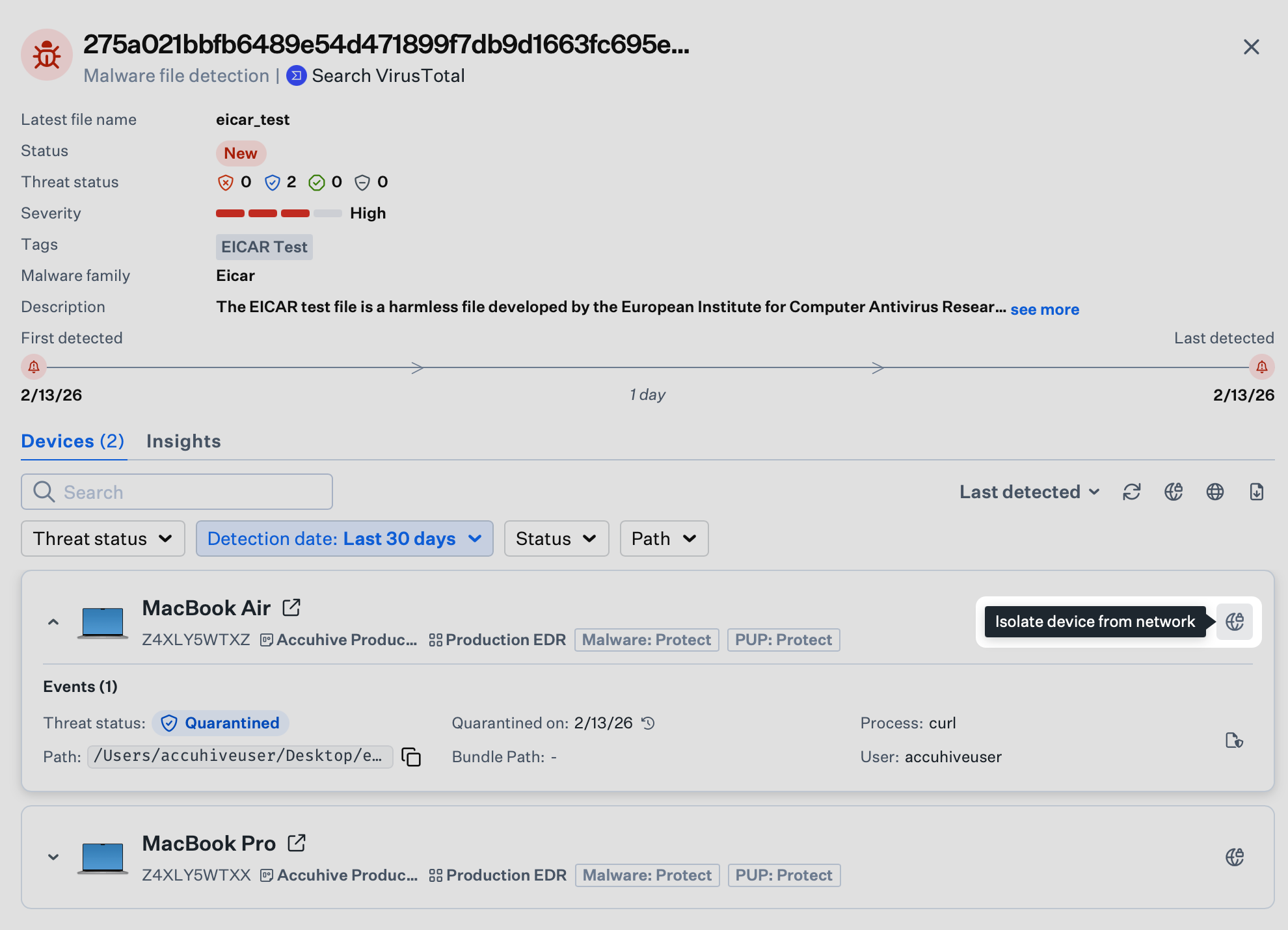
5
Select Isolation Type
In the pop-up window, choose between Partial Isolation and Complete Isolation.
6
Add Comment
Optionally, enter a reason for the isolation for audit purposes.
7
Confirm Isolation
Select Isolate Device to confirm.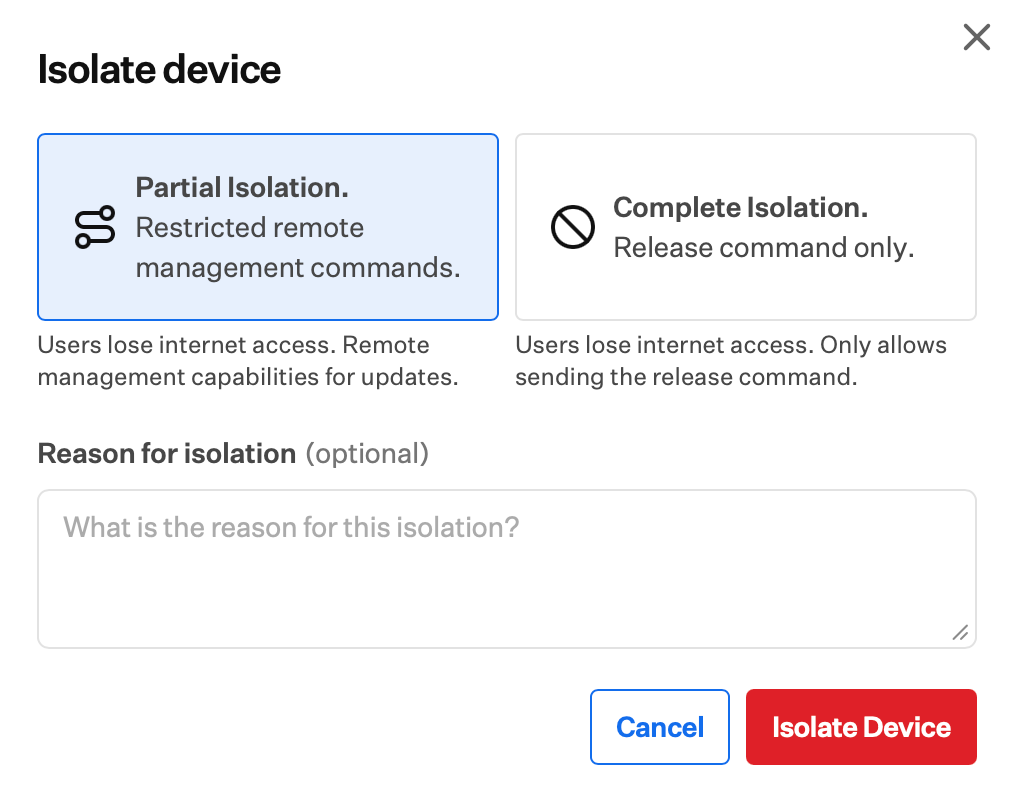
8
Monitor Progress
A progress indicator appears while the device is being isolated.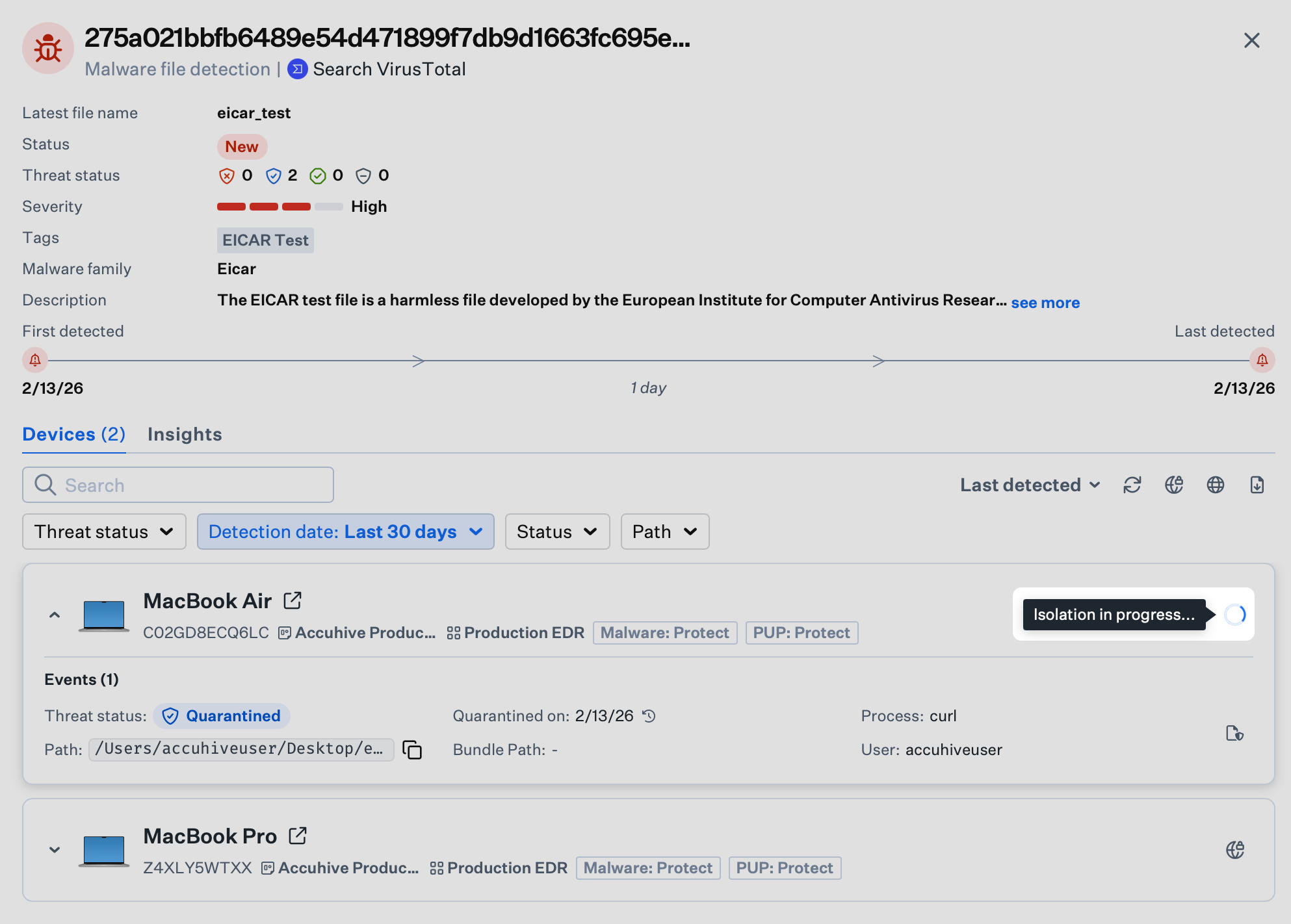
Isolating Multiple Devices (Bulk Action)
Bulk isolation actions require typing “ISOLATE” as a confirmation step to prevent accidental quarantine of multiple devices.
1
Navigate to Detections
Navigate to the Detections page (select Detections under Endpoint in the left-hand navigation).
2
Open Side Panel
Select a specific detection to open the Side Panel.
3
Locate Bulk Action Icon
Hover over the Isolate Globe Icon associated with the detection itself (at the top right of the panel, above the device list); it will display a tooltip that says Isolate all devices (macOS only). Select the icon.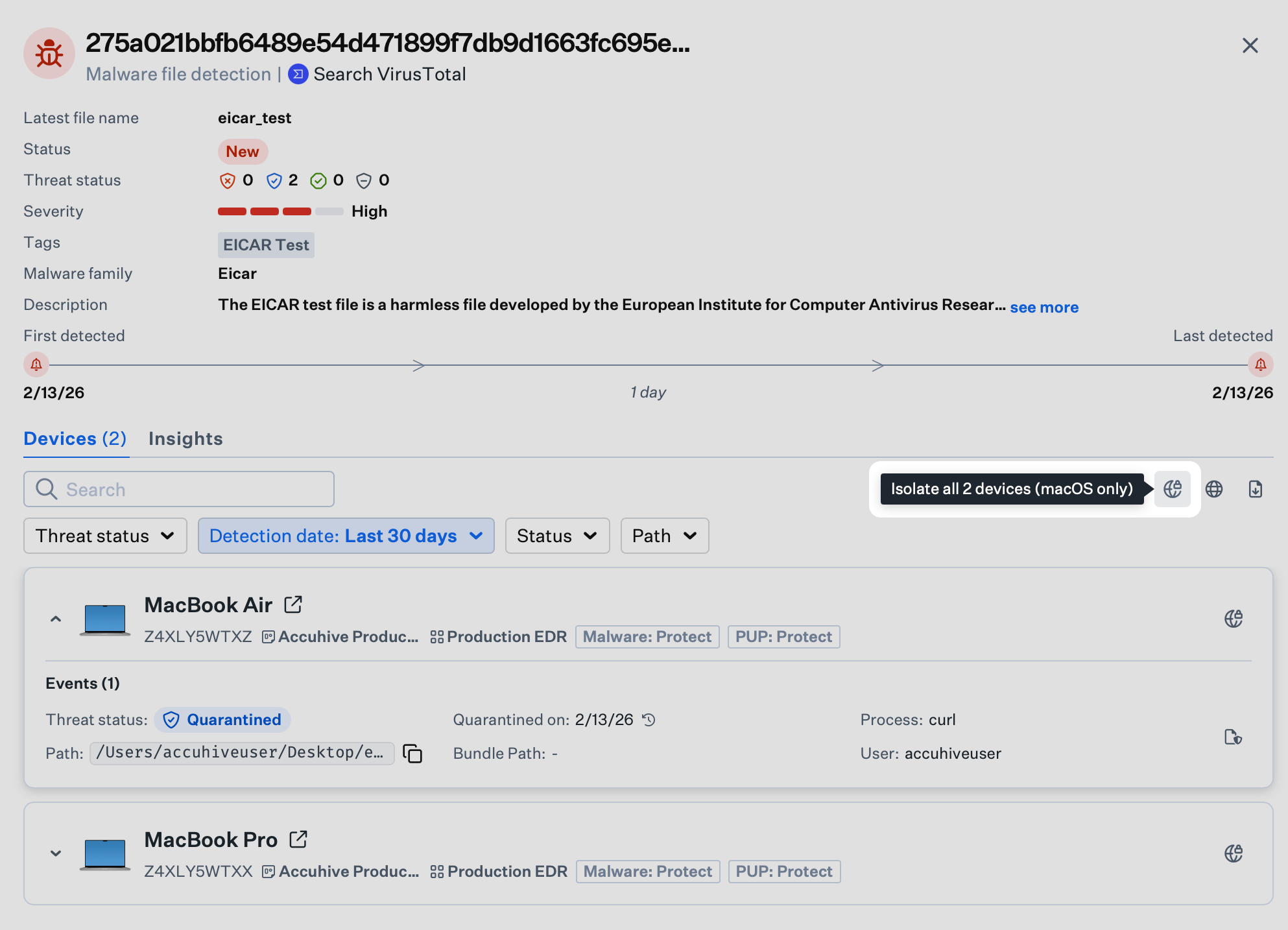
4
Initiate Bulk Isolation
Select the icon to initiate isolation for all devices involved in this detection.
5
Select Isolation Type
In the pop-up window, choose between Partial Isolation and Complete Isolation.
6
Add Comment
Optionally, enter a reason for the isolation for audit purposes.
7
Confirm Bulk Action
To prevent accidental bulk actions, type “ISOLATE” in the confirmation field.
8
Complete Isolation
Select Yes, isolate these devices to confirm.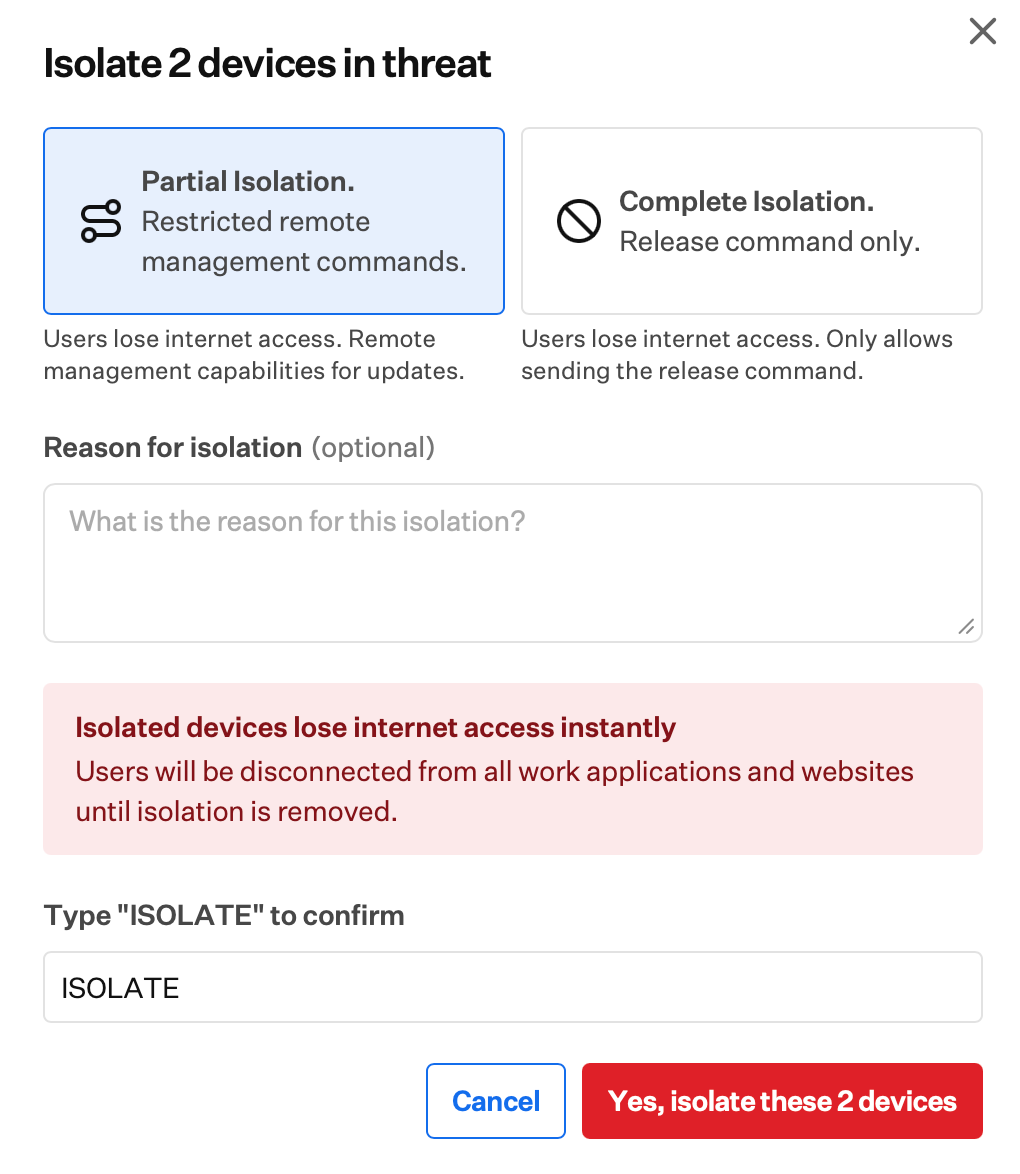
9
Monitor Progress
A progress indicator appears while devices are being isolated.
Identifying Isolated Devices
Once a device is isolated, its status is visually indicated in the Iru Endpoint Web App:- Visual Indicator: In the side panel for a threat, the device icon will display a Red Locked Globe Symbol.
- Device Record: The device record will display the Isolation status near the top of the record.
- Filtering: To view all currently quarantined machines, go to the Detections list and filter for detections containing Isolated Devices.
Releasing a Device from Isolation
When a threat has been neutralized or a device is deemed safe, you can restore network access.1
Locate Isolated Device
Locate the isolated device in the Detections side panel.
2
Initiate Release
Hover over the Release Globe Icon to the right of the device you would like to release from isolation; it will display a tooltip that says Release device from network isolation. Select the icon.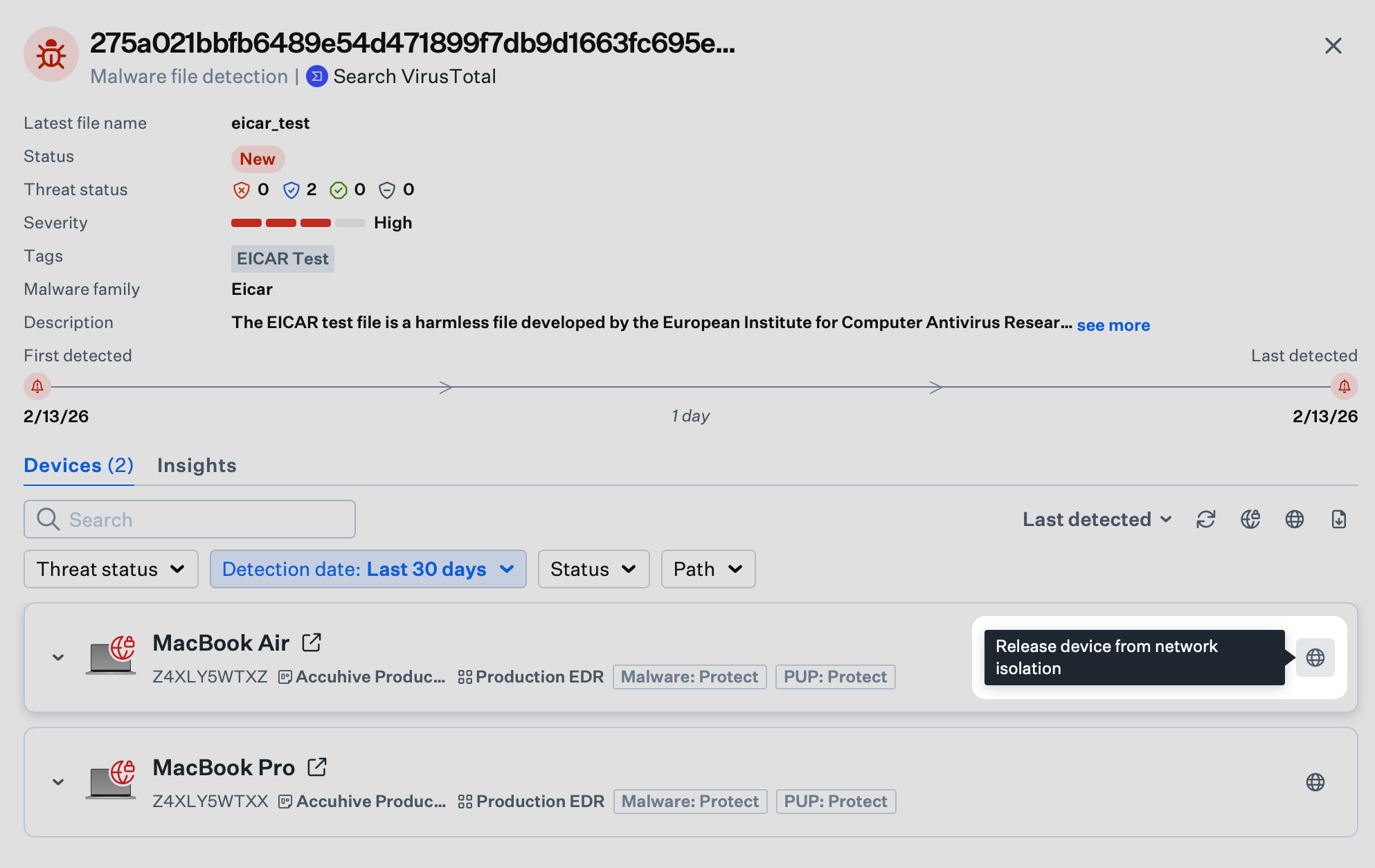
3
Confirm Release
A pop-up will appear asking for confirmation.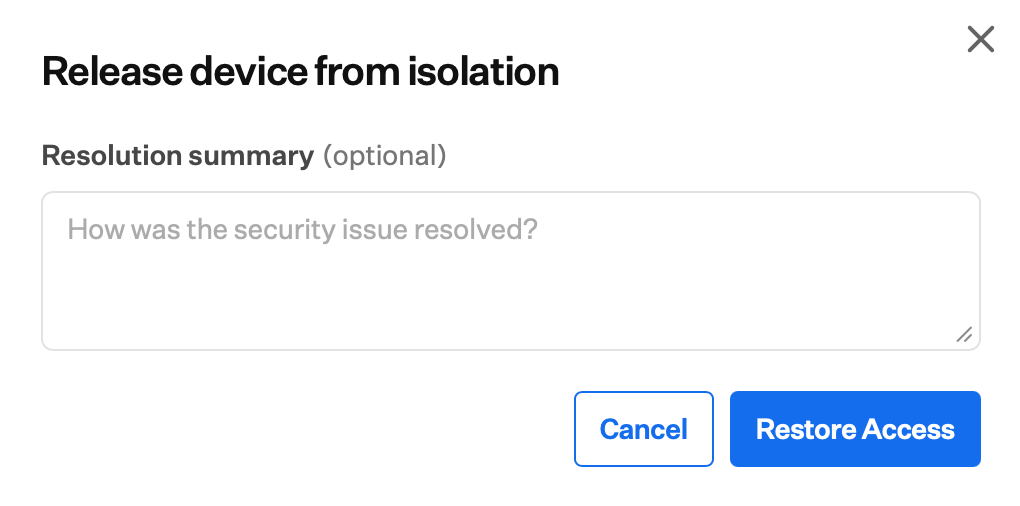
4
Add Comment
Optionally, enter a reason for the release for audit purposes.
5
Complete Release
Select Restore Access to restore network connectivity.
6
Monitor Progress
A progress indicator appears while the device is being released from isolation.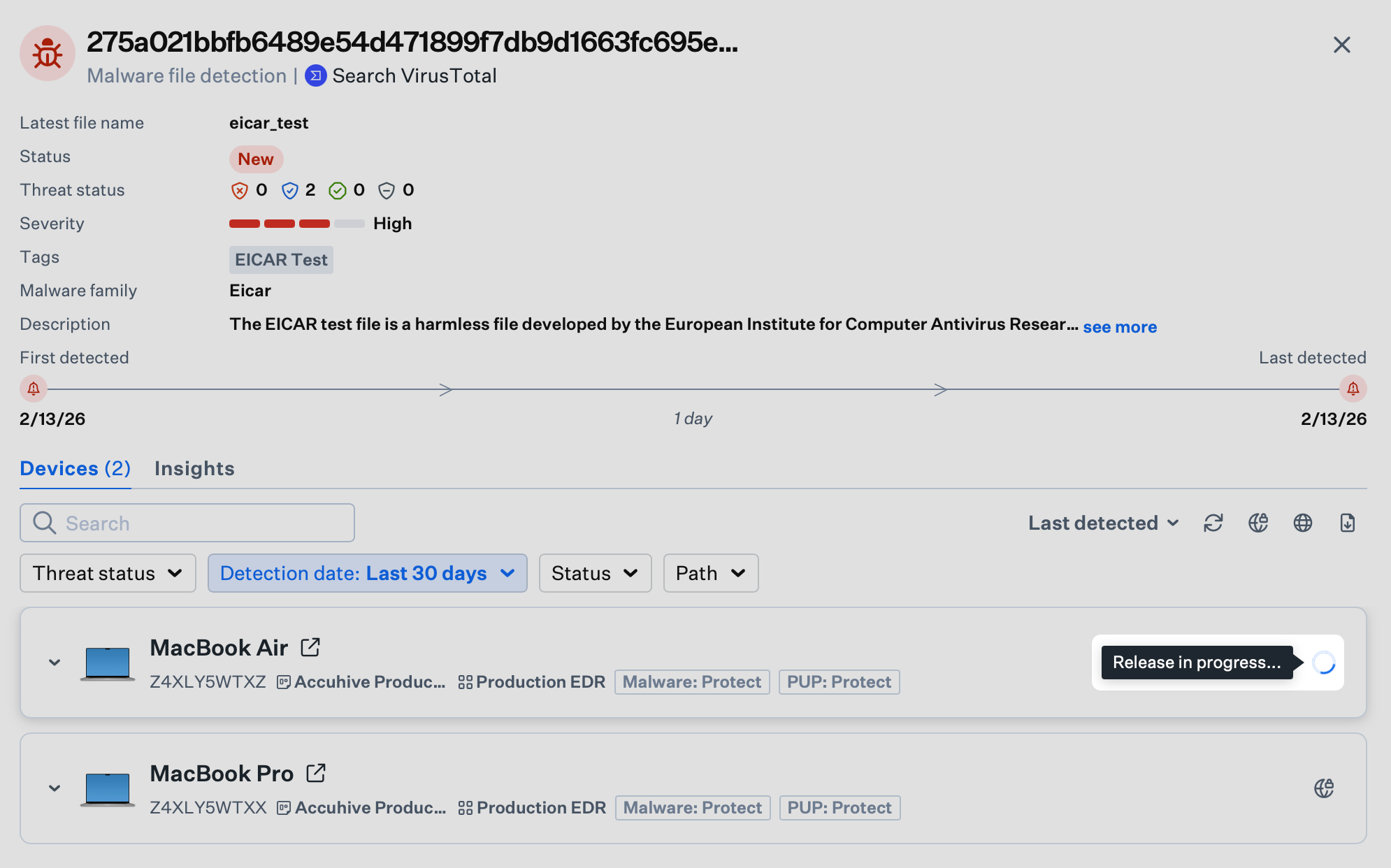
Releasing All Devices from Isolation
When a threat has been neutralized or devices are deemed safe, you can restore network access for all isolated devices at once.1
Locate Isolated Device
Locate the isolated device in the Detections side panel.
2
Initiate Release
Hover over the Release Globe Icon associated with the detection itself (at the top right of the panel, above the device list); it will display a tooltip that says Release all applicable devices. Select the icon.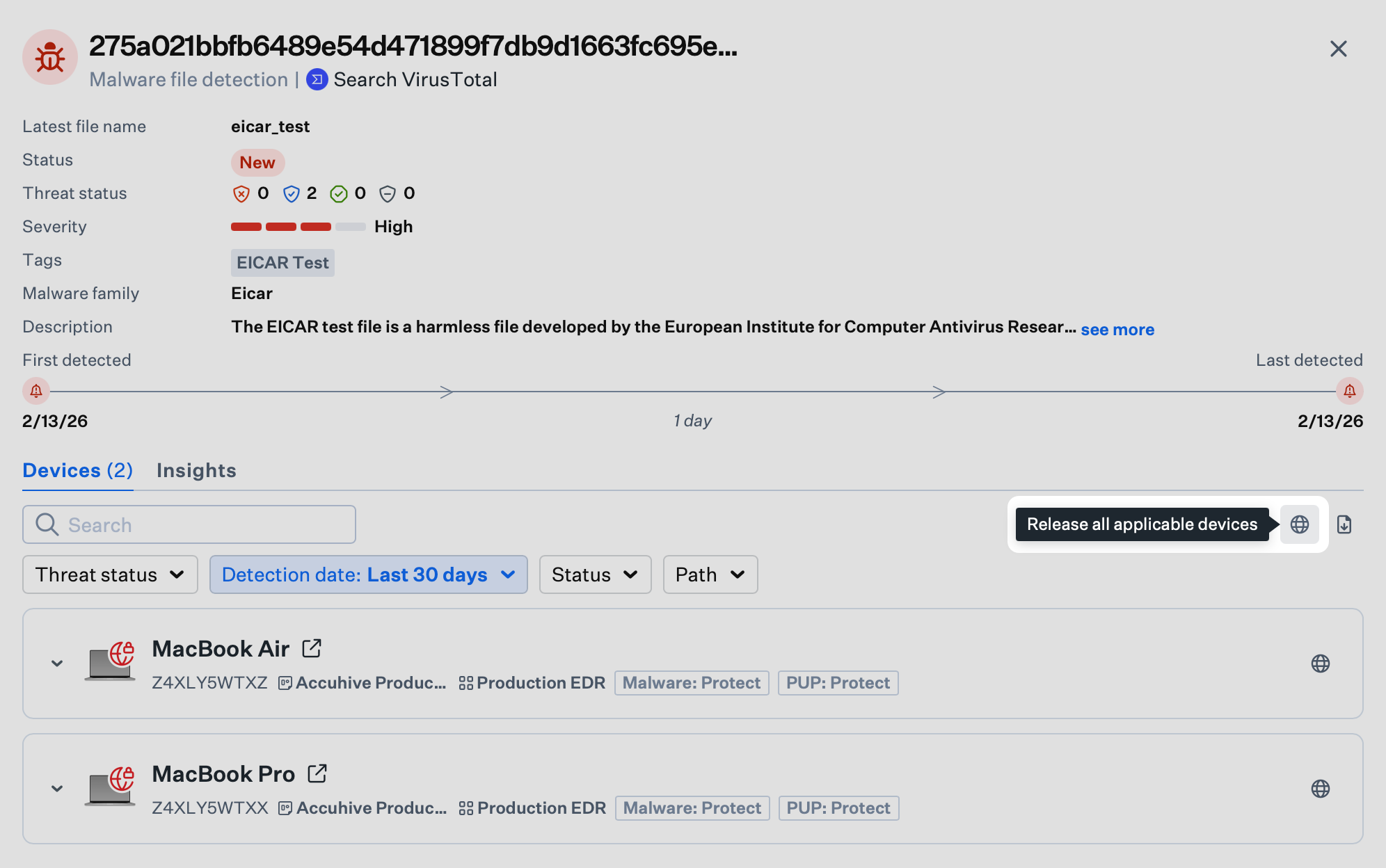
3
Confirm Release
A pop-up will appear asking for confirmation.
4
Add Comment
Optionally, enter a reason for the release for audit purposes.
5
Complete Release
Select Restore Access to restore network connectivity.
6
Monitor Progress
A progress indicator appears while the devices are being released from isolation.
What the User Sees
When a device is isolated or released from isolation, the user sees a message on their screen explaining the status of their device.When the Device Is Offline
The user sees the following message when the device has been isolated.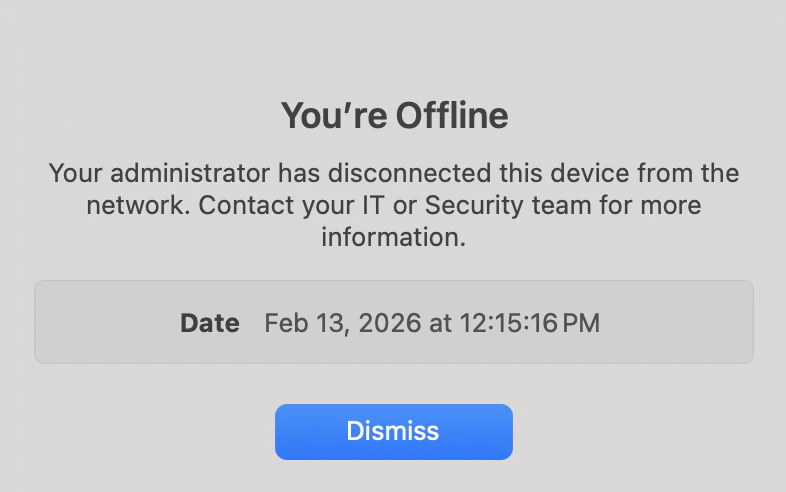
When the Device Is Online
The user sees the following message when the device has been released from isolation.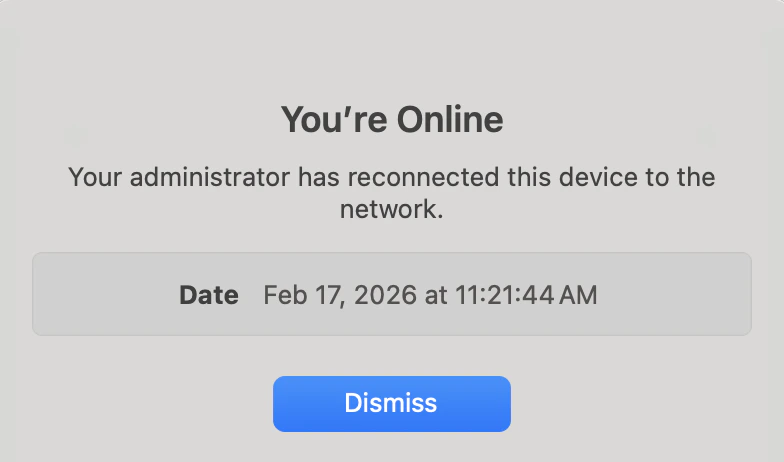
Common Errors
Isolation or Release actions can sometimes fail due to device state or network conditions. When that happens, the side panel for a specific threat shows an error status for each device so you can retry or investigate.Isolation Failed
If isolating a device fails, the device’s Isolate Globe Icon will have a red indicator. Hover over the icon and it will display a tooltip that says Device failed isolating. Try again. Select it to retry the isolation.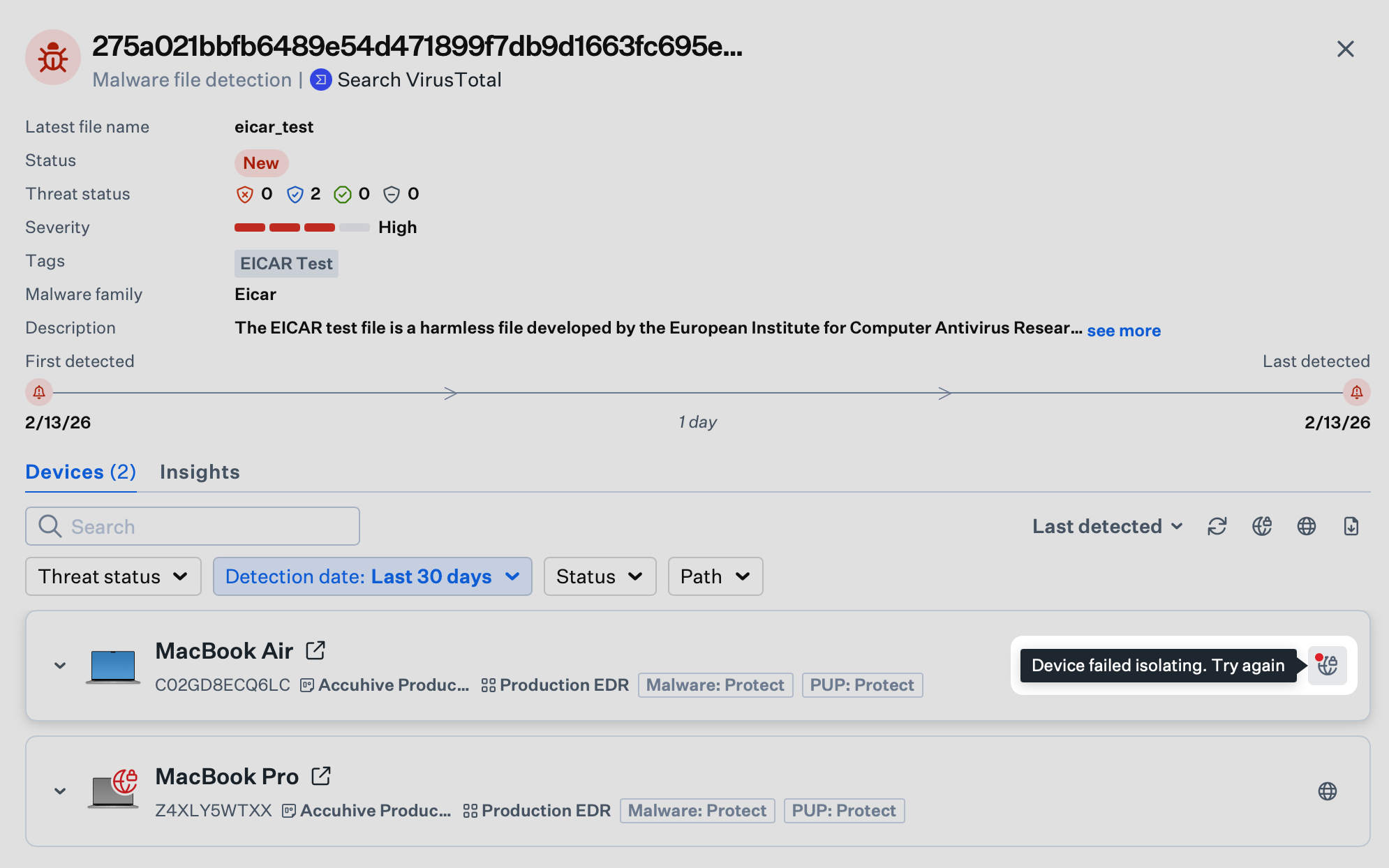
Release Failed
If releasing a device from isolation fails, the device’s Release Globe Icon will have a red indicator. Hover over the icon and it will display a tooltip that says Device failed releasing. Try again. Select it to retry releasing it from isolation.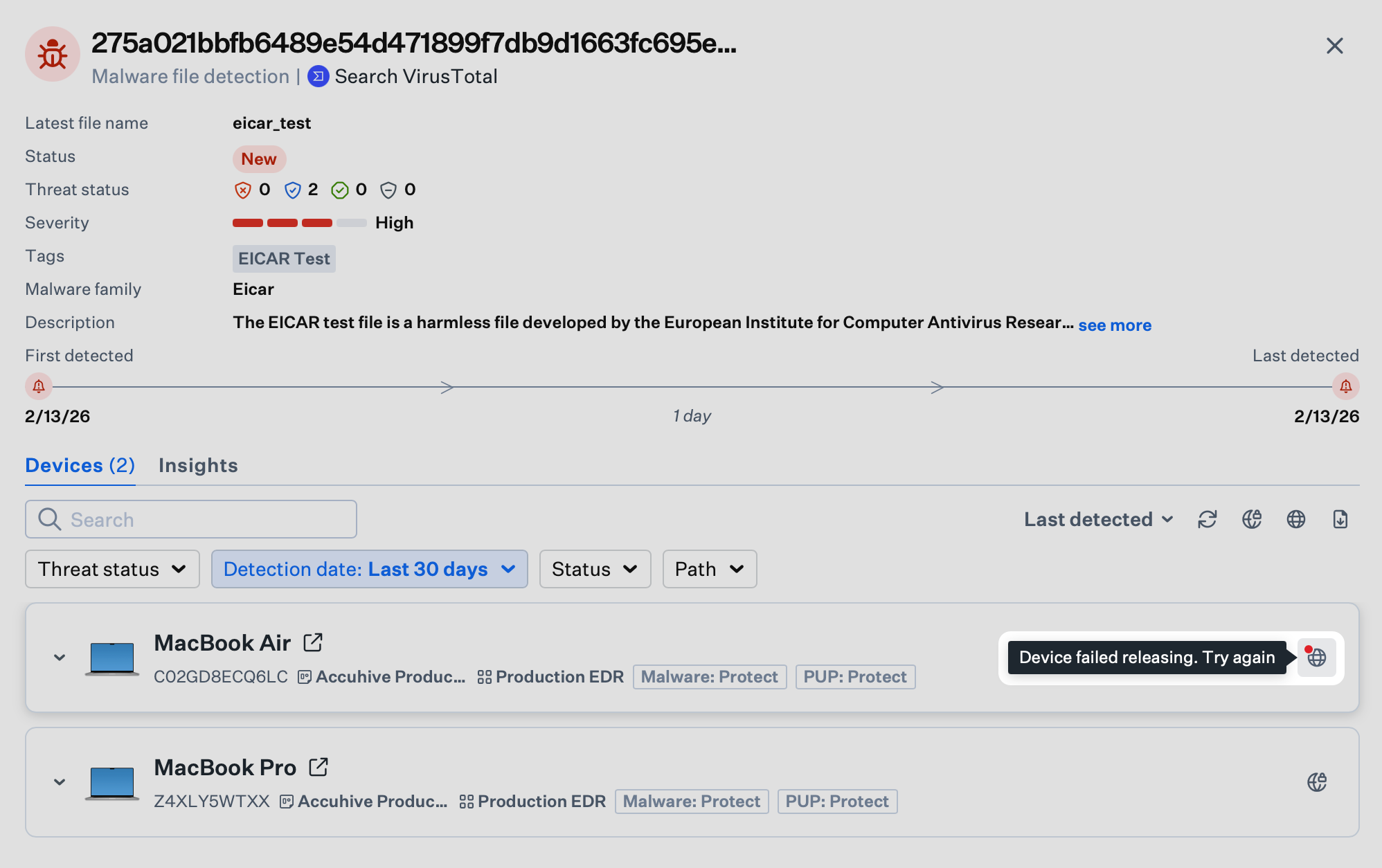
Troubleshooting
If isolating or releasing a device fails after multiple attempts, you can restart the computer and try again. You can also check the device’s network connections to ensure it is connected to Wi-Fi or Ethernet. For isolated devices, it is normal for the network connection to have the “No Internet Connection…” status, but it should still be connected to the network. For network requirements and firewall configuration, see Using Iru on Enterprise Networks.Considerations
- Documentation: Use the optional comment field for isolation and release actions to support audit and compliance.
- Activity logging: Isolation and release actions appear on the Unified Activity under Detections.
- Incident response: Integrate isolation into your broader workflows; see security operations actions for status, tags, and related controls.
- Investigation: Use Device Isolation together with threat event analysis to contain threats while investigating.
- Release timing: Restore network access only after the threat is neutralized and you are ready to allow the device back on the network.
- Coordination: Align with security or IT before isolating devices so incident response procedures are clear.