

This guide applies to all device platforms
About duplicating a Blueprint
Duplicating a Blueprint creates a new Blueprint with a copy of another Blueprint’s Assignment Map layout, Library Item placements, and Parameter configuration. Devices stay on the original Blueprint until you move them.As of April 1, 2026, all legacy Classic Blueprints were automatically converted to Assignment Maps, which are the default, improved version of Blueprints.
How It Works
Use duplication when you need a similar Assignment Map without rebuilding nodes, rules, and Library Item assignments from scratch. After duplication, the two Blueprints are independent: edits to one do not change the other.Library Items in the Library are not duplicated. The new Blueprint references the same Library Items you place on the map. Updates to a Library Item still apply everywhere that item is assigned.
How to duplicate a Blueprint
From a Blueprint tile on the Blueprints page
1
Open Blueprints
Sign in to Iru Endpoint and open Blueprints in the left navigation.
2
Open the menu on the Blueprint tile
On the tile for the Blueprint you want to copy, select the ellipsis (…).
3
Choose Duplicate Blueprint
Select Duplicate Blueprint.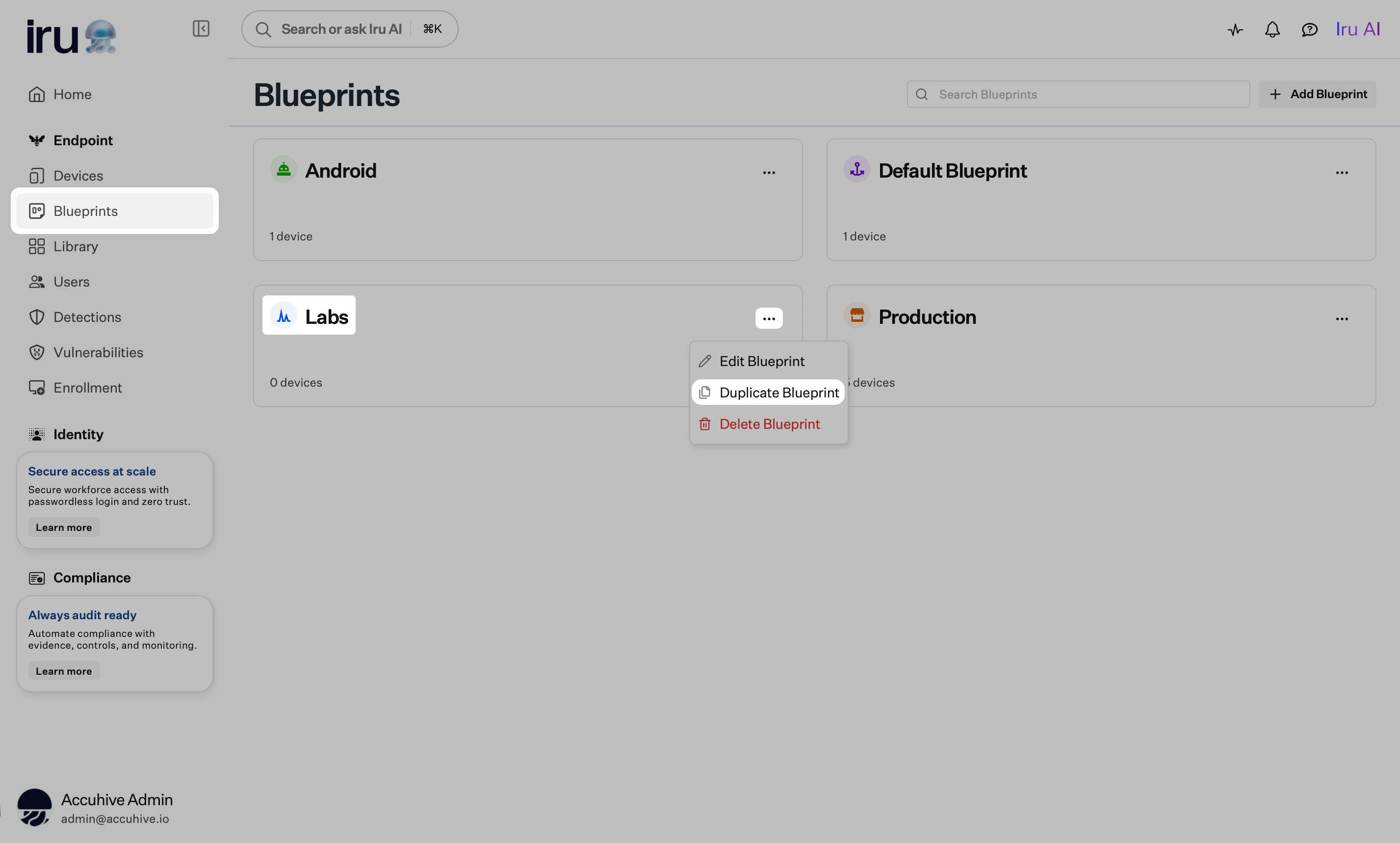
4
Name the new Blueprint
Enter a new name and optional description for the duplicate.
5
Complete duplication
Select Duplicate.
From the Blueprint page
1
Open Blueprints
Open Blueprints in the left navigation.
2
Open the Blueprint from its tile
On the Blueprints page, select the tile for the Blueprint you want to copy.
3
Open the menu in the Blueprint header
Select the ellipsis (…) in the Blueprint header.
4
Choose Duplicate Blueprint
Select Duplicate Blueprint.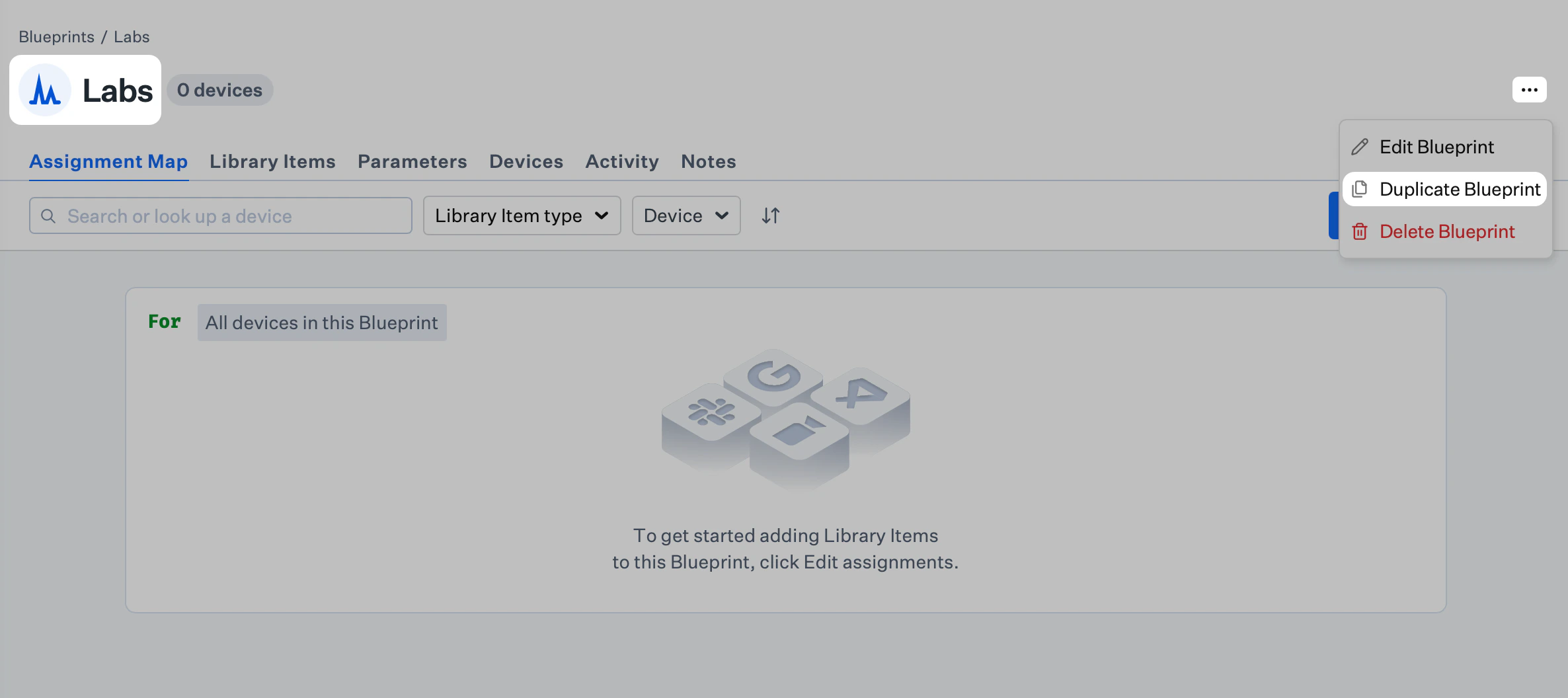
5
Name the new Blueprint
Enter a new name and optional description for the duplicate.
6
Complete duplication
Select Duplicate.
Related Articles
Creating a Blueprint
Create and manage Assignment Maps, Library Items, and Parameters
Configuring Blueprints
Getting started with Blueprints and Assignment Maps
Modifying a Blueprint
Edit Blueprint details, assignments, and Parameters
Deleting a Blueprint
Remove an unused Blueprint safely
Moving Devices Between Blueprints
Reassign devices after you create or duplicate a Blueprint