

This guide applies to all device platforms
About Deleting a Blueprint
Deleting a Blueprint permanently removes it from Iru Endpoint. This action cannot be undone. Before deletion, move devices to a different Blueprint to avoid unintended policy or software changes. Blueprint changes, including deletion, are recorded on the Activity Page.As of April 1, 2026, all legacy Classic Blueprints were automatically converted to Assignment Maps, which are the default, improved version of Blueprints.
Before You Delete
- Confirm no active devices still depend on this Blueprint
- Move assigned devices to a destination Blueprint first
- Validate required Library Items and Parameters exist in the destination Blueprint
Delete a Blueprint
From a Blueprint Tile on the Blueprints Page
1
Open Blueprints
Open Blueprints in the left navigation.
2
Open the menu on the Blueprint tile
On the tile for the Blueprint you want to delete, select the ellipsis (…).
3
Choose Delete Blueprint
Select Delete Blueprint.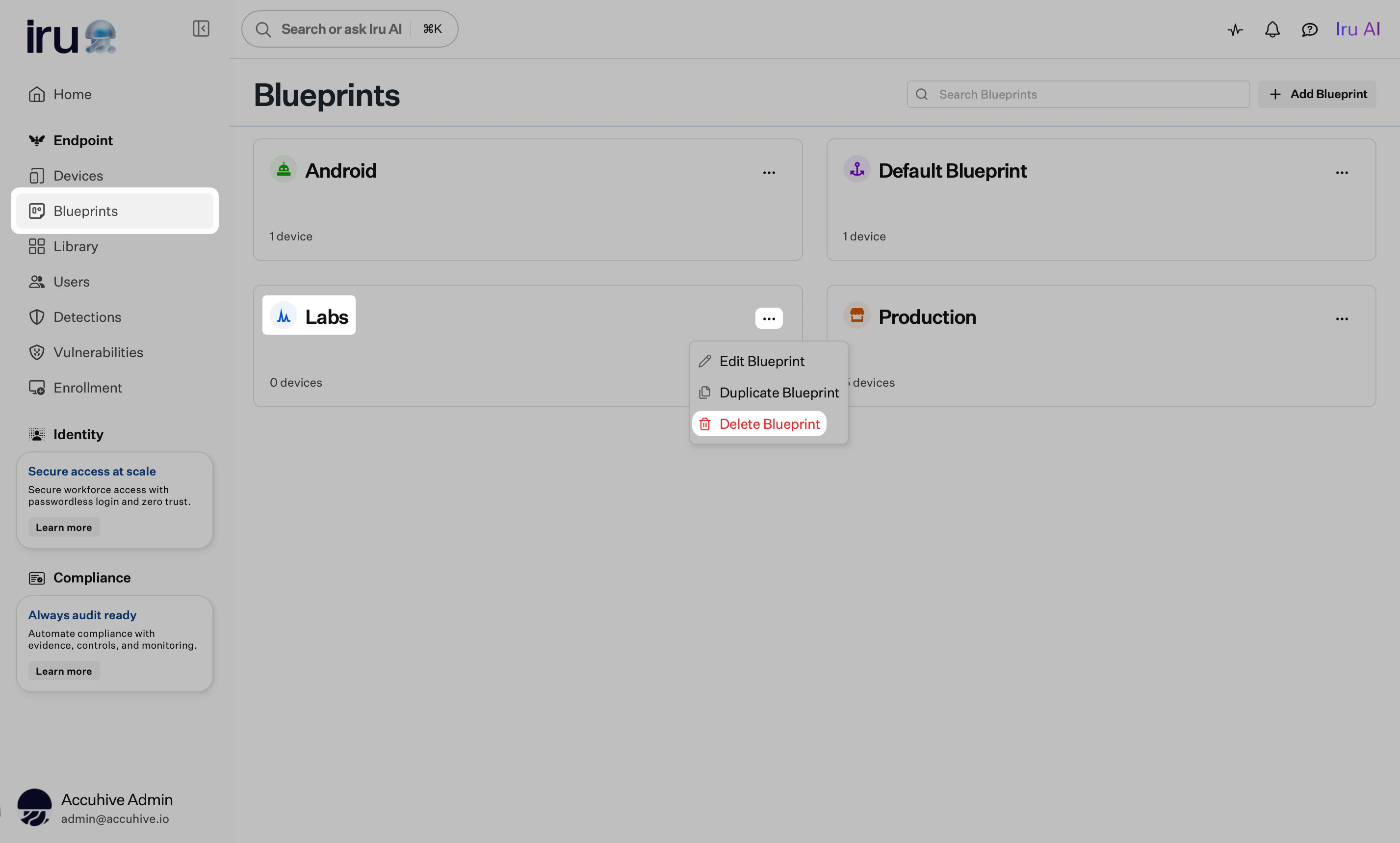
4
Confirm deletion
Review the prompt and confirm.
From the Blueprint Page
1
Open Blueprints
Open Blueprints in the left navigation.
2
Open the Blueprint from its tile
On the Blueprints page, select the tile for the Blueprint you want to delete.
3
Open the menu in the Blueprint header
Select the ellipsis (…) in the Blueprint header.
4
Choose Delete Blueprint
Select Delete Blueprint.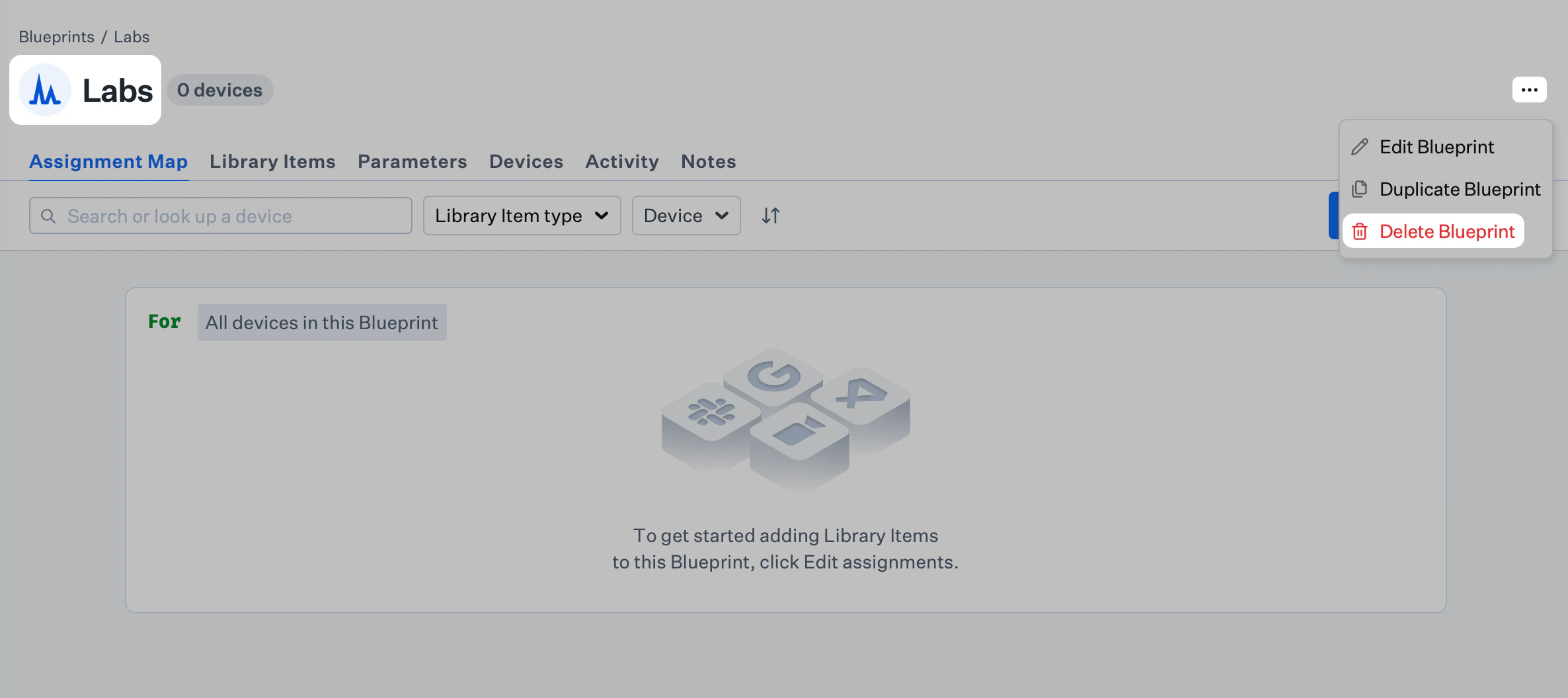
5
Confirm deletion
Review the prompt and confirm.
If Deletion Is Not Available yet
A Blueprint cannot be deleted while it is still in use. Typical blockers are Blueprint Routing that references the Blueprint and devices that remain assigned to it. Iru Endpoint disables Delete Blueprint in that situation and surfaces This Blueprint cannot be deleted yet with the specific reasons.From a Blueprint Tile
1
Open Blueprints
Open Blueprints in the left navigation.
2
Open the menu on the Blueprint tile
On the tile for the Blueprint, select the ellipsis (…).
3
Hover over Delete Blueprint
Delete Blueprint is disabled when deletion is not allowed. Hover over Delete Blueprint to see the warning (for example references to Blueprint Routing and assigned devices).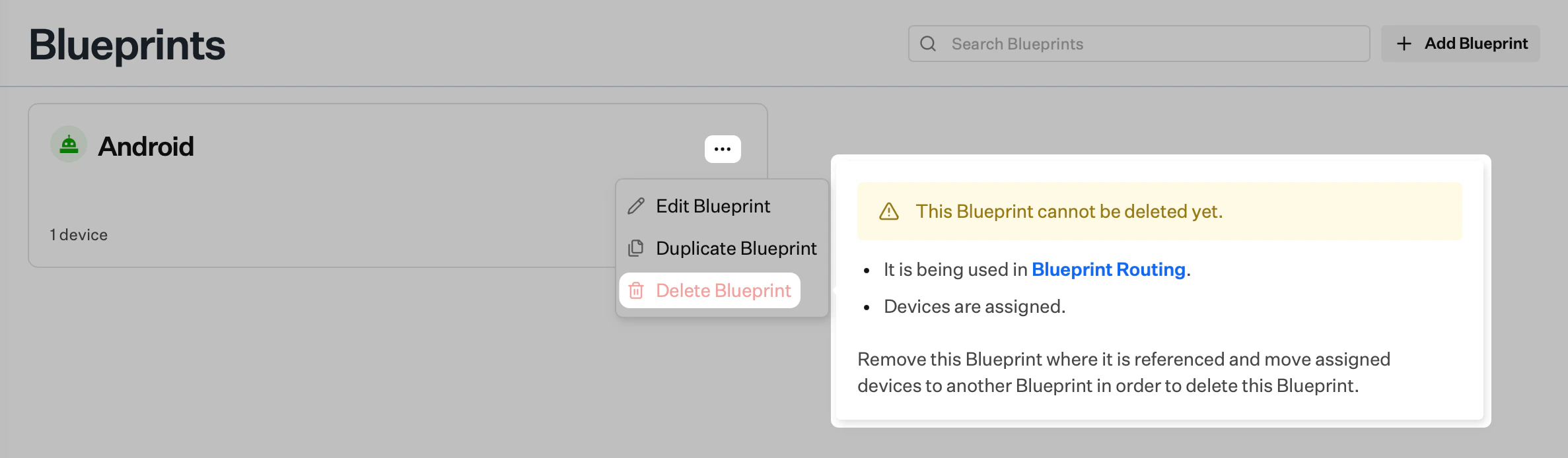
From the Blueprint Page
1
Open the Blueprint from its tile
Open Blueprints, then select the tile for the Blueprint.
2
Open the menu in the Blueprint header
Select the ellipsis (…) in the Blueprint header.
3
Hover over Delete Blueprint
Delete Blueprint is disabled when deletion is blocked. Hover over it to see the cannot be deleted yet message and the reasons.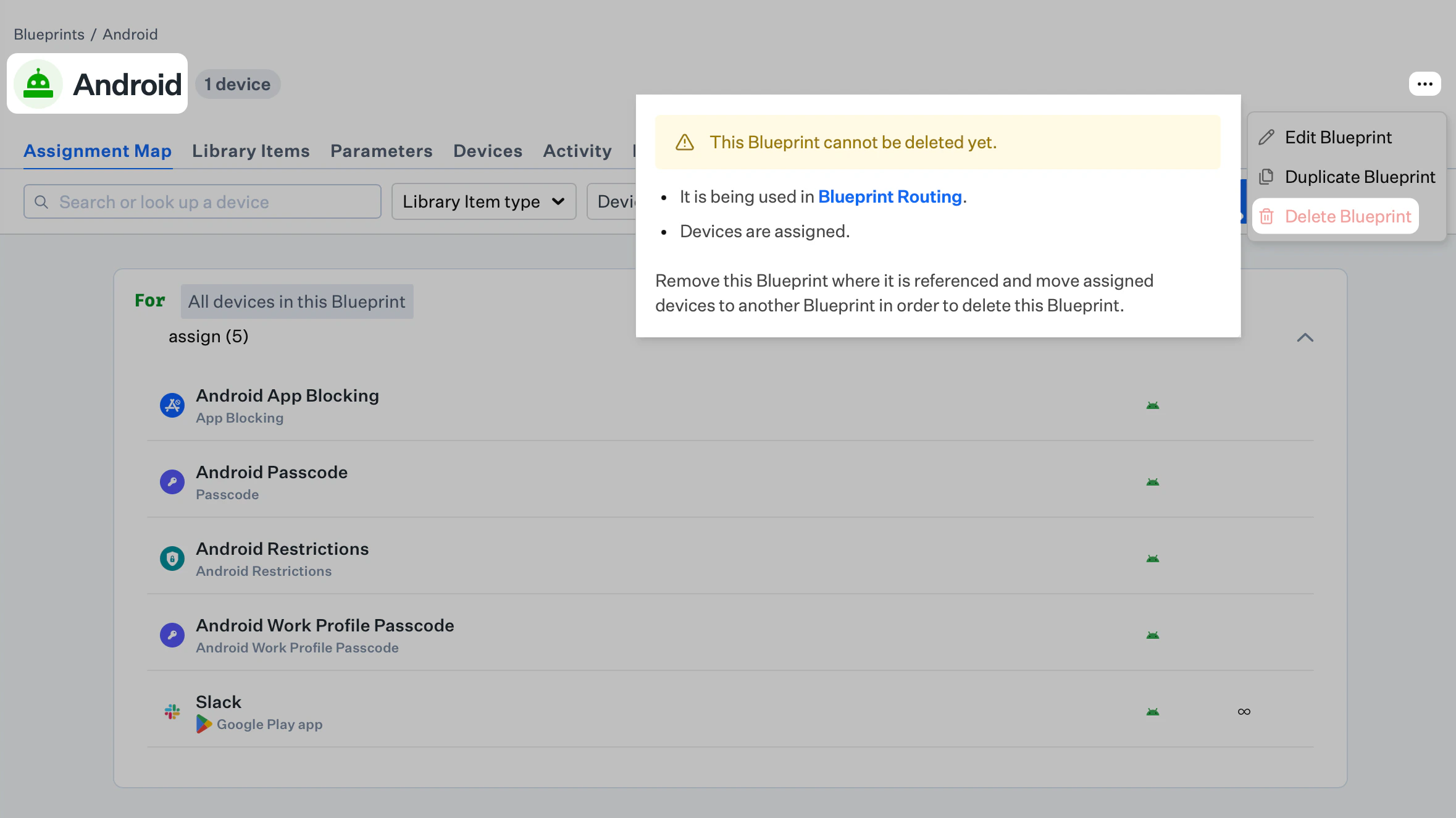
How to Unblock Deletion
When the warning cites Blueprint Routing, open Blueprint Routing and update or remove any rules that still point at this Blueprint. Routing is evaluated during enrollment; until no rule references the Blueprint, Iru Endpoint keeps Delete Blueprint disabled so you do not strand new or existing enrollments. When the warning cites assigned devices, every device on the Blueprint must be moved to a different Blueprint before you can delete it. Use a device record for a single device or bulk actions on the Devices list, pick a destination Blueprint that already has the Library Items and Parameters those devices need, then confirm the move. Step-by-step instructions are in Moving Devices Between Blueprints. After routing no longer references the Blueprint and no devices remain assigned to it, Delete Blueprint becomes available. Use the Delete a Blueprint steps earlier in this article.Move Devices Before Deletion
If devices are still assigned, move them first:1
Select device(s)
Open a device record (single move) or select devices in the Devices list (bulk move).
2
Change Blueprint
Use Edit Blueprint (single) or Change Blueprint (bulk).
3
Select destination
Choose the destination Blueprint and confirm.
Related Articles
Moving Devices Between Blueprints
Reassign devices before removing a Blueprint
Creating a Blueprint
Create destination Blueprints before migration
Modifying a Blueprint
Update destination Blueprint settings and assignments
Using Conditional Logic in Blueprints
Scope assignments in destination Blueprints