

User Directory Integration with Google Workspace
The Google Workspace integration in Iru Endpoint syncs Google Workspace user and group objects into the Iru Endpoint user directory. Iru Endpoint uses these delegated permissions through the Google API to sync that directory information. For why directory integration matters, marketplace filters, sync, re-authentication, and removal, see User Directory Integration Overview and Providers.Add a Google Workspace Integration
1
Open Integrations
In the sidebar, select the Account Menu Button, then select Integrations.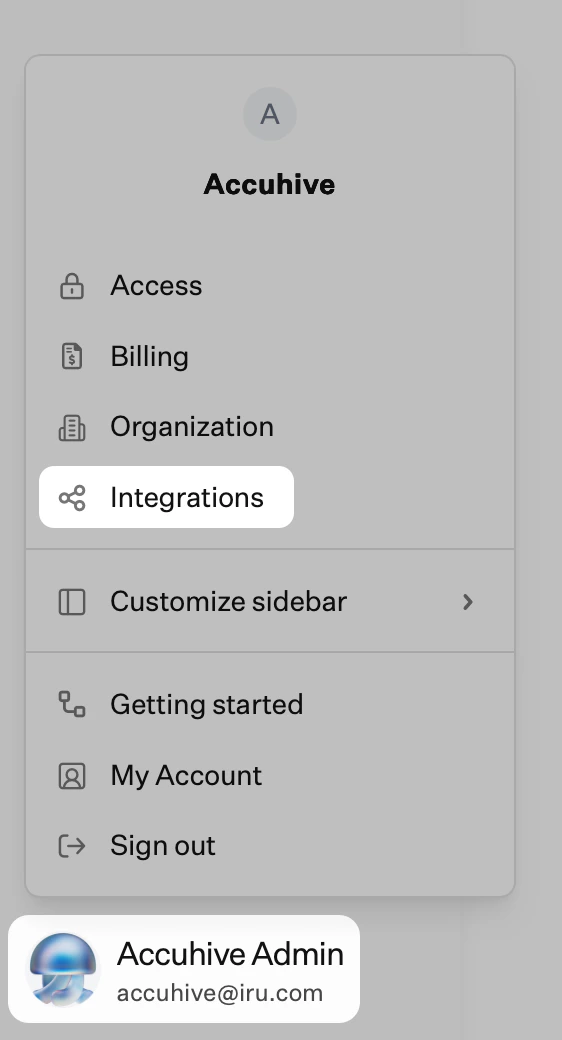
2
Browse all integrations
Select Browse all integrations in the upper-right of the Integrations page.
3
Select Google Workspace
Select the Google Workspace tile.
4
Start Setup
Select Get Started.
5
Enter Integration Name
Enter a unique name, which will be used in Iru Endpoint to show the directory from which a user originates.
6
Sign in with Google
Select Sign in with Google.
7
Complete Authentication
Sign in using a Google account with admin access to the directory you want to integrate.
8
Confirm Account Permissions
Review the basic account information Iru Endpoint requests, then select Continue.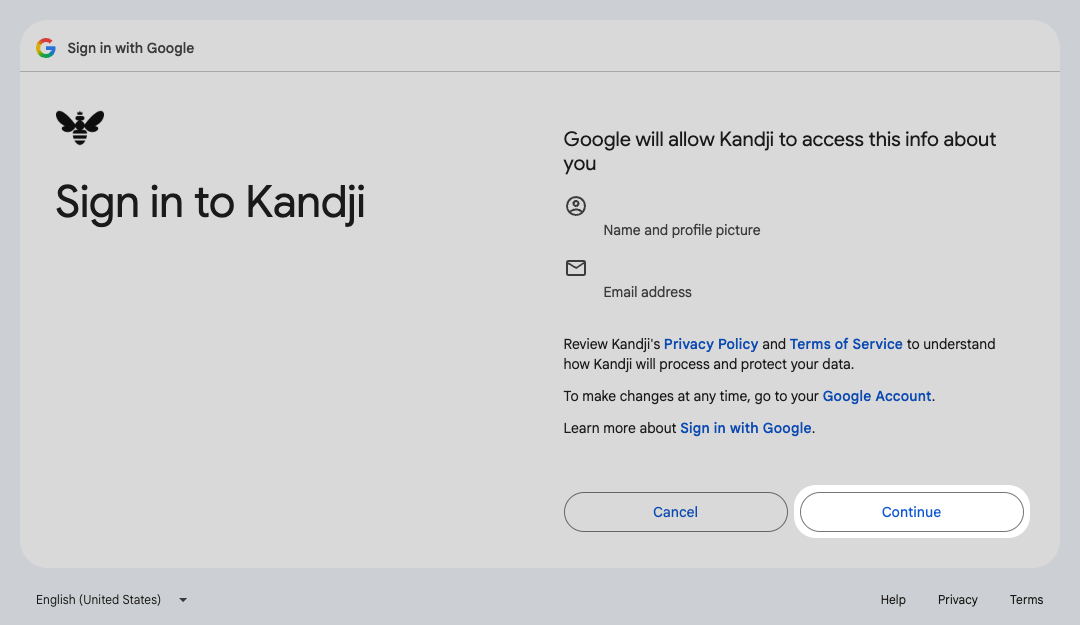
When you grant access in Google, Google still names this app Kandji 

9
Select All Permissions
On the permissions screen, select the checkbox for Select all.
When you re-authenticate the integration, select Select all again, then select Continue. Re-authenticating does not restore access to your users and groups unless you grant those permissions again.
10
Grant Access to Users and Groups
Confirm that View groups on your domain and See info about users on your domain are selected, then select Continue.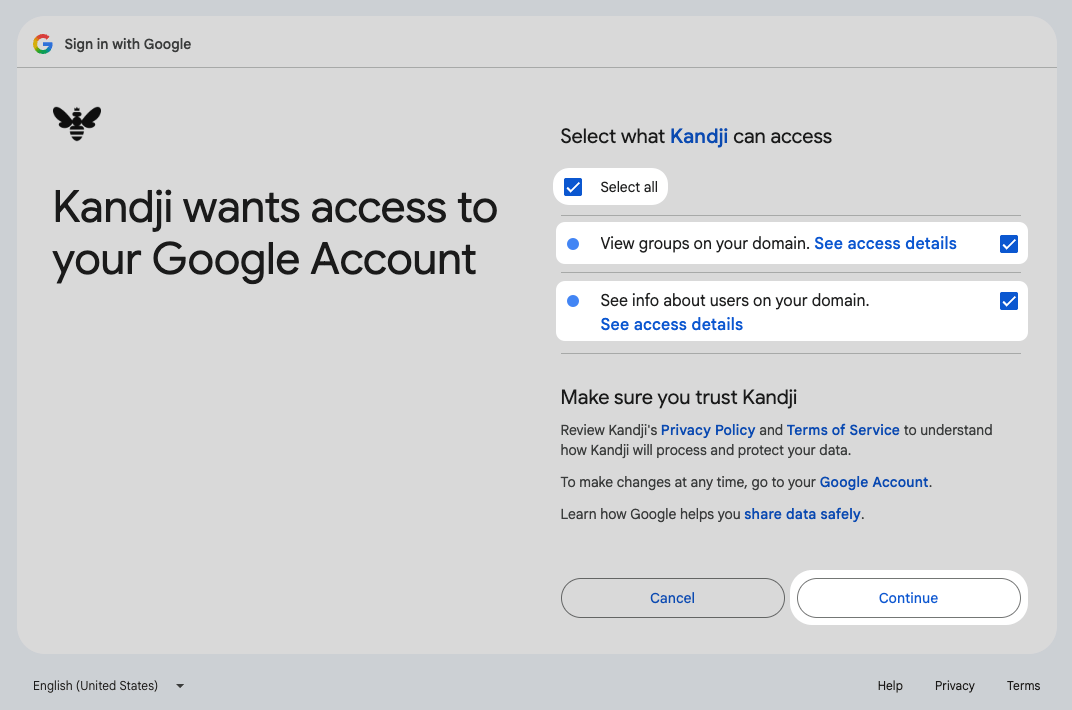
If you continue without allowing Iru Endpoint to view groups on your domain and see info about users on your domain, the integration connects successfully but your users and groups do not sync correctly. To correct it, re-authenticate the integration and grant every requested permission.
11
Confirm the Integration
You will see the new user directory on the Integrations page.
Google Workspace Permissions
The following permissions are automatically requested and required to successfully sync Google Workspace users into Iru Endpoint. A Google Administrator must have sufficient permissions to delegate the following permissions to Iru Endpoint.Troubleshooting Users and Groups Sync
If users or groups do not appear in Iru Endpoint after you connect the integration, work through the following checks in order.Users and groups do not sync after you connect the integration
Users and groups do not sync after you connect the integration
The most common cause is incomplete consent. If the administrator continued past the Google permissions screen without selecting every permission, the integration connects and reports success, but Iru Endpoint cannot read your directory.Re-authenticate the integration, select the checkbox for Select all on the permissions screen, then select Continue. Once the integration reconnects, force a user directory sync instead of waiting for the next four-hour sync.
Confirm the administrator can read users and groups
Confirm the administrator can read users and groups
Iru Endpoint reads your directory using the privileges of the administrator who authorized the integration, so that account needs read access to both users and groups.In the Google Admin console, go to Directory > Users, select the account you used to authorize the integration, then open Admin roles and privileges. Open each assigned role and confirm that it grants read privileges for users and groups.The Directory API belongs to the Google Admin SDK and is limited to administrators. When the account lacks those privileges, Google returns a
403 Not Authorized to access this resource/api error and no directory data reaches Iru Endpoint. For the full list of scopes, see Google’s Choose Directory API scopes.Confirm Google Workspace allows Iru Endpoint to access directory data
Confirm Google Workspace allows Iru Endpoint to access directory data
Google Workspace administrators can restrict which applications reach Google Workspace APIs, which blocks the sync even when the consent screen looks correct.In the Google Admin console, go to Security > Access and data control > API controls > App access control, then confirm that the OAuth app used by Iru Endpoint is Trusted rather than Limited or Blocked. On the Google consent screen, that app is still named Kandji.For details on how these controls behave, see Google’s Control which apps access Google Workspace data.
Disconnect Integration from Google
1
Access Google Permissions
Go to https://myaccount.google.com/permissions. Ensure you are signed in with the same account that configured the integration originally.
2
Remove Kandji Application
Select Remove for the Kandji application in the list of applications. Google still names this app Kandji.
Related Articles
User Directory Integration Overview and Providers
Overview of user directory integration in Iru Endpoint. Sync users and groups from Okta, Microsoft Entra ID, Google Workspace, or OneLogin to your account.
Account Menu
Open the Account Menu Button at the bottom of the Iru sidebar to reach Access, Billing, Organization, Integrations, Partner portal, My Account, and other tenant settings.