

User Directory Integration with Microsoft Entra ID
The Microsoft Entra ID integration in Iru Endpoint syncs Microsoft Entra ID user and group objects into the Iru Endpoint user directory. For why directory integration matters, marketplace filters, sync, re-authentication, and removal, see User Directory Integration Overview and Providers. For the Graph API scopes Iru Endpoint requests, see Microsoft Entra ID Permissions.Add a Microsoft Entra ID Integration
1
Open Integrations
In the sidebar, select the Account Menu Button, then select Integrations.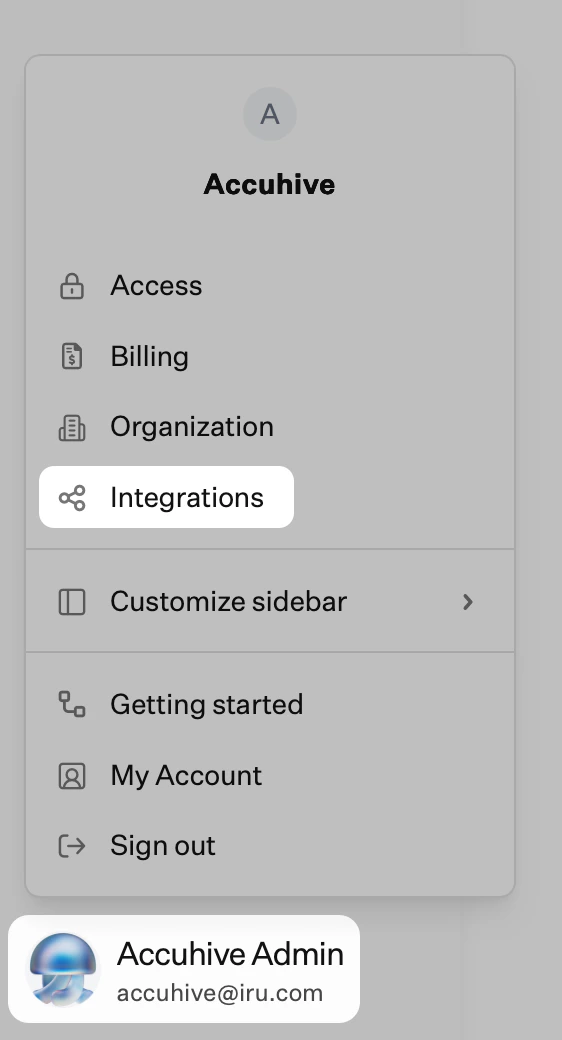
2
Browse all integrations
Select Browse all integrations in the upper-right of the Integrations page.
3
Select Microsoft Entra ID
Select the Microsoft Entra ID tile.
4
Start Setup
Select Get started.
5
Enter Integration Name
Enter a unique name, which will be used in Iru Endpoint to show the directory from which a user originates.
6
Sign in with Microsoft Entra ID
Select Sign in with Microsoft Entra ID.
If you are signing in with an account that is not a Global Administrator, you may need to request approval during that sign-in process. Once a Global Administrator approves the request, you can complete the sign-in process.
7
Complete Authentication
Sign in using a Microsoft Entra ID account with admin access to the directory you want to integrate.
8
Consent and Accept
Consent on behalf of your organization and select Accept. You will see the new user directory on the Integrations page.
Related Articles
User Directory Integration Overview and Providers
Overview of user directory integration in Iru Endpoint. Sync users and groups from Okta, Microsoft Entra ID, Google Workspace, or OneLogin to your account.
Microsoft Entra ID Permissions
Review the Microsoft Entra ID API permissions required for directory integration with Iru Endpoint. Understand required scopes for user and group sync.
Account Menu
Open the Account Menu Button at the bottom of the Iru sidebar to reach Access, Billing, Organization, Integrations, Partner portal, My Account, and other tenant settings.