

This guide applies to Mac computers and Windows computers
About Security Operations Actions
Security Operations (SecOps) actions are the controls available in an endpoint security or EDR workflow that let administrators review detections and take follow-up steps such as updating status, investigating details, isolating compromised devices, or performing other response tasks in the Iru Endpoint Web App. In Iru Endpoint Detection & Response, these actions are surfaced on the Detections page and include updating the detection’s Status to track progress through review and remediation.How It Works
Security Operations actions provide a structured approach to threat management through status tracking and tagging systems. The Status action on the Detections page in Endpoint Detection lets you track and update detection events as you work through them. As an admin, you can manually mark detections as Open or Closed, while Iru Endpoint automatically assigns other statuses based on timing, such as when the detection first occurred or how long it’s been resolved. This creates a consistent workflow that helps you see what’s new, what needs attention, and what’s been handled, making it easier to triage threats and track progress across your fleet. The Status column is available in the detections table for file detections on all platforms. On Mac computers, it is also available for behavioral detections.Understanding Detection Status Types
Detection events can have one of four statuses:- New: Occurred within the last 24 hours
- Open: Not yet marked as closed
- Closed: Resolved by manually marking as Closed
- Archived: Closed for more than 30 days
Filtering Detection Events by Status
You can filter detection events by status on the Detections page:- Event filter: By default, shows New, Open, and Closed events. Archived events are hidden unless selected.
- Device filter: Located in the side panel, allows filtering devices by Open or Closed detections.
Changing Detection Status
Updating statuses regularly helps keep detection lists accurate and improves filtering for active threats.
1
Select Detections
Select the detection(s) using the checkbox.
2
Access Status Change
Select Change Status in the action bar.
3
Choose New Status
Choose the new status from the dropdown menu.
4
Apply Changes
Select Change to apply.
Platform-Specific Response Actions
- macOS
- Windows
Device Isolation
Device Isolation is a critical security operations capability that allows administrators to immediately quarantine a device from the network when it’s suspected of being compromised or under active threat. The detections side panel provides access to device isolation for Mac computers.Device Isolation provides two isolation levels:- Partial Isolation: Disconnects the device from the network while maintaining MDM agent connectivity for remote remediation actions
- Complete Isolation: Completely cuts off all network communication, with release from isolation being the only available remote action
About Detection Organization Tags
Tags provide a flexible way to organize, filter, and manage threats based on your team’s specific operational needs. These admin-defined tags let you categorize detections with custom labels that match your workflow. The Detections page includes a Tags column, giving you visibility into which tags are associated with each threat. If a threat has multiple tags, you can hover over the column to see the full list.Managing Tags
Creating Tags
You have full control over your tags. To create, modify, or delete tags, select the Manage Tags button. This allows you to customize and maintain a tagging system that aligns with your team’s operational needs.1
Access Tag Management
Select the Manage Tags icon in the upper right-hand corner of the Detections page.
2
Add New Tag
Select Add Tag.
3
Enter Tag Text
Enter your desired tag text. Select the checkmark to save, and repeat as desired for the number of tags you want to add.
4
Close Modal
Close the modal.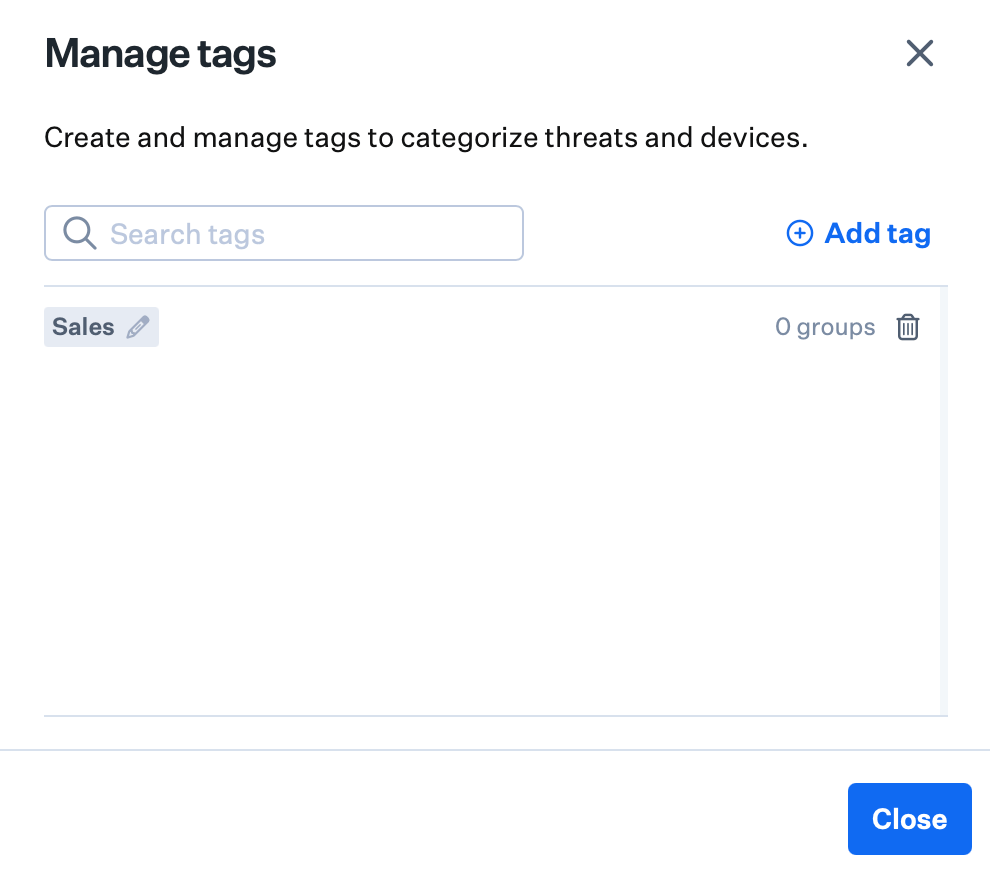
Updating Tags
1
Access Tag Management
Select the Manage Tags icon in the upper right-hand corner of the Detections page.
2
Edit Tag
Select the pencil icon next to the tag you want to edit.
3
Update Tag Text
Update the tag text, then select the check.
4
Close Modal
Close the modal.
Deleting Tags
1
Access Tag Management
Select the Manage Tags icon in the upper right-hand corner of the Detections page.
2
Delete Tag
Select the Trash icon to the right of the threat.
3
Close Modal
Close the modal.
Assigning Tags to Detections
1
Select detections
Select one or more detections from the list.
2
Access Actions Menu
Select the ellipsis in the lower left corner.
3
Assign Tags
Select Assign tags, and select your tags from the list.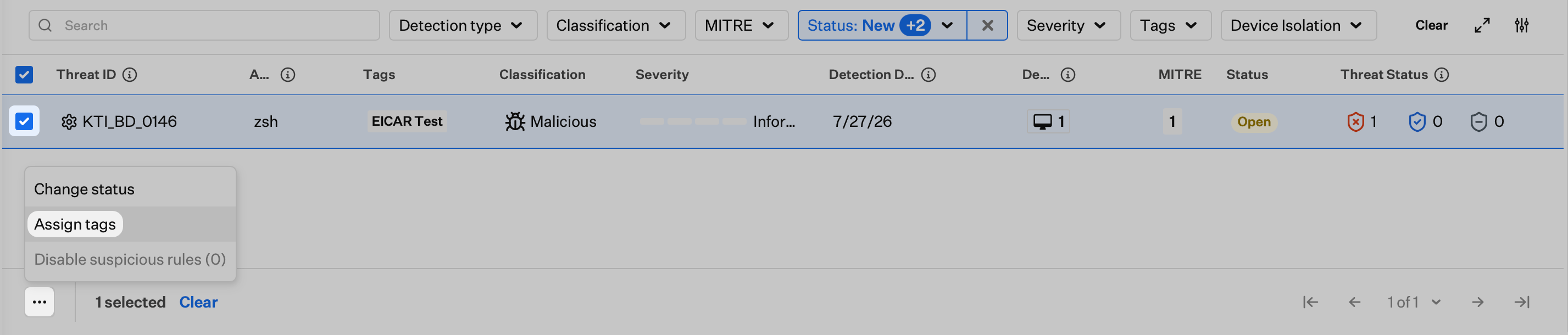
Filtering Detections by Tags
You can filter the detections table by selecting one or more tags from the top filter. This helps you focus on specific types of threats or tasks.Considerations
- Status Management: Regularly update detection statuses to maintain accurate threat tracking and improve filtering effectiveness
- Tag Strategy: Develop a consistent tagging strategy that aligns with your team’s operational workflows and threat classification needs
- Bulk Operations: Use bulk status changes and tag assignments to efficiently manage multiple detections simultaneously
- Filter Combinations: Combine status and tag filters to create focused views for specific threat types or operational priorities
- Team Collaboration: Establish clear guidelines for status updates and tag usage to ensure consistent threat management across your security team
- Automated Statuses: Understand that New and Archived statuses are automatically managed by Iru Endpoint based on timing, while Open and Closed require manual intervention
- Threat Prioritization: Use status and tag combinations to prioritize threats that require immediate attention versus those that can be addressed later