

This guide applies to iOS devices, iPadOS devices, and Apple TV
This Library Item requires supervision.
About Managed OS for iOS, iPadOS, and tvOS
Managed OS for iOS, iPadOS, and tvOS deploys and enforces OS updates across your fleet of supervised Apple mobile and TV devices. Updates are delivered through Declarative Device Management (DDM). Iru handles:- Update detection: Iru monitors for available OS updates from Apple
- Download and caching: Updates are automatically downloaded and cached on devices
- User notification: Users are notified of pending updates with enforcement deadlines
- Automatic installation: Updates are installed according to your configured schedule
- Compliance monitoring: Iru tracks which devices have successfully updated
Enabling Managed OS in your Library
Deploying and enforcing an OS version is as easy as adding a Managed OS Library Item to your Library and assigning it to a Blueprint. Follow the steps below. To add this Library Item to your Iru Endpoint Library, follow the steps outlined in the Library Overview article.Enabling Multiple Managed OS Library Items
Iru Endpoint supports adding the same Managed OS to your Library multiple times. This is useful when it’s desired to configure differing settings for different Blueprints. For example, you can have Managed OS update devices automatically 1 week after Apple releases an update in one Blueprint, while having it do the same up to 3 months after the release in another. Labels are used to differentiate multiple copies of the same Managed OS (see the steps below). For how to set a Label on any Library Item, see Library Item Labels in Library Overview.Configuring Managed OS
1
Enter a Label
Enter a Label to help differentiate this instance of Managed OS from others in your Library. These labels are not visible to end users, but are displayed throughout the Iru Endpoint Web App. See Library Item Labels in Library Overview for steps.
2
Assign to Blueprints
Assign to your desired Blueprints.
3
Configure Version Enforcement
Under Updates, select an option for Version Enforcement. Available options include the following: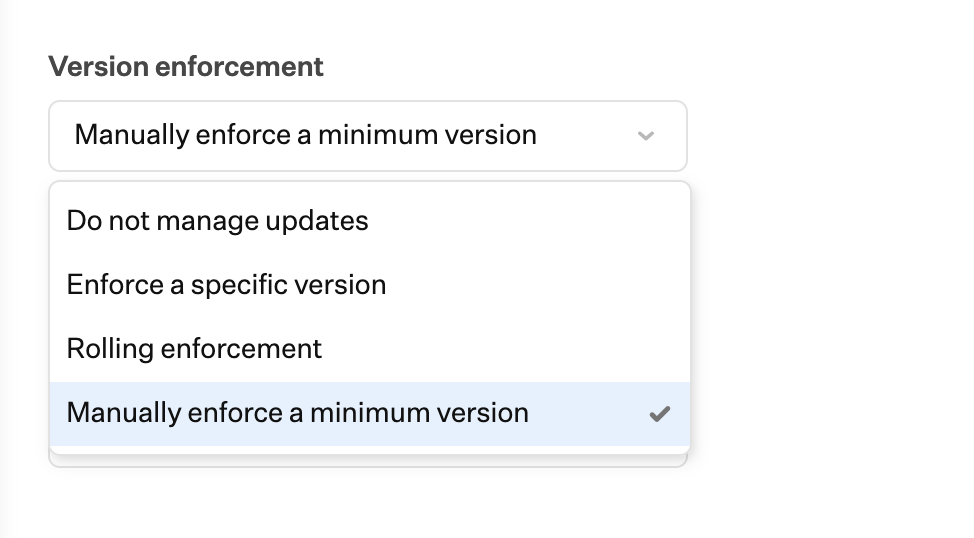
Do not manage updates
This option will not manage OS updates.Rolling enforcement
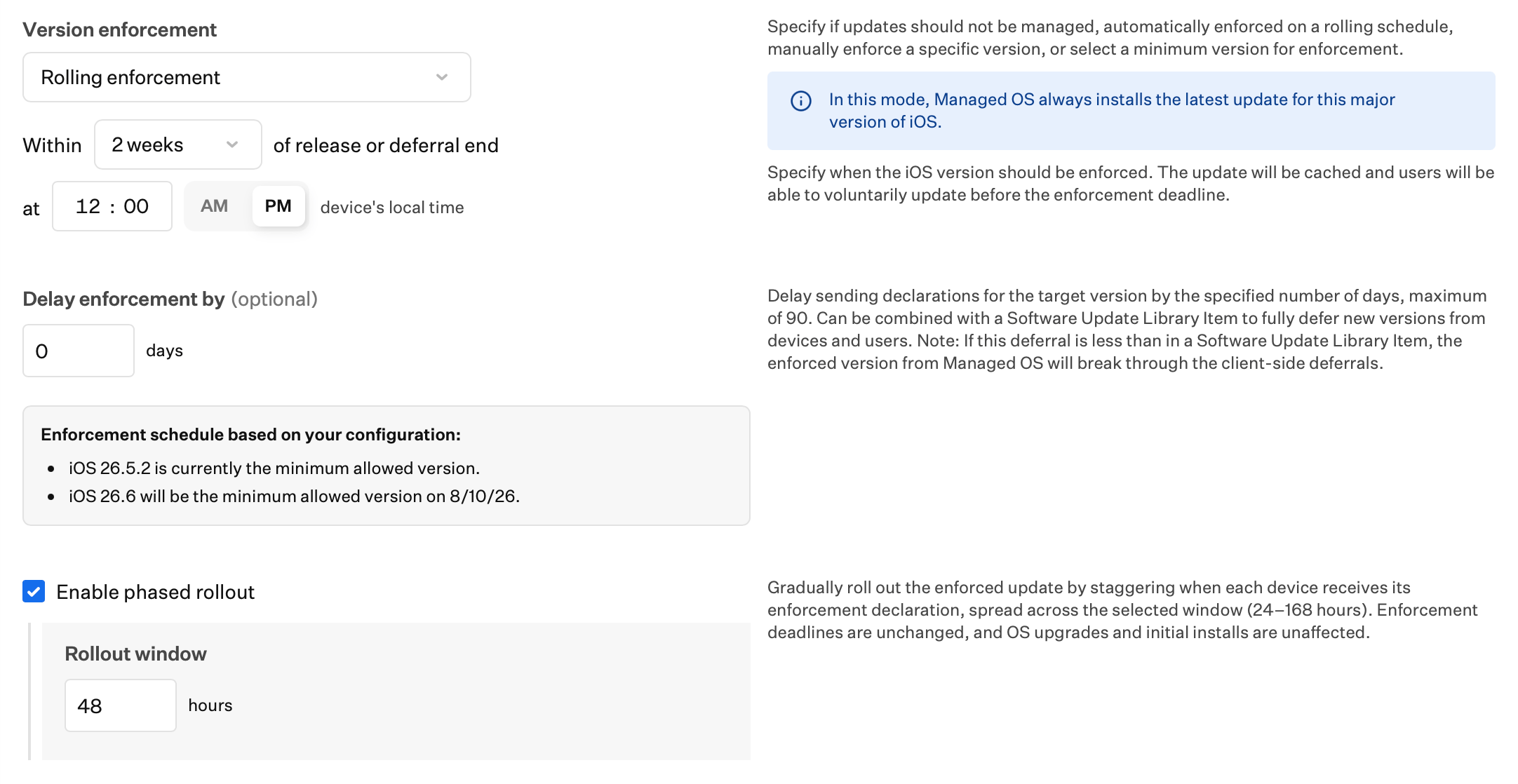
Select Within (1 day, 2 days, 1 week, 2 weeks, 3 weeks, 1 month, 2 months, or 3 months) of release and at a time for enforcement.Optionally, set Delay enforcement by to a number of days (up to 90). This delays when Iru sends the target-version declaration without changing the enforcement date. Use it to temporarily hold back the newest available version while still using Rolling enforcement.To hide the new version from users for the same period, set a matching deferral in a Software Update Library Item. If Delay enforcement by is shorter than that deferral, Managed OS still overrides the deferral once its declaration is sent. For full behavior, see Rolling enforcement in Understanding Managed OS for Apple Platforms.Optionally select the Enable phased rollout checkbox, then enter the number of hours in the Rollout window field (24–168). After any Delay enforcement by period ends (or immediately if delay is not set), declaration issuance for a new Apple release is spread across that window. See Phased rollout.Manually enforce a minimum version
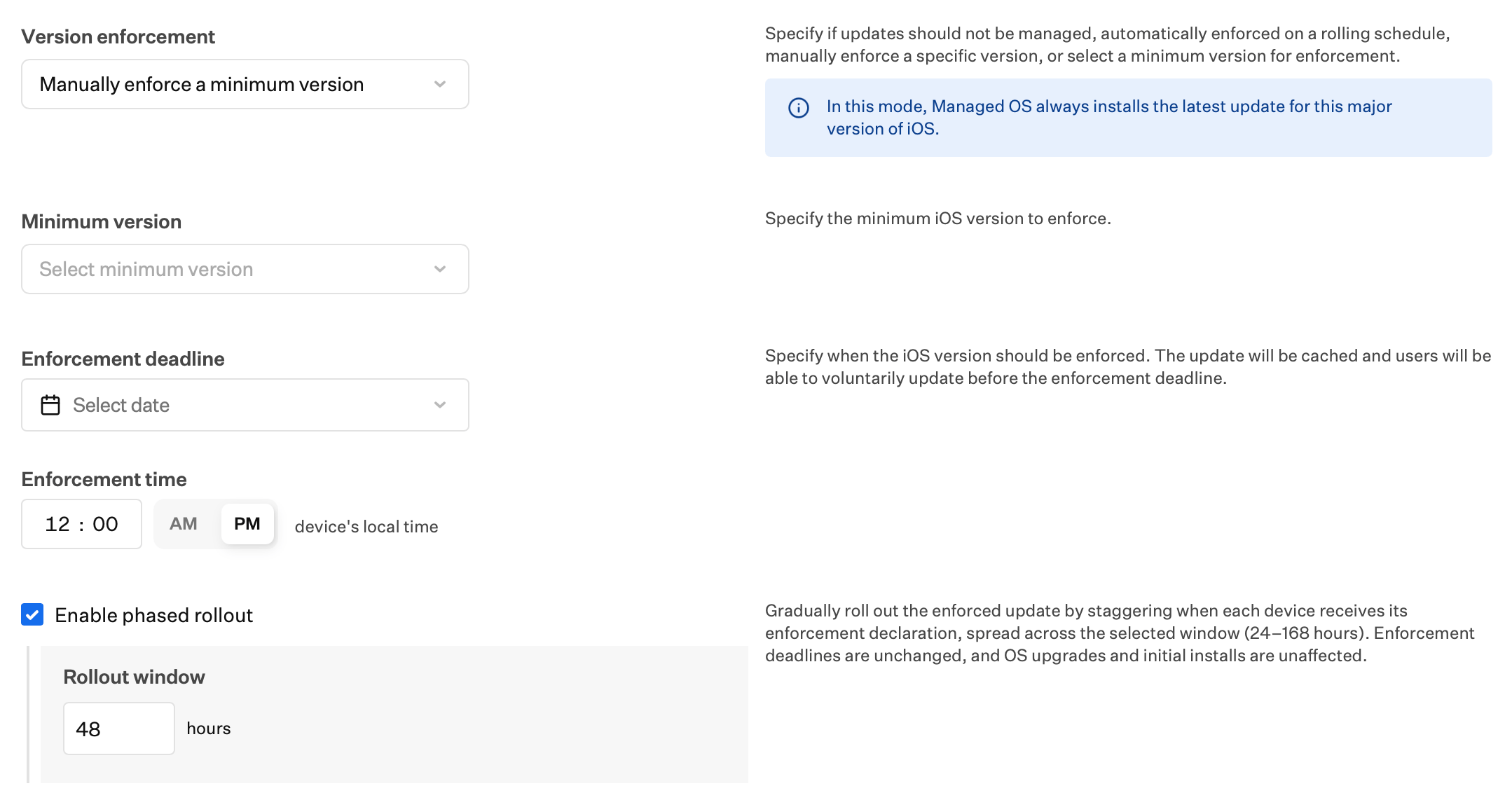
Specify the Minimum Version a device should be running and the Enforcement Deadline date by which users must update. No updates will be enforced if a device is already running an OS version greater than the specified minimum. You will also select an Enforcement Time.Optionally select the Enable phased rollout checkbox, then enter the number of hours in the Rollout window field (24–168). Declaration issuance is staggered from Library Item save (on first create, or when OS version settings or date/time change) and again when Apple releases a new version. See Phased rollout.Enforce a specific version
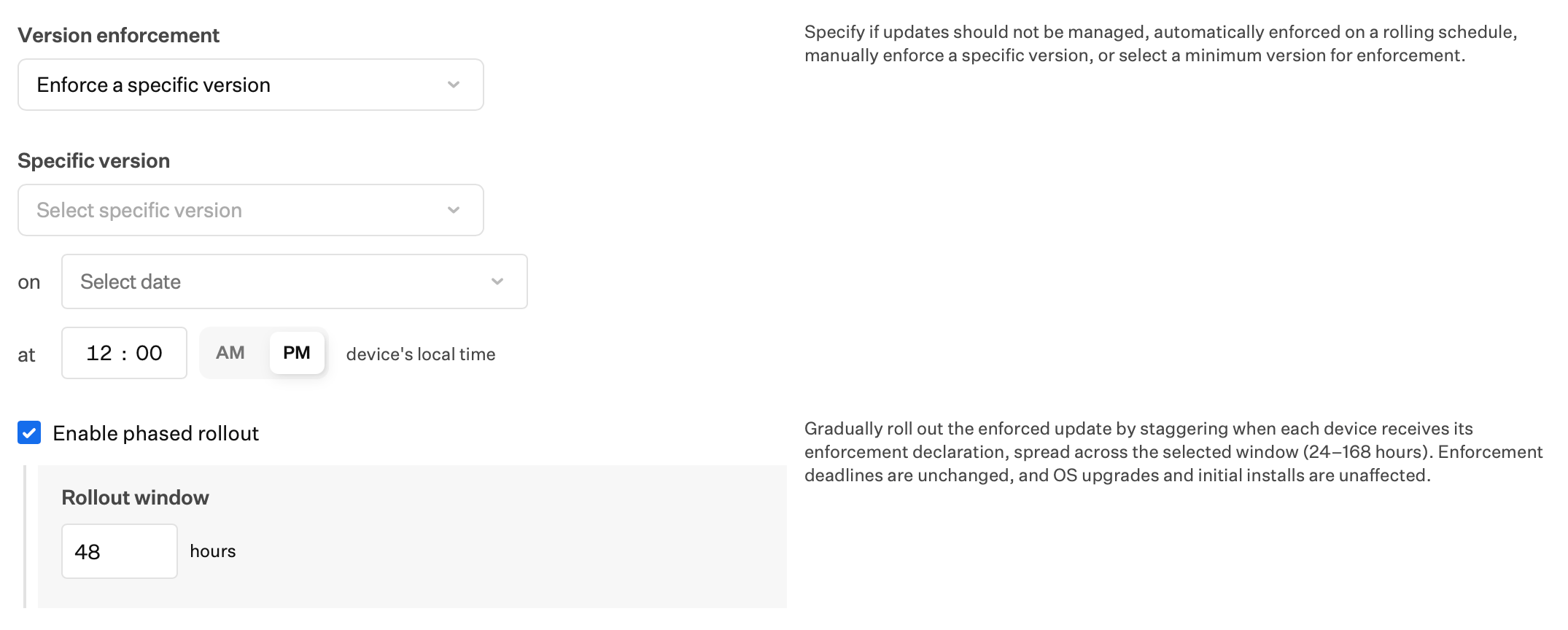
Uses the same version selection dropdown and enforcement scheduling fields as Manually enforce a minimum version—select a Specific version, an Enforcement Deadline (on), and an Enforcement Time (at). Unlike Manually enforce a minimum version, this option enforces that exact OS version rather than a minimum floor.To enforce an Apple beta build, select This is a beta version, choose a Seed Token synced from Apple to Iru, then enter the beta version and build. Iru applies Software Update Settings (beta enrollment) and then Software Update Enforcement (to the specified version) as separate declarations.If you use Managed OS for beta enrollment and version enforcement, set Beta program enrollment in any Software Update Library Item on the same Blueprint to Not configured. For opt-in beta enrollment or enrollment without a required version, see Testing Apple Beta Releases.The Seed Token list can be long and difficult to navigate.
1
Configure Background Security Improvements Enforcement
Under Background Security Improvements Enforcement, choose whether to automatically enforce these updates when Apple makes them available. Options:
- None: Background Security Improvements will not be enforced.
- Automatically enforce: Choose the enforcement timeframe and local time for enforcement.
2
Set Background Security Improvements Enforcement Timeframe
Select an Enforcement timeframe for Background Security Improvements.
3
Configure Background Security Improvements Enforcement Time
Select an Enforcement Time, the time of day Background Security Improvements are enforced in the device’s local time zone.
4
Save the configuration
Select Save in the bottom right corner.
Background Security Improvements apply only to devices on the latest OS version; users must be on the latest OS before these updates can be enforced. Background Security Improvements use Declarative Device Management for enforcement. Automatically enforce under Background Security Improvements is separate from Rolling enforcement under Updates → Version Enforcement.
Passcode Considerations
At the enforcement deadline, on iOS and iPadOS devices with a passcode, the security architecture of iOS and iPadOS requires users to be prompted for the update and to enter their passcodes. On tvOS, and on iOS and iPadOS devices without passcodes, updates will be cached by Iru Endpoint and the update will be applied without user intervention at the enforcement deadline. For more details, see User Experience with Managed OS for iOS, iPadOS, and tvOS.Related Articles
Understanding Managed OS for Apple Platforms
Understand how Managed OS enforcement works on Apple devices
User Experience with Managed OS for iOS, iPadOS and tvOS
What to expect when Managed OS updates run on your device
Declarative Device Management and Managed OS
About Apple DDM and Managed OS in Iru Endpoint
OS Update Strategies: OS Deferral Restriction and Managed OS
Compare different OS update management strategies
Delay and Enforce OS Updates
Configure OS update delays and enforcement policies