

Create a Custom Declarations Library Item
Have the declaration JSON ready before you start. To deploy a.mobileconfig profile instead, use a Custom Profile.
Upload file and Manual entry are alternatives. Use one option to add the declaration JSON, not both.
Open the Library
Add the Library Item
Set the Library Item title
Select Installs on
Assign Assignment Maps
Option 1: Upload file
.json file. Under Settings, select Upload file. Drag the file onto the page, or select choose file. Iru loads the file into the editor and checks it the same way. The file itself is not stored. See Declaration JSON.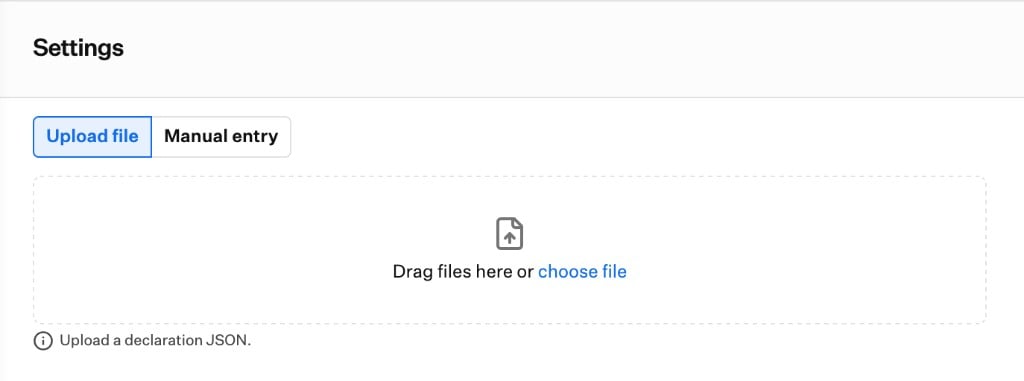
Option 2: Manual entry
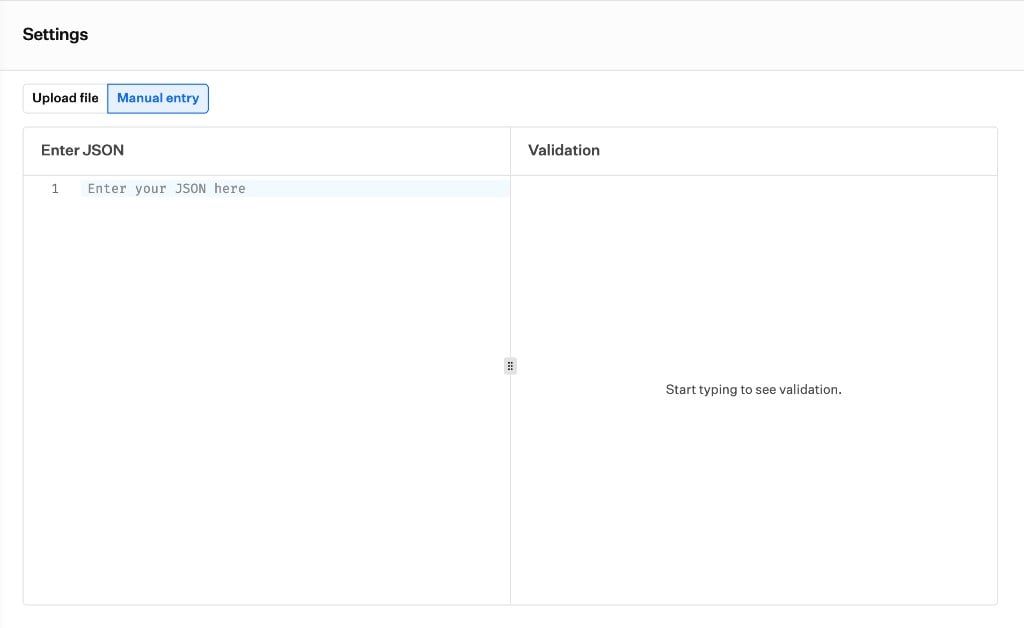
Review validation
Save
Settings
Declaration JSON
Paste or upload one or more Apple configuration declarations. Each declaration needs aType and a Payload. You can add a single declaration or a list. This example is a list with one Safari bookmarks declaration:
- One Library Item holds 1 to 100 declarations, up to 128 KB in total.
- Each declaration gets its own activation, so one failure does not block the others.
- Iru accepts configuration declarations (
com.apple.configuration.*). It does not accept activations or management declarations. Identifieris optional. If you leave it out, Iru assigns one. EachIdentifiermust be unique within the Library Item.- If you include a
ServerToken, Iru removes it on save and computes its own. - You can use global variables, such as
$EMAILor$ASSET_TAG. Iru resolves them for each device. A variable with no value becomes empty text.
Channel
Iru chooses the device or user channel for each declaration from Apple’s schema. Only Mac computers and Shared iPad have a user channel.Validation findings
Iru checks your declarations as you edit, shortly after you stop typing, and again when you save. Findings appear in Validation, tied to the line they affect. During an Apple beta cycle, the panel also shows a beta tab. Each finding has a severity:- Error: Apple would reject the declaration. For example, a value has the wrong type, or a required key is missing.
- Warning: The declaration may still work, but Iru cannot confirm it. For example, a key or type is unknown, or it is not supported on every selected platform.
- Info: Iru changes or holds something. For example, Iru removes a
ServerToken, or does not deliver an asset. - Recommendation: Iru has a built-in Library Item for this declaration type. The finding links to it.
- Invalid JSON
- A declaration with no
TypeorPayload - A declaration kind Iru does not support
- A duplicate
Identifier - No platform selected under Installs on
- More than 100 declarations, or more than 128 KB
Considerations
Assets are not delivered
Assets are not delivered
com.apple.asset.*), but Iru does not deliver them. A configuration that references one of those assets is not delivered either. Both show as Incompatible on the device. Support for DDM assets will be added in a future release.Profiles are not accepted
Profiles are not accepted
.mobileconfig file, use a Custom Profile.Some declarations show Incompatible
Some declarations show Incompatible
Status appears for each declaration
Status appears for each declaration
Identifier. The Library Item’s overall status follows one rule: if any declaration has an Error, the item shows Error. Otherwise, if any is Pending, the item shows Pending. Otherwise, it shows Pass. When a declaration fails, Iru shows Apple’s error text.A valid declaration can stay Pending
A valid declaration can stay Pending
Error.* code, the declaration shows Error.Editing resends only what changed
Editing resends only what changed
Setup Assistant
Setup Assistant
Removing a declaration removes it from devices
Removing a declaration removes it from devices
Identifier collisions across Library Items
Identifier collisions across Library Items
Identifier is unique within a Library Item. It does not detect the same Identifier on another Library Item. Keep Identifiers distinct between Library Items.Best practices
Test on a pilot device
Use a built-in Library Item
Use clear Identifiers
Identifier. Descriptive names make troubleshooting faster.Group related declarations
Fix Error findings before you assign
Check status after you assign
Troubleshooting
A declaration shows Incompatible
A declaration shows Incompatible
- The device OS or platform does not support the declaration type.
- The declaration is an asset, or a configuration references an asset.
- The type is not allowed on Shared iPad.
- Update the device to a supported OS, or remove the declaration from the Library Item.
- Remove asset references.
The Library Item stays Pending
The Library Item stays Pending
- The device has not checked in or reported status yet.
- Apple accepted the declaration and marked it inactive.
- Confirm the device is online and has checked in.
- Open the device status and read Apple’s reasons for the declaration.
The Library Item shows Error
The Library Item shows Error
- A declaration has a wrong value, a missing key, or a value outside Apple’s allowed range.
- Apple reported an
Error.*reason.
- Open the device status, find the declaration by
Identifier, and read Apple’s error text. - Fix the declaration and save. Iru resends only what changed.
You cannot save the Library Item
You cannot save the Library Item
- The JSON is invalid.
- A declaration has no
TypeorPayload. - Two declarations share an
Identifier. - No platform is selected under Installs on.
- The Library Item has more than 100 declarations or is larger than 128 KB.
- The text is larger than 2 MB.
- Read the message in Validation and fix the line it points to.
- If the text is larger than 2 MB, reduce it below the limit. Iru refuses it immediately and shows its size.
Validation could not check the declarations
Validation could not check the declarations
- The validation check did not complete.
- Wait a moment and edit the JSON again to run the check.
- If the declarations are valid, you can still save.
A .mobileconfig file is not accepted
A .mobileconfig file is not accepted
- The file is a
.mobileconfigprofile, not declaration JSON.
- Deploy the profile with a Custom Profile.