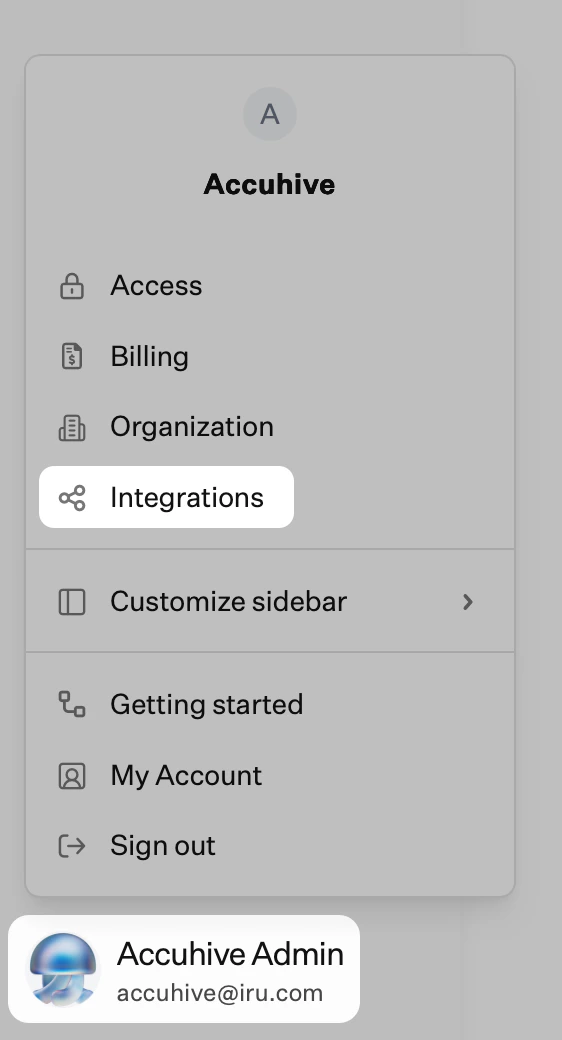
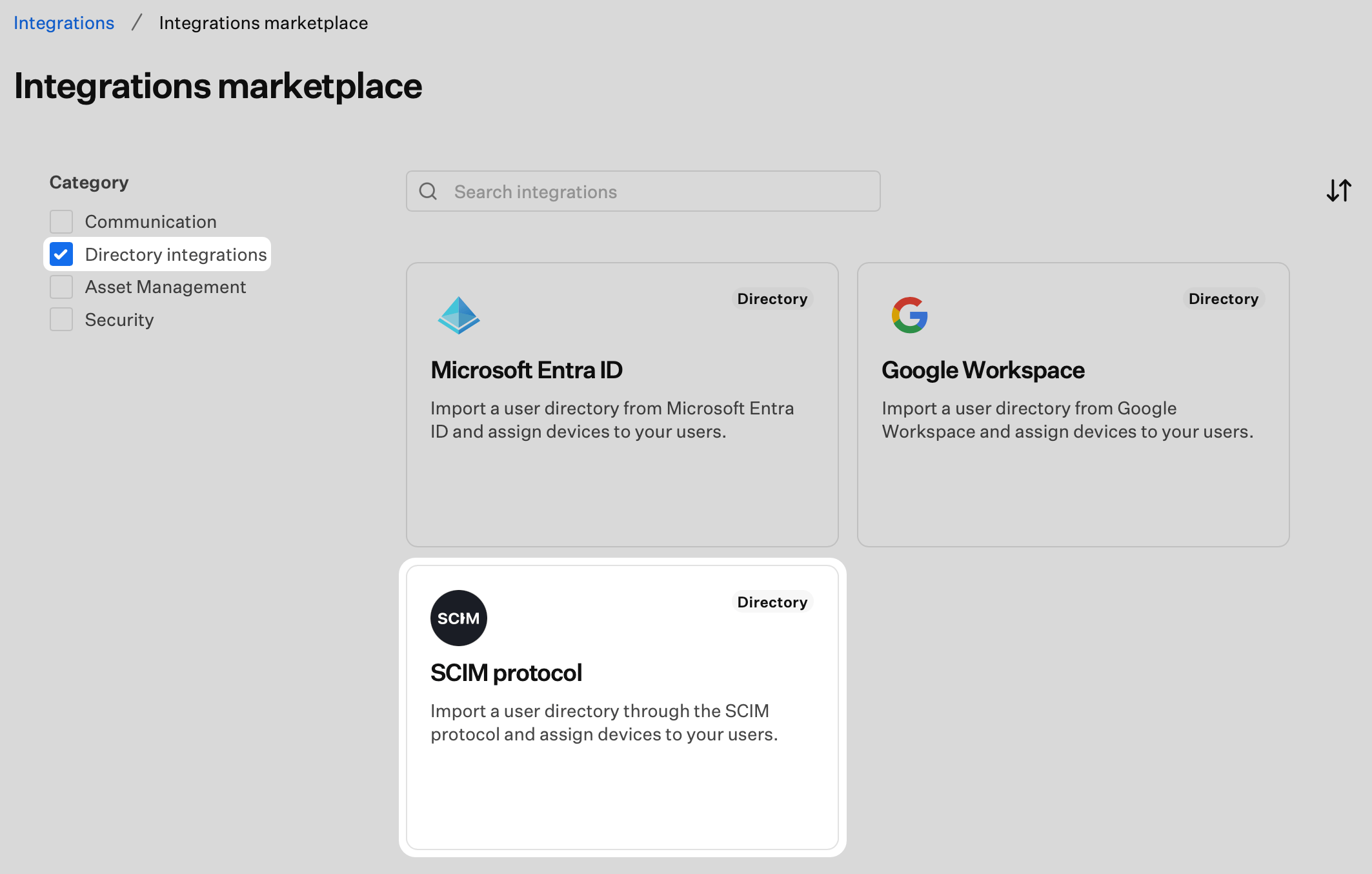
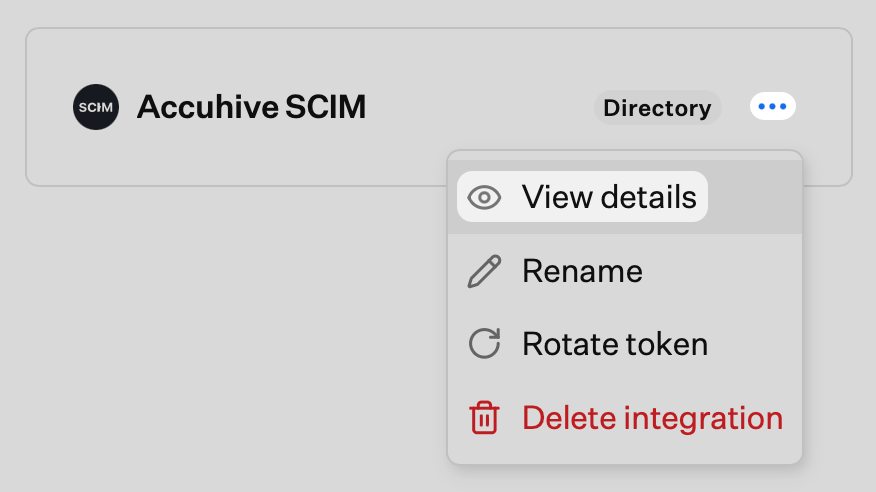
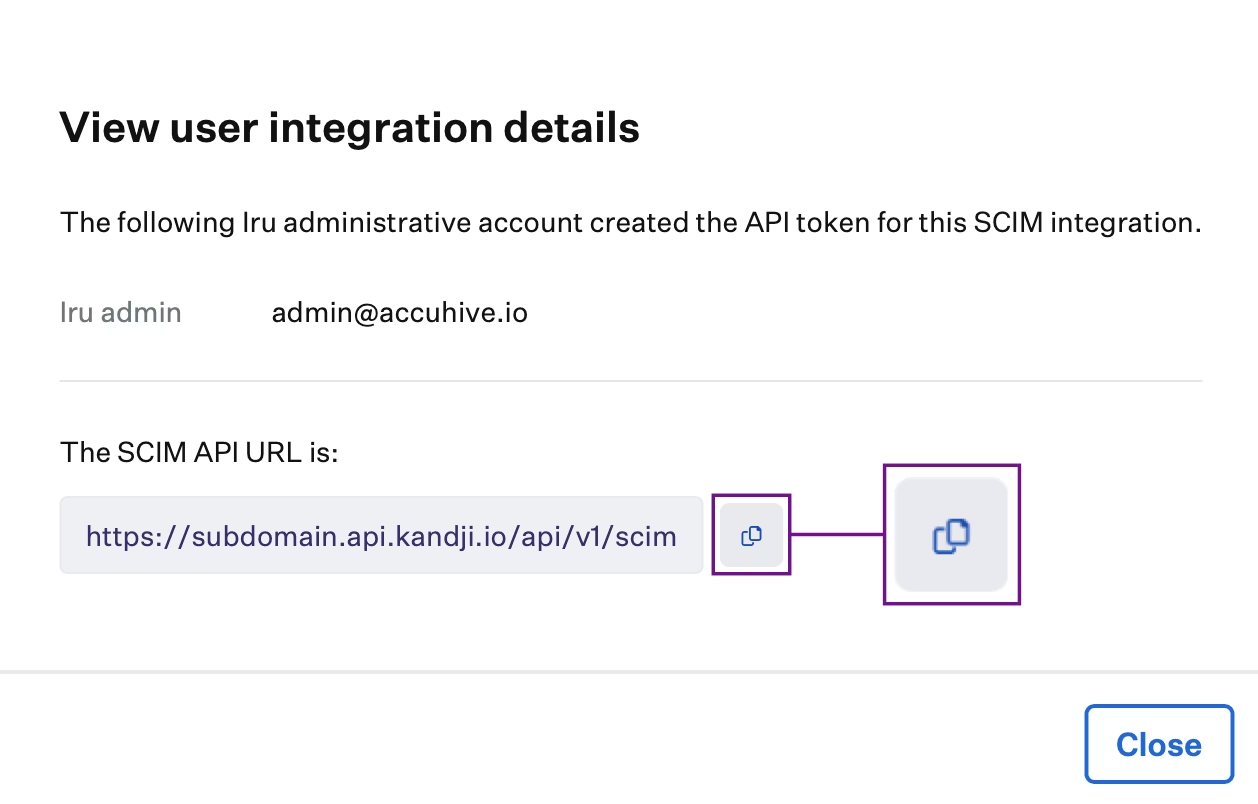
Complete the Iru Endpoint tab first to obtain the SCIM token and API URL. You will enter these in the steps below.
Creating the SCIM Integration in Okta
The Iru Endpoint application available in the Okta Integration Network (OIN) cannot be provisioned for SCIM. A new Application Integration must be created to leverage SCIM. This new app integration will not interfere with any existing Okta SSO integration leveraging the OIN Iru Endpoint application.
Access Okta Tenant
Log in to your Okta admin console at login.okta.com.
Navigate to Applications
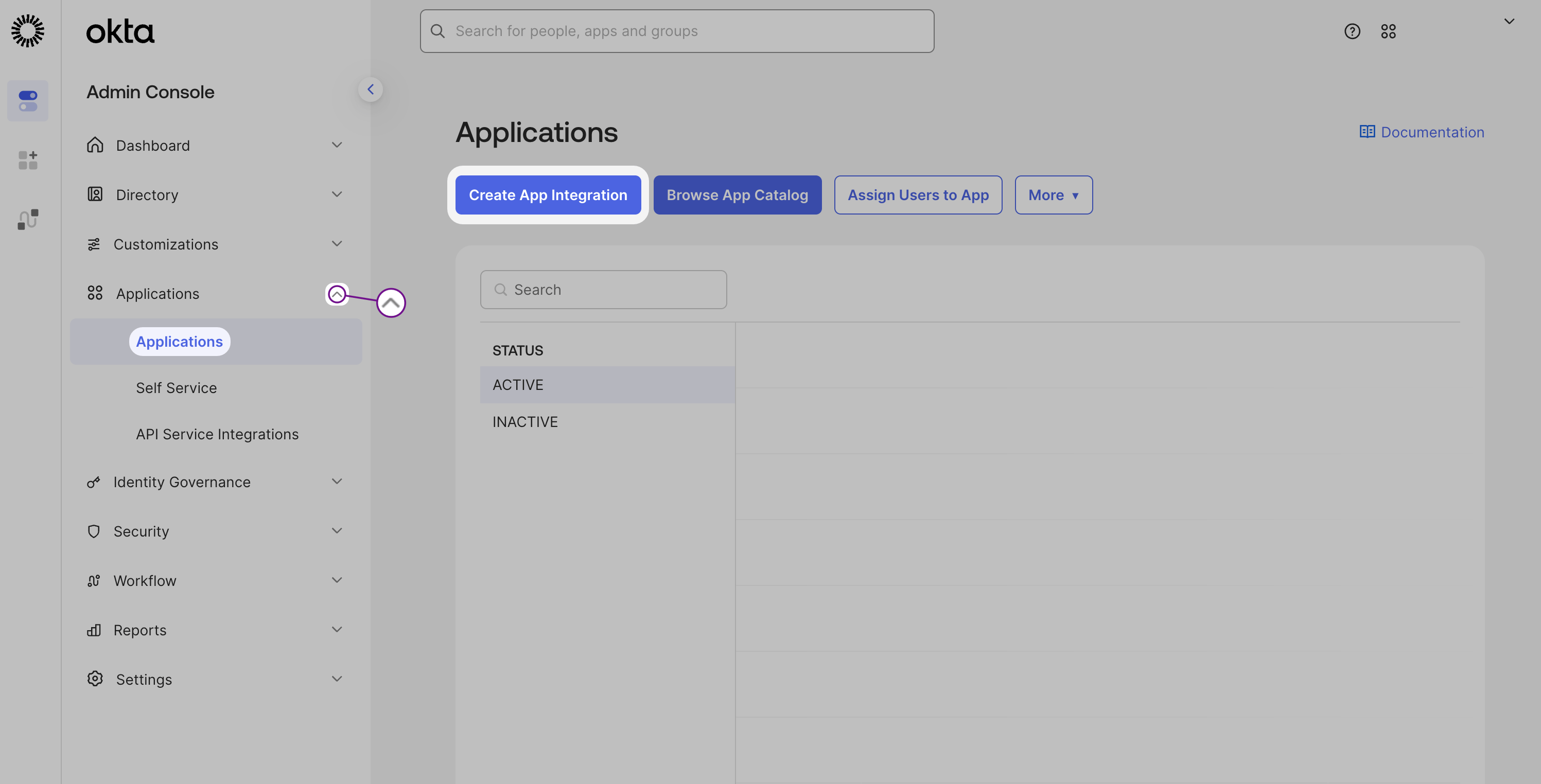
Once logged in, in the left-hand navigation, expand the Applications section and choose Applications.
Create App Integration
Click Create App Integration. Select Application Type
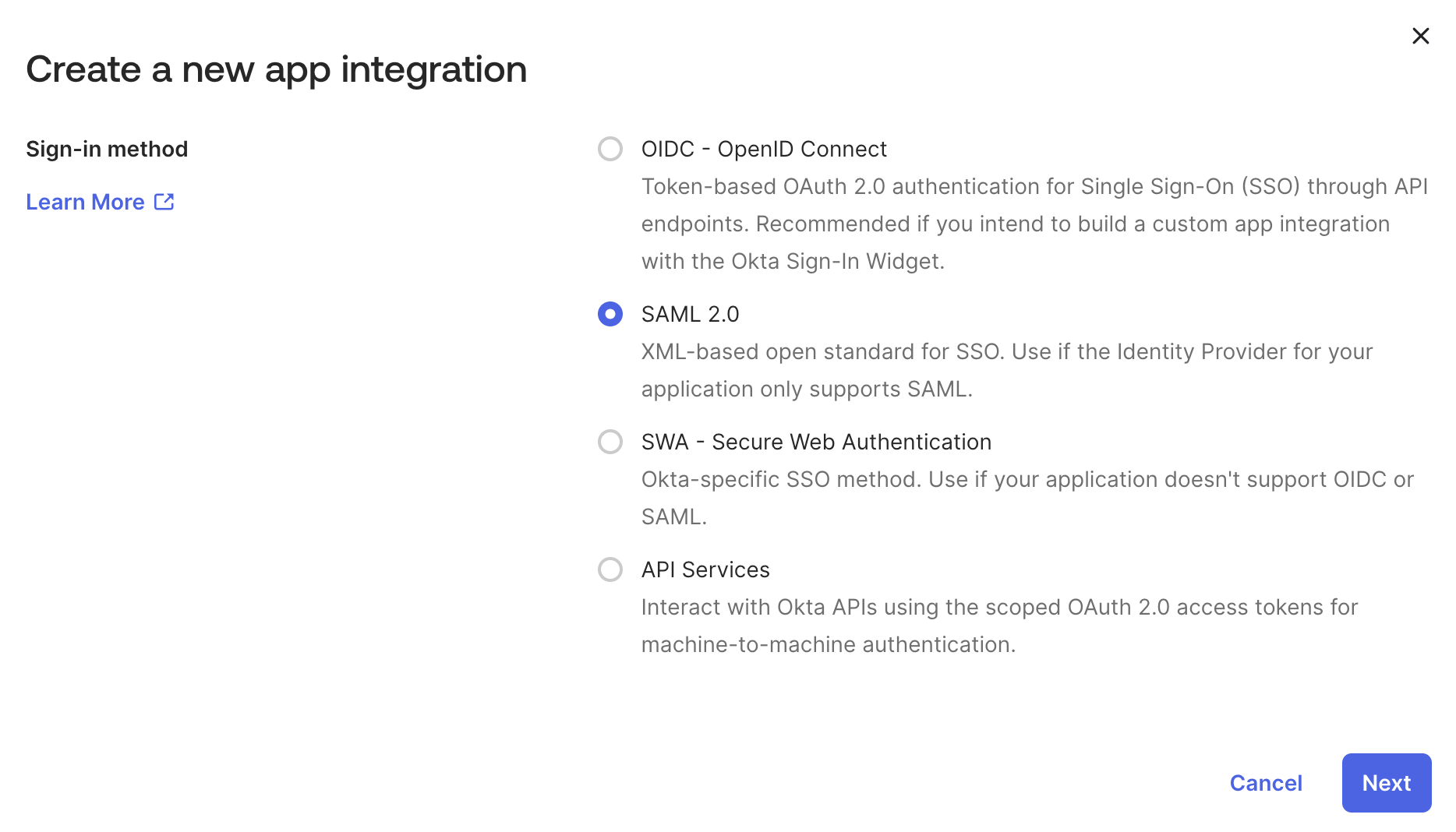
Select SAML 2.0 as the application type and click Next. Configure General Settings
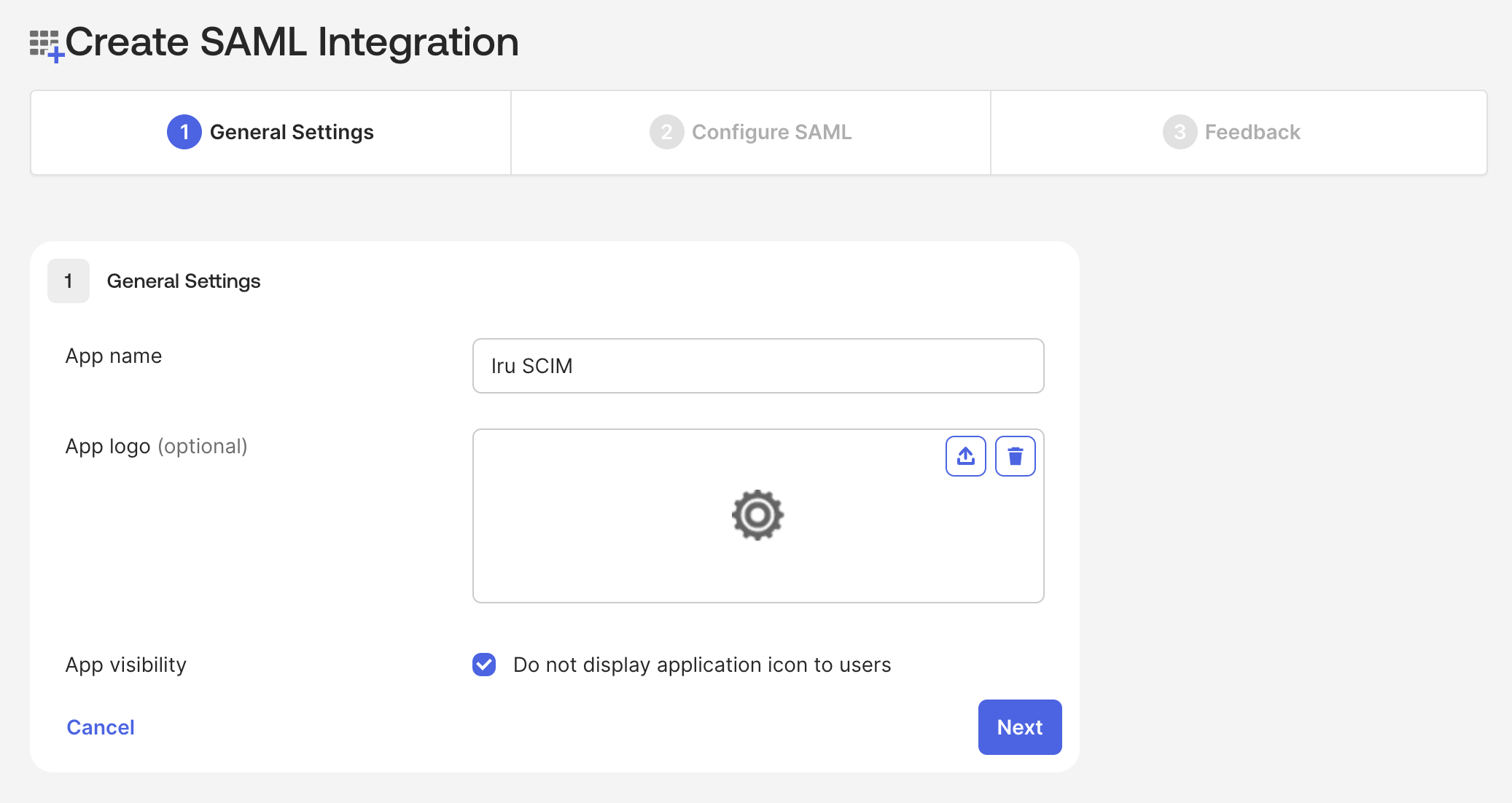
In General Settings, give the app a name and check the box in the App visibility section. Then click Next. Configure SAML Settings
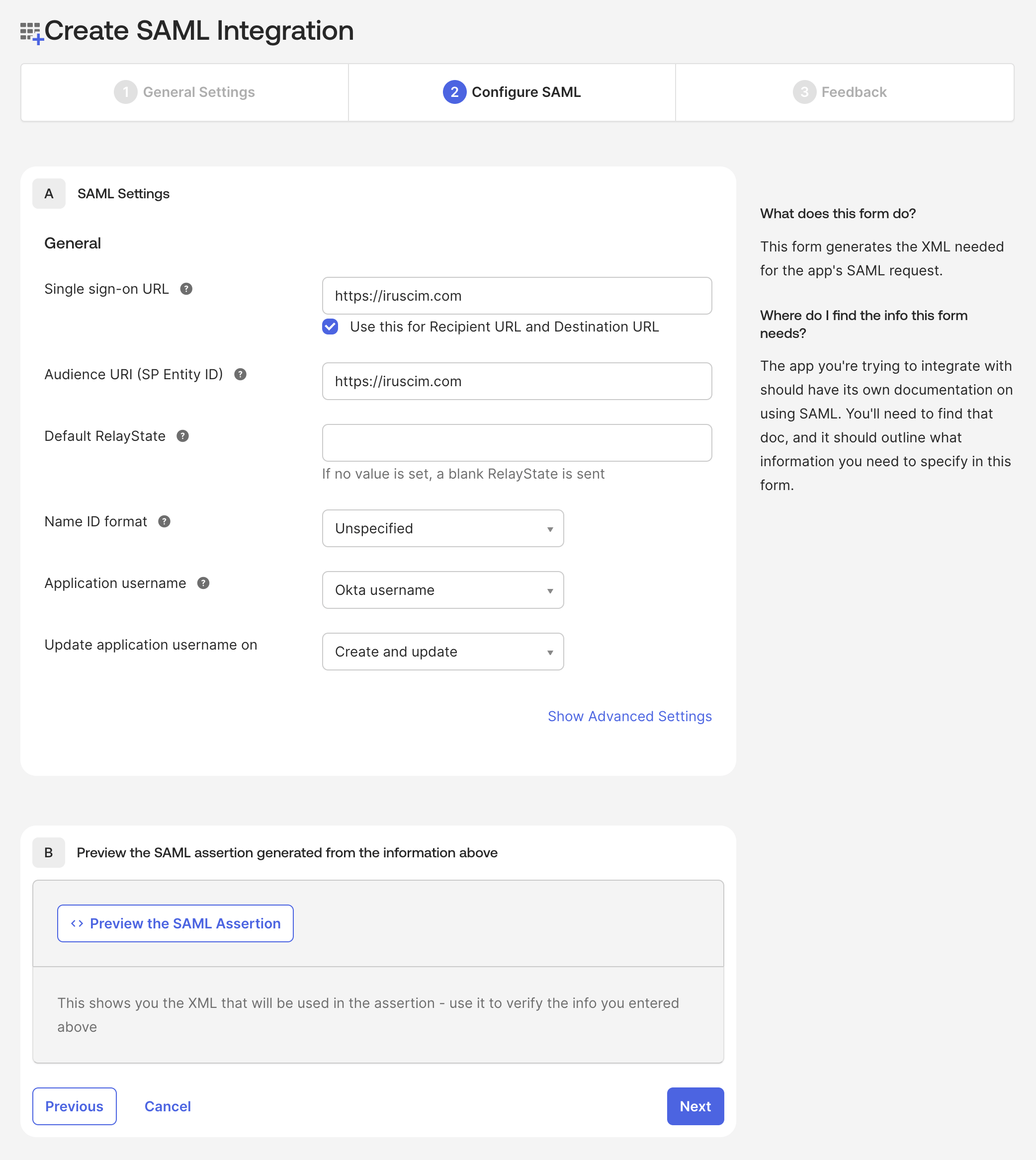
In SAML Settings, enter a placeholder URL in the Single sign-on URL and Audience URI (SP Entity ID) fields. Do not change any other settings. Continue Configuration
Click Next.
Complete Setup
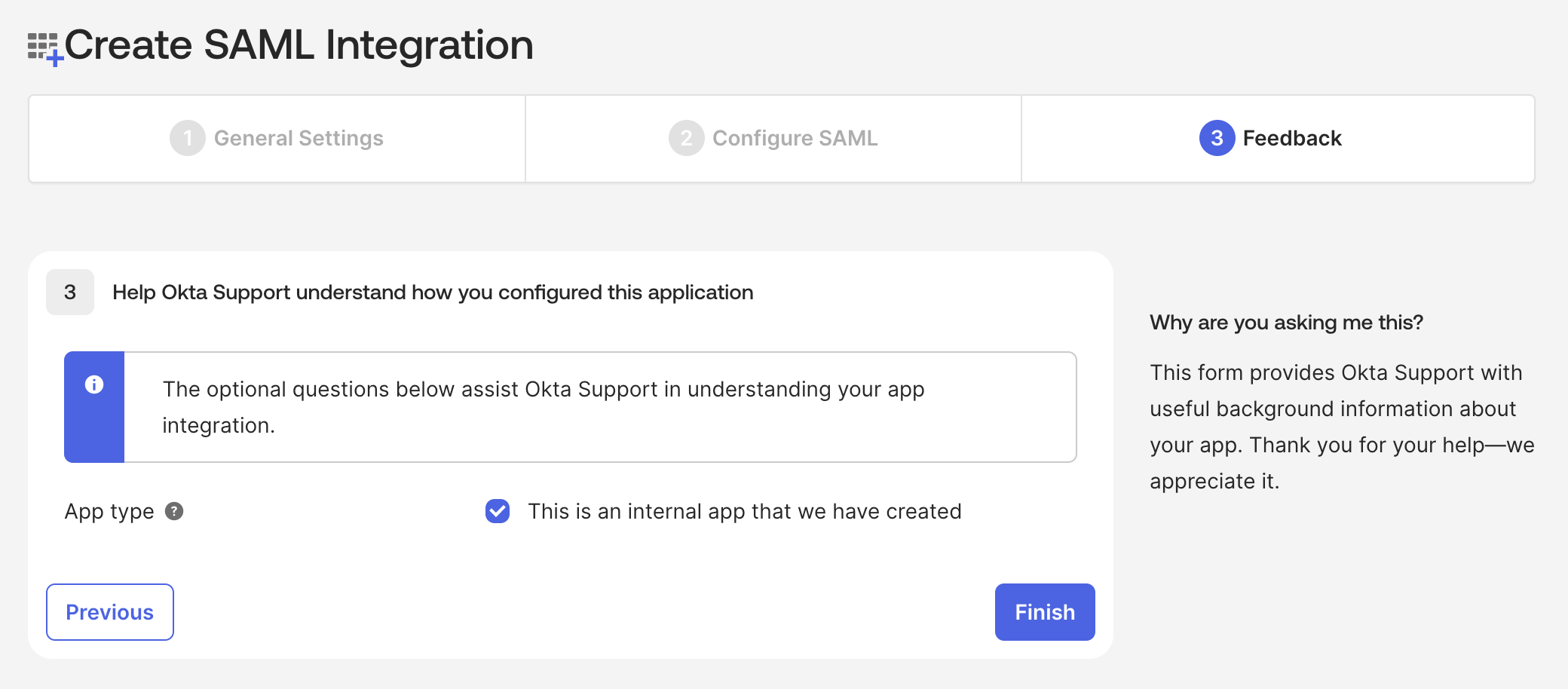
In Help Okta Support understand how you configured this application, select the checkbox for This is an internal app that we have created, and click Finish. Since we will not be using this application integration for SSO, the URLs do not need to be valid; however, you must enter URLs in these fields in order to proceed. If you decide to enable SAML SSO in Iru Endpoint, you can use this same app to do so.
Configuring SCIM Settings
Access General Tab
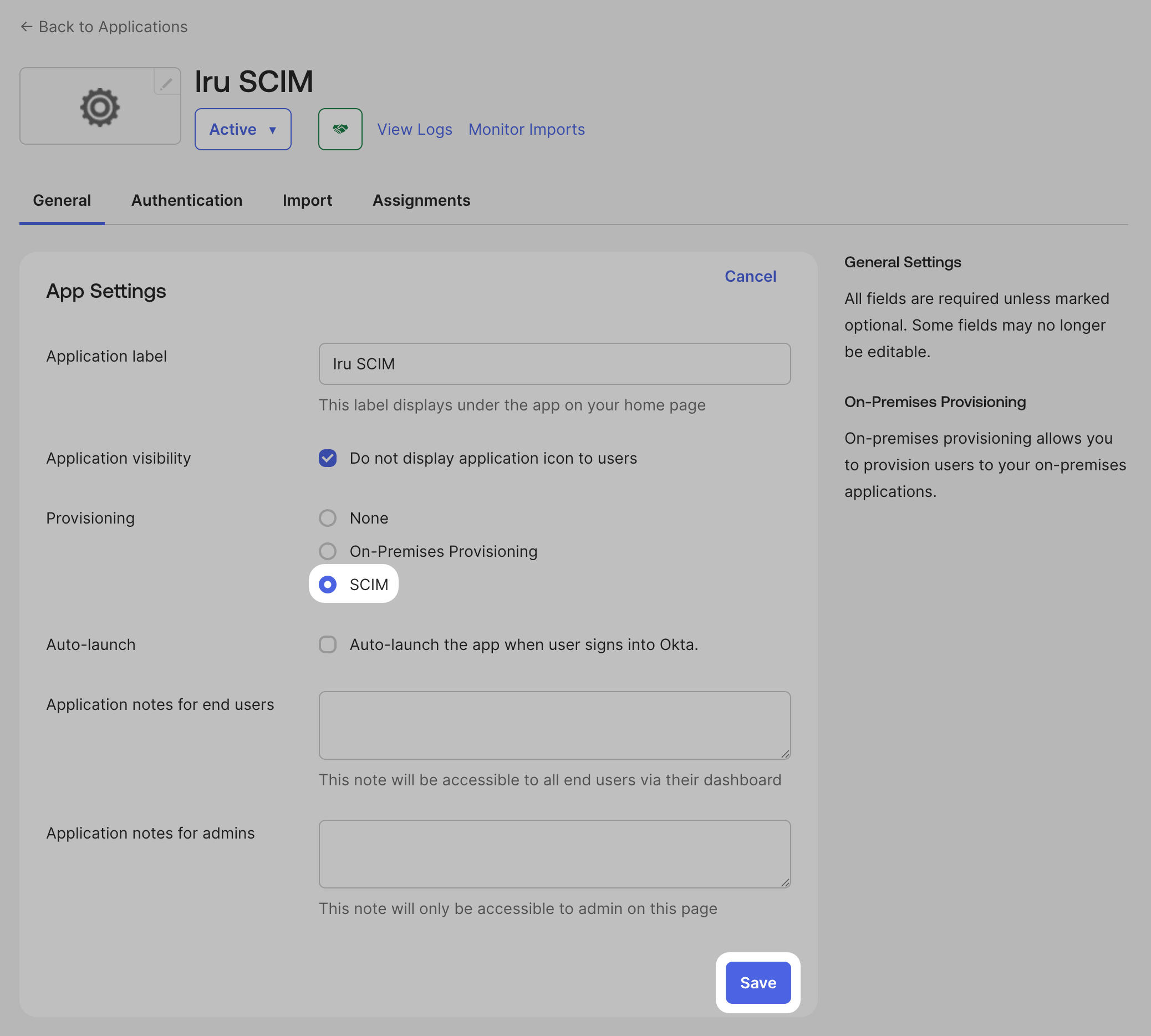
In the Okta SCIM app you just created, navigate to the General tab.
Edit Settings
In the Settings section, click Edit.
Select SCIM Provisioning
Select SCIM in the Provisioning setting.
Save General Settings
Do not modify any other settings, and click Save. Access Provisioning Tab
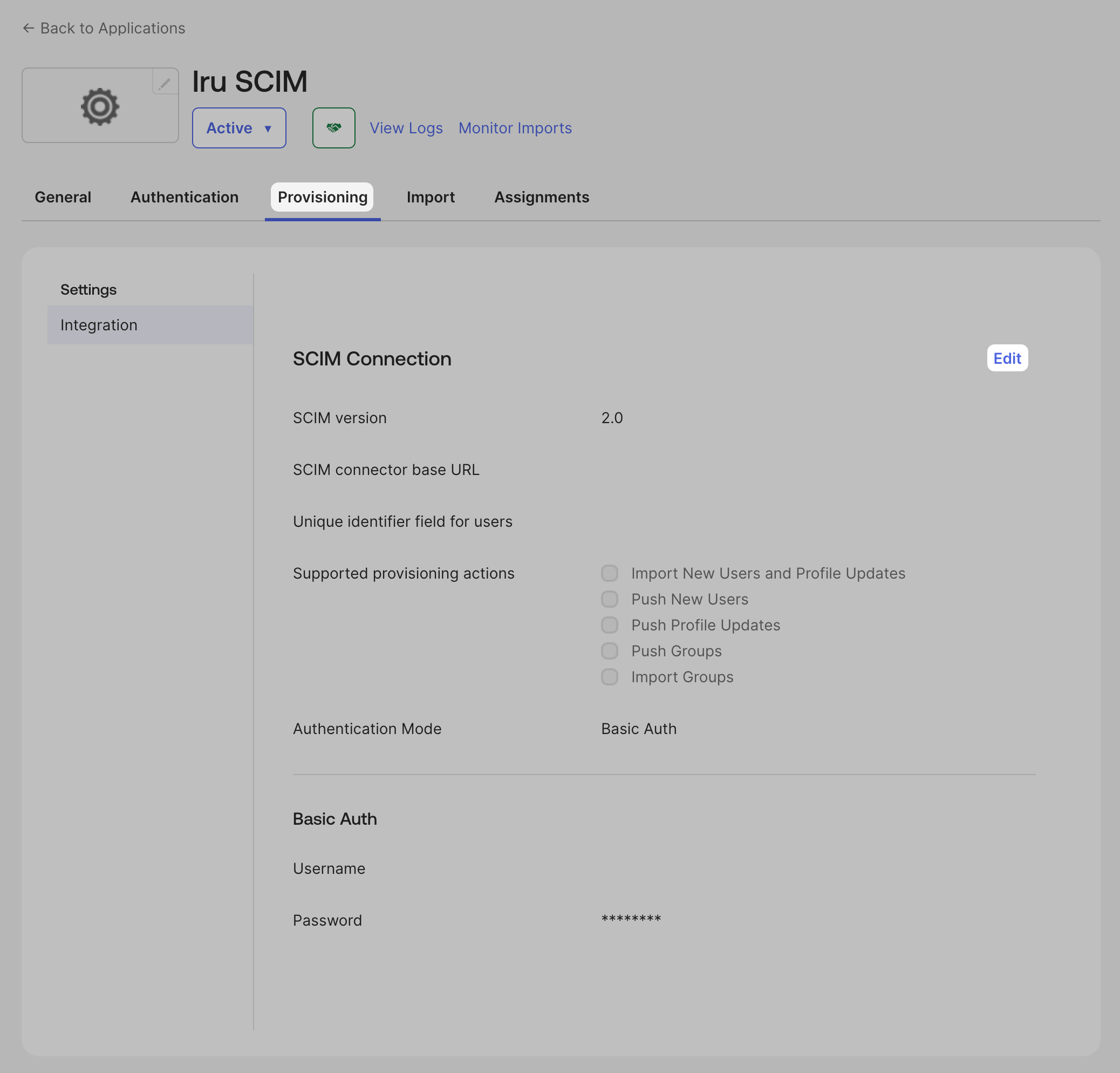
In the Provisioning tab, click Edit in the Integration section. Configure SCIM API URL
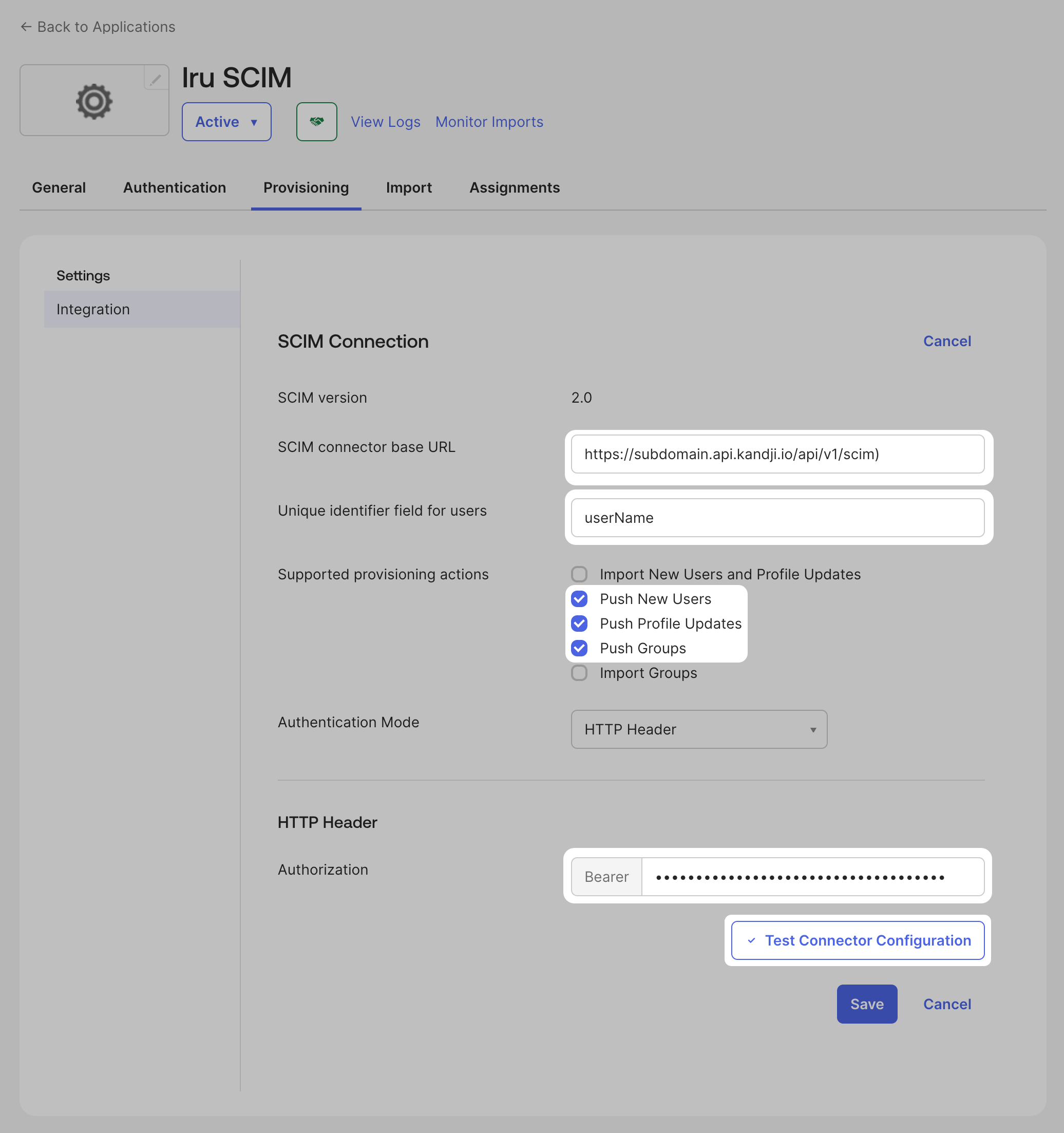
For SCIM connector base URL, enter the SCIM API URL you copied from the Iru Endpoint tab (e.g. https://subdomain.api.iru.com/api/v1/scim). The api.kandji.io version of the SCIM API URL will also work for this purpose.
Set User Identifier
For Unique identifier field for users, enter userName.
Select Provisioning Actions
For Supported provisioning actions, select Push New Users, Push Profile Updates, and Push Groups.
Configure Authentication
For Authentication Mode, select HTTP Header.
Enter Authorization Token
For Authorization, enter the Bearer Token you obtained in the Iru Endpoint tab.
Test Configuration
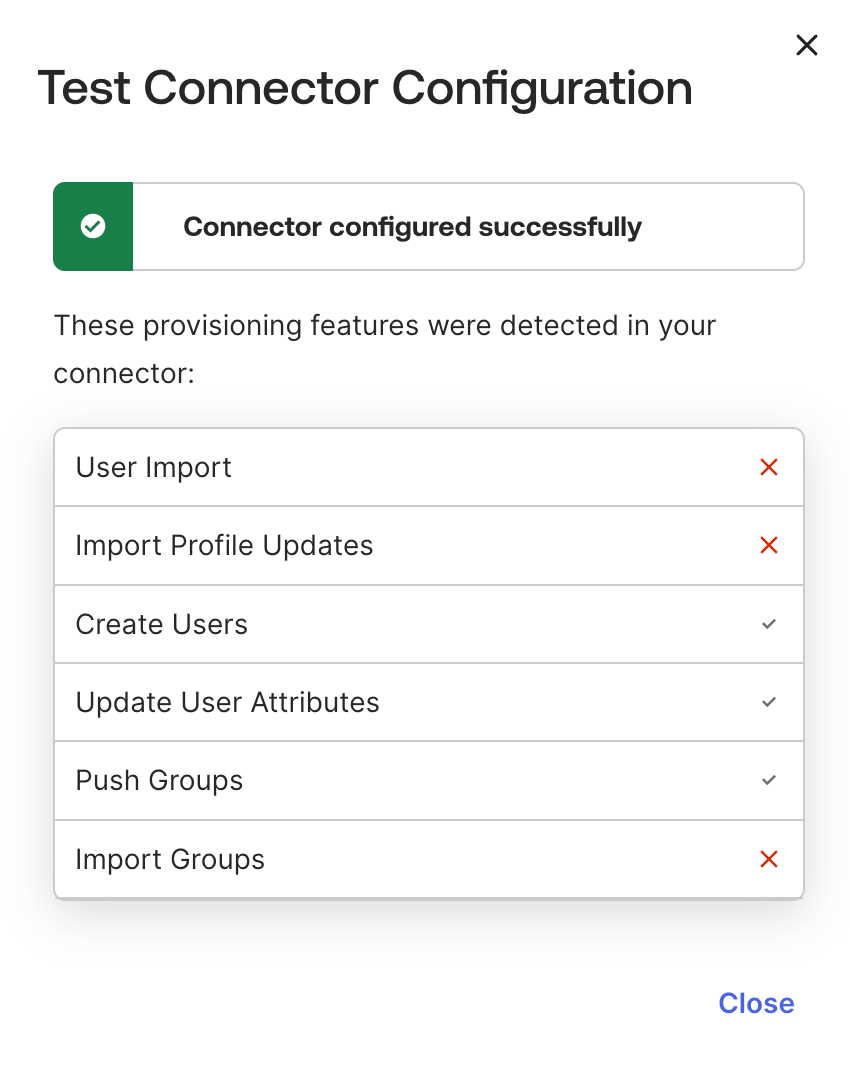
Click Test Connector Configuration to test the integration. Verify Test Results
In the list of detected features, confirm that only the following items display a checkmark to indicate success:
- Create Users
- Update User Attributes
- Push Groups
Save Integration Settings
Click Save.
Configure App Provisioning
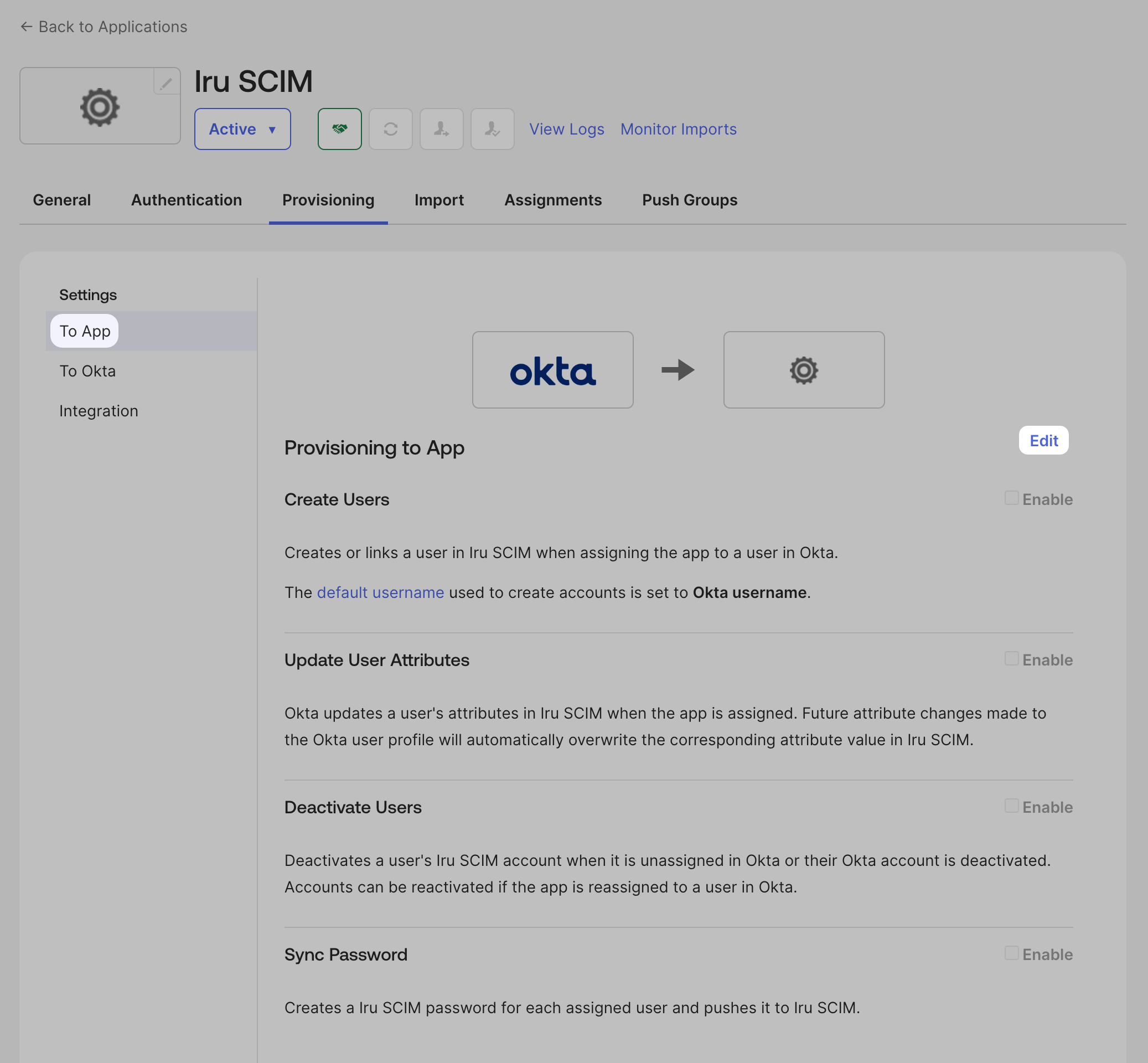
While still on the Provisioning tab, go to the To App section and click Edit. Enable User Operations
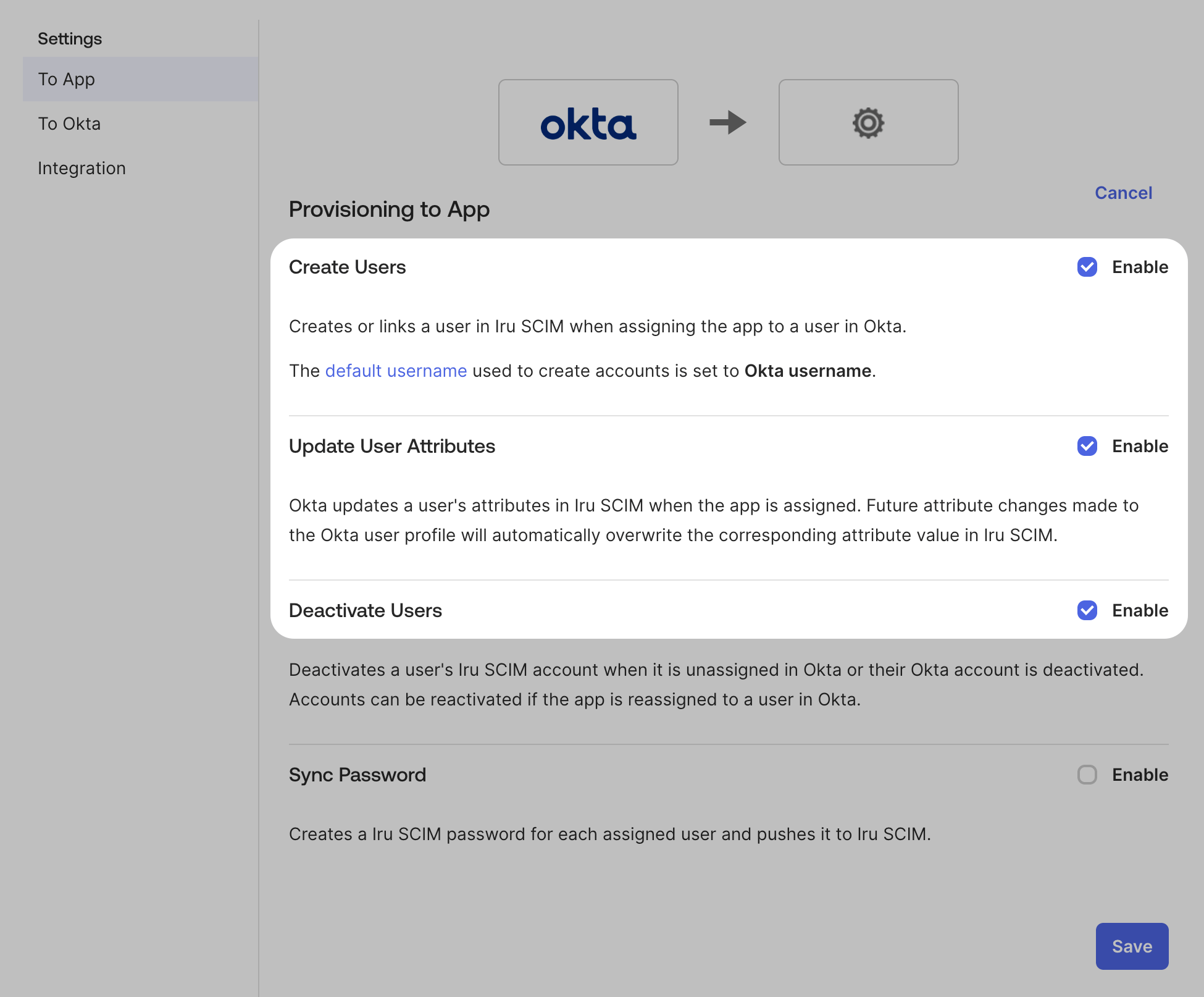
In the Provisioning to App section, enable Create Users, Update User Attributes, and Deactivate Users. Save App Settings
Click Save.
Configure Attribute Mappings
(optional) In the Attribute Mappings, edit the user attributes to send to Iru Endpoint. Iru Endpoint will only store and use the attributes mentioned in the SCIM Directory Integration article. Assigning Users to Iru Endpoint
In Okta, the same group cannot be used on both the Assignments tab and the Push Groups tab. To avoid that conflict, create one assignment group for SCIM app access (for example, iru_endpoint_users) and keep it in sync with the users in your pushed groups. Then assign that assignment group to the SCIM app.This is one example of assigning users to Iru Endpoint through Okta SCIM.
Create the assignment group
Navigate to Groups
In a new browser tab, navigate to Directory > Groups and click Add Group.
Create User Group
Give the group a meaningful name like iru_endpoint_users and click Save.
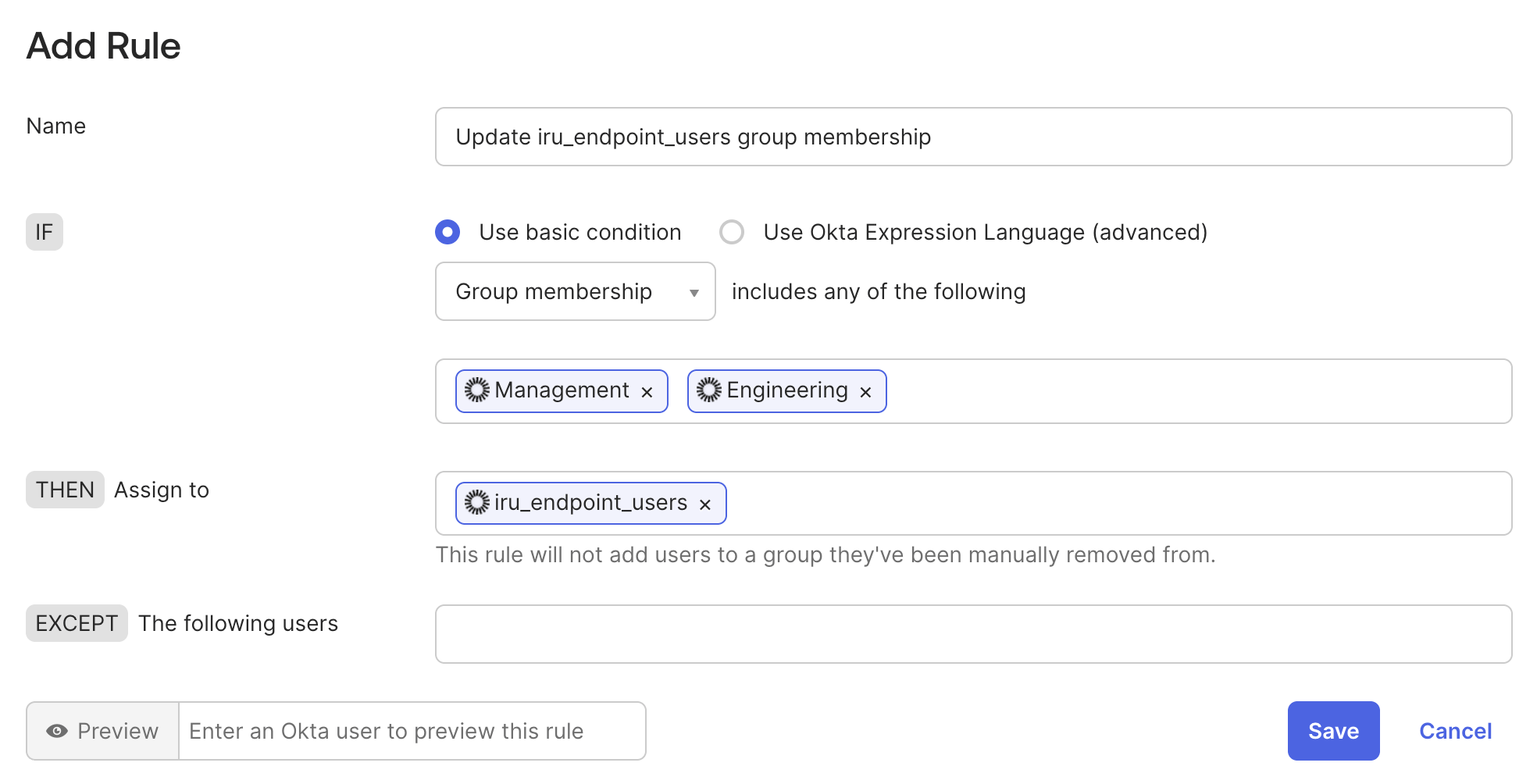
Add members with a group rule
Use this when people in your push groups (for example, Sales and Engineering) should automatically become members of iru_endpoint_users. If you follow these steps, you do not need to bulk-add those users by hand.Open Group Rules
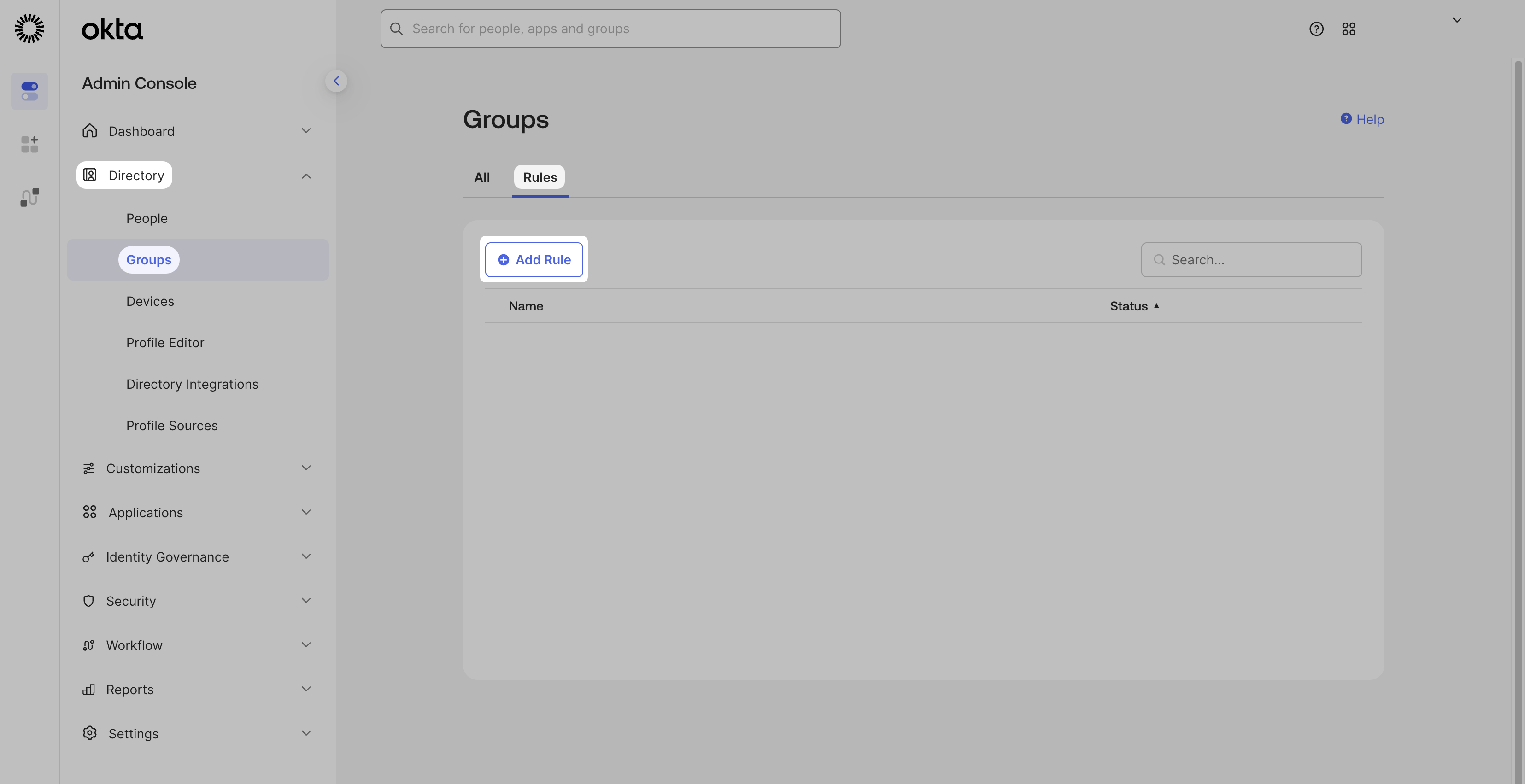
Go to Directory > Groups > Rules and click Add Rule. Name the rule
Enter a rule name (for example, Update iru_endpoint_users group membership).
Configure group membership condition
Under IF, select Use basic condition and Group membership, then set includes any of the following and choose the groups you plan to push (for example, Sales and Engineering).
Assign target group
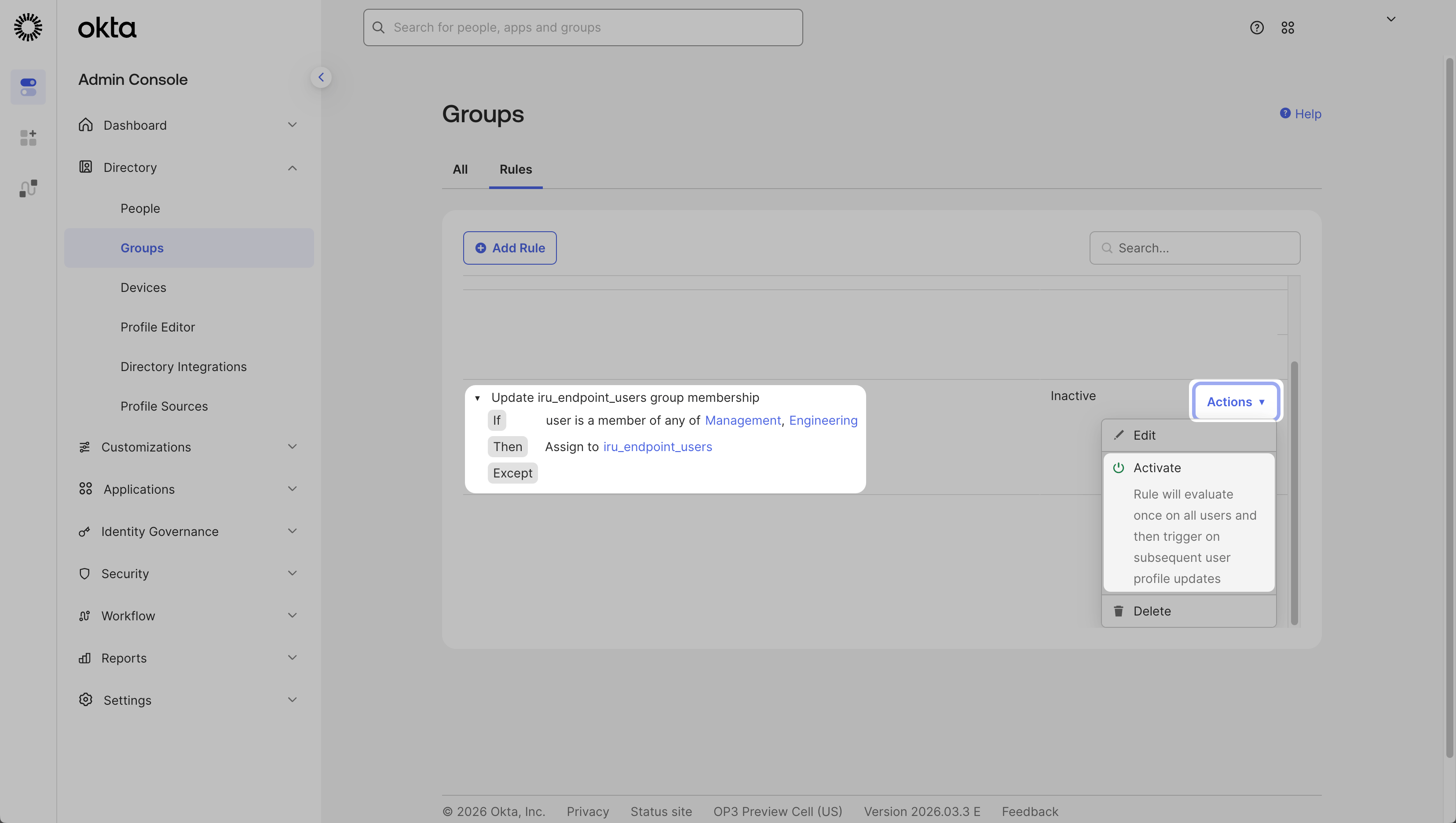
Under Then Assign to, select iru_endpoint_users, then click Save. Activate the rule
Back on the Rules page, open Actions for the new rule and click Activate. Add members manually
Use this when you are not using a group rule, for example, to add test users before push groups and rules are in place, or for people who must be in iru_endpoint_users but are not in any pushed group yet.Add users to the assignment group
Search for iru_endpoint_users and add the users who should have the SCIM app.
Assign the group to the SCIM app
Return to SCIM App
Navigate back to the browser tab where the Okta SCIM app is open.
Access Assignments
Go to the Assignments tab, click Assign > Assign to Groups.
Assign Group
Search for the newly created group and click Assign > Save and Go Back.
Confirm Assignment
Confirm that the group was assigned and click Done. The group should now appear in the Assignments tab’s Groups section.
Refresh if Needed
If the group does not display, try refreshing the browser tab.
All users in iru_endpoint_users are provisioned to Iru Endpoint and appear in the Users module. To sync groups for conditional logic in Blueprints, continue with the next section.Pushing Groups to Iru Endpoint
In this section, learn how to push user groups to Iru Endpoint.When planning to push Okta groups to Iru Endpoint for use with conditional logic in Blueprints, for each group that you would like to push, add it to the Push Groups tab in the SCIM app.Per this Okta article, groups used to assign users in the Assignment tab cannot be used in the Push Groups tab. Okta recommends creating additional groups containing the same users and adding the new groups to the Push Groups tab for consistent group membership. If the same group is added in both places, the assignment tab will take precedence, and the group may not be pushed. One way to handle this is to create a single “user assignment” group containing all your Iru Endpoint users and add that group to the Assignment tab. From there, you can use your existing Okta groups as Push Groups. Remember that for the user-group association to work, the members of the pushed groups must also be members of the Iru Endpoint users group assigned to the SCIM app.Add groups on the Push Groups tab
On the SCIM app, add every Okta group that should appear in Iru Endpoint.Access Push Groups
Open the Push Groups tab, click Push Groups, then Find groups by name (or Find groups by rule).
Select Group
Search for the group and select it.
Configure Group Creation
Select Create Group.
Save and Add Another
Click Save & Add Another.
Add Additional Groups
Add any other groups to push to Iru Endpoint.
Pushing Group Updates
User and group syncing is one-way, meaning the SCIM app sends user and group data to Iru Endpoint only when there is new or updated data. For this reason, a “Sync Now” option is not needed in the Iru Endpoint Web App.
- If you add users to the group assigned to the SCIM app in Okta, be sure to also update the groups you have added as Push Groups.
- Updates should be seen in Iru Endpoint fairly quickly; to push group updates immediately, use Push Now on the Push Groups tab in Okta. See the Okta article.
Deleting Pushed Groups
Use the following steps to stop pushing group updates or optionally delete a pushed group from Iru Endpoint.Access Push Groups Tab
Go to the Push Groups tab for the app in Okta.
Unlink Push Group
In the Push Status column, select Unlink push group.
Configure Deletion
Select Delete the group in the target app (recommended). This removes the group in Iru Endpoint but does not delete user accounts. User accounts stay tied to the assignment group on the Provisioning tab.
Confirm Unlink
Click Unlink.
You should no longer see the group listed on the Push Groups tab.