Confirm the following before you create or duplicate a computer certificate template on your issuing CA.
Access to the issuing Certification Authority
You need access to an issuing CA in your Active Directory forest where you can open the Certificate Authority snap-in and manage certificate templates.
Rights to duplicate and publish templates
You need rights sufficient to duplicate the Computer template, adjust security (for example Read and Enroll for the AD CS Connector computer object or a service account), and publish the template for issuance.
Below are the tabs and settings that should be configured in the certificate template:
Template type: The template used should be based on the default Computer template.
Certificate Authority compatibility: Windows Server 2016
Certificate recipients: Windows 10/Windows Server 2016
Subject name: Supply in the request
Security: Grant Read and Enroll only to the identity that enrolls for the Connector (the Connector host computer account when the Connector runs as Local System, or a dedicated service account when the Connector uses Service Account at install). Remove broad inherited entries such as Domain Computers so other domain-joined computers cannot enroll.
If you would like to use an existing AD CS certificate template, the settings in the existing template must align with the settings listed above.
Log in to a Certificate Authority (CA) on your domain.
2
Open the Certificate Authority snap-in
On the server, launch the Start menu and search for the Certificate Authority snap-in.
3
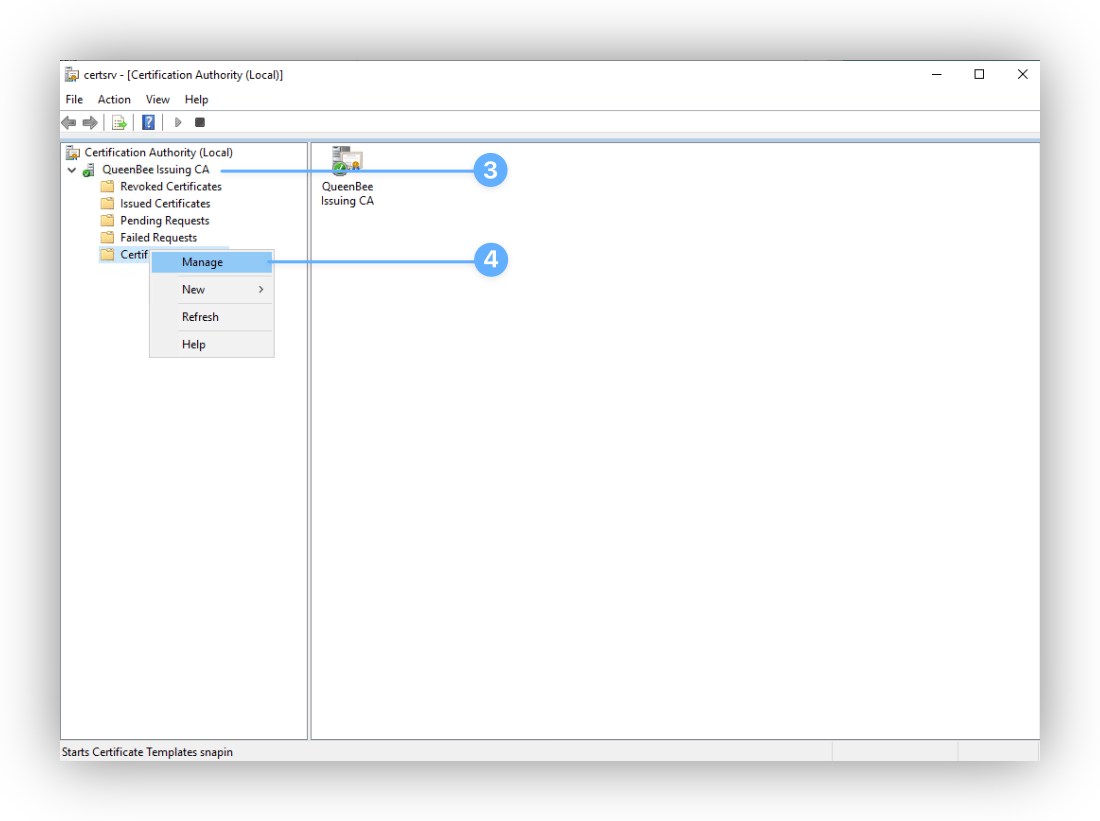
Select Issuing CA
Once in the Certificate Authority snap-in, click Issuing CA. The name of the Issuing CA as it appears here in the snap-in will be needed when adding AD CS servers to the Iru Endpoint AD CS integration.
4
Open Certificate Templates management
Right-click the Certificate Templates folder and click Manage.
5
Duplicate the Computer template
In the Certificate Templates window, find the Computer template and right-click it. Then, click Duplicate Template.
6
Open the General tab
In the Properties window, click the General tab.
7
Set template names
Set the display name and template name to something like IruEndpointDevice. The template name will be needed when creating Library Items that contain AD CS certificate settings.
8
Open compatibility settings
Next, click the Compatibility tab.
9
Set Certificate Authority compatibility
For Certificate Authority, select Windows Server 2016. In the change dialog, click OK.
10
Set Certificate Recipients compatibility
For Certificate Recipients, select Windows 10 / Windows Server 2016. In the change dialog, click OK.
11
Open Subject Name settings
Click the Subject Name tab.
12
Set Subject Name to supply in request
Select the option to Supply in the request and click OK in the warning dialog.
13
Open Security settings
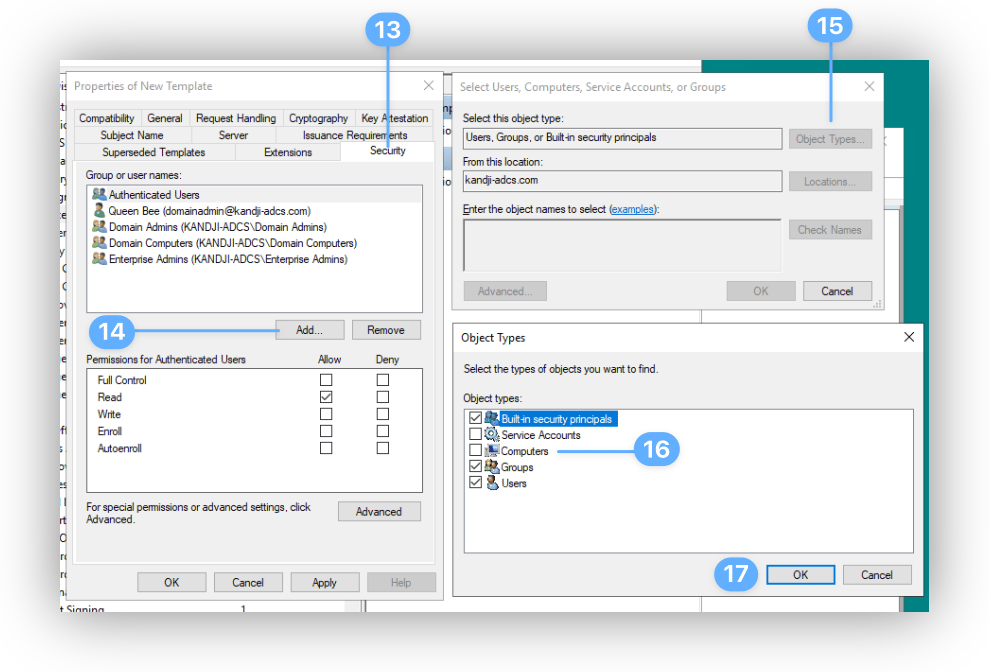
Click the Security tab.
14
Add the Connector computer account (Local System enrollment)
The steps below add the Connector host computer account. Use this path when the Connector will run as Local System on the Windows Server (the default in AD CS Connector Installation).Under Groups or user names, click Add.
15
Open Object Types
In the Select Users, Computers, Service Accounts, or Groups window, click Object Types.
16
Select Computers object type
In the Object Types window, select Computers.
17
Confirm Object Types selection
Click OK.
18
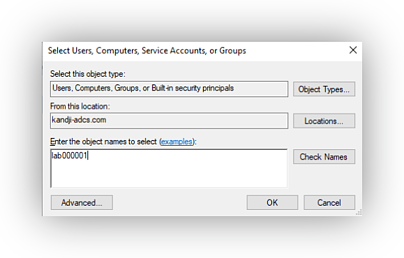
Search for Connector host computer
In the object names search field, enter the name of the Windows server that will be used to host the AD CS Connector. In the screenshot below, lab000001 is the computer name being used.
19
Grant Read and Enroll to the computer account
With the Connector host computer still selected under Groups or user names, select Read and Enroll under Allow in the Permissions section.
20
Service account enrollment instead: If the Connector will use Service Account at install, skip the Object Types and Computers steps above. On the Security tab, click Add, enter the service account (leave default object types), grant Read and Enroll, then continue with the next step. Grant Enroll only to that service account, not to Domain Computers.
21
Remove broad default permissions
Remove inherited principals that grant Enroll to large groups, such as Domain Computers. Leave only the account you granted Read and Enroll in the previous steps (the Connector host computer account or your service account).
A duplicated Computer template often allows Domain Computers to enroll. On Windows Server 2019 and later, leaving that entry in place can let any domain-joined computer request a certificate from this template. Because the template uses Supply in the request, that certificate could represent another principal in your forest and be misused for authentication. Remove those broad principals; keep only your Connector enrollment account.
22
Apply and save the template
Click Apply and then OK.
23
Open template issuance menu
Go back to the main Certificate Authority snap-in, right-click Certificate Templates again, and select New > Certificate Template to issue.
24
Select your new template
Select the template you created (in our example, IruEndpointDevice).