

This guide applies to Mac computers
About Iru Agent Diagnostics
The Iru Agent has a built-in tool for gathering and submitting detailed diagnostic data from your Mac to Iru Endpoint for troubleshooting. This data includes logs, operating system information, and other relevant details about your device, which helps the Iru Endpoint support team investigate behaviors and provide guidance to troubleshoot issues. For information on submitting macOS-specific diagnostics, please see our How to Generate a Sysdiagnose in macOS support article.As of April 8, 2026, apps were updated from Kandji 
 to Iru
  branding. Submit Diagnostics has been updated to Iru branding. Please update scripts, automations, and utilities that still reference the old app names.
to Iru branding. Submit Diagnostics has been updated to Iru branding. Please update scripts, automations, and utilities that still reference the old app names.How to Submit Iru Agent Diagnostics
There are three ways to submit diagnostics from an Iru Endpoint-enrolled Mac: using the Iru menu bar, using Self Service, or using the command-line interface (CLI).Submitting Diagnostics using the Iru menu bar
If the Iru menu bar icon is hidden, it can be revealed again from the Iru Self Service application.
1
Access Iru menu
Select the Iru jellyfish from the menu bar.
2
Open Settings
Select the settings gear.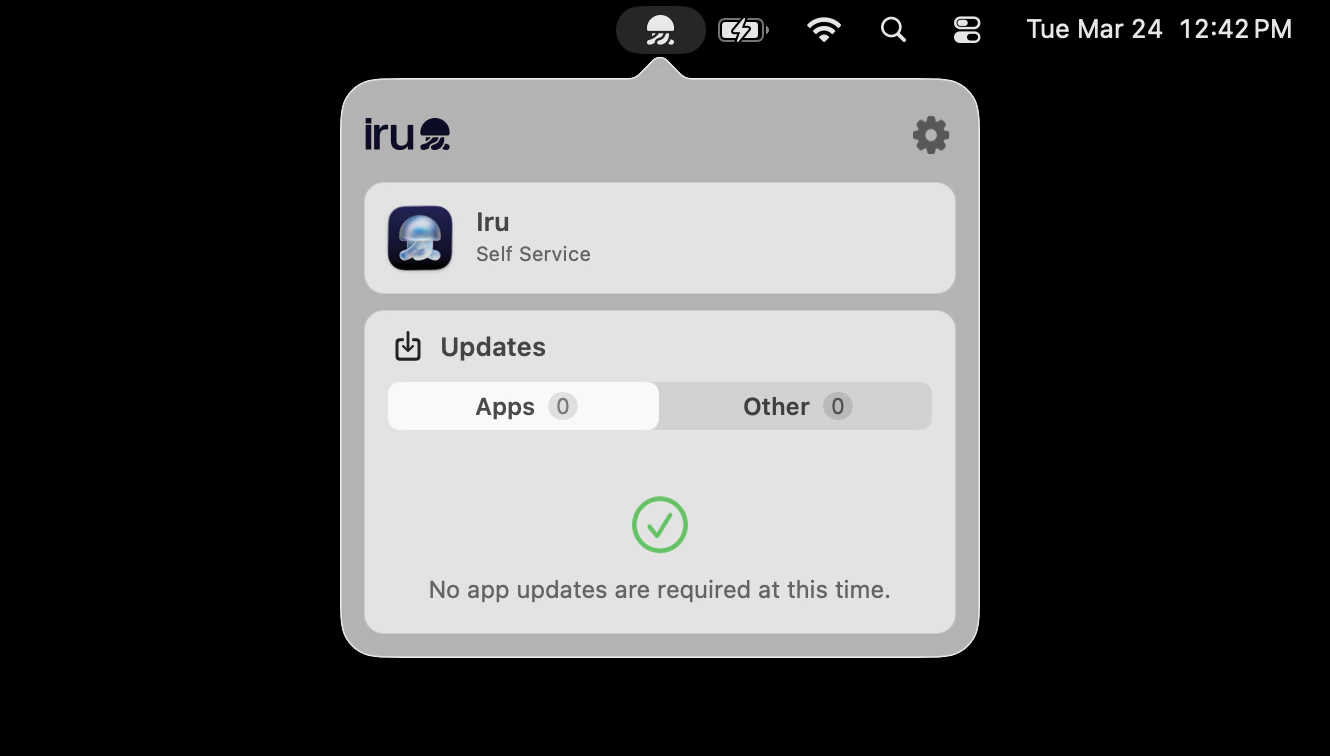
3
Choose Submit Diagnostics
Choose Submit Diagnostics… from the dropdown menu.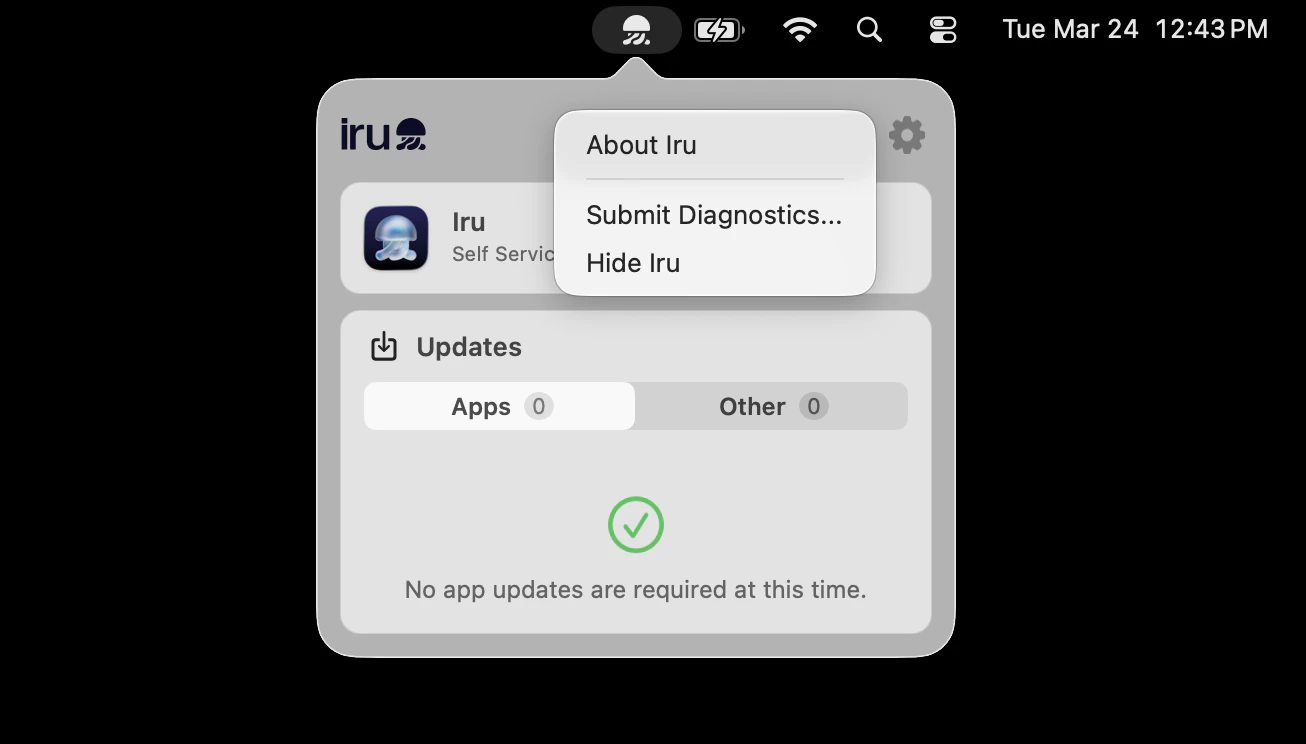
4
Add Comments (Optional)
Optionally, add comments describing the issue you’re experiencing.
5
Submit Diagnostics
Select Submit.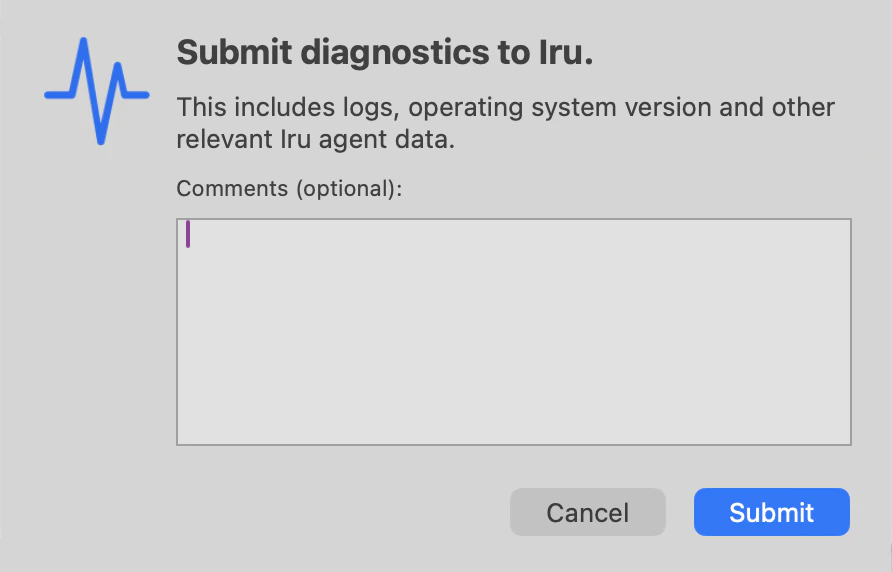
Submitting Diagnostics using Iru Self Service
1
Open Self Service
Open the Self Service app.
2
Navigate to Device Info
Select Device Info.
3
Access Options Menu
Select the ellipsis next to Sync.
4
Select Submit Diagnostics
Select Submit Diagnostics.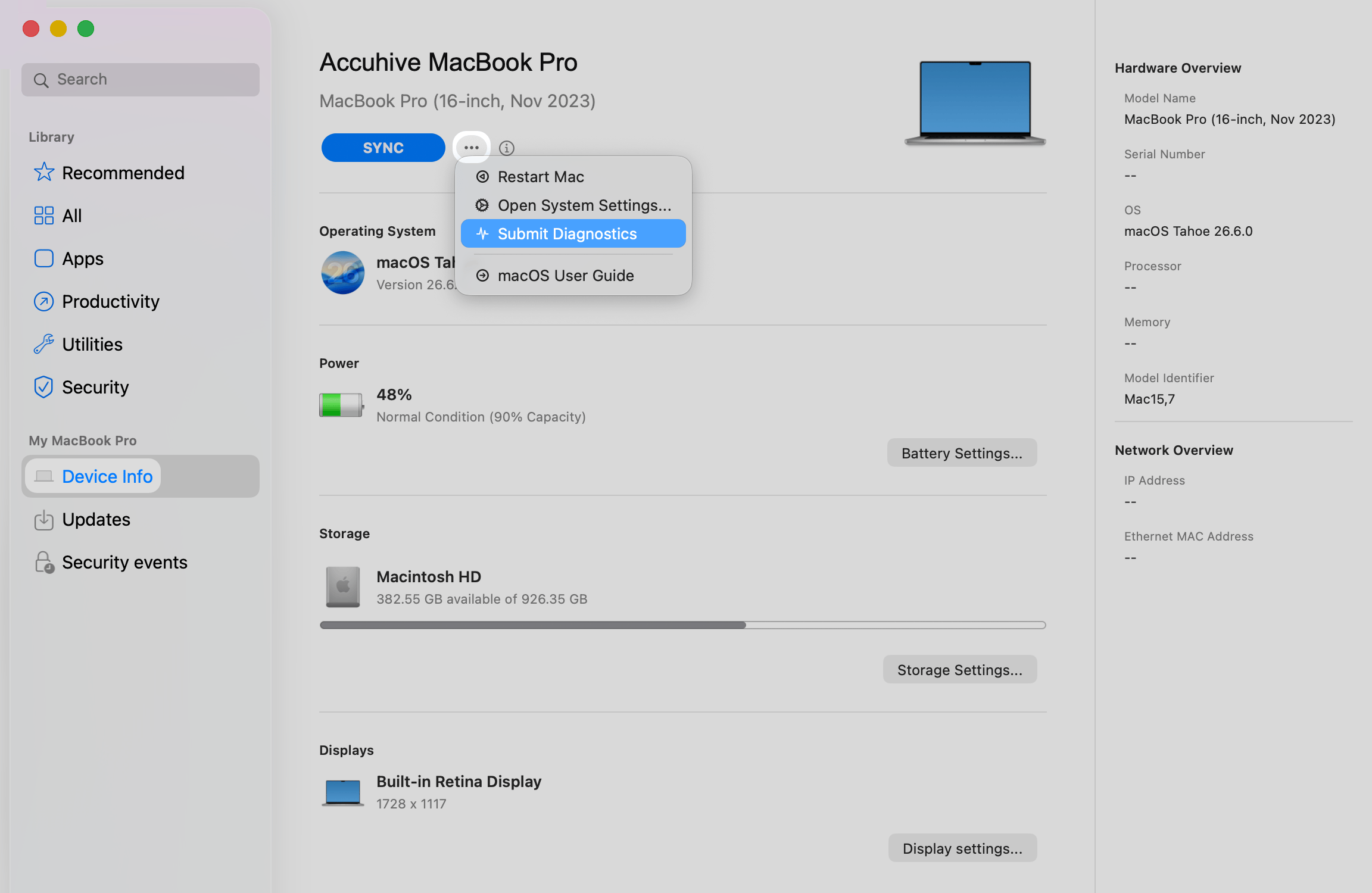
5
Add Comments (Optional)
Optionally, add comments describing the issue you’re experiencing.
6
Submit Diagnostics
Select Submit.
Submitting Diagnostics using the Command-Line Interface
This method requires administrator privileges.1
Open Terminal
Open Terminal.app.
2
Run Diagnostic Command
Run the following Terminal command, using
--comment to add optional comments describing the issue you’re experiencing:Data and Privacy Considerations
When a user submits diagnostics, the Iru Agent collects the following information from an enrolled Mac:- System logs
- OS version
- Application inventory
- Device configuration details
- Network information
- Error messages and alerts