About Passport with OneLogin
Passport with OneLogin lets users log in to Mac computers using their OneLogin credentials. This integration provides secure authentication through your organization’s OneLogin identity system and supports standard and multifactor authentication.How It Works
Passport integrates with your OneLogin instance using OpenID Connect (OIDC) to authenticate users at the macOS login screen. Whether you need MFA for Passport sign-in determines how many OIDC applications you create in OneLogin and whether you set Authentication mode to Web Login or Mac Login in the Passport Library Item.- OneLogin
- Iru Endpoint
Prerequisites
- To add apps in OneLogin, use an account that is a Super User or Account Owner.
Configure an OIDC App
If you do not need MFA for Passport sign-in, set Authentication mode to Mac Login in the Passport Library Item and follow only the Mac Login section (skip Web Login).If you need MFA at sign-in, set Authentication mode to Web Login. You must create two OIDC apps in OneLogin: Mac Login first (sign-in and password sync to the Mac), then Web Login (MFA in the embedded web view). Follow the Mac Login section, then the Web Login section, in that order.Mac Login
Create the Mac Login OIDC application in OneLogin. This article uses the display name Iru Passport Mac Login.Every deployment uses this app. With Mac Login as the authentication mode, it is the only OneLogin OIDC app you add in this guide. With Web Login (MFA), add this app first, then continue to Web Login.Log in to OneLogin
Navigate to Applications
Add new app
Search for OIDC
Select OpenID Connect
Configure app details
Set visibility
Save app
Access Configuration
Enter redirect URI
Access SSO settings
Set Application Type
Set Token Endpoint
Save SSO configuration
Collecting configuration details for Mac Login
Prepare secure document
Copy Client ID
Store Client ID
Copy Issuer URL
Store Issuer URL
Save document
Assign app to users
Web Login
Use this section only when Authentication mode is Web Login (MFA). After you finish Mac Login, create the second OIDC app here. This article uses the display name Iru Passport Web Login.Navigate to Applications
Add new app
Search for OIDC
Select OpenID Connect
Configure app details
Set visibility
Save app
Access Configuration
Enter redirect URI
Access SSO settings
Set Application Type
Set Authentication Method
Save SSO configuration
Collecting configuration details for Web Login
Prepare secure document
Copy Client ID
Store Client ID
Show client secret
Copy client secret
Store client secret
Save document
Assign app to users
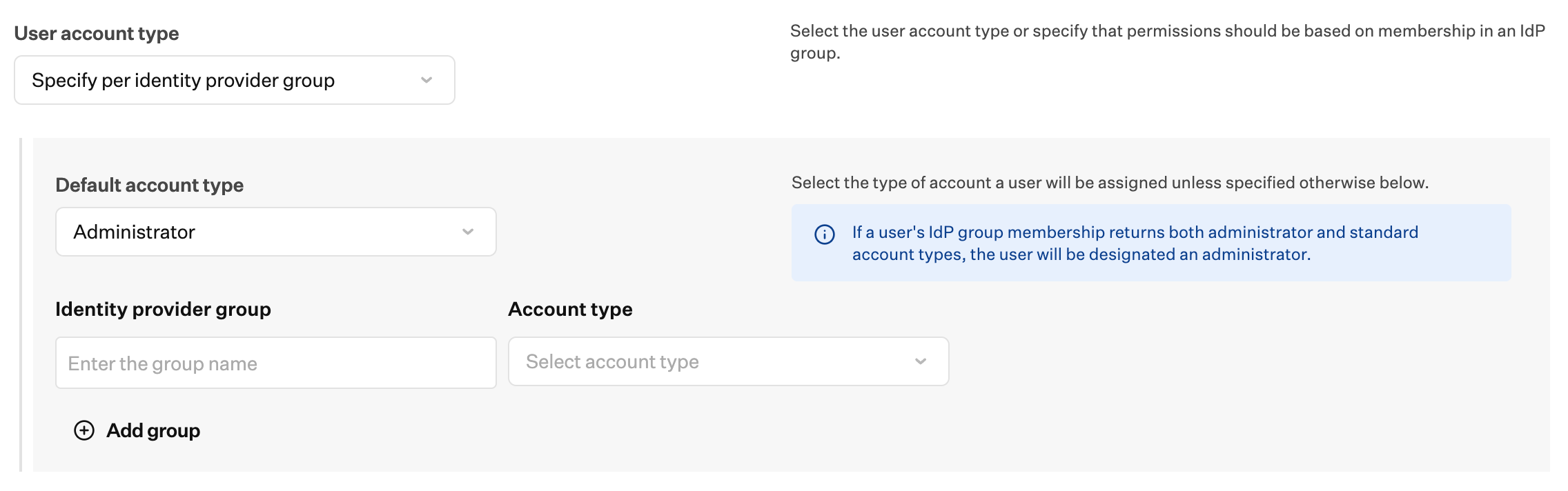
Configuring a User Account Type by Identity Provider Group in OneLogin
Use this section when you map OneLogin roles to standard or administrator Mac accounts in Passport. It applies for both Mac Login (no MFA) and Web Login (MFA).When configuring whether a user will be a standard user or an admin user, follow the steps below.Access Roles
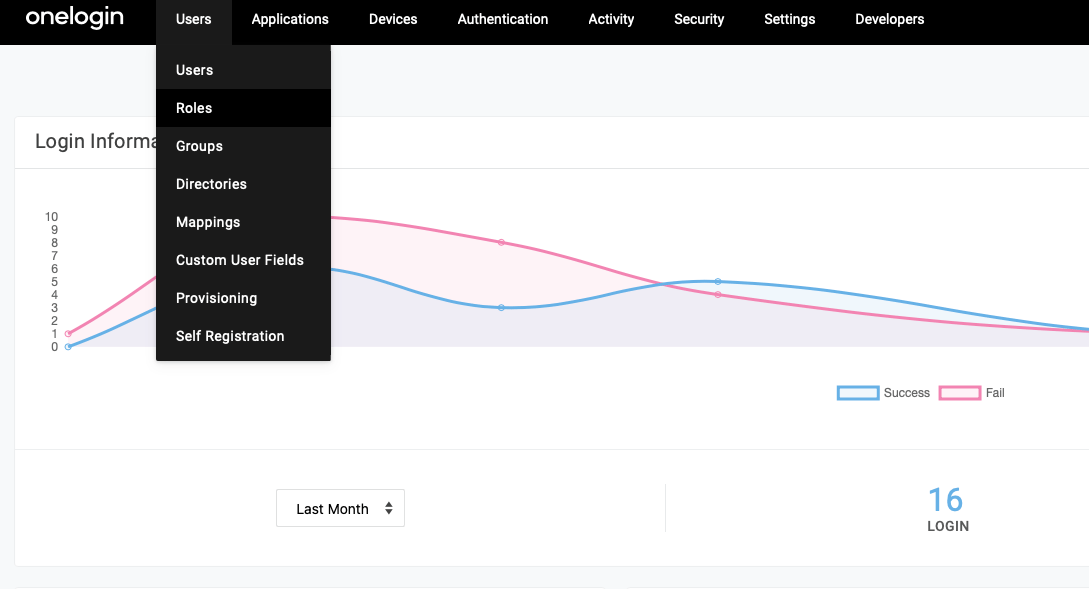
Create new role
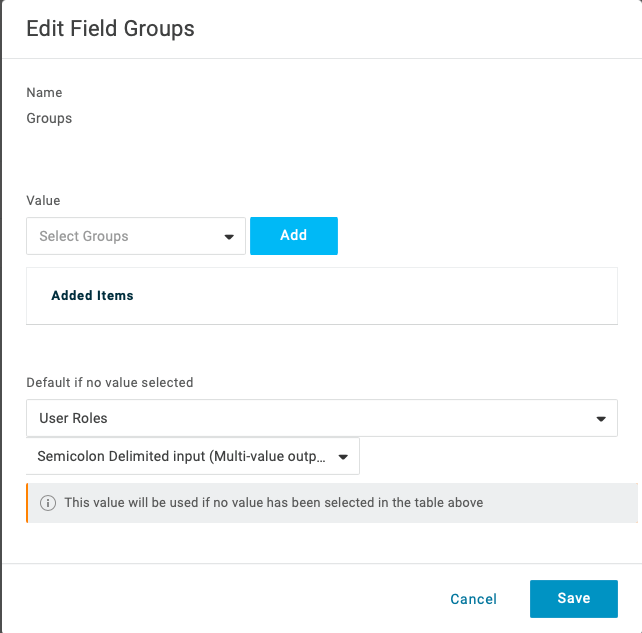
Configure app parameters
Set default value
Assign users to role