

This Library Item is available for Windows computers
For details on each setting, see Microsoft’s Update Policy CSP documentation.
Create a Managed OS Library Item
To add this Library Item to your Iru Endpoint Library, follow the steps in the Library Overview article.1
Navigate to Library
Go to Library and select Add Library Item.
2
Select the Windows 11 version
Search for and select the Windows 11 version you want to enforce, such as Windows 11, Version 25H2.
3
Name the Library Item
Give the Library Item a Name.
4
Assign to Blueprints
Assign the Library Item to one or more Blueprints. Only Windows computers in those Blueprints receive the Managed OS settings. You can use Assignment Maps within Blueprints for conditional logic if needed.
5
Configure settings
Set your deferral, deadline, grace period, and pause settings for both feature and quality updates. See Settings below.
6
Save the configuration
Select Save in the bottom right corner.
Only one Managed OS Library Item can be assigned to a device at a time. If a device already has one assigned, Iru Endpoint prompts you to confirm before replacing it.
Settings
The Settings tab has two sections: Feature updates and Quality updates.Feature updates
Feature updates
Feature updates are major Windows 11 version upgrades (for example, moving from 24H2 to 25H2). These settings control when that version becomes available to devices, when installation is required, and how restarts are handled.Defer feature updates forDelays how many days after Microsoft releases a feature update before devices are offered the update. Range: 0 to 365 days. Default: 0 days.Deadline for feature update installNumber of days after the end of the deferral period before the feature update must be installed and the device can be forced to restart. Range: 0 to 14 days. Default: 7 days.Grace period for restartMinimum number of days after the feature update is installed before an automatic restart is forced. Range: 0 to 3 days. Default: 2 days.Pause start dateSets a specific date to begin pausing feature updates. While a pause is active, the feature update is not offered to devices. Leave empty if you do not need to pause updates.
Quality updates
Quality updates
Quality updates are the monthly cumulative updates released within a feature version. These settings mirror the feature update controls and apply independently based on each device’s current feature version.Defer quality updates forDelays how many days after Microsoft releases a quality update before devices are offered it. Range: 0 to 30 days. Default: 7 days.Deadline for quality update installNumber of days after the end of the deferral period before the quality update must be installed and the device can be forced to restart. Range: 0 to 30 days. Default: 7 days.Grace period for restartMinimum number of days after the quality update is installed before an automatic restart is forced. Range: 0 to 7 days. Default: 2 days.Pause start dateSets a specific date to begin pausing quality updates. While a pause is active, quality updates are not offered to devices for up to 35 days from the pause start date. Leave empty if you do not need to pause updates.
Status
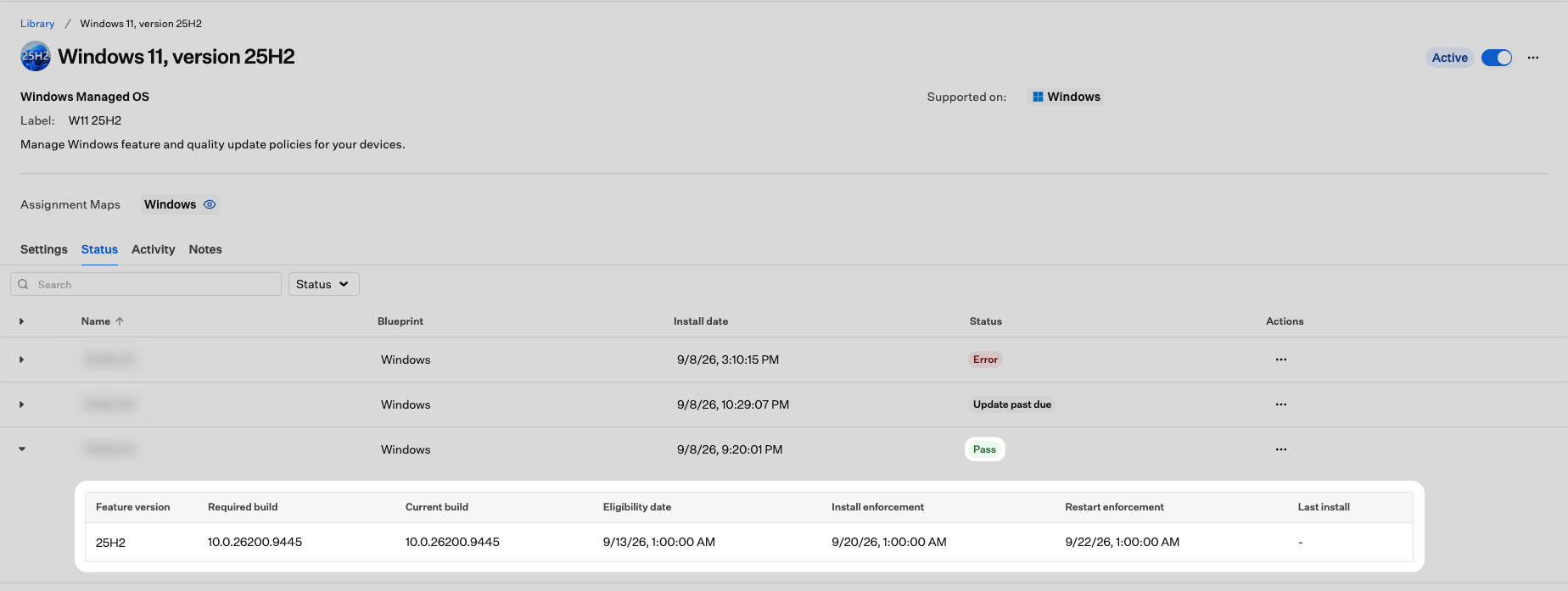
The Status tab shows whether each assigned device has reached the Windows 11 build the Library Item requires. Iru Endpoint compares the build the device reports against the required build for the targeted feature version. Status reflects the state of the device, not just whether the settings were delivered. Install date is when the Library Item was installed on the device. Last install, in the expanded row, is the last successful Windows update.
A device shows Pending until it checks in and reports its build. Devices check in every 15 minutes, so a device should not sit in Pending for longer than that after the Library Item is assigned. Once it reports its build, the status moves to Pass, Update past due, or Error.
Expand a device row for build details. On Pass, Current build matches Required build.
On Update past due, Current build is still below Required build and the install enforcement date has passed.
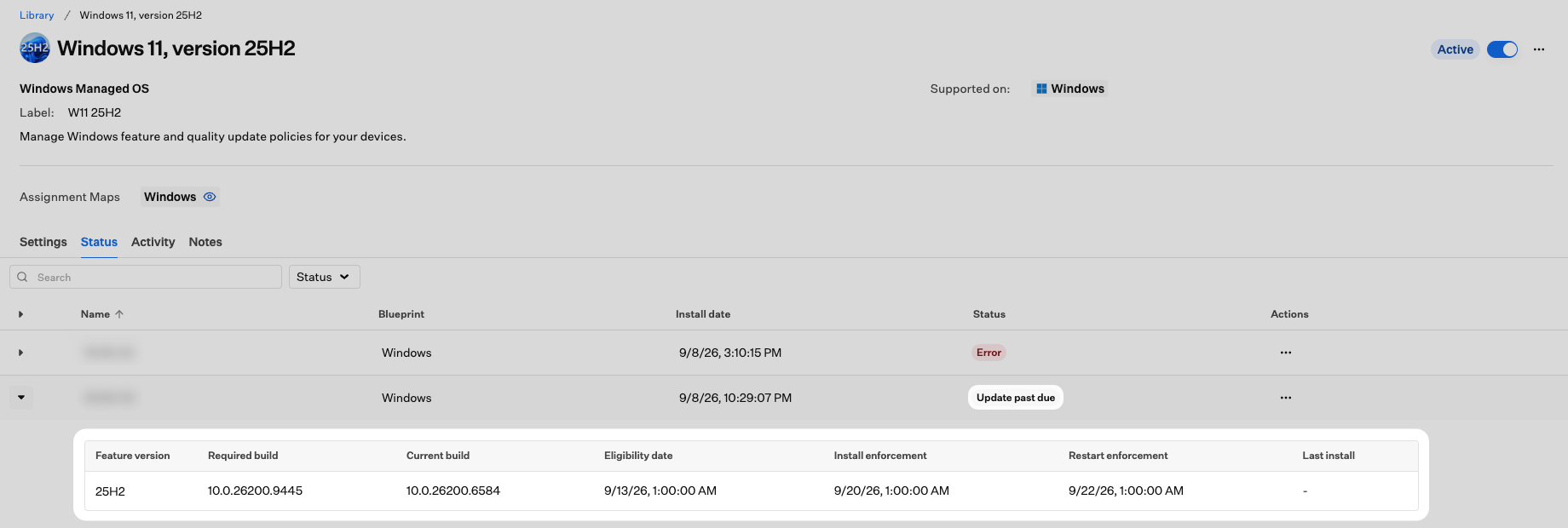
A device can report a current build that is newer than before and still below Required build. Compare Current build with Required build to see what is left.
Considerations
One Managed OS Library Item per Blueprint
One Managed OS Library Item per Blueprint
Only one Managed OS Library Item can be assigned to a Blueprint at a time. If you assign a new version to a Blueprint that already has a Managed OS Library Item assigned, Iru Endpoint prompts you to confirm the replacement. The previous Library Item is removed from the Blueprint when you confirm.
Version ceiling behavior
Version ceiling behavior
A Managed OS Library Item acts as a ceiling on the feature version. Devices will not advance beyond the targeted version while the Library Item is assigned. Monthly quality updates within that version continue unaffected.
Defer, pause, and deadline interaction
Defer, pause, and deadline interaction
Deferral and pause control when an update becomes available to devices. Deadline and grace period control how soon installation and restart are enforced once the update is available. Pausing an update stops it from being offered, but does not reset the deferral timeline once the pause ends.
Grace period and auto-restart
Grace period and auto-restart
If you set the grace period to a value greater than 0, the device will not force a restart at the deadline until the grace period ends. Setting the grace period to 0 allows the device to restart at the deadline without waiting.
Best Practices
Use multiple Library Items to create rings
Create multiple Library Items with different deferral periods so the update rolls out over time. Set a deferral of 0 days for the first ring so those devices get updates as soon as Microsoft releases them.
Start with a deferral period
A deferral of 7 to 30 days gives you time to validate updates on a small group of devices before they roll out to the full fleet.
Set a deadline for compliance
Set a deadline so devices install required updates in a known window.
Use pause for planned freezes
Use the pause start date during major business events or when a release has known issues. Pausing stops the update from being offered without changing your deferral configuration.
Pair with the Windows Update Library Item
Managed OS controls version enforcement. Assign a Windows Update Library Item to the same Blueprint to also manage active hours, notifications, and end-user update experience settings.
Troubleshooting
Error status on one or more devices
Error status on one or more devices
Possible causes:
- The device encountered an issue receiving the Managed OS settings via MDM.
- A conflicting policy from another source is preventing the settings from applying.
- Check the device record for recent activity and error details.
- Confirm no other MDM profiles or policies are setting conflicting Windows Update CSP values on the device.
A device shows Update past due
A device shows Update past due
Possible causes:
- The device has been offline or has not checked in since the update became available.
- Users are deferring the restart that completes installation.
- The update downloaded but has not finished installing.
- Microsoft releases updates on a regional rollout. Iru Endpoint can detect that Microsoft has published a new build before the update is available to the device in its region, so a device can sit short of the required build until the rollout reaches it.
- Windows Update decides when to install. Managed OS settings control the deferral and enforcement dates, but Windows Update determines the automatic install time for each device, so two devices with identical settings can install on different days.
- Check the device record for its last check-in and confirm the device is online.
- Compare Current build against Required build on the Status tab to see whether the device has made any progress.
- Review the Grace period for restart setting. A long grace period lets devices sit past the install enforcement date before restarting.
Feature updates are still being offered after a pause is set
Feature updates are still being offered after a pause is set
Possible causes:
- The pause start date is set in the future and has not taken effect yet.
- The device has not checked in since the pause was configured.
- Confirm the pause start date is set to today’s date or earlier.
- Trigger a device check-in or wait for the next scheduled check-in.
Related Articles
Library Overview
Learn how Library Items work and how to assign them to Blueprints
Configure the Windows Update Library Item
Configure end-user update experience settings, active hours, and optional content for Windows computers
Configure Managed OS for macOS
Configure managed OS updates for Mac computers
Using Conditional Logic in Blueprints
Use Assignment Maps to target Library Items to specific groups of devices within a Blueprint