This guide applies to Mac computers and Windows computers
In Okta Workflows, the connector is still listed as Kandji. The steps in this guide that create an API token and copy your domain are performed in Iru Endpoint. When you configure the connection in Okta Workflows, select Kandji and enter your Iru Endpoint API token and domain.
About Authorizing Your Iru Tenant for Okta Workflows
Authorizing your Iru Endpoint tenant for Okta Workflows lets Okta Workflows connect to your tenant through the Kandji connector, so you can automate device management tasks in your workflows.How It Works
The Kandji connector in Okta Workflows connects to your Iru Endpoint tenant using an API token and domain. After you configure the connection, you can build workflows that respond to user lifecycle events and device management tasks without manual steps in Iru Endpoint.Prerequisites
Before you begin, ensure you have:- Okta Workflows admin credentials
- Iru Endpoint administrator access
- API access enabled in your Iru Endpoint tenant
Authorizing Your Iru Tenant
Authorization has two parts: create an API token and copy your domain in Iru Endpoint, then configure the Kandji connector in Okta Workflows with those values. When you add a Kandji card to a workflow for the first time, Okta Workflows prompts you to configure the connection. You can save the connection and reuse it for future workflows.You can create and manage multiple connections from your Connections page.
Creating an API Token in Iru Endpoint
Complete these steps in the Iru Endpoint web app. To create an API token for the Kandji connector in Okta Workflows:1
Access Iru Endpoint
Sign in to the Iru Endpoint web app with administrator credentials.
2
Open Access
In the sidebar, select the Account Menu Button, then select Access.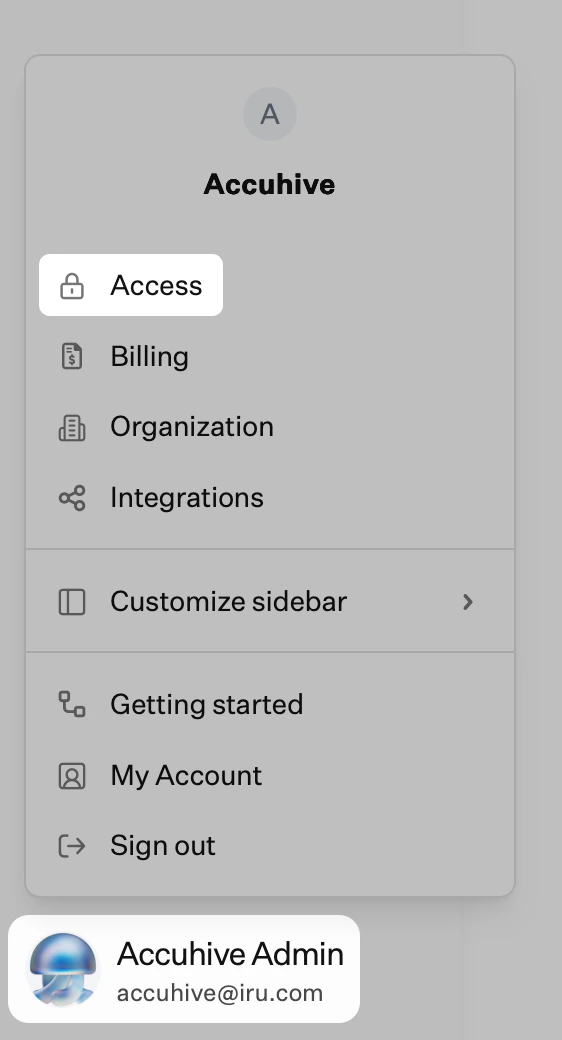
3
Add Token
On the API tokens tab, select Add Token.
4
Configure Token Name
In the Name field, enter a name such as Okta Workflows.
5
Add Token Description
In the Description field, enter a description such as Allow Okta Workflows to use the Iru Endpoint API.
6
Create Token
Select Create.
7
Copy API Token
In the Copy your API token dialog, select Copy Token.
8
Store Token Securely
Store the copied token in a safe place. If you lose the text for the token, you can delete it before you use it and create a new one with the steps above. You’ll use this token in step 4 of the next section.
9
Confirm Token Copy
Select the checkbox for I have copied the token and understand that I will not be able to see these details again.
10
Continue Setup
Select Next.
11
Configure Permissions
In the Manage API Permissions dialog, select Configure.
12
Select Permissions
In the Permissions section, select the checkbox for each area to which you want Okta Workflows to have access. For example, select the checkbox for Blueprints Management to enable all permissions for inspecting and modifying Blueprints. Note: You can select the disclosure triangle to the right of the permission type to display more specific permissions.
13
Review Permissions
Review the permissions you’ve configured for the API token.
14
Save Configuration
Select Save then Close.
15
Verify Token Creation
On the API tokens tab, confirm that your new token is displayed.
16
Copy API URL
In Your organization’s API URL is field, copy or make a note of your Iru Endpoint domain.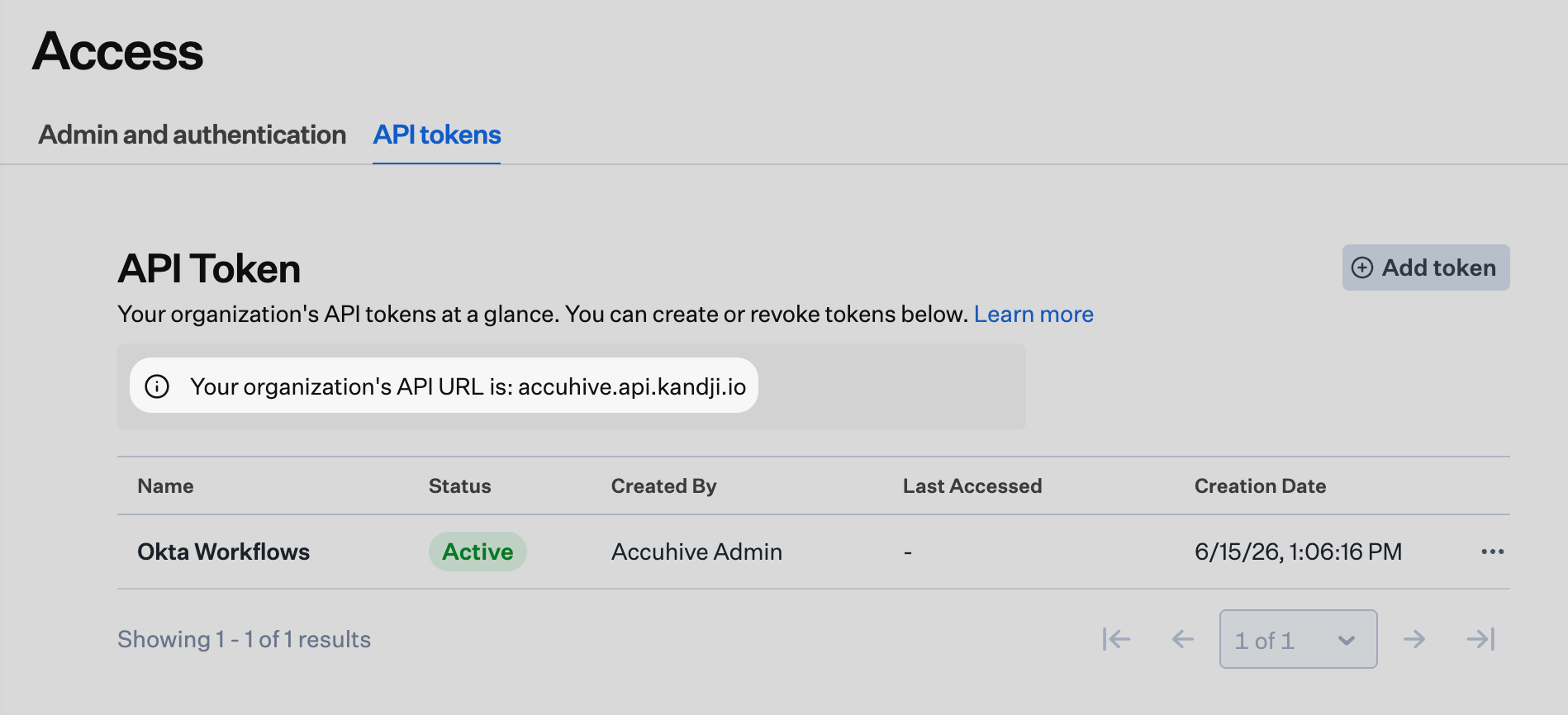
Setting Up the Kandji Connector in Okta Workflows
Complete these steps in Okta Workflows. You need the API token and domain from the previous section. You can create more than one connection. For example, you might have multiple Iru Endpoint tenants or be testing multiple API tokens. The API token must include at least Devices: Device Information: Device list permission. Grant additional permissions based on the workflow actions you plan to use. For example, to list all devices, the token needs:1
Create New Connection
In Okta Workflows, from the Connections page or any card, select New Connection.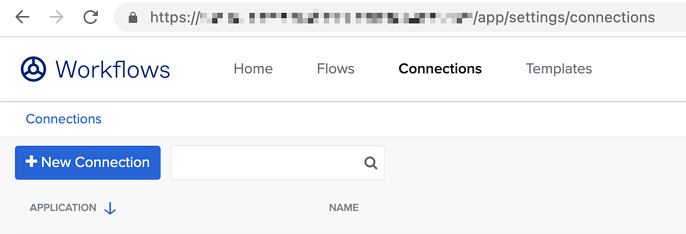
2
Select the Kandji connector
In the New Connection window, scroll if necessary, then select Kandji. This is the connector name in Okta Workflows; it connects to your Iru Endpoint tenant.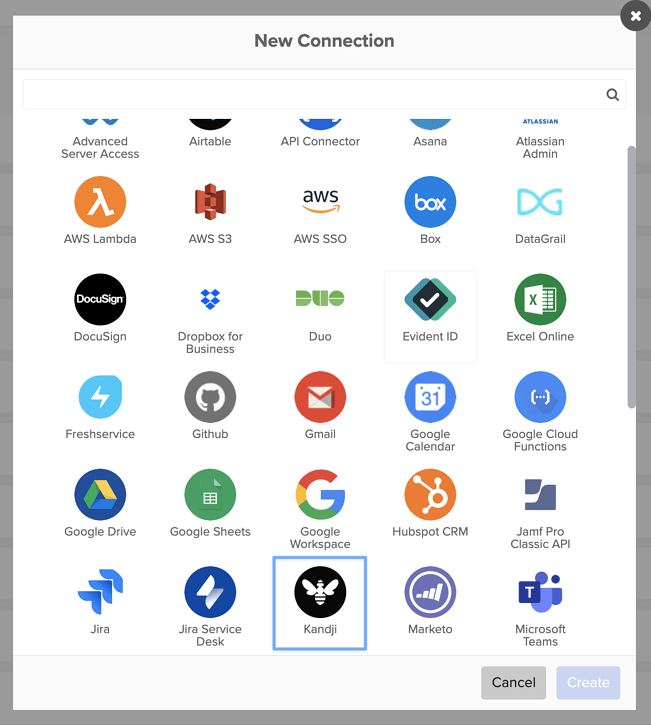
3
Configure Connection Nickname
In the Connection Nickname field, enter a unique name that will help you distinguish multiple Iru Endpoint tenants or multiple Iru Endpoint API keys.
4
Enter API Key
In the API key field, enter or paste the text of the API token you generated in step 7 of the previous section.
5
Enter domain
In the Kandji domain field, enter your full Iru Endpoint domain from step 16 of the previous section. Okta Workflows labels this field Kandji domain, but the value is your Iru Endpoint API URL (for example, accuhive.api.kandji.io or accuhive.api.eu.kandji.io).
6
Create Connection
Select Create.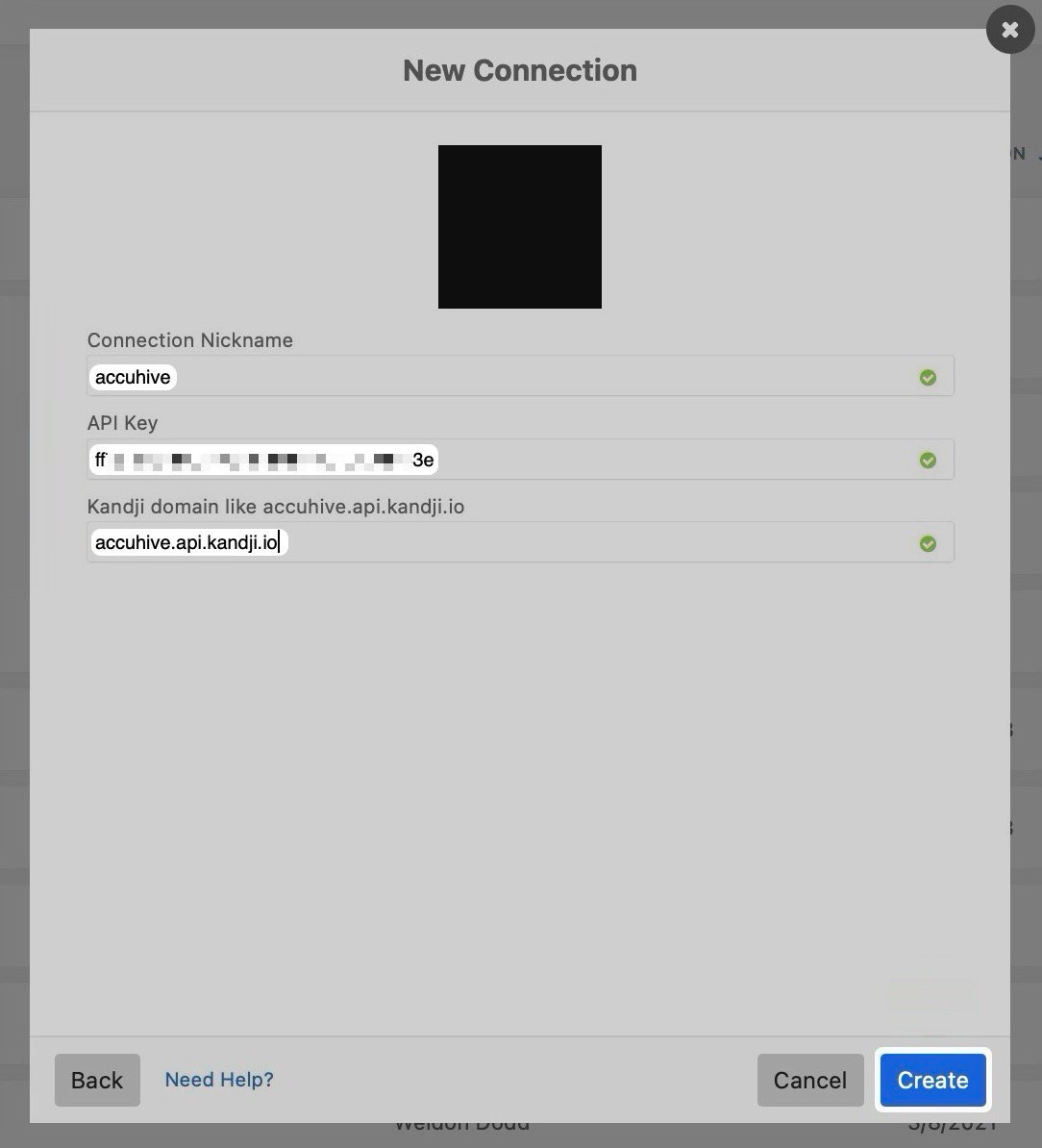
Using the Connection in Workflows
1
Create New Flow
In Workflows go to the Flows section and select +New Flow.
2
Add App Action
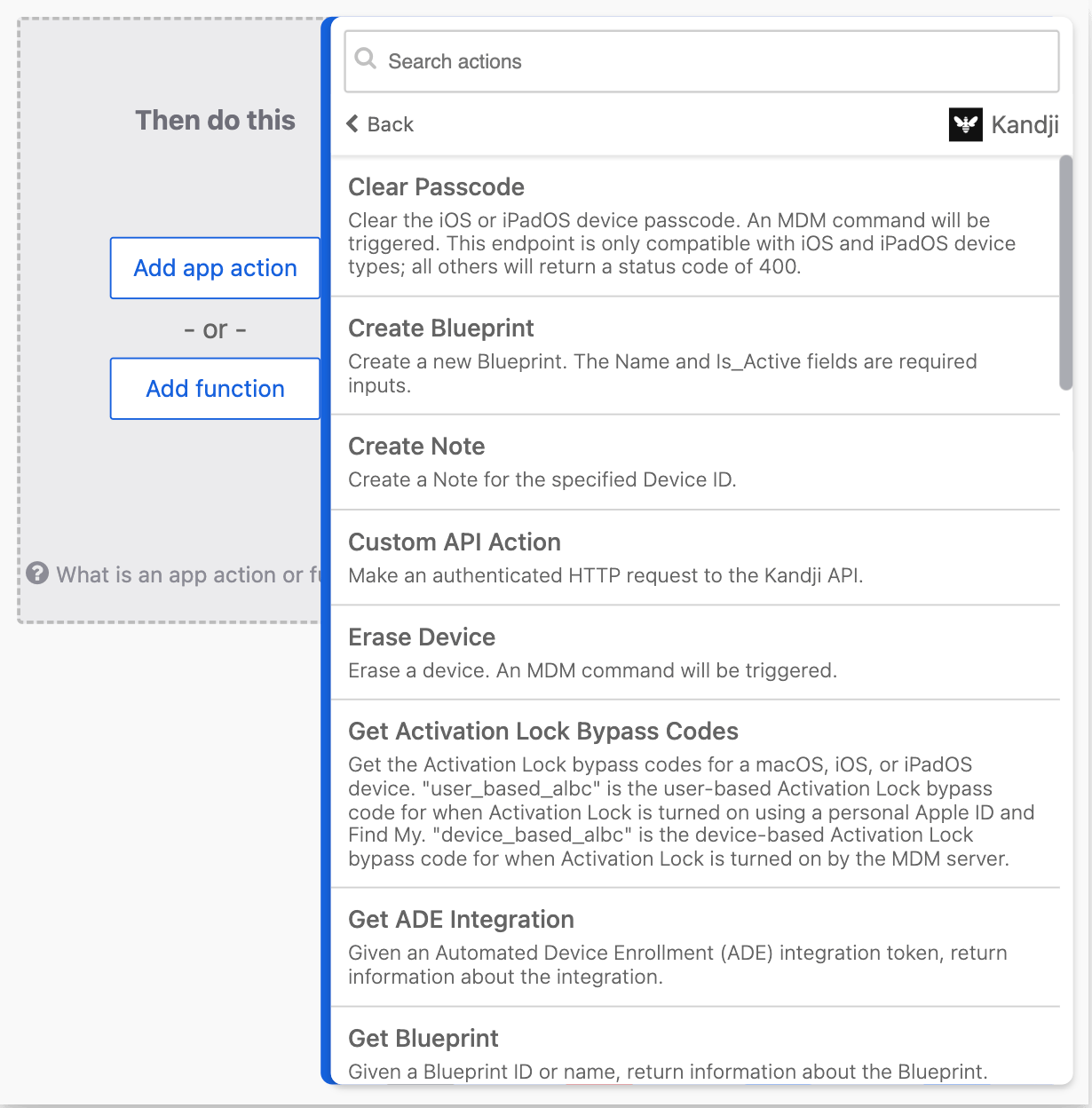
Select Add app action.
3
Select Kandji
In the My Connected Apps section, select Kandji. Okta Workflows still displays this app name; it provides access to your Iru Endpoint tenant.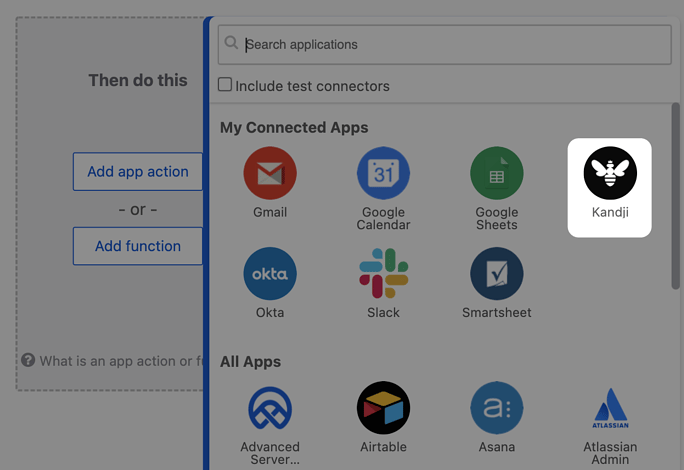
4
Choose Connector Card
Select a connector card.
5
Configure and Continue
Configure the card and continue building your workflow.