

About Okta Device Trust Integration Setup
Okta Device Trust Integration Setup in Iru Endpoint lets you ensure that Iru Endpoint manages your devices before end users can access Okta-protected apps, enabling passwordless authentication and FastPass functionality.How It Works
Okta Device Trust lets you ensure that Iru Endpoint manages your Apple devices before end users can access Okta-protected apps from their devices. This integration enables Okta FastPass for a passwordless authentication experience, allowing users to sign in to Okta and their Okta resources without needing a password. For iOS, iPadOS, and macOS devices specifically, FastPass lets users sign in with Face ID and Touch ID. Okta FastPass is a feature of Okta Identity Engine.Before You Begin
Configure the following in your Okta tenant before you start integration setup in Iru Endpoint.- The Okta tenant must be migrated from Okta Classic Engine to Okta Identity Engine.
- Okta FastPass must be enabled in the Okta tenant.
- The Okta user setting up ODT should have the super admin role in Okta. Super admin credentials are only needed for initial authentication and adding the API Service Integration.
- Okta Adaptive MFA is required to add Device integrations in Okta.
Prerequisites
Iru Endpoint checks for the following during integration setup and shows a warning if any are missing.- Make Okta Verify available in your Library via Apps and Books in Apple Business or Apple School Manager.
- On macOS, assign the Okta Verify Auto App from Auto Apps.
Integration Setup
Log in to Iru Endpoint
Open Integrations
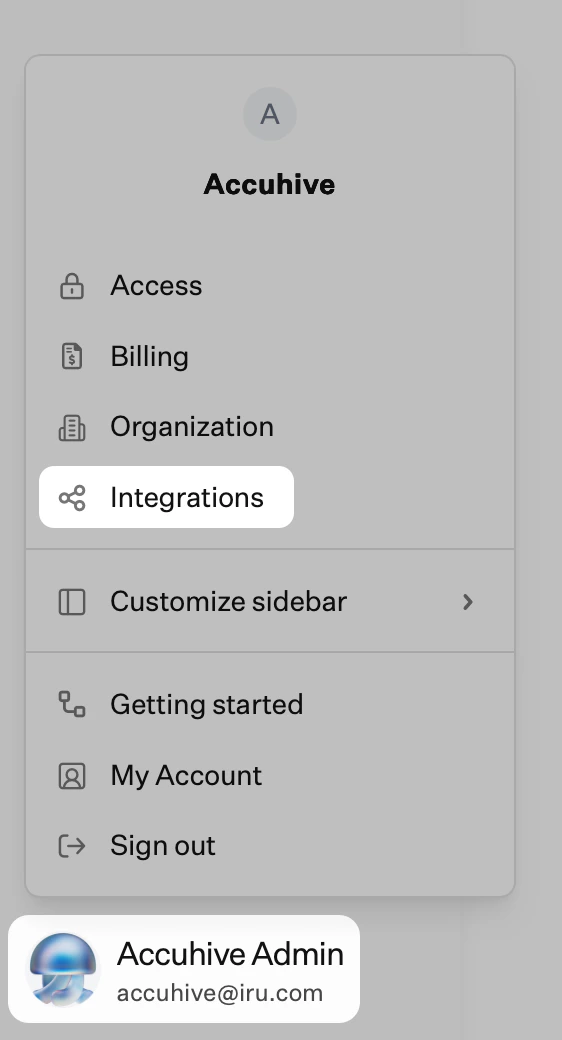
Browse all integrations
Select Okta Device Trust
Get Started
Specify Okta Domain
Sign In with Okta
Install and Authorize
- okta.devices.manage
- okta.devices.read
- okta.authenticators.read
Copy Client Secret
Complete Okta Setup
Copy Client ID
Return to Iru Endpoint
Complete Tasks Modal
Enter Credentials
Connect to Okta
Configuring Device Platforms in Okta
This section outlines creating device integration in Okta. This information is used when adding device platforms in Iru Endpoint.Adding Device Integrations in Okta
Log In to Okta Admin Portal
Navigate to Device Integrations
Add Platform
Adding macOS as a Device Integration
Select Desktop Platform
Continue to Next Step
Configure Certificate Authority
Configure SCEP URL Challenge
Generate SCEP URL
Copy Credentials
Save Configuration
Adding iOS as a Device Integration
Select iOS Platform
Continue to Next Step
Copy Secret Key
Enter Device Management Provider
Enter Enrollment Portal link
https://accuhive.iru.com/enroll where accuhive should be your tenant subdomain.)Save Configuration
Modifying a Device Integration in Okta
Rotating a macOS Challenge Password or iOS Secret
Navigate to Device Integrations
Access Actions Menu
Select Reset Option
Confirm Reset
Deleting a macOS Challenge Password or iOS Secret
Navigate to Device Integrations
Access Actions Menu
Select Delete
Confirm Delete
Configuring Device Platforms in Iru Endpoint
Select Platforms to Configure
Continue to Next Step
Configure macOS Platform
Configure iOS Platform
Complete Setup