

This guide applies to Mac computers and Windows computers
About Excluding Devices
Some devices in your fleet may not need to be included in vulnerability reporting, such as dedicated test devices, devices assigned to employees on extended leave, or devices undergoing decommissioning. Excluded devices no longer contribute to affected-device counts, detection counts, the CVE Devices view, or vulnerability notifications. Please see our Vulnerability Management Overview article for more information about vulnerabilities.How It Works
Device exclusion lets you remove specific devices from fleet-wide vulnerability counts, views, and notifications. When you exclude a device, it no longer appears in CVE affected device totals or the Devices tab across Vulnerability Management, and vulnerability notifications for that device are suppressed. Detections remain visible on the device record, so you keep full visibility at the device level without those results affecting top-line reporting. If a Vulnerability Response Library Item is scoped to an excluded device, automated patching continues according to the configured remediation rules. You can exclude a device from its device record or from the Devices tab in any CVE detail view. From the Devices page or a CVE Devices tab, you can also exclude or remove exclusions for multiple devices at once. You can remove an exclusion at any time to resume monitoring. If a device is deleted from Iru Endpoint, its exclusion is removed automatically.Excluding a Device
You can exclude a device from the device record in Iru Endpoint or from the Devices tab in a CVE detail view.- From a device record
- From a CVE detail view
1
Open the device record
Navigate to Devices in the Iru Endpoint web app and select the device you want to exclude.
2
Open the device action menu
Select the Device Action Menu at the top right of the device record.
3
Start exclusion
Select Exclude device vulnerabilities.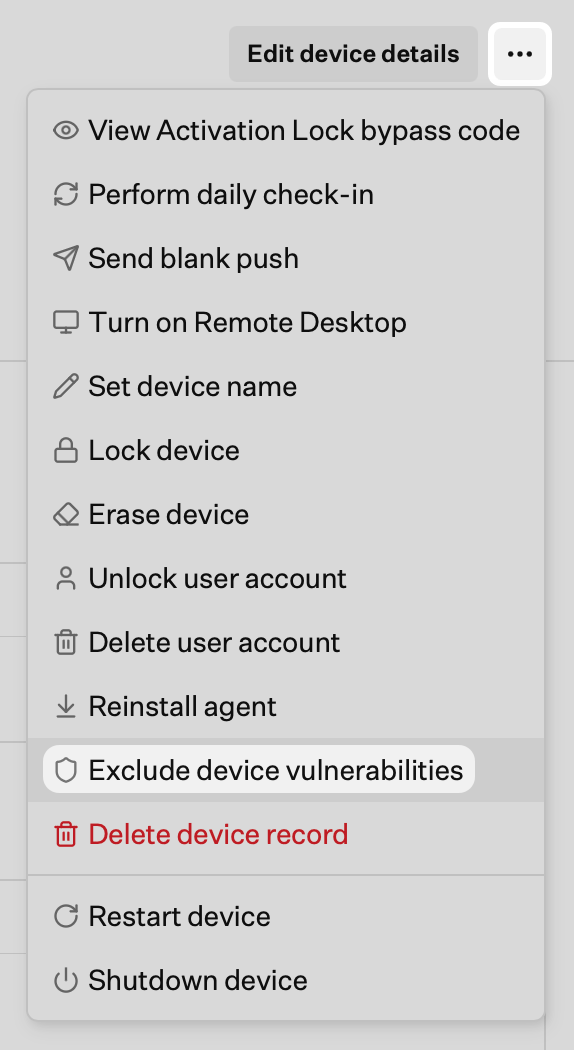
4
Set the timeframe
Choose an Enforcement timeframe:
- Indefinitely to exclude the device until you remove the exclusion
- Ignore until a specific date to exclude the device until the date you select
5
Add optional details
Optionally, enter a Ticket URL and Comment to document the reason for exclusion.
6
Save the exclusion
Select Save.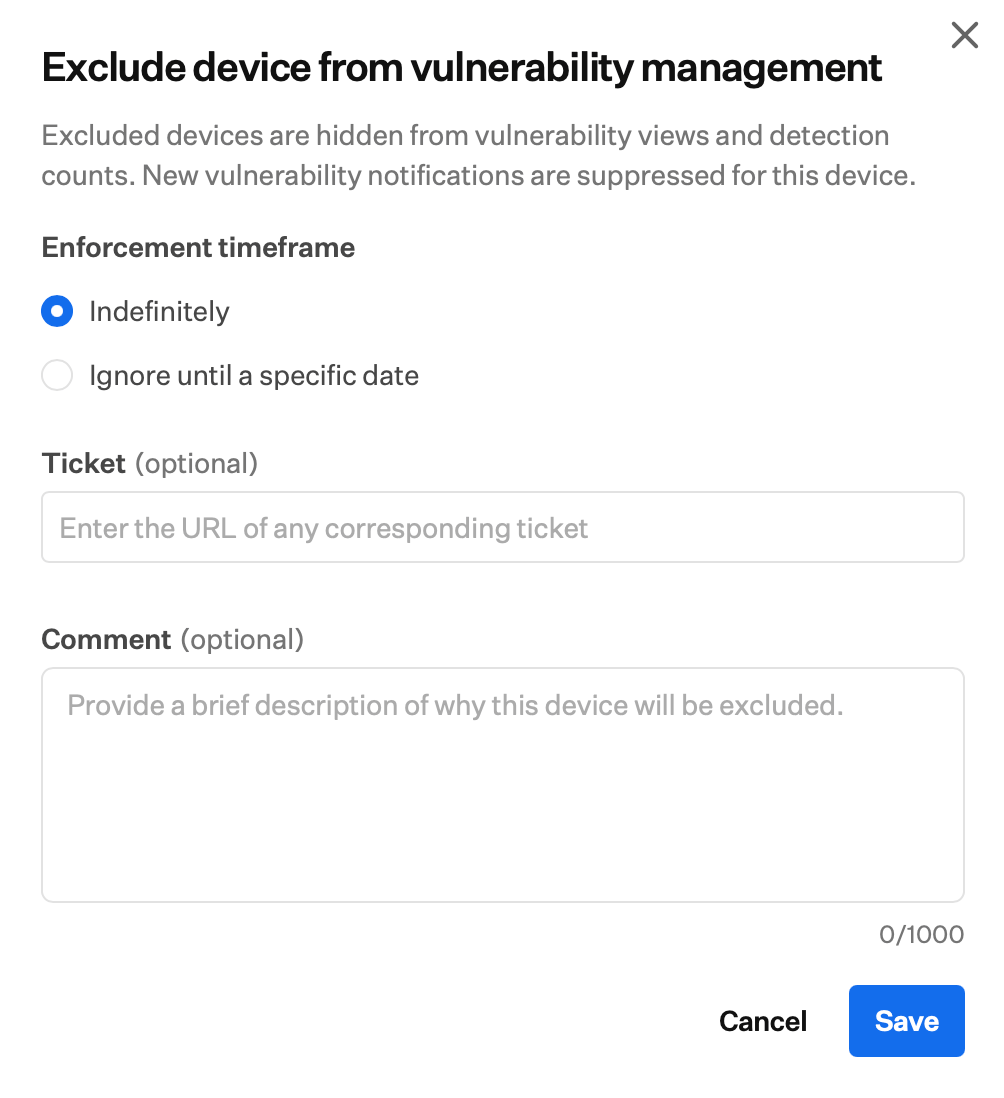
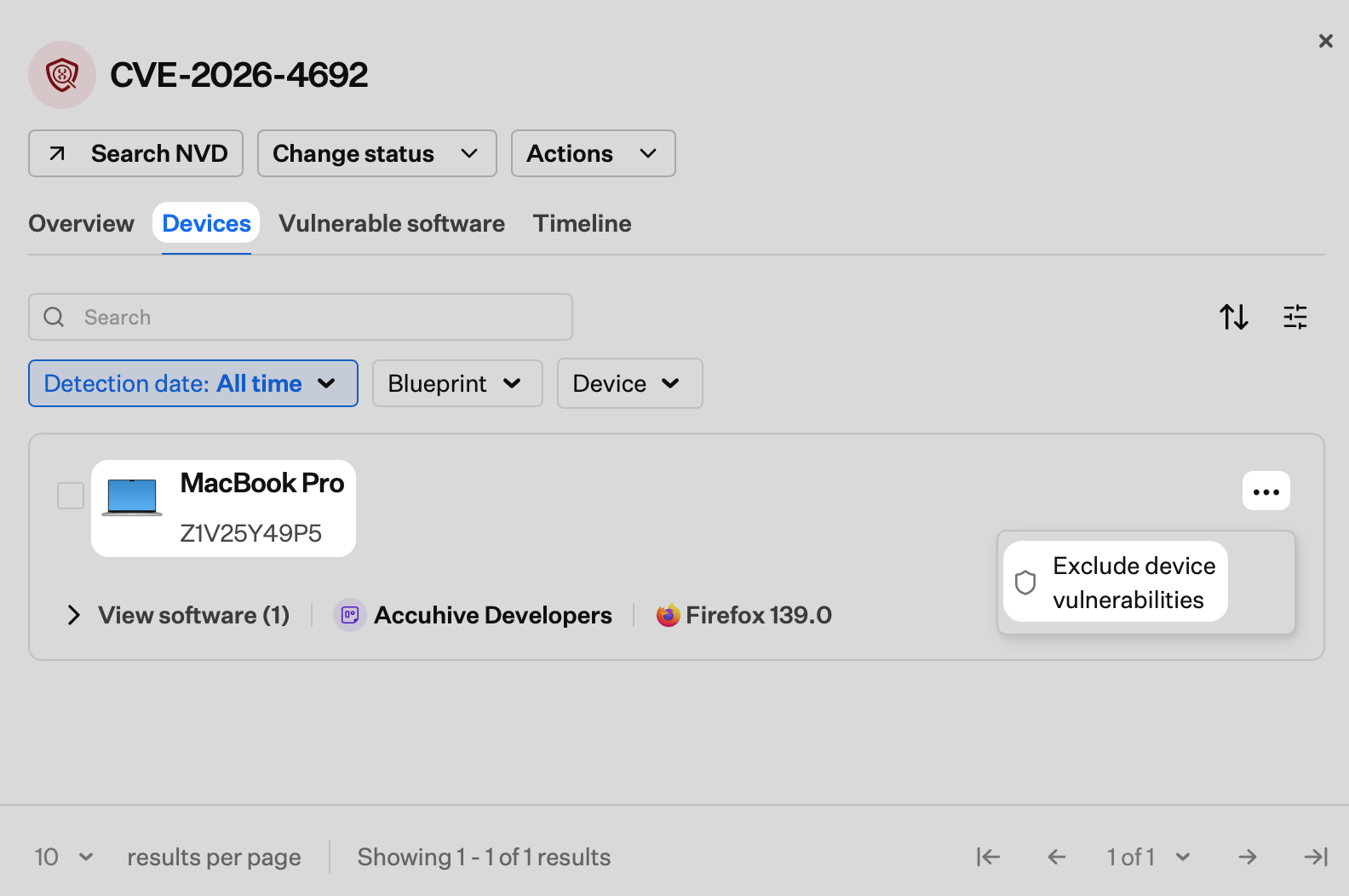
Excluding Multiple Devices
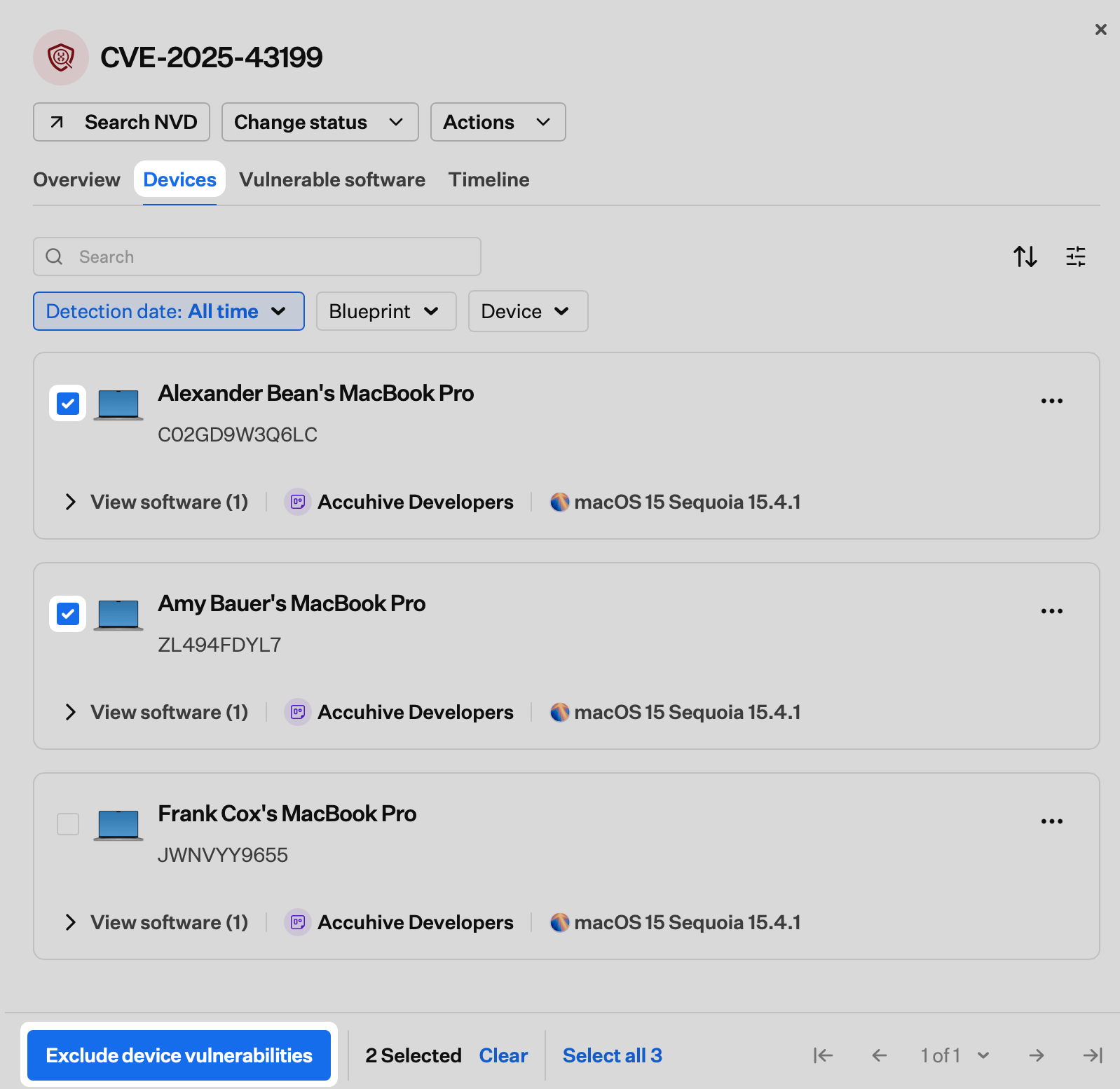
You can exclude multiple devices at once from the Devices page or from the Devices tab in a CVE detail view.- From the Devices page
- From a CVE detail view
1
Open the Devices page
Navigate to Devices in the Iru Endpoint web app.
2
Select devices
Select the checkboxes next to the devices you want to exclude.
3
Open the bulk action menu
Select the ellipsis (…) in the bulk action bar at the bottom of the list.
4
Start exclusion
Select Exclude device vulnerabilities.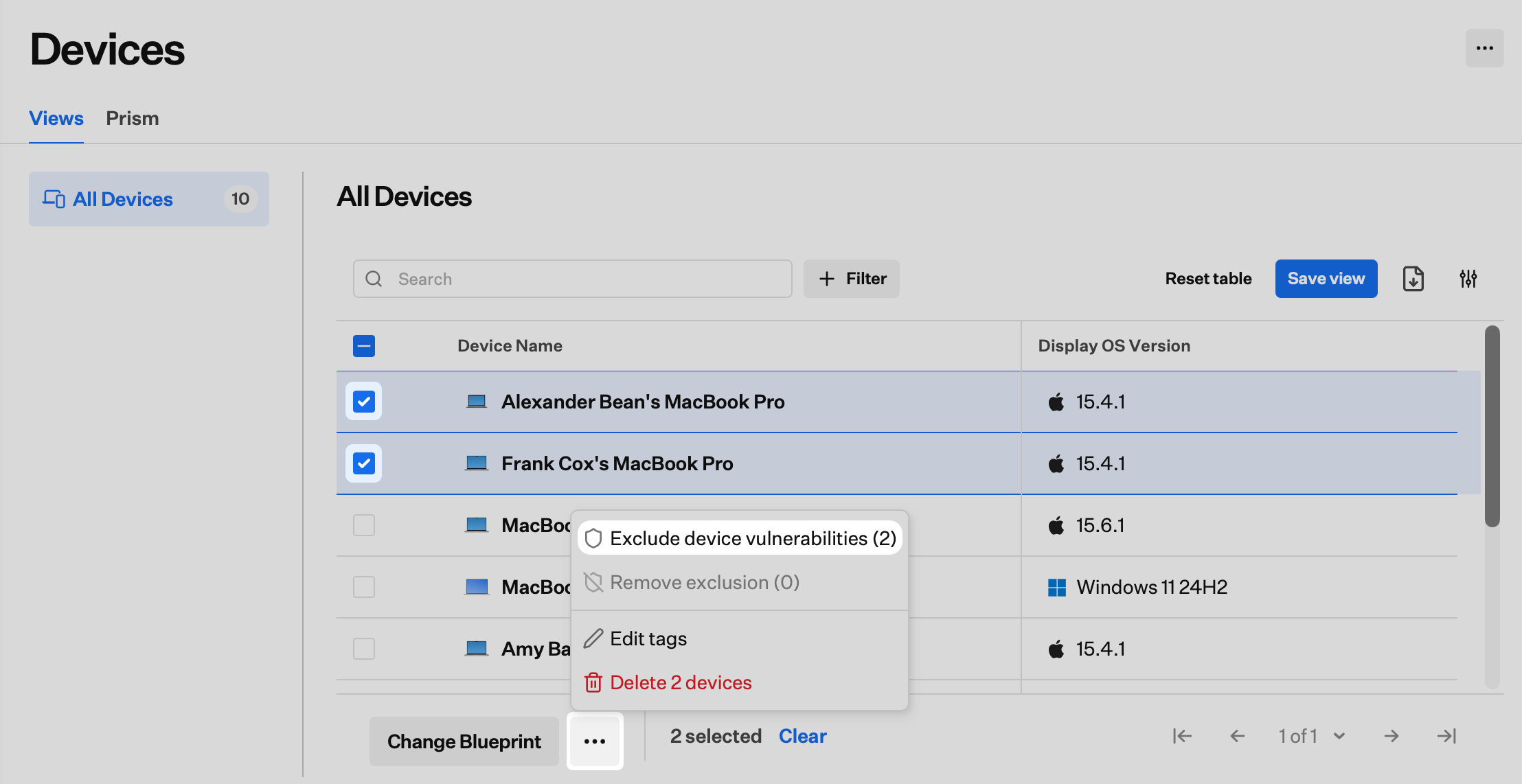
5
Set the timeframe
Choose an Enforcement timeframe:
- Indefinitely to exclude the devices until you remove the exclusions
- Ignore until a specific date to exclude the devices until the date you select
6
Add optional details
Optionally, enter a Ticket URL and Comment to document the reason for exclusion. These details apply to all selected devices.
7
Save the exclusion
Select Save.
Modifying or Removing a Device Exclusion
You can modify or remove an exclusion from the device record or from the Devices tab in a CVE detail view.- From a device record
- From a CVE detail view
1
Open the device record
Navigate to Devices in the Iru Endpoint web app and select the excluded device.
2
Modify the exclusion
In the banner near the top of the device record, select Modify. Update the Enforcement timeframe, Ticket, or Comment as needed, then select Save. The dialog matches the one used when you first exclude a device.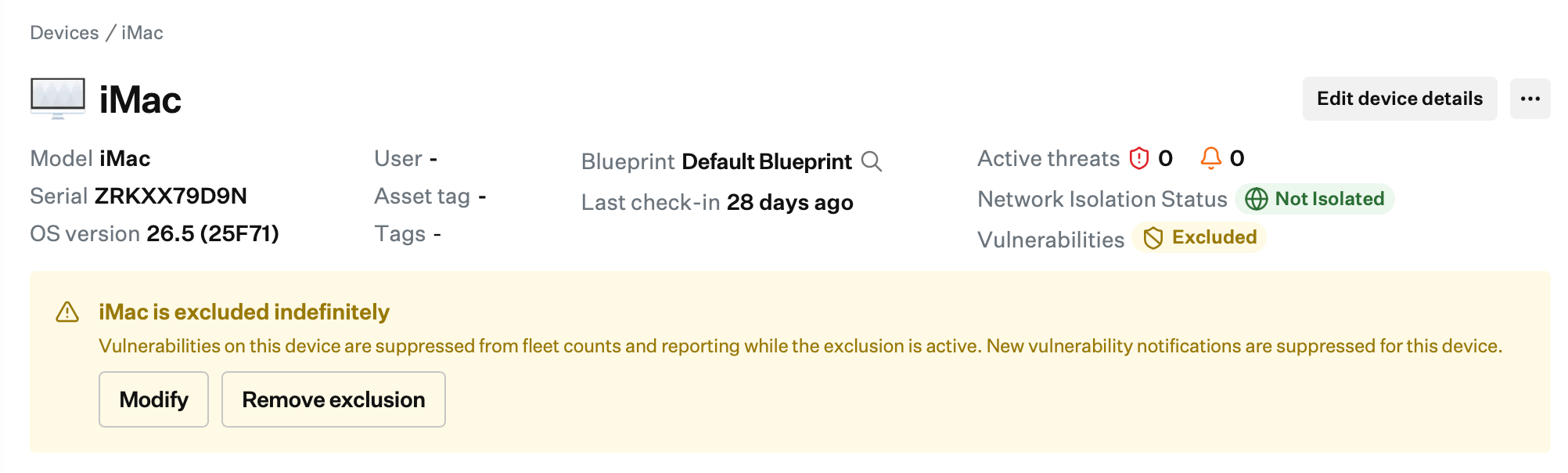
3
Remove the exclusion
In the banner near the top of the device record, select Remove exclusion. In the confirmation dialog, select Remove exclusion again.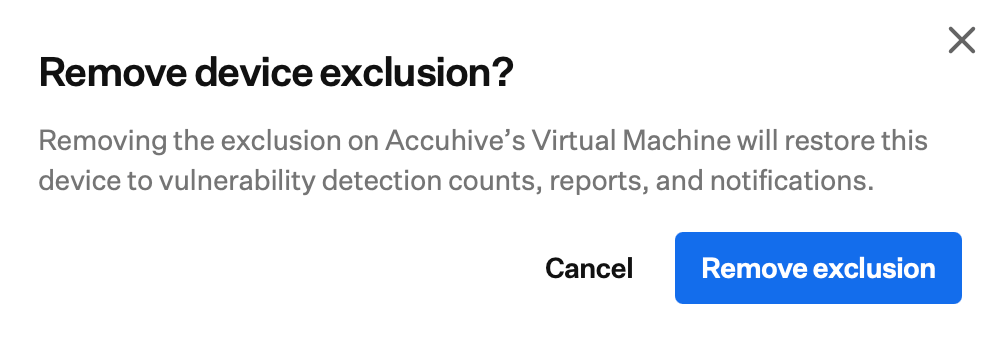
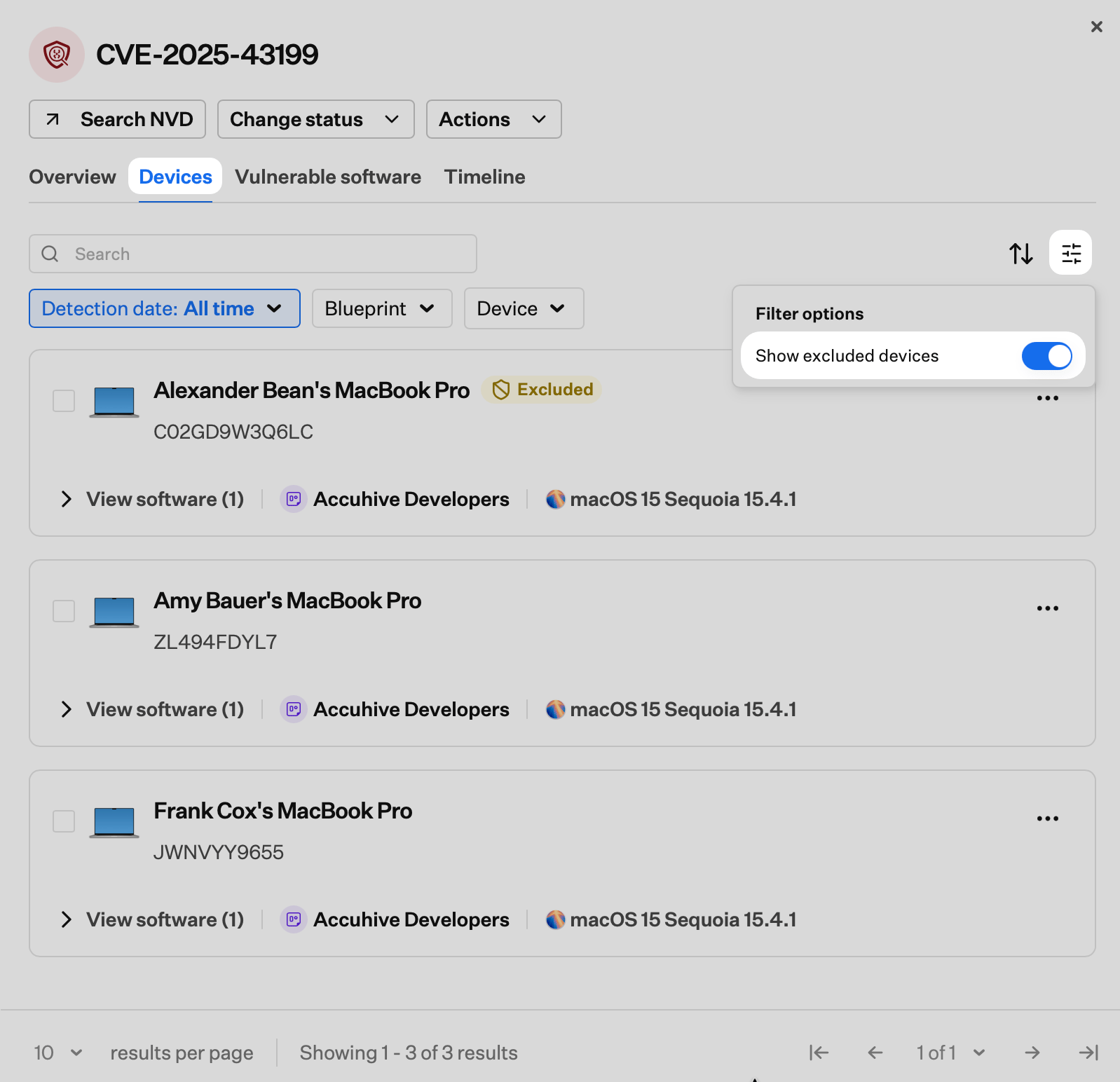
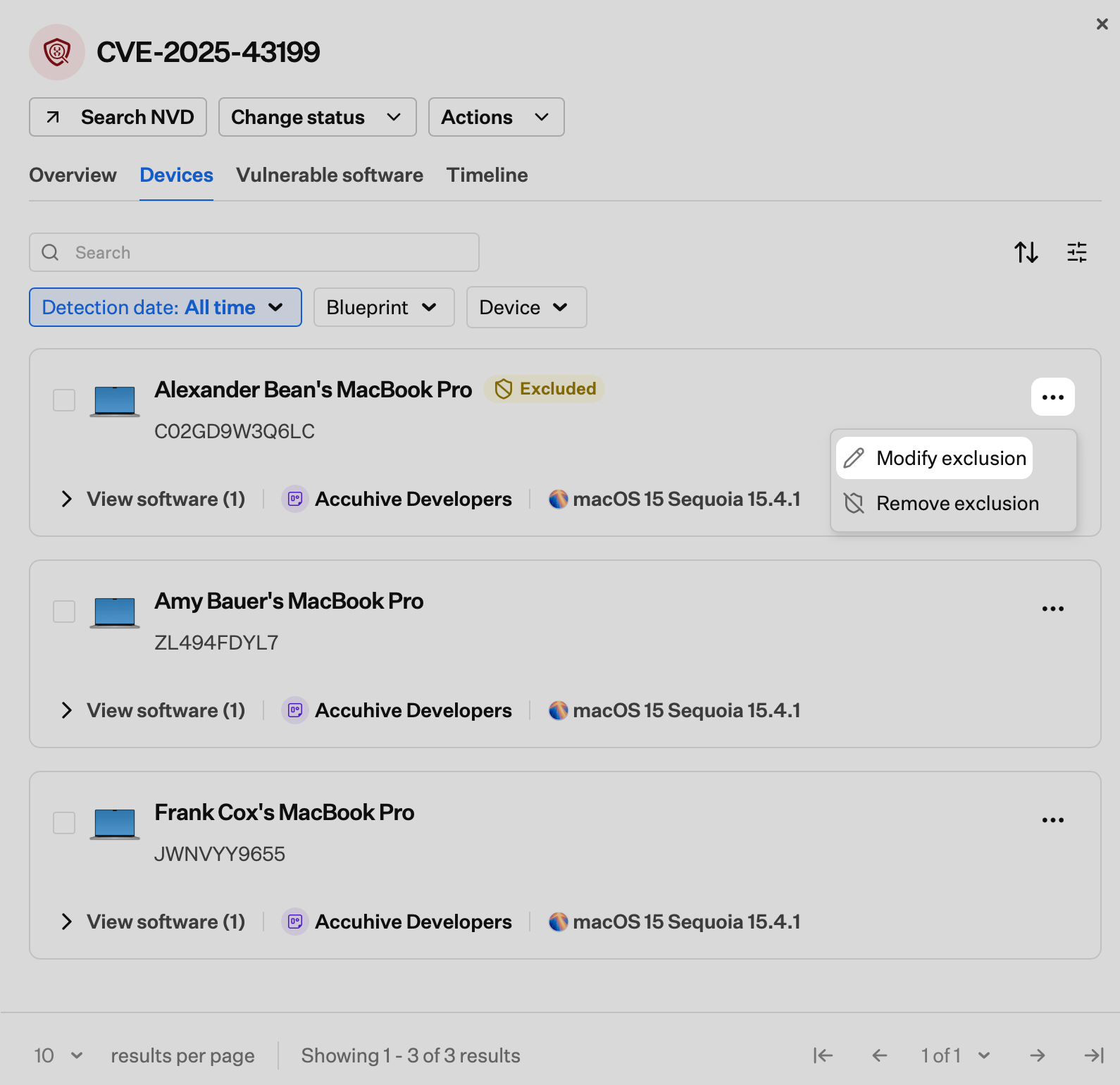
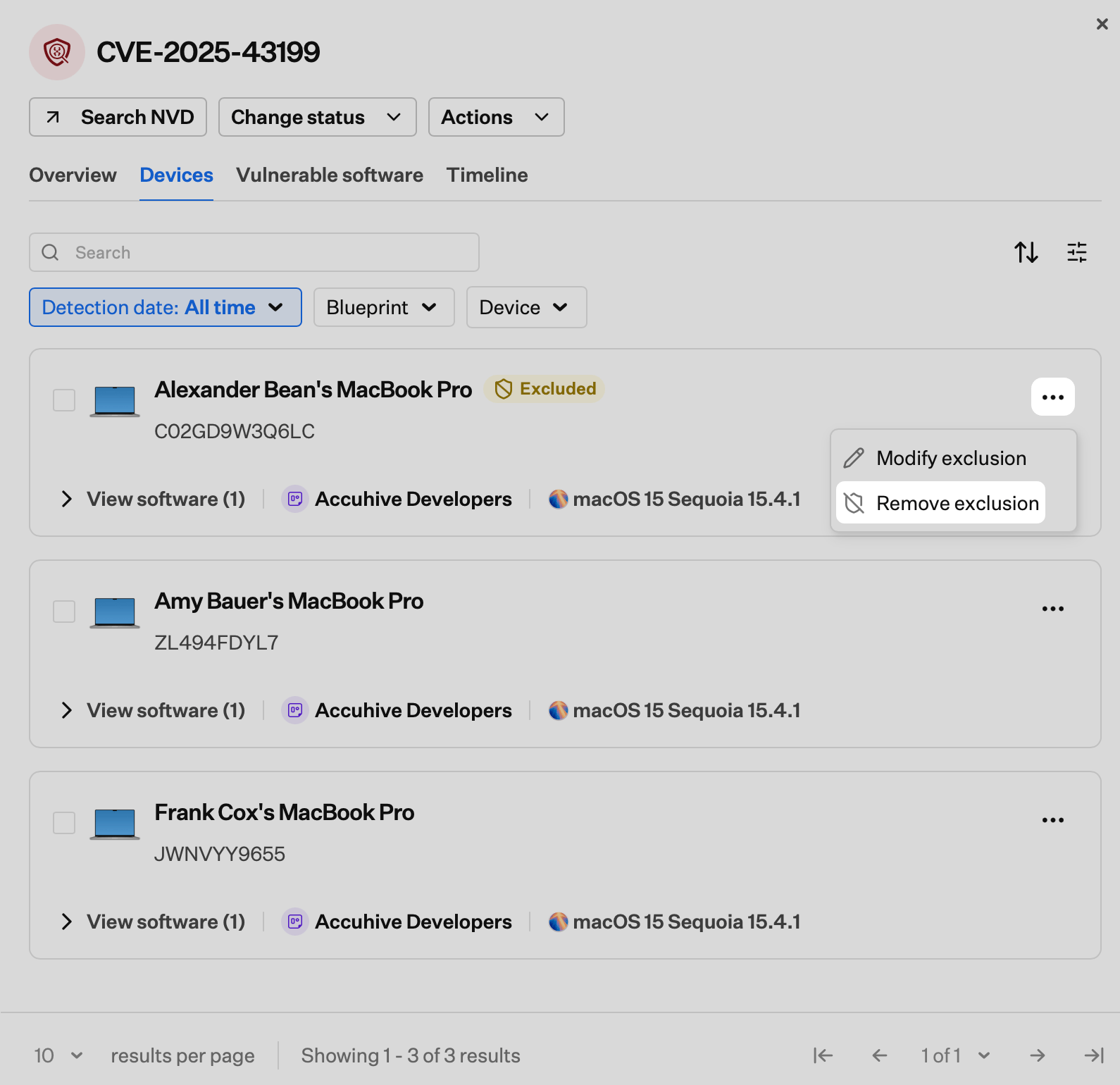
Removing Multiple Device Exclusions
You can remove exclusions from multiple devices at once from the Devices page or from the Devices tab in a CVE detail view.- From the Devices page
- From a CVE detail view
1
Open the Devices page
Navigate to Devices in the Iru Endpoint web app.
2
Select excluded devices
Select the checkboxes next to the excluded devices whose exclusions you want to remove.
3
Open the bulk action menu
Select the ellipsis (…) in the bulk action bar at the bottom of the list.
4
Remove the exclusions
Select Remove exclusion.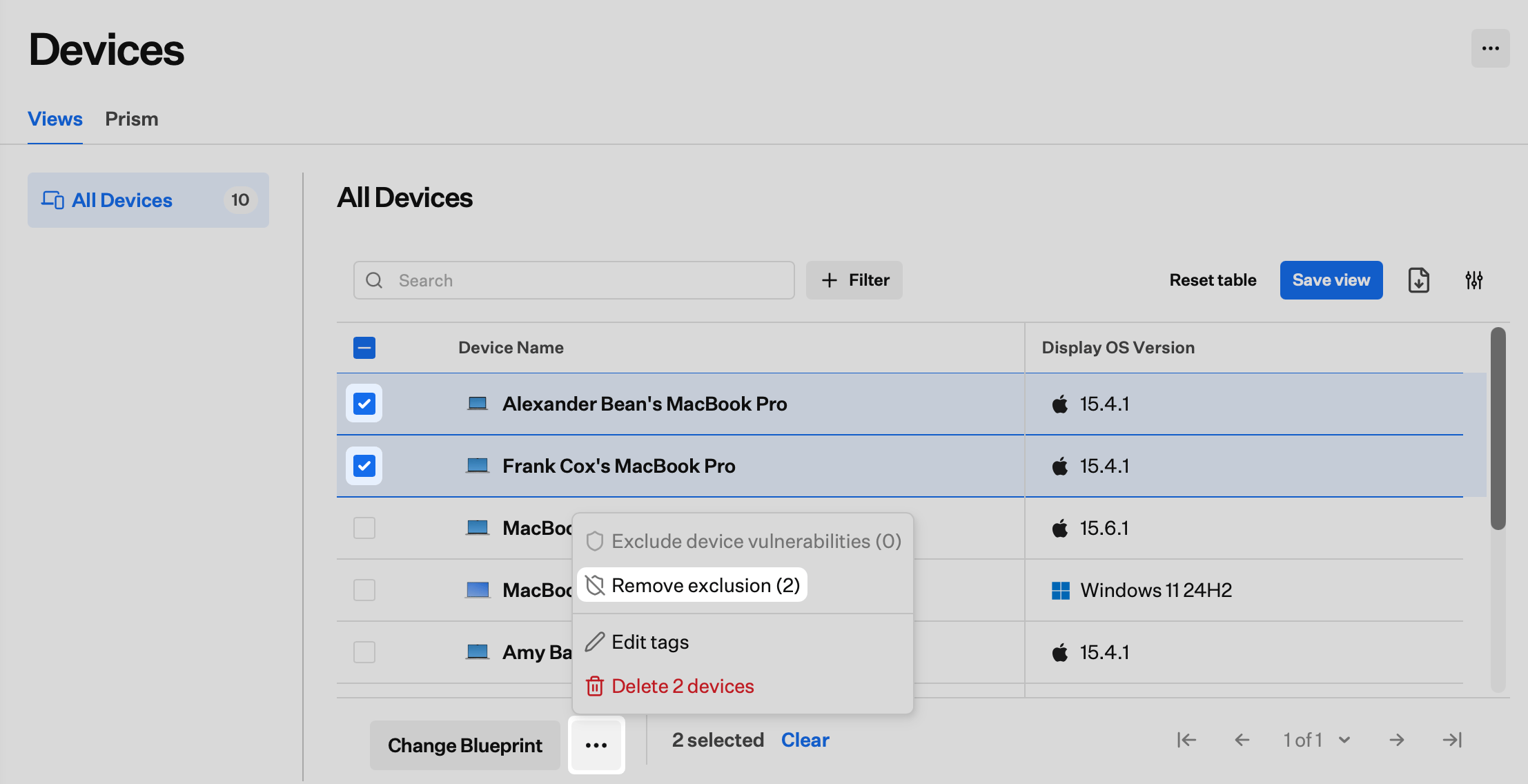
5
Confirm the removal
In the confirmation dialog, select Remove exclusion again.
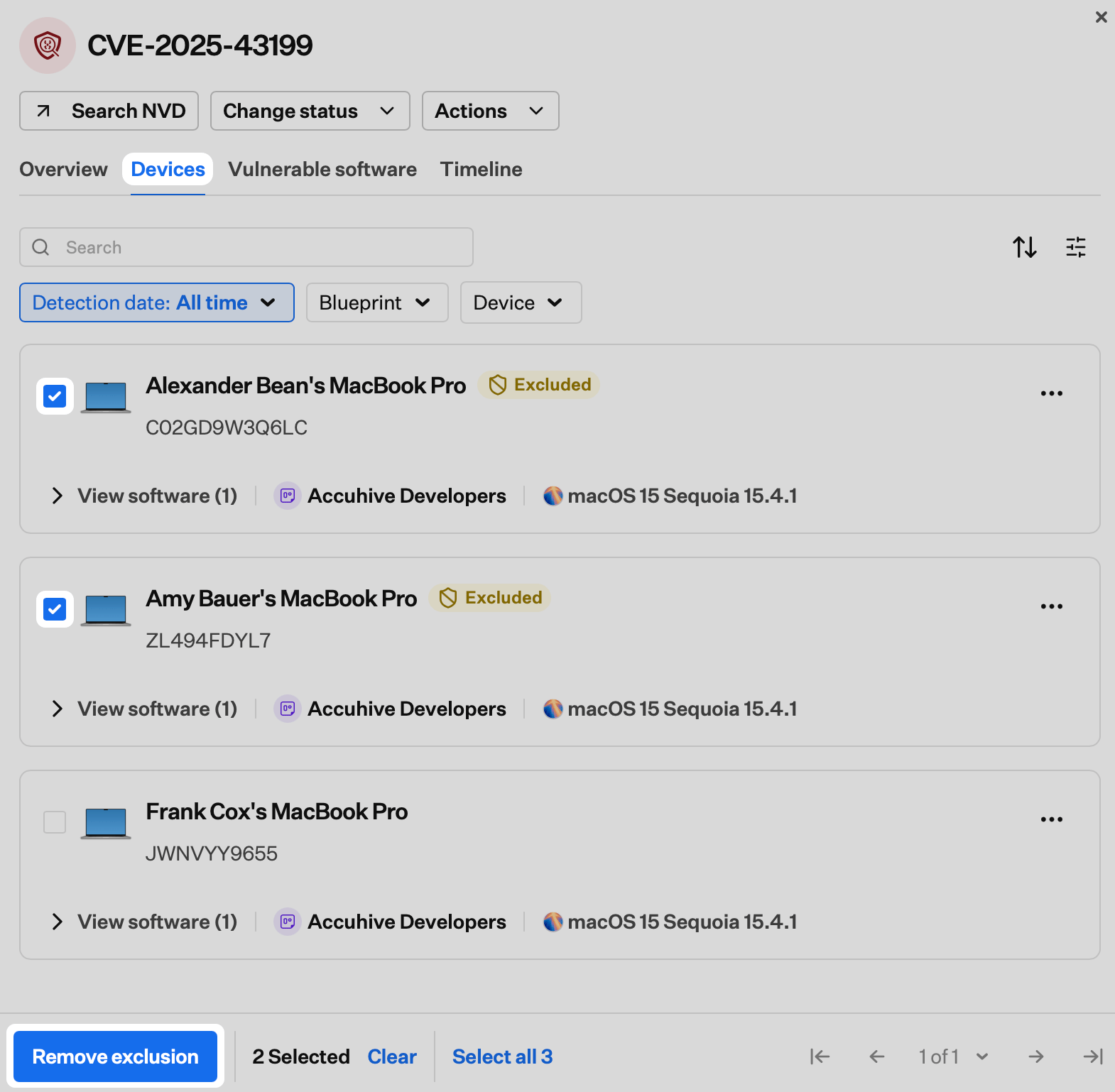
Considerations
Scope of exclusion
Excluding a device removes it from all CVE affected device counts across every vulnerability in Vulnerability Management. Exclusion is not scoped to a single CVE. Vulnerability detections remain visible on the device record. Exclusion affects top-level Vulnerability Management counts, views, and notifications only. To suppress a specific CVE without excluding the device entirely, use Accepting CVE Risks instead.
Vulnerability Response
If a Vulnerability Response Library Item is scoped to an excluded device, it continues to patch the device according to the configured remediation rules. Exclusion does not prevent automated remediation.
Deleted devices
If a device is deleted from Iru Endpoint, its exclusion is removed automatically. If the same device re-enrolls, it is monitored by default. Re-apply the exclusion manually if needed.
CVE status and remediation counts
An excluded device does not count toward the affected-device total for any CVE. Excluding a device does not change the Remediated status of a CVE by itself. Remediation status is based on active (non-excluded) devices only. If excluding a device means all remaining affected devices for a CVE are remediated, the CVE status updates to Remediated.
Visibility
Excluded devices are not hidden from the Devices section of Iru Endpoint. They are hidden from Vulnerability Management views and counts only. Exclusions are auditable. Each exclusion records who applied it, when, and any comment provided.
Notifications
Vulnerability notifications for excluded devices are suppressed while the exclusion is active. Removing an exclusion resumes notifications at the next scan cycle.
Related Articles
Vulnerability Management Overview
Detect CVEs across your fleet, prioritize by severity, and track remediation progress
Accepting CVE Risks
Accept CVE risks when patching is not feasible, set expiration dates, and track exceptions
Configure the Vulnerability Response Library Item
Automate remediation for vulnerable Auto Apps on Mac and Windows computers based on CVE severity