

This guide applies to Windows computers
About Windows Autopilot
Autopilot targets corporate devices that are registered with the Windows Autopilot service and assigned an Autopilot deployment profile through Intune. Iru Endpoint supplies the MDM Terms of Use URL, MDM Discovery URL, and enrollment defaults (including Blueprint assignment) in the wizard under Integrations → Platform integrations → Windows. Device registration in Intune and Autopilot deployment profiles are Microsoft-side steps; they determine OOBE behavior before the user reaches the sign-in that triggers management enrollment.How It Works
Run the Autopilot configuration wizard in Iru Endpoint to create or bind the Microsoft Entra ID app registration and verify an Iru-managed domain. When a registered computer comes online, Windows runs OOBE, applies your Autopilot deployment profile from Intune, then continues to Microsoft Entra ID sign-in. Successful authentication enrolls the computer into Iru Endpoint using the default Blueprint or Blueprint Routing, depending on what you configured in the final wizard step.Prerequisites
- Windows platform enabled for your tenant. If it is not on yet, turn it on in Organization first. See Windows Setup.
- Microsoft Entra ID permissions: Ability to add custom domains, configure Mobility (MDM and WIP), and create or edit app registrations (including API permissions and admin consent)
- Microsoft Entra admin center access for your tenant
- Microsoft licensing that covers Windows Autopilot and MDM auto-enrollment for your scenario
- Windows 11 computers that meet Iru Endpoint Windows requirements (24H2 or 25H2 only; supported editions)
- Autopilot registration path in place for your devices (OEM pre-registration, partner/CSP registration, or manual import) and Intune access to assign an Autopilot deployment profile
Create the MDM Application and Enter Credentials
Microsoft Entra ID guidance appears on the left of the wizard; credential and flow fields are on the right. Start in Iru Endpoint, use the Microsoft Entra ID tab for the Microsoft Entra admin center steps, then return to Iru Endpoint when the steps below tell you to.- Iru Endpoint
- Microsoft Entra ID
 Iru Endpoint
Prepare the Autopilot wizard
1
Open Integrations
In the sidebar, select the Account Menu Button, then select Integrations.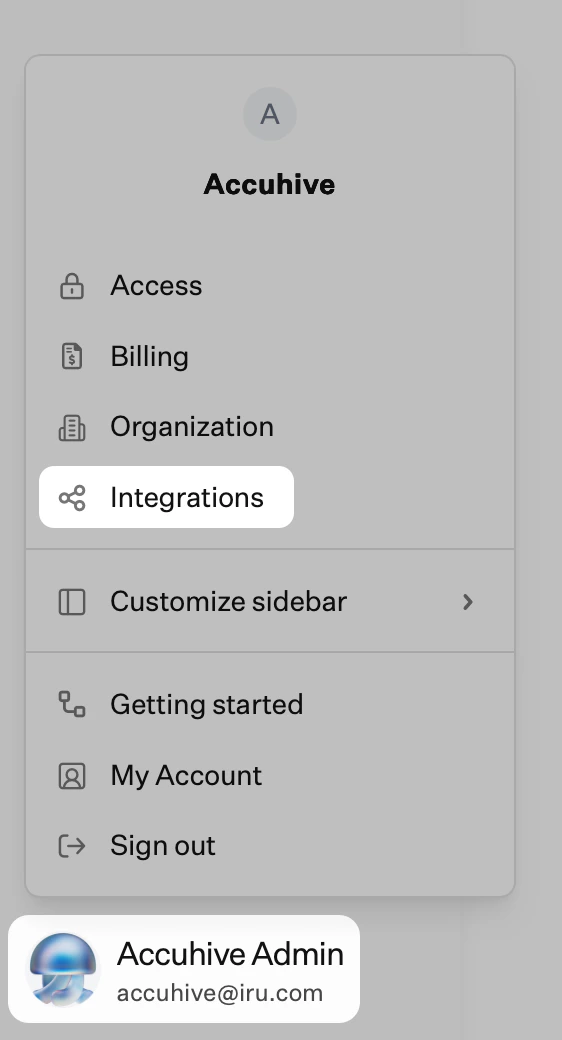
2
Select Windows
Under Platform integrations, select Windows.
3
Configure Autopilot
Select the Configure Autopilot button.
4
Copy the MDM URLs from Instructions
On the Autopilot wizard page, use Instructions to locate Step 6, then copy the MDM Terms of Use URL and MDM Discovery URL shown there. Use the copy control next to each URL in the wizard. Manual typing often breaks enrollment discovery. Keep the values where you can paste them after you switch to the Microsoft Entra ID tab.
Switch to the Microsoft Entra ID tab and continue with Creating the MDM application in Microsoft Entra ID.
Enter MDM credentials in the Autopilot wizard
When Grant admin consent is done on the Microsoft Entra ID tab, return here and paste Application (client) ID, Directory (tenant) ID, Secret value, and Secret ID from the Microsoft Entra admin center into the wizard.
1
Paste IDs and secret
On the right side of the wizard, enter:
- Application (client) ID
- Directory (tenant) ID
- Secret value
- Secret ID
Use the values you copied while working in the Microsoft Entra ID tab. The MDM URLs must already be saved in Microsoft Entra ID, and the client secret and Microsoft Graph permissions must be in place with admin consent granted before Next will succeed.
2
Select Next
Select Next.
3
Update pasted values after Microsoft Entra ID changes
If Microsoft Entra ID fields change later, including secret rotation, return to Creating the MDM application in Microsoft Entra ID or Client secret and Microsoft Graph permissions for the MDM app to generate new values, then update these fields before continuing.
After Next succeeds, switch to the Microsoft Entra ID tab and complete Verify Custom Domain.
Blueprint Settings and Finish Setup
After the Application ID URI is saved in Microsoft Entra ID (Application ID URI in Microsoft Entra ID), use the steps below to set Default Blueprint or Blueprint Routing for Autopilot enrollments, then Finish Setup. If that Microsoft Entra ID step is not done yet, switch to the Microsoft Entra ID tab first.
1
Select Next after Application ID URI
Select Next.
2
Choose default Blueprint or Blueprint Routing
Select the Default Blueprint for Autopilot enrollments, or choose Blueprint Routing if you use dynamic Blueprint assignment during enrollment.If Blueprint Routing is not set up yet, the wizard shows this warning: Blueprint Routing has not been set up. Configure to save this setting. Select Configure Blueprint Routing and complete Blueprint Routing before you can save.
3
Finish setup
Select Finish Setup.
Microsoft Intune: Device Registration and Deployment Profiles
For how these Microsoft-side steps fit the full Autopilot flow with Iru Endpoint, see Considerations → Microsoft Intune and Autopilot end-to-end.Register devices with Windows Autopilot
Registration associates the device hardware hash with your tenant so Windows knows to run Autopilot OOBE. When a registered device first connects to the internet, Windows identifies it as an Autopilot device and starts that flow. Depending on how devices are purchased, you may not need to register devices manually at all. Common registration paths:- OEM pre-registration: Hardware manufacturers can register devices with Autopilot at purchase time.
- Partner (CSP) registration: Cloud Solution Providers can register devices for you.
- Manual registration: For existing devices, you can capture hardware hashes with PowerShell, export to CSV, and import into Intune.
Configure an Autopilot deployment profile
The deployment profile controls which OOBE screens appear, including privacy settings, EULA, Windows Hello, and personal Microsoft account blocking. In Intune, create the profile and assign it to a Microsoft Entra device group whose members are your Autopilot-registered devices. The profile must be targeted at devices, not at users only, so Windows can apply it during OOBE before Microsoft Entra ID sign-in. The device does not need an active Intune MDM enrollment for Autopilot to hand off to Iru Endpoint as your MDM; the profile shapes OOBE only.1
Open the Autopilot deployment profile
In the Microsoft Intune admin center, go to Devices → Windows → Enrollment → Deployment profiles. Open the Autopilot deployment profile.
2
Open the OOBE page
Select Out-of-box experience (OOBE).
3
Set Deployment mode
Set Deployment mode to User-driven. The device is associated with the user who enrolls it. That user must supply their credentials during OOBE before enrollment can complete. Users sign in with Microsoft Entra ID during OOBE before MDM enrollment into Iru Endpoint completes.
Iru Endpoint does not support Self-deploying. If Deployment mode is Self-deploying, the device enrolls through that Microsoft flow into Microsoft Intune. It does not enroll into Iru Endpoint with the Autopilot configuration described here.
- Privacy settings: Hide or show the privacy settings page.
- End user license agreement (EULA): Skip the license screen when appropriate for your policy.
- Account change: Block switching to a personal Microsoft account during setup.
- Windows Hello: Skip or defer Hello setup.
- OEM registration: Skip manufacturer-specific prompts.
Considerations
Microsoft Intune and Autopilot end-to-end
Microsoft Intune and Autopilot end-to-end
For Autopilot to work end to end with Iru Endpoint, two Microsoft Intune responsibilities must be satisfied in addition to the Iru wizard:
- Autopilot device registration: Devices are registered with the Windows Autopilot service (for example by an OEM, a partner, or your team in Intune).
- Autopilot deployment profile: A deployment profile exists in Intune and is assigned to a Microsoft Entra device group that contains your Autopilot-registered devices. Use User-driven deployment mode only; Iru Endpoint does not support Autopilot self-deploying mode (see Configure an Autopilot deployment profile above).
Blueprint defaults, routing, and sync
Blueprint defaults, routing, and sync
- Default Blueprint: Applies to new Autopilot enrollments going forward. Changing the default later does not retroactively move devices that already synced.
- Blueprint Routing: Must be fully configured before you can save when Routing is selected as the default. If you cannot save on the last step, complete Routing setup from the warning link first.
App registration and client secret
App registration and client secret
- Client secret lifetime: Secrets expire on the date you choose in Microsoft Entra ID. Before expiry, create a new secret and update Secret value and Secret ID in Integrations → Platform integrations → Windows → Autopilot configuration so enrollment keeps working.
- Admin consent: API permissions need Grant admin consent for the tenant. Without consent, Iru cannot complete Graph operations required for the integration.
- Microsoft Entra ID MDM access tokens: Iru Endpoint accepts both v1 and v2 tokens issued for the custom MDM application. New apps created after July 1, 2026 use v2 by default; existing apps may still issue v1 tokens.
Microsoft Entra hybrid join
Microsoft Entra hybrid join
- Not supported with Autopilot for Iru: Iru Endpoint does not support Microsoft Entra hybrid joined devices enrolling through this Windows Autopilot flow. Plan for Microsoft Entra joined devices when using Autopilot with Iru Endpoint.
Best Practices
Configure Blueprint Routing early
If different users or devices should land in different Blueprints, set up Blueprint Routing before you finish the wizard.
Track secret expiration
Note the client secret expiry when you create it and schedule rotation ahead of time in Microsoft Entra ID, then update the secret fields in Iru Endpoint.
Confirm admin consent
After adding Graph application permissions, grant tenant-wide admin consent so the integration can run unattended.
Validate licensing
Confirm your Microsoft licenses cover Autopilot and MDM auto-enrollment for the accounts that sign in during OOBE.
Troubleshooting
Devices do not enroll after Autopilot completes
Devices do not enroll after Autopilot completes
Checklist:
- Every Autopilot wizard step completed successfully in Iru Endpoint.
- MDM Terms of Use URL and MDM Discovery URL in Microsoft Entra ID match Step 6 in Instructions on the Iru wizard page (paste exactly).
- Admin consent is granted for every Graph application permission on the Iru Endpoint Management registration.
- Autopilot registration and deployment profile assignments in Intune cover the device.
- The Autopilot deployment profile uses User-driven mode. Iru Endpoint does not support Autopilot self-deploying mode.
- Microsoft licensing supports Autopilot and MDM enrollment for the user.
Autopilot device enrolled in the wrong MDM instead of Iru Endpoint
Autopilot device enrolled in the wrong MDM instead of Iru Endpoint
Deployment mode set to Self-deployingThe Autopilot deployment profile for the device has Deployment mode set to Self-deploying. That path enrolls the device into Microsoft Intune for Autopilot; it does not enroll into Iru Endpoint with the configuration in this article (see Configure an Autopilot deployment profile).In the Microsoft Intune admin center, edit the profile assigned to the Microsoft Entra device group that contains the device and set Deployment mode to User-driven. Confirm the profile shows Assigned for the device, then reset the device so OOBE runs again with the updated profile.Overlapping MDM user scope in Microsoft Entra IDIn the Microsoft Entra admin center, open Mobility (MDM and WIP) and review every other MDM application (for example Microsoft Intune or another MDM still listed there) alongside this custom MDM app. If two applications both have MDM user scope set to Some or All for the same users or groups, OOBE can send auto-enrollment to the other provider instead of Iru Endpoint.Ensure each user or group that should land in Iru Endpoint is in scope for only this custom MDM app, or set MDM user scope to None on MDM rows you no longer use for Windows enrollment. For the overlap warning and where to set scope, see the Set MDM user scope step under Creating the MDM application in Microsoft Entra ID.If the device still does not appear in Iru EndpointAfter User-driven is in effect and MDM scopes do not overlap for the enrolling user, use the checklist in Devices do not enroll after Autopilot completes on this page.
Cannot save on the final wizard step
Cannot save on the final wizard step
If Blueprint Routing is selected but Routing is not configured, the wizard blocks Finish Setup. Select Configure Blueprint Routing from the banner, complete Blueprint Routing, then return and finish.
Related Articles
Windows Setup
Platform requirements and enrollment prerequisites for Windows 11 in Iru Endpoint
Configuring Windows Enrollment
Manual enrollment portal, Enrollment codes, and Blueprint assignment for Windows
Configure Automated Device Enrollment
Apple zero-touch enrollment with Apple Business or Apple School Manager
Blueprint Routing
Dynamic Blueprint assignment during enrollment using Assignment Rules